检测到浏览器语言为中文,.点此切换到中文页面->

How to Disable Default Audio Casting in 1001 TVs(Android)

If you don’t want sound to be cast every time you mirror your screen, or if you are tired of manually turning off “Audio Casting” each time, here’s a quick guide to help you disable the default audio option in 1001 TVs.

Follow these three simple steps:

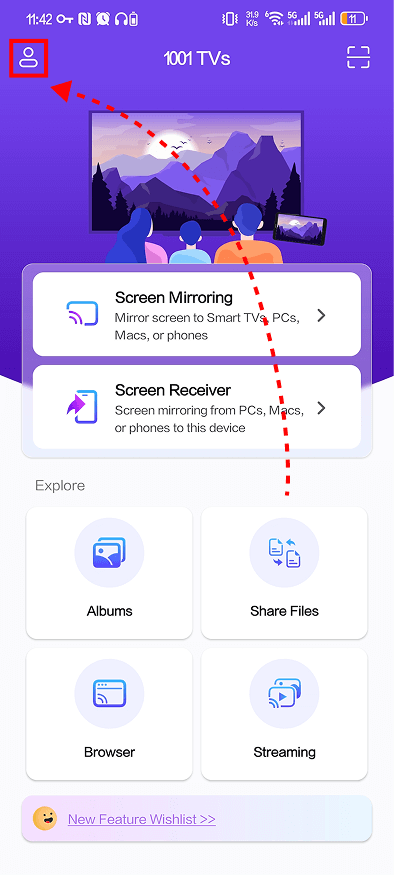
❶ Open the 1001 TVs app and tap the icon in the top-left corner

1001 TVs home screen showing the user icon to open settings and access Mirror Settings.

❷ From the “Mine” page, tap ミラーの設定

1001 TVs app Mine page showing how to access Mirror Settings for screen mirroring options.

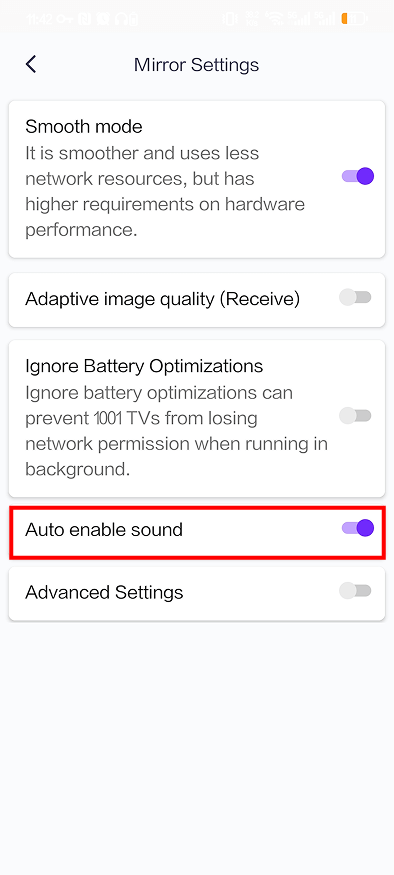
❸ Turn off Auto enable sound

1001 TVs Mirror Settings page highlighting the Auto Enable Sound toggle for audio casting.

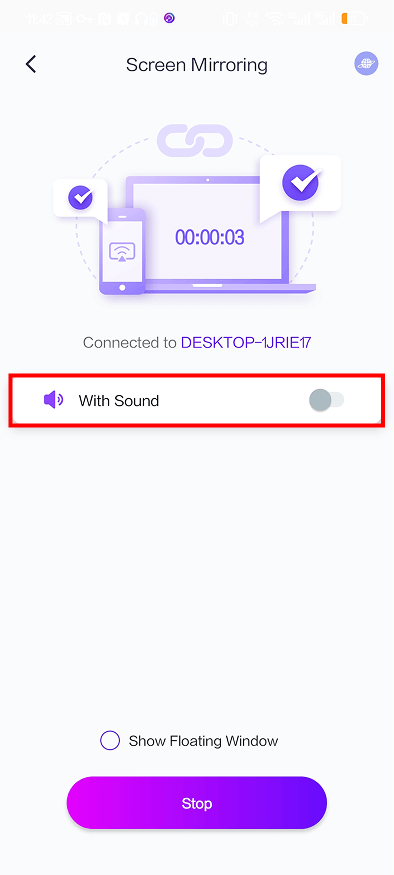
Once it’s turned off, audio casting will remain disabled by default the next time you cast. No more manually switching it off every single time!

1001 TVs Screen Mirroring interface with the With Sound toggle turned off for silent casting.

More Tips

You can find more 1001 TVs screen-mirroring tutorials here:
👉 https://www.1001tvs.com/guidance/