How to Mirror Your Phone to a Car Display Using 1001 TVs
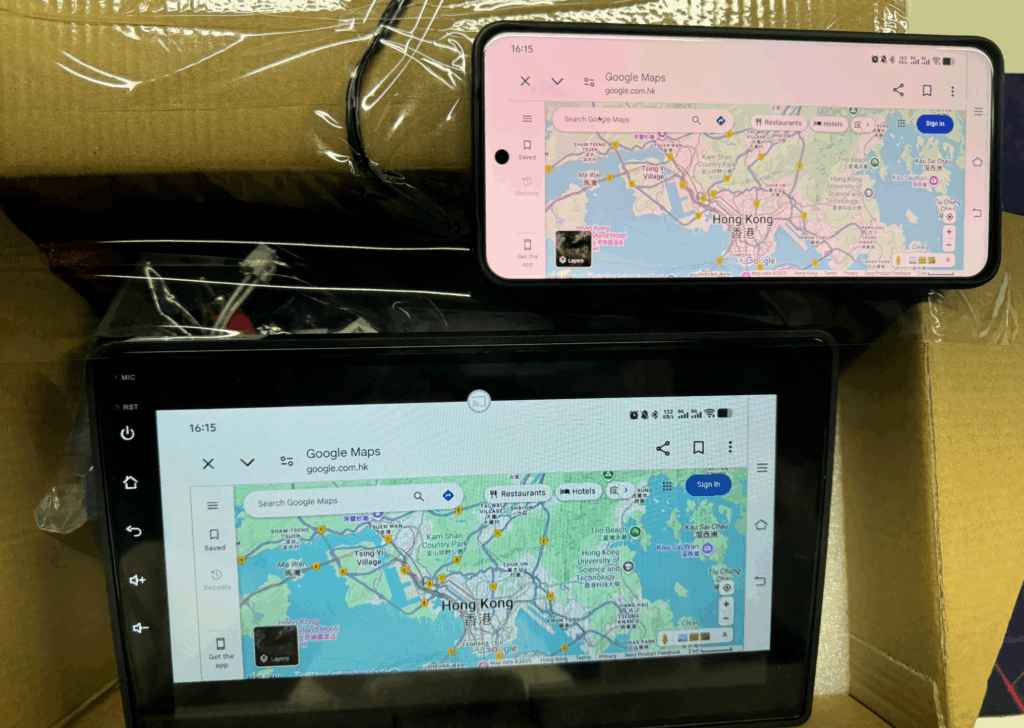
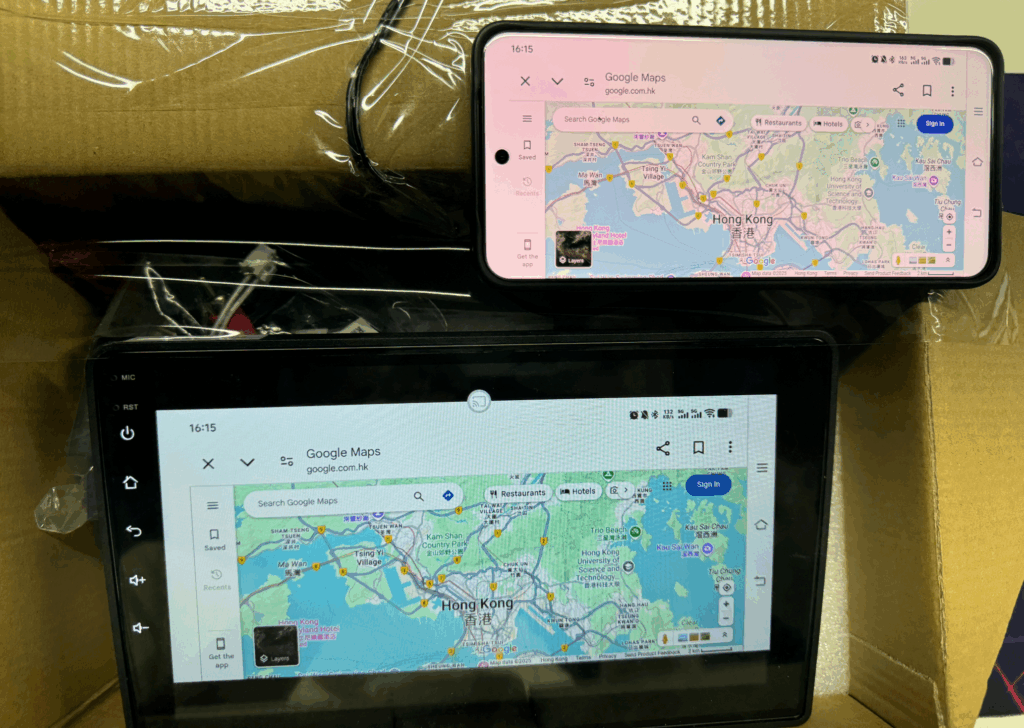
🚗Want to mirror your phone screen to your car’s display for navigation, music, or a better visual experience? With 1001 TVs, it’s easy to cast wirelessly using just your phone hotspot. Here’s a step-by-step guide to help you get started!
🔧 What You’ll Need:
· An Android car display with access to Google Play
· Your smartphone with the 1001 TVs app installed
· A stable mobile hotspot connection
📲 Step-by-Step Guide:
1. Connect the car display to your phone’s hotspot
Turn on your phone’s hotspot, then connect your car display to it via Wi-Fi.
2. Install 1001 TVs on the car display
Open Google Play Store on your car display, search for “1001 TVs”, and install the app.
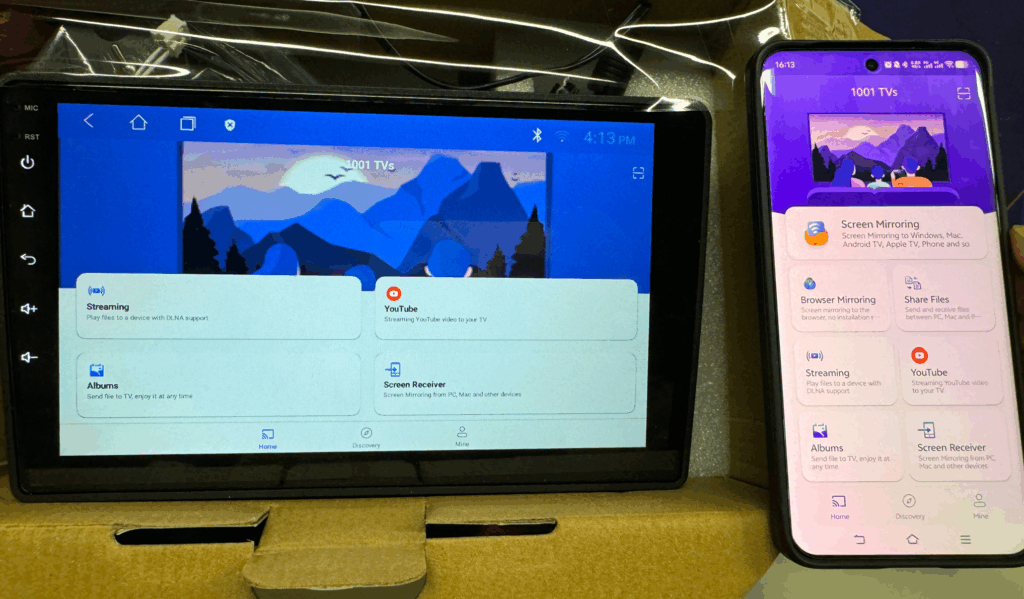
3. Launch 1001 TVs on both devices
Open the 1001 TVs app on your phone and on the car display at the same time.
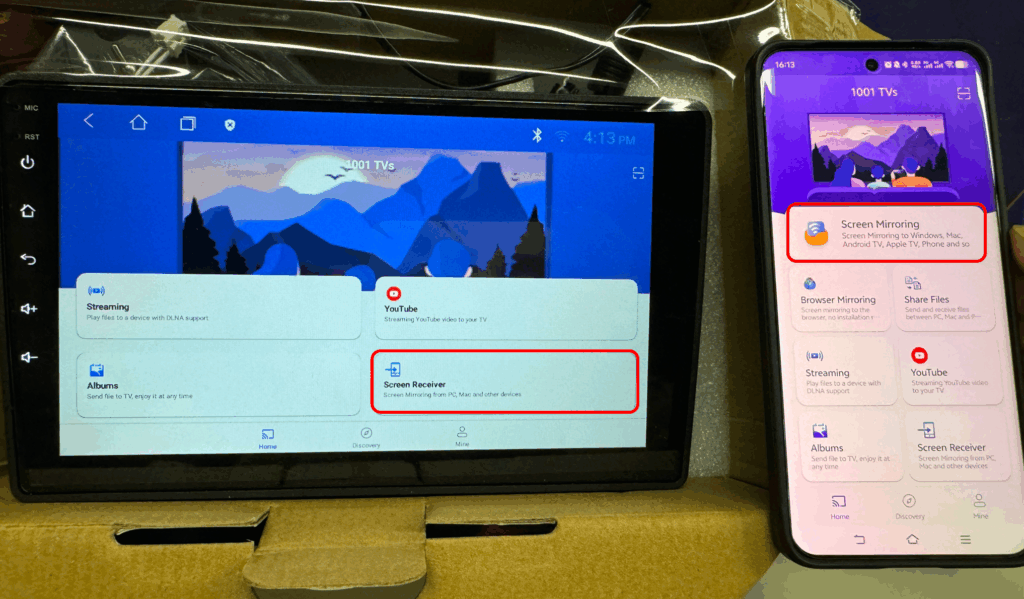
4. Set the car display to receive
On the car display, tap “Screen Receiver”.
On your phone, tap “Screen Mirroring”.
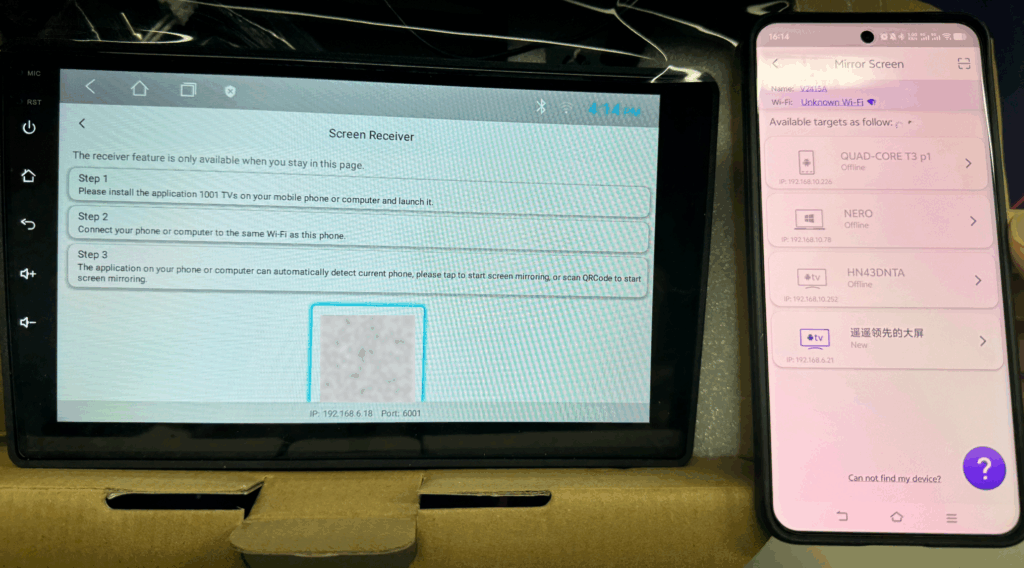
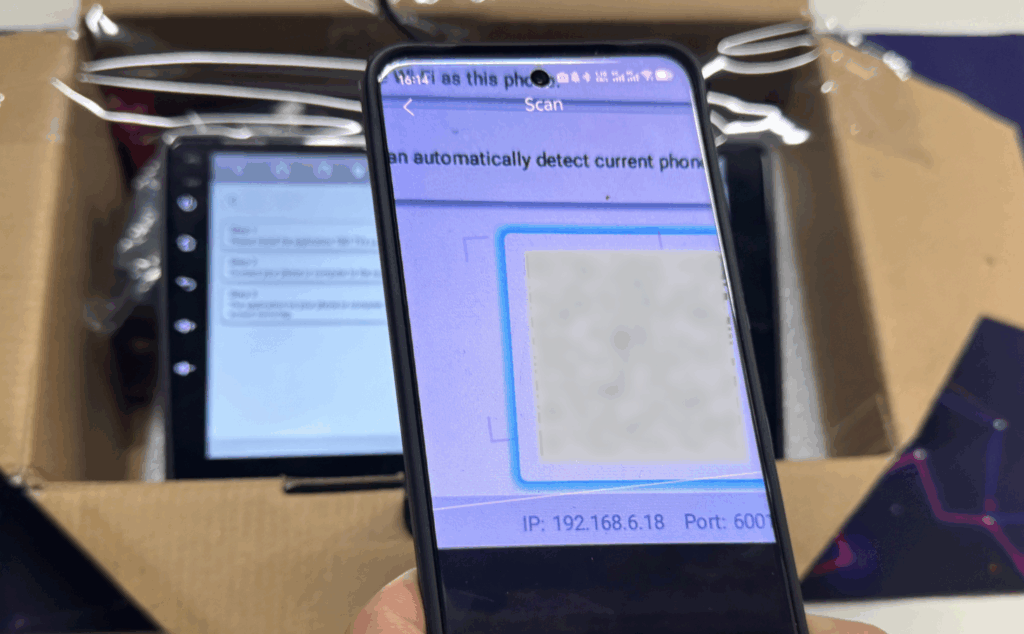
5. Scan the QR code
Use your phone to scan the QR code shown on the car display.
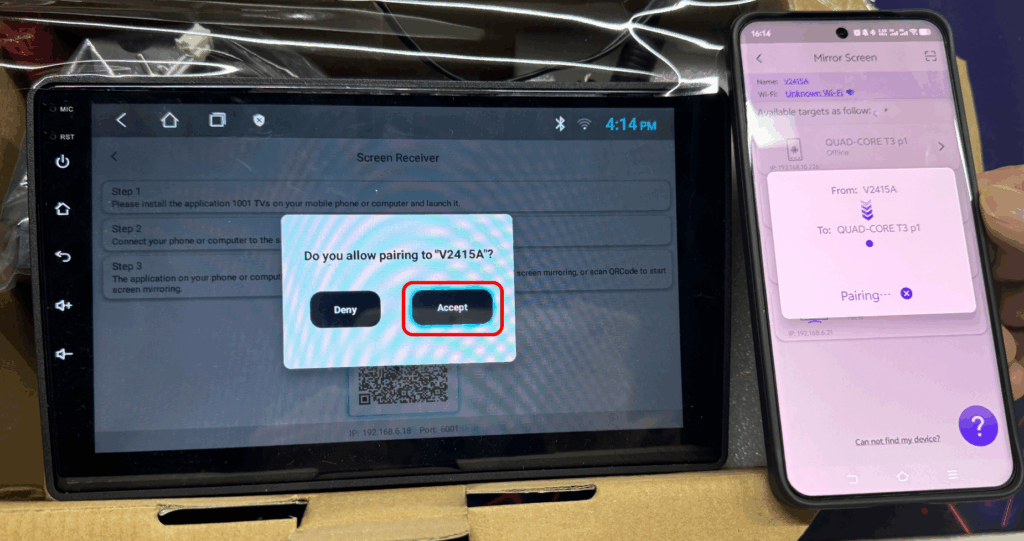
Then, on the car display, tap “Accept” to start mirroring.
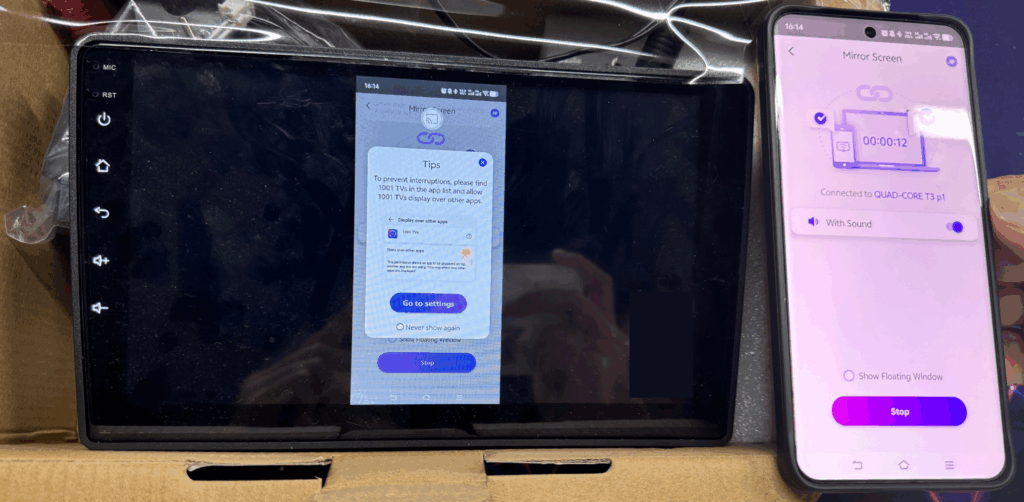
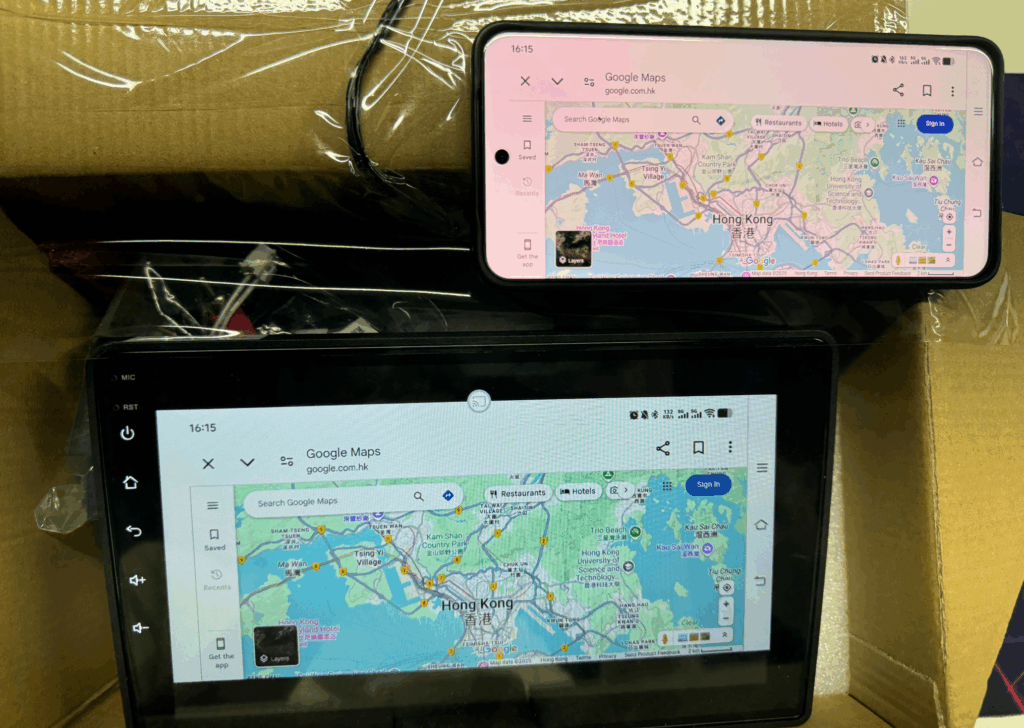
6. Done! Your phone screen is now mirrored
Enjoy using your favorite apps or navigation directly on the big screen.
🛠 Optional: Adjust Display Mode for Better Viewing
If your screen appears distorted or is oriented incorrectly, adjust the orientation:
In the 1001 TVs app on your car display, tap the small settings icon.
Select “Fixed Landscape Screen” to lock the display in landscape mode for optimal viewing.

Read More
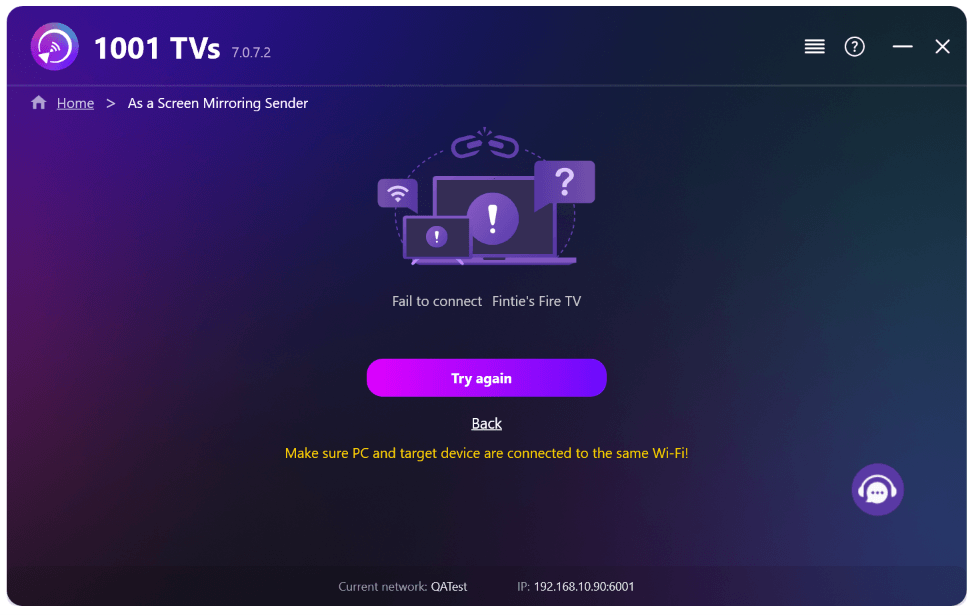 New Setting: No More Pop-ups When Mirroring Ends
When you're mirroring your PC screen to a TV and stop the session using the TV remote, the 1001 TVs window pops back up…
New Setting: No More Pop-ups When Mirroring Ends
When you're mirroring your PC screen to a TV and stop the session using the TV remote, the 1001 TVs window pops back up…
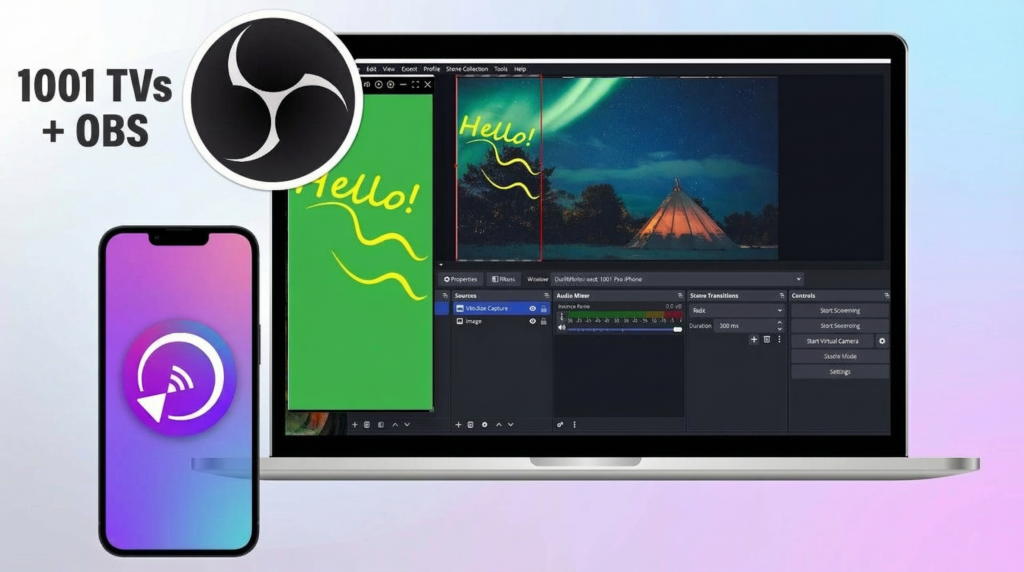 How to Capture Screen Mirroring in OBS (Android & iPhone)
Want to capture screen mirroring in OBS for mobile gameplay, tutorials, or live content? With 1001 TVs, you can easily mirror your phone screen…
How to Capture Screen Mirroring in OBS (Android & iPhone)
Want to capture screen mirroring in OBS for mobile gameplay, tutorials, or live content? With 1001 TVs, you can easily mirror your phone screen…

