
Wie sende ich Dateien von meinem Handy an Android/Apple TV?
Mit Nero 1001 TVs, können Sie Dateien von Ihrem Handy über das lokale Netzwerk an Ihr Fernsehgerät senden.
Keine Cloud-Uploads. Keine Anmeldungen. Schnell und sicher.
Bevor Sie beginnen
- Stellen Sie sicher, dass Ihr Telefon und Fernseher sind mit demselben Wi-Fi-Netzwerk verbunden
- Installieren Sie Nero 1001 TVs auf sowohl Ihr Telefon als auch Ihr Fernseher
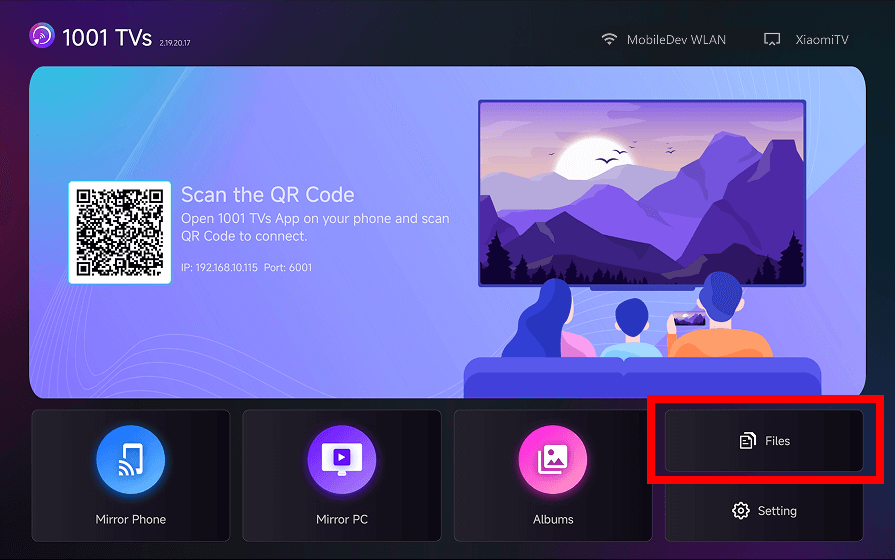
Schritt 1: Öffnen Sie 1001 TVs auf Ihrem Fernseher
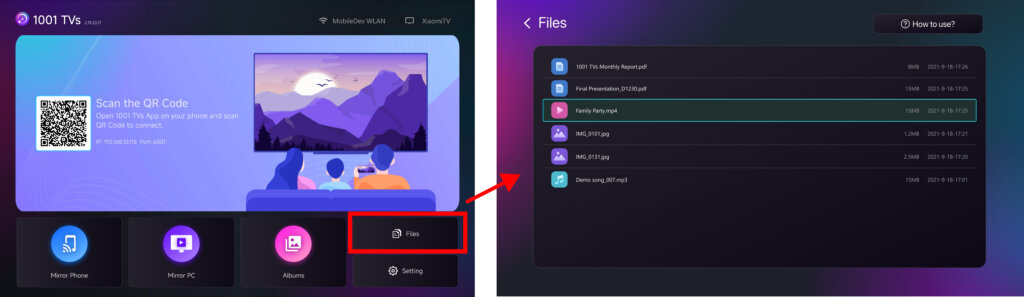
Start Nero 1001 TVs auf Ihrem Smart TV und öffnen Sie die Dateien Seite.
Lassen Sie die TV-App laufen.
Schritt 2: Öffnen Sie 1001 TVs auf Ihrem Telefon
Öffnen Sie Nero 1001 TVs auf Ihrem Handy und tippen Sie auf “Dateien teilen”.
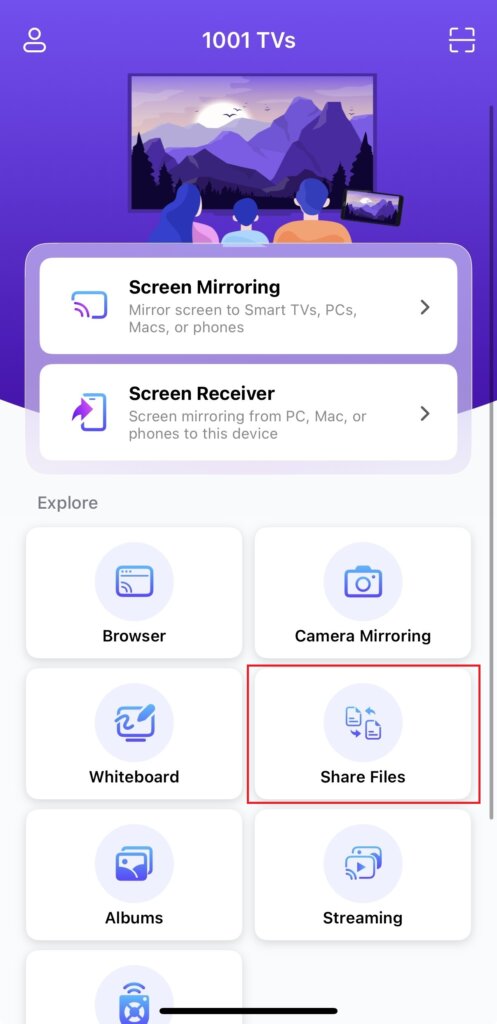
Die App sucht automatisch nach verfügbaren Fernsehern im selben Netzwerk.
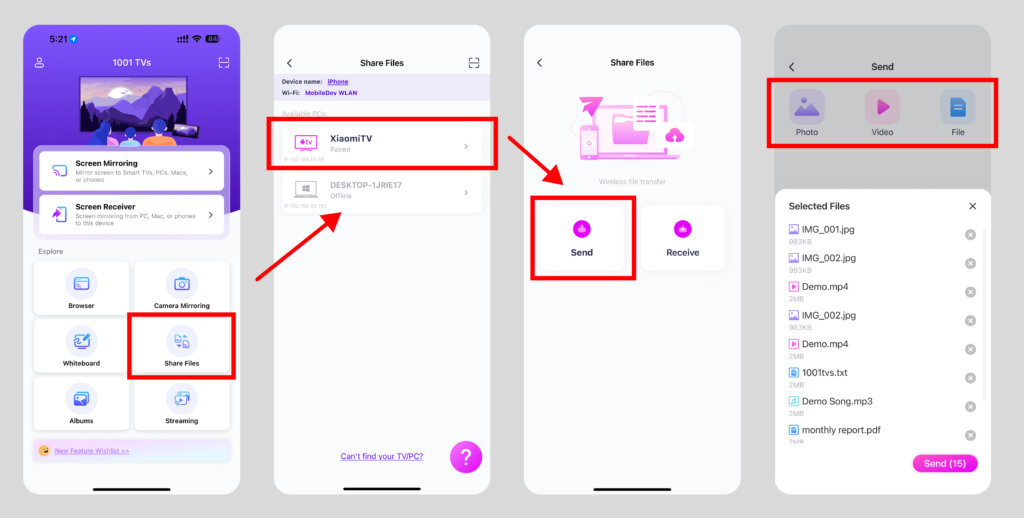
Schritt 3: Wählen Sie Ihr TV-Gerät und senden Sie Dateien
- Wählen Sie Ihr Fernsehgerät aus der Geräteliste aus.
- Wählen Sie Dateien auf Ihrem Handy (Fotos, Videos, Musik oder Dokumente)
- Tippen Sie zum Senden auf - die Dateien werden direkt auf Ihren Fernseher übertragen.
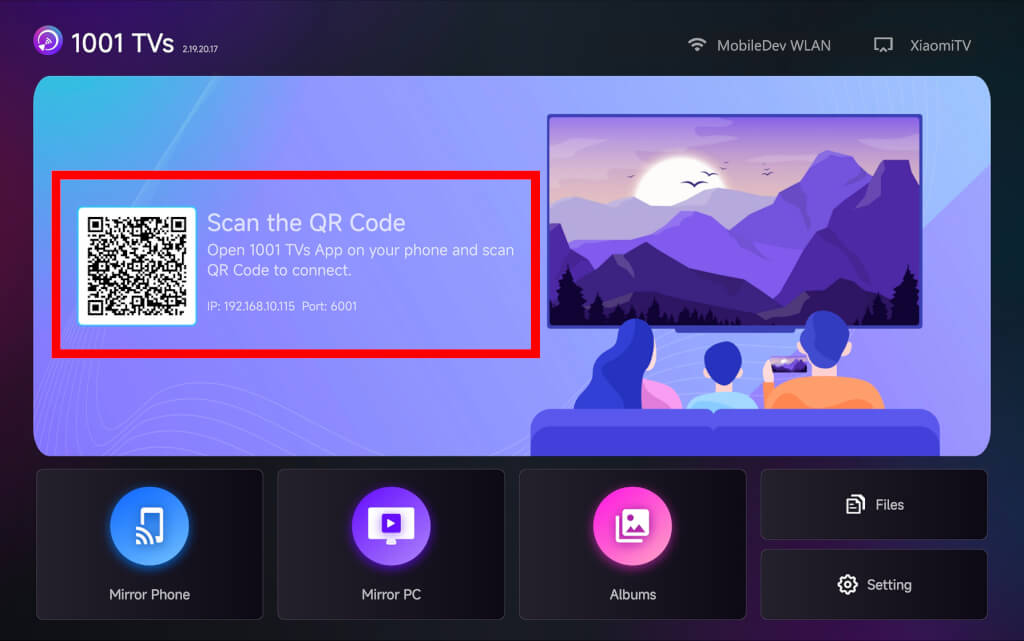
Sie können Ihren Fernseher nicht finden?
Wenn Ihr Fernseher nicht angezeigt wird, verwenden Sie QR-Code-Kopplung um schnell eine Verbindung herzustellen.
Dateien im TV ansehen
Nach der Übertragung erscheinen Ihre Dateien sofort auf dem Fernsehbildschirm und können sofort geöffnet oder abgespielt werden.
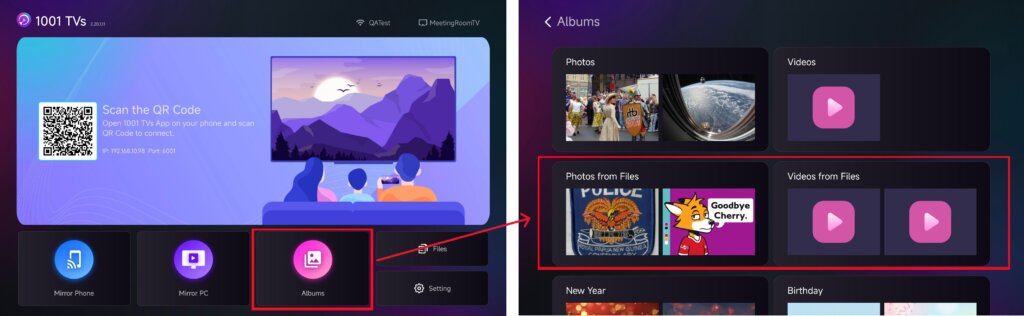
Sie können sie in der Rubrik “Dateien” oder genießen Sie Ihre Fotos und Videos als Diashow in “Fotos spiegeln“.
Wie löscht man Dateien auf dem TV?
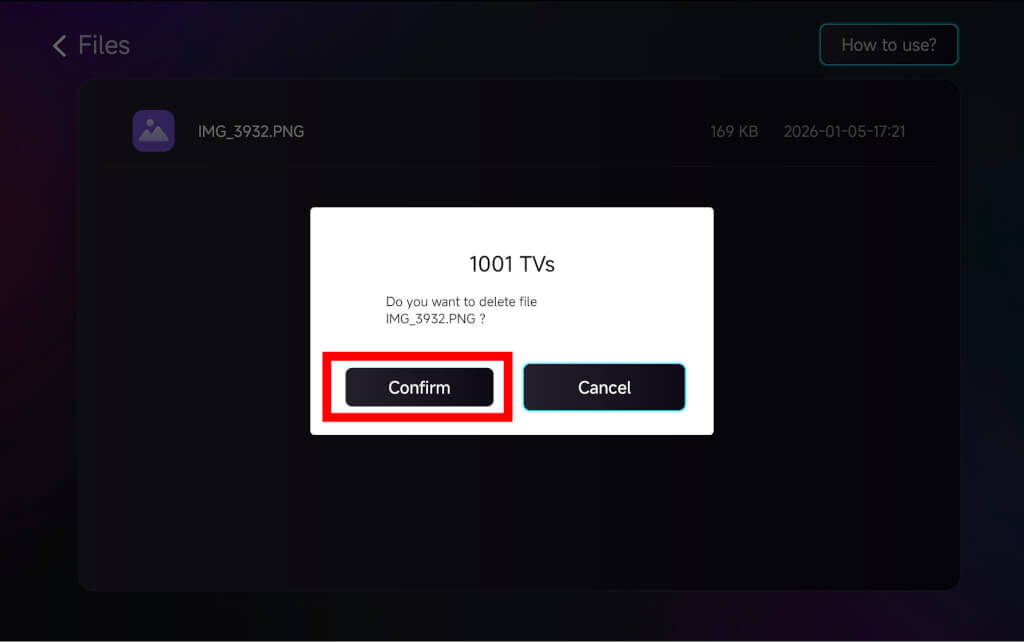
Verwenden Sie auf der Seite Dateien in 1001 TVs Ihre TV-Fernbedienung, um lange drücken die OK um die Datei auszuwählen, die Sie löschen möchten, und klicken Sie dann auf “bestätigen” um sie zu löschen.
Warum 1001 TVs verwenden?
Schnell, privat und einfach zu bedienen
Lokale Übertragung, keine Cloud erforderlich
Keine Anmeldung oder Konto erforderlich
Brauchen Sie Hilfe?
Sollten Sie auf Probleme stoßen, wenden Sie sich bitte an unser Support-Team:
- Weitere Leitfäden: Anleitung
- E-Mail: 1001tvs@nero.com
- Website: www.1001tvs.com