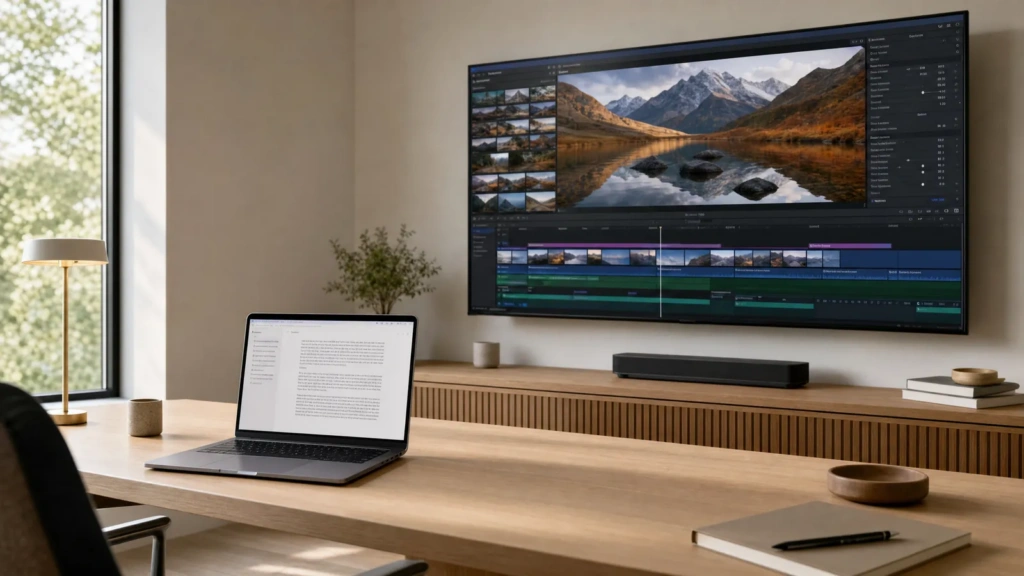
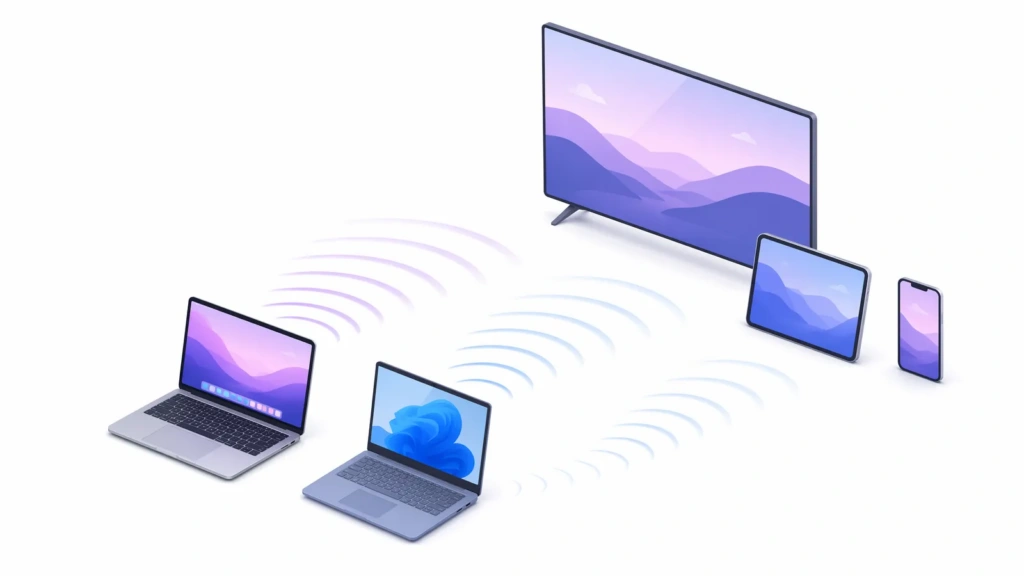
If you’ve ever worked on a laptop and wished for just a little more screen real estate, the solution might already be sitting in your living room. That television — whether it’s a smart TV mounted on the wall or an older model tucked in the corner — can double as a fully functional second monitor for your Mac or Windows PC, no expensive hardware upgrade required.
The setup is simpler than most people expect. A basic HDMI cable gets you a wired connection with zero latency, while built-in wireless technologies like AirPlay (Mac) and Miracast (Windows) let you extend your desktop without running cables across the room. For a cross-platform solution that works on any TV, apps like 1001 TVs offer wireless screen extension to virtually any device on your Wi-Fi network. Most methods take under five minutes to set up.
This guide walks through five proven approaches, compares them side by side, and covers the exact steps for both Mac and Windows so you can pick the one that fits your setup.
Screen Mirroring vs. Screen Extension: What’s the Difference?
Before choosing a method, it helps to understand the two display modes every option supports — or doesn’t.
屏幕镜像 duplicates your entire computer screen onto the TV. Both displays show identical content, which is useful for presentations, sharing photos, or watching videos with a group. You do not get extra workspace.
Screen extension gives the TV its own independent desktop. You can drag windows, apps, and browser tabs between the two screens, effectively doubling your available workspace. This is what most people want when they ask how to use a TV as a second monitor.
Display Mode
What It Does
Extra Workspace?
最適合
镜像投屏
Duplicates your screen on the TV
没有
Presentations, media sharing
Extension
Creates a separate desktop on the TV
是
Multitasking, productivity, coding
Option Comparison at a Glance
方法
平台
連結
Extends?
設定難度
最適合
HDMI 連接線
Mac & Windows
《連線》
是
簡單
Gaming, video editing, lowest latency
AirPlay
Mac only
无线
是
簡單
Mac users with Apple TV or AirPlay 2 TV
Miracast
Windows only
无线
是
簡單
Windows users with a compatible smart TV
Chromecast
Mac & Windows
无线
Mirror only
簡單
Media streaming, casual browsing
1001 TVs
Mac & Windows
无线
是
Moderate
Cross-platform wireless extension to any TV
Method 1: HDMI Cable (Wired, Universal)
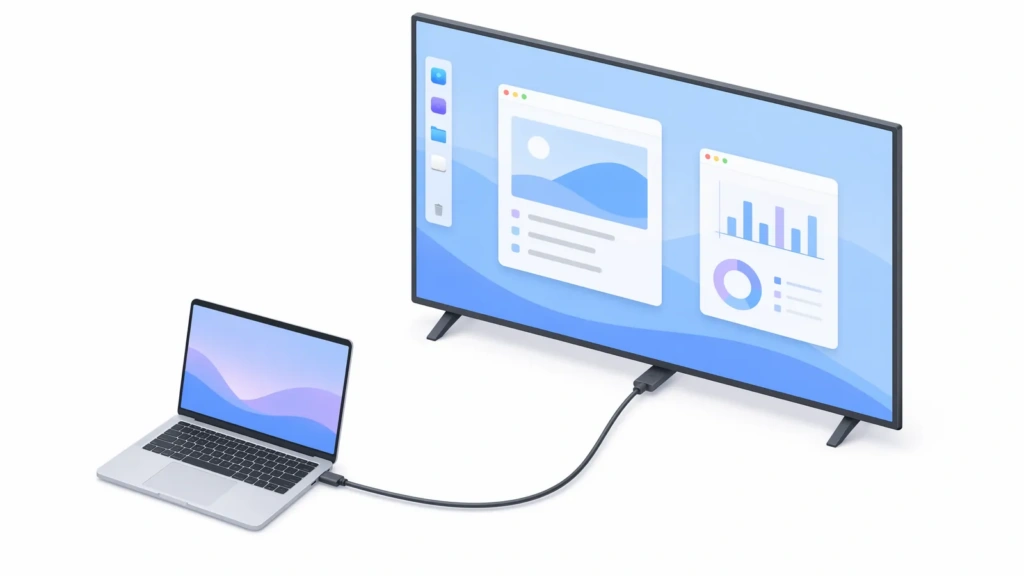
An HDMI cable is the most reliable way to use a TV as a second monitor. It works on virtually every Windows laptop and Mac, delivers near-zero latency, and supports full HD or 4K resolution depending on your hardware and TV capabilities. Because the signal travels over a physical cable, there is no network dependency, no compression, and no input lag — making it the best choice for gaming, video editing, and other latency-sensitive tasks.
您需要什麼? an HDMI cable, plus a USB-C or Thunderbolt to HDMI adapter if your laptop lacks a full-size HDMI port.
Steps for Windows
Connect one end of the HDMI cable to your laptop and the other to an HDMI port on your TV.
Use the TV remote to switch to the corresponding HDMI input.
新聞 Win + P 并选择 扩展 to use the TV as a second screen.
开放 Settings > System > Display to arrange the displays and adjust resolution to match the TV.
Steps for Mac
Connect the HDMI cable (via adapter if needed) to your Mac and TV.
Switch the TV to the correct HDMI input.
开放 System Settings > Displays and click your TV’s name.
選擇 Use as: Extended display and arrange the layout to match your physical setup.
🟢 优点 Zero latency, full resolution, no network dependency.
🔴 缺点 Requires a cable long enough to reach the TV; not practical for wall-mounted TVs across the room.
Method 2: AirPlay (Mac, Wireless)
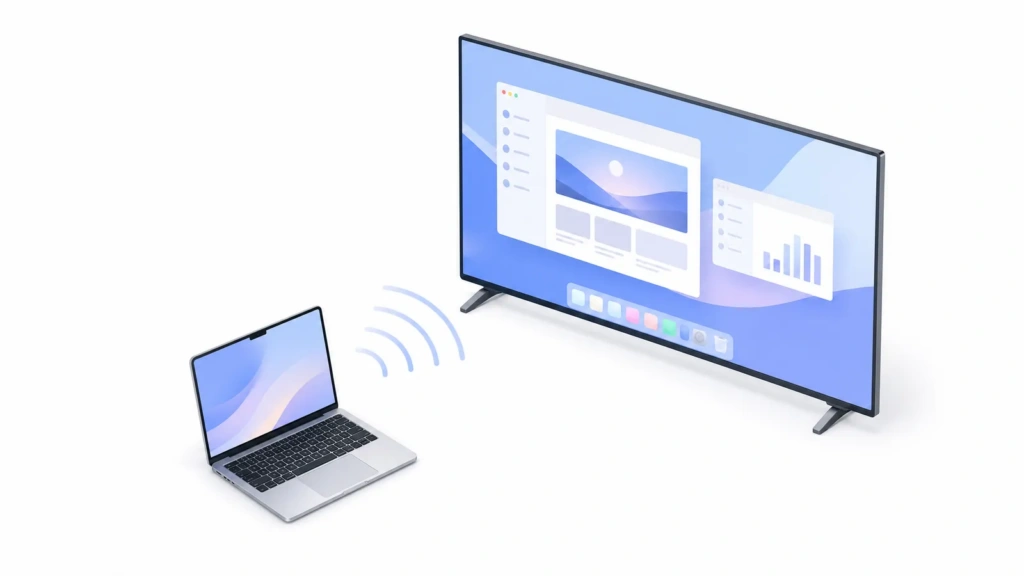
AirPlay lets you extend your Mac’s display to an Apple TV or any AirPlay 2–compatible smart TV wirelessly. It is built into macOS, so no extra software is required.
Many Samsung, LG, Sony, and Vizio TVs manufactured after 2019 support AirPlay 2 natively. AirPlay is ideal for Mac users who want a cable-free extended desktop without installing third-party apps.
步骤
Make sure your Mac and your Apple TV or AirPlay 2 smart TV are on the same Wi-Fi network.
点击 控制中心 icon in the menu bar and select 螢幕鏡像.
Choose your TV from the list.
点击 Use as Separate Display (not just Mirror) to extend your desktop onto the TV.
For further adjusting or multiple receivers, check this guide.
🟢 优点 No cables, built into macOS, supports extended display.
🔴 缺点 Requires an Apple TV or AirPlay 2–compatible TV; latency depends on Wi-Fi quality; does not work on Windows.
Method 3: Miracast (Windows, Wireless)
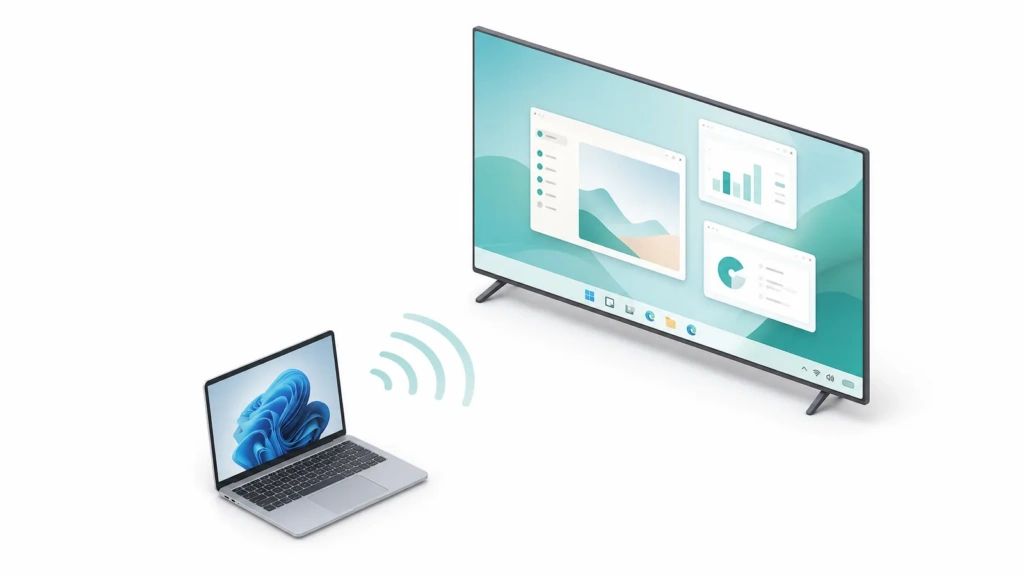
Miracast is Windows’ built-in wireless display technology. If your Windows 10 or 11 laptop and your smart TV both support it, you can extend your screen to the TV without installing any additional software. Most Windows laptops manufactured after 2015 support Miracast. To check compatibility, search your TV’s model number plus “specs” and look for “Wireless Display,” “Screen Mirroring,” or “Wi-Fi Direct” in the specifications.
步骤
新聞 Win + K to open the 鑄造 面板。
Select your TV from the list of available wireless displays.
Once connected, click Change projection mode and choose 扩展.
Adjust resolution in Settings > System > Display if needed.
🟢 优点 Built into Windows 10 and 11, no app installation, supports extended display.
🔴 缺点 Not all TVs support Miracast; latency of 50–100 ms makes it unsuitable for fast-paced gaming; does not work on Mac.
Method 4: 1001 TVs (Mac & Windows, Wireless)
1001 TVs is a cross-platform screen mirroring and extension app that turns any smart TV, tablet, phone, or computer into a wireless second display for your Mac or Windows PC. Unlike AirPlay and Miracast, which are locked to their respective ecosystems, 1001 TVs works across both platforms and connects to Android TVs, smart TVs, and even web browsers on the same Wi-Fi network. It supports true screen extension — not just mirroring — and can cast to multiple receiving devices simultaneously.
How to Install 1001 TVs for Screen Extension
The installation differs depending on your operating system:
On Windows: 從 official download page. The latest version includes screen extension out of the box — no special configuration needed.
On Mac: Screen extension requires a special version of 1001 TVs that is not available on the Mac App Store. Due to Apple’s sandboxing policies, the App Store edition supports screen mirroring but cannot create the virtual display needed for true screen extension. To get the extension feature:
If you already have the App Store version installed, uninstall it first.
Open the installer. If macOS blocks it with a security warning, go to System Settings > Privacy & Security 并点击 无论如何都要打开.
When prompted, enter your Mac login password and select 始终允许.
Grant Screen Recording permission — open 1001 TVs, click Mirror Mac > Enable Access > Open System Settings, then toggle the permission on for 1001 TVs and restart the app.
请注意: The receiving device (TV, tablet, or phone) can use the standard App Store version — only the Mac that is 发送 the extended screen needs the special version.
Connecting and Extending
將兩部裝置連接到相同的 Wi-Fi 網路。 A 5 GHz network is recommended for the lowest latency.
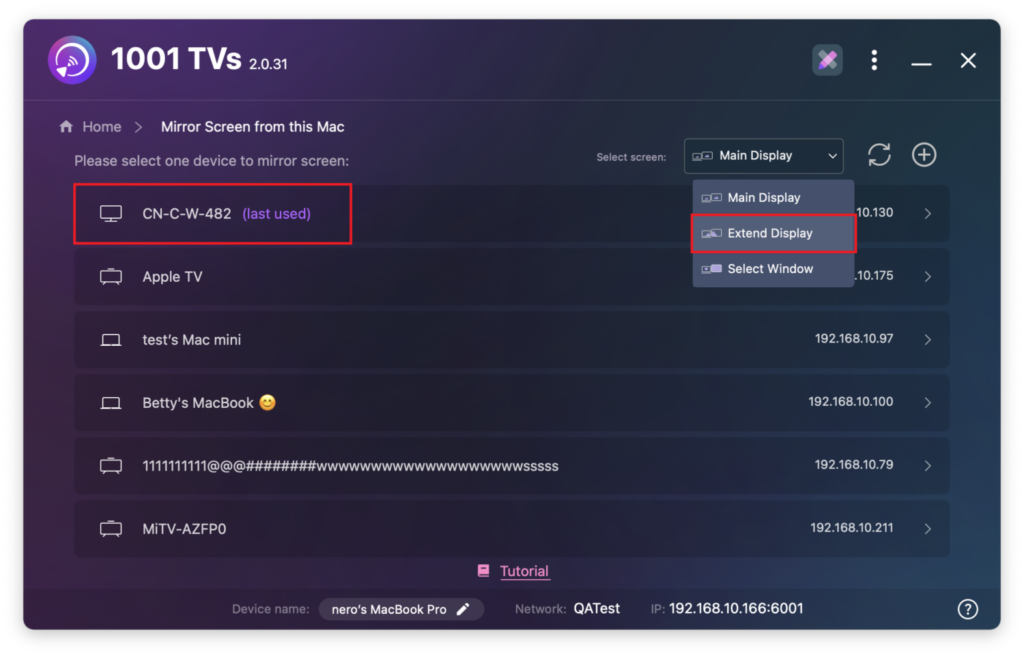
打开 1001 TVs on your PC or Mac and select 镜像 Mac (or the equivalent sending option on Windows).
Choose Extend Display from the mode menu.
選擇您的電視 from the detected device list, or scan the QR code displayed on the receiving device. On the receiving device, click 允许 以确认。
Your TV now functions as a true extended display — drag windows onto it and control them independently with your mouse, just like a physical second monitor.
For added privacy, 1001 TVs also offers a 選擇視窗 mode that mirrors only a single application window to the TV while keeping the rest of your desktop hidden.
🟢 优点 Works on both Mac and Windows; connects to virtually any TV or device; supports true screen extension; no HDMI cables or adapters required; can cast to multiple TVs simultaneously.
🔴 缺点 Requires installing the app on both devices; Mac users must download a special version outside the App Store and grant Screen Recording permission; performance depends on Wi-Fi quality.
Method 5: Chromecast (Mac & Windows, Wireless)
If you have a Chromecast device plugged into your TV or a TV with Chromecast built-in, you can mirror your screen from the Chrome browser. This method works on both Mac and Windows but supports mirroring only — it cannot extend your desktop into a separate workspace.
步骤
Open the Chrome browser on your Mac or Windows PC.
Click the three-dot menu > Cast, Save and Share > 鑄造.
Select your Chromecast device, then choose Cast desktop under the Sources dropdown.
Your entire screen is mirrored to the TV.
🟢 优点 Cross-platform, no extra software beyond Chrome.
🔴 缺点 Mirror only — cannot extend the desktop; lower image quality than HDMI or AirPlay.
您應該選擇哪一種方法?
Your Situation
Recommended Method
You need zero latency for gaming or editing
HDMI 連接線
You’re on Mac with an Apple TV or AirPlay 2 TV
AirPlay
You’re on Windows with a Miracast-compatible TV
Miracast
You want one solution that works on both Mac and Windows
1001 TVs
You only need to mirror your screen for presentations
Chromecast or 1001 TVs
Your TV is across the room and you want no cables
1001 TVs or AirPlay
For most users who want a wireless, cross-platform second monitor without buying new hardware, 1001 TVs offers the best balance of flexibility and ease — it extends (not just mirrors), works on any TV with the app installed, and requires no cables or ecosystem-specific devices.
Tips for the Best Experience
Use a 5 GHz Wi-Fi network for wireless connections to reduce latency and avoid interference from other household devices on the 2.4 GHz band.
Match the TV’s native resolution in your display settings to prevent blurry, stretched, or overscanned output. If the screen doesn’t fit, look for an “Overscan” or “Screen Fit” option in your TV’s picture settings.
Enable Game Mode on your TV to disable motion smoothing and other image processing that adds input lag — especially important for wireless connections.
Arrange displays to match physical layout in your OS display settings so mouse movement feels natural when crossing between screens.
Close bandwidth-heavy apps when using wireless display methods, as they compete for your network resources.
常見問題
Can I use any TV as a second monitor?
Yes. Any TV with an HDMI input can serve as a wired second monitor. For wireless use, the TV needs to support Miracast (Windows), AirPlay 2 (Mac), or have a screen mirroring app like 1001 TVs installed.
Can I use a TV as a second monitor wirelessly without an Apple TV?
Yes. While AirPlay requires an Apple TV or AirPlay 2–compatible smart TV, 1001 TVs works on any TV or device that has the app installed — including Android TVs, tablets, phones, and even a web browser. No Apple TV or HDMI cable is required.
Why can’t I extend my Mac screen with the App Store version of 1001 TVs?
Apple’s sandboxing policies prevent Mac App Store apps from creating the virtual displays needed for true screen extension. The App Store edition of 1001 TVs supports screen 鏡像 only. To 延長 your Mac screen to a TV, download the special version directly from the this guide, uninstall any existing App Store version first, and grant Screen Recording permission during setup. The receiving device (TV, phone, or tablet) can still use the standard App Store version.
Does using a TV as a second monitor reduce computer performance?
Wired HDMI connections have negligible impact on performance. Wireless methods share your Wi-Fi bandwidth and CPU resources, which can cause slight lag on older machines or slow networks. For intensive tasks like gaming or video editing, use a wired HDMI connection.
Is screen mirroring the same as using a second monitor?
No. Screen mirroring duplicates your entire display onto the TV, showing the same content on both screens. Using a TV as a second monitor (screen extension) gives you a separate, independent desktop on the TV, letting you drag windows and apps between the two screens for extra workspace.
Does 1001 TVs work on both Mac and Windows?
Yes. 1001 TVs is available on Windows, Mac, iOS, Android, Android TV, and Smart TVs. You can extend a Windows PC screen to a TV, extend a Mac screen to a TV, and even mirror one PC or Mac to multiple TVs simultaneously — all over Wi-Fi. However, extending a Mac screen requires a special version downloaded manually from the 1001 TVs website — the Mac App Store edition supports mirroring but not screen extension, due to Apple’s policy restrictions.
What resolution can I get when using a TV as a second monitor?
With a wired HDMI connection, you can achieve the TV’s full native resolution — typically 1080p, depending on your TV, your internet connection and graphics hardware. Wireless methods may reduce resolution slightly due to compression, especially on slower Wi-Fi networks. For the sharpest output, use HDMI and set the display resolution to match the TV’s native pixel count.
Ready to turn your TV into a wireless second monitor? 下载 1001 TVs and extend your screen in minutes — no cables, no adapters, no ecosystem lock-in.