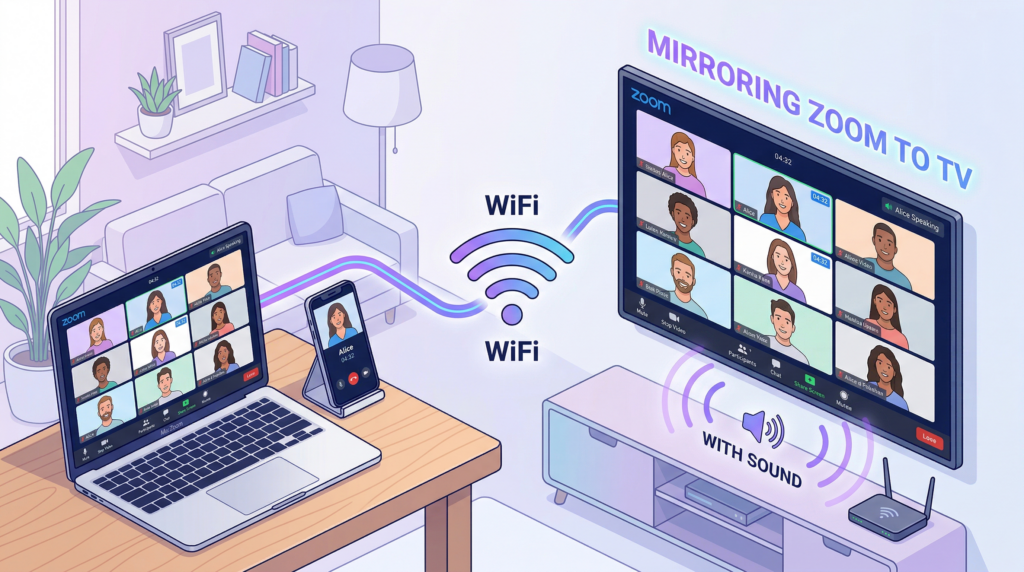
如何將 Zoom 會議鏡射到電視上 (有聲) - Easy 2026 指南
Struggling to mirror Zoom to your TV with sound?
No audio when casting? Screen lag or camera sideways?
This guide shows you how to mirror Zoom meetings to TV with audio, using simple and reliable methods.
You’ll learn:
- How to wirelessly mirror Zoom to TV (best for most users)
- How to connect Zoom to TV with HDMI (zero lag)
- How to fix common issues like no sound or lag
Why Mirror Zoom to a TV?
1. Better for Work and Presentations
- See participants clearly on a larger screen
- Present slides more comfortably
- Reduce eye strain during long meetings
2. Better for Family Video Calls
- Easier for elderly users to see and hear
- Everyone can watch together
- More natural group conversations
3. Better for Teaching and Online Classes
- View all students at once
- Share materials on a larger display
- Improve engagement
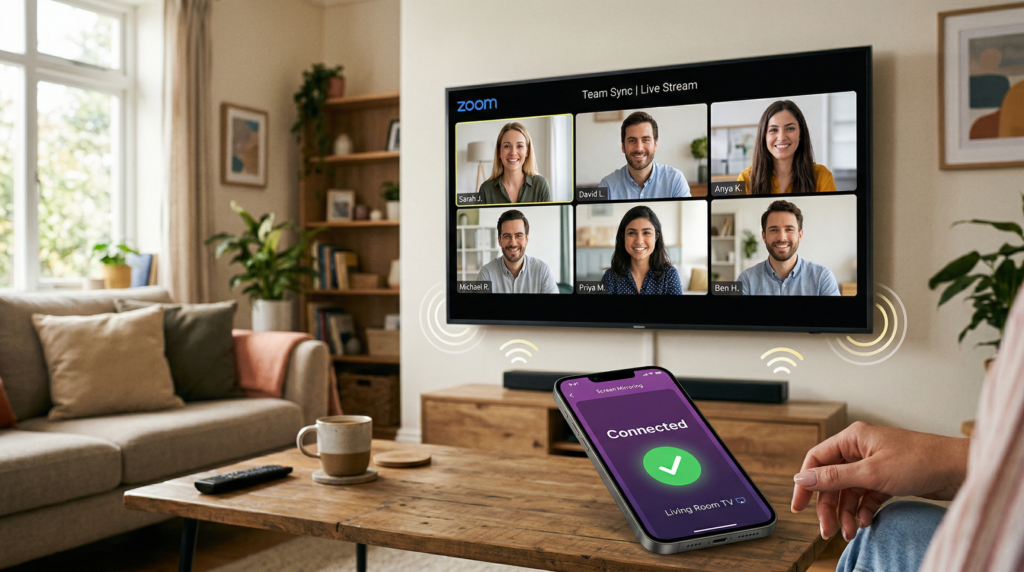
Why Zoom Casting Often Has No Sound
If you tried AirPlay or Chromecast, you may notice:
- Video works but no audio
- Camera orientation is incorrect
- Connection drops during meetings
This happens because Zoom uses call audio, which many casting systems block.
What You Need to Mirror Zoom to TV
Required Setup
- 1001 TVs app on your phone or computer
- 1001 TVs app on your TV
- Same WiFi network
- Zoom app
Supported Devices
- iPhone and iPad
- 安卓手机和平板电脑
- Windows and Mac
- Smart TVs, Fire TV, Apple TV, Chromecast
Method 1: Mirror Zoom to TV Wirelessly (Recommended)
Step 1: Connect Your Device to TV
On your TV:
- Install and open 1001 TVs
- You will see a QR code
On your phone or computer:
- 打开 1001 TVs
- Tap “Screen Mirroring”
- Select your TV and start your mirror
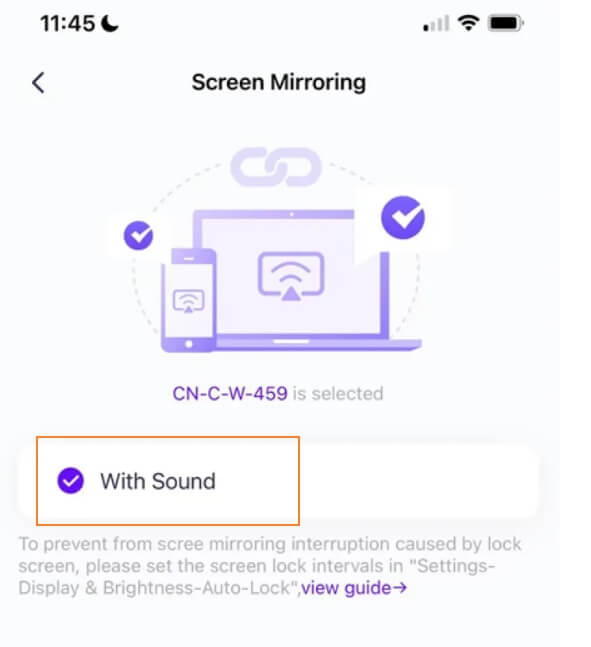
Step 2: Enable Audio (Key Step)
To fix the “Zoom no sound on TV” issue:
- Open 1001 TVs settings
- Turn on “Audio” when you start your screen mirroring
Step 3: Open Zoom Meeting
- Launch Zoom
- Join your meeting
Your Zoom meeting will now display on your TV with audio.
Method 2: Use HDMI Cable (Most Stable)
What You Need
- HDMI cable
- Adapter if needed
- iPhone: Lightning to HDMI
- USB-C devices: USB-C to HDMI
Setup Steps
- Connect your device to TV with HDMI
- Switch TV to correct input
- Open Zoom
This method ensures:
- No lag
- Stable connection
- Guaranteed audio
Wireless vs HDMI Comparison
Method: 1001 TVs
Audio: Yes
Ease of use: High
Best for: Daily meetings
Method: HDMI
Audio: Yes
Ease of use: Medium
Best for: Presentations
Method: AirPlay
Audio: No
Best for: Not recommended for Zoom
Method: Chromecast
Audio: No
Best for: Not recommended for Zoom
How to Fix Common Problems
1. Zoom No Sound on TV
- Enable “Mirror Audio”
- Check Zoom audio output settings
- Increase TV volume
- Restart connection
2. Camera Showing Sideways
- Toggle “Mirror My Video” in Zoom
- Lock screen orientation
- Restart mirroring
3. Screen Lag or Delay
- Move closer to WiFi router
- Use 5GHz WiFi
- Close background apps
- Lower resolution to 720p
4. Connection Keeps Dropping
- Turn off battery saver
- Keep device plugged in
- Disable auto-sleep
常見問題
Can I mirror Zoom to TV with sound?
Yes, use 1001 TVs and enable audio mirroring.
Why is there no sound when casting Zoom?
Because Zoom uses call audio that many casting systems block.
Is HDMI better than screen mirroring?
Yes for stability, but wireless is more convenient.
Does screen mirroring drain battery?
Yes, keep your device plugged in.
Final Tips
To get the best experience:
- Use wireless mirroring for daily use
- Use HDMI for important meetings
- Always test audio before joining a meeting
开始
有了 1001 TVs,活動組織者可以快速將現有的螢幕變成彈性的數位看板系統。.
沒有複雜的設定。.
無專用硬體。.
只需在會場內進行簡單的無線螢幕分享。.