Turn your Android TV into a screen mirroring receiver for your phone and PC.
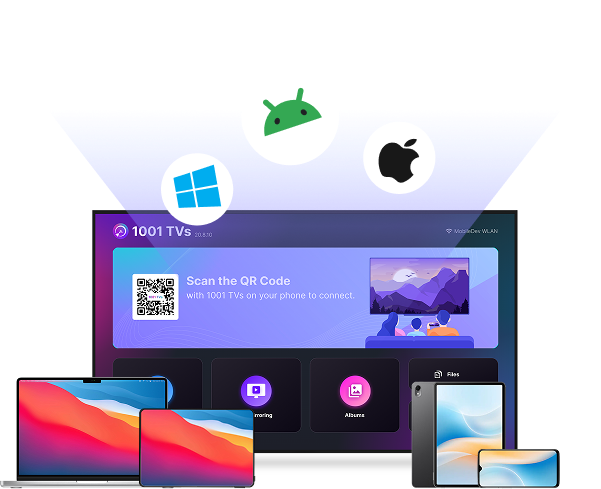
 Designed for Android TVs
Get started with screen mirroring on Android TV in just 3 simple steps.
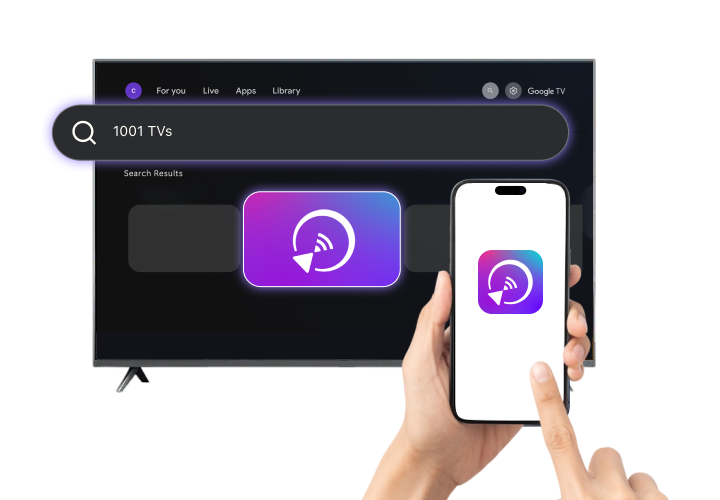
Compatible with major Android TV brands, including Google TV, Xiaomi, Sony, TCL, Hisense, Philips, and more.






Cast your screen from phone, tablet, or computer to Android TV wirelessly.
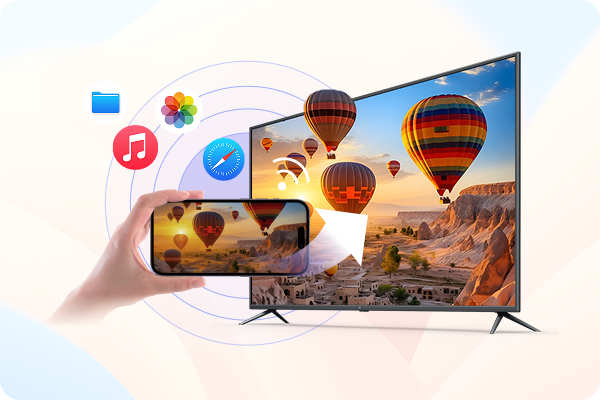
Watching videos or photos on a small screen has its limits. Use 1001 TVs to mirror your iPhone or iPad to Android TV and enjoy a bigger screen experience.
 Wireless iPhone screen mirroring: Connect your iPhone or iPad to Android TV
over your
local Wi-Fi – no cables required.Bigger
screen viewing: Watch videos, browse photos, use apps, and view web content clearly on your TV
instead of
crowding around a phone.
Wireless iPhone screen mirroring: Connect your iPhone or iPad to Android TV
over your
local Wi-Fi – no cables required.Bigger
screen viewing: Watch videos, browse photos, use apps, and view web content clearly on your TV
instead of
crowding around a phone.Mirror your Windows PC or Mac to Android TV and turn your TV into a wireless second screen for work and daily use.
Wireless desktop screen sharing: Display your Windows or macOS screen on
Android TV
without HDMI cables or limited ports.Flexible display options: Mirror your screen for presentations and meetings, or
extend
your workspace for multitasking on a larger display.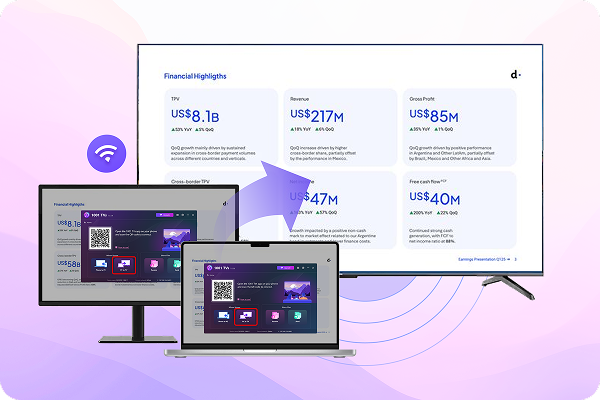
Education, entertainment, or business - enjoy seamless screen mirroring anywhere with 1001 TVs.

Mirror lessons and slides to Android TV for clear, large-screen teaching.

Display promotions and digital signage on Android TV screens.
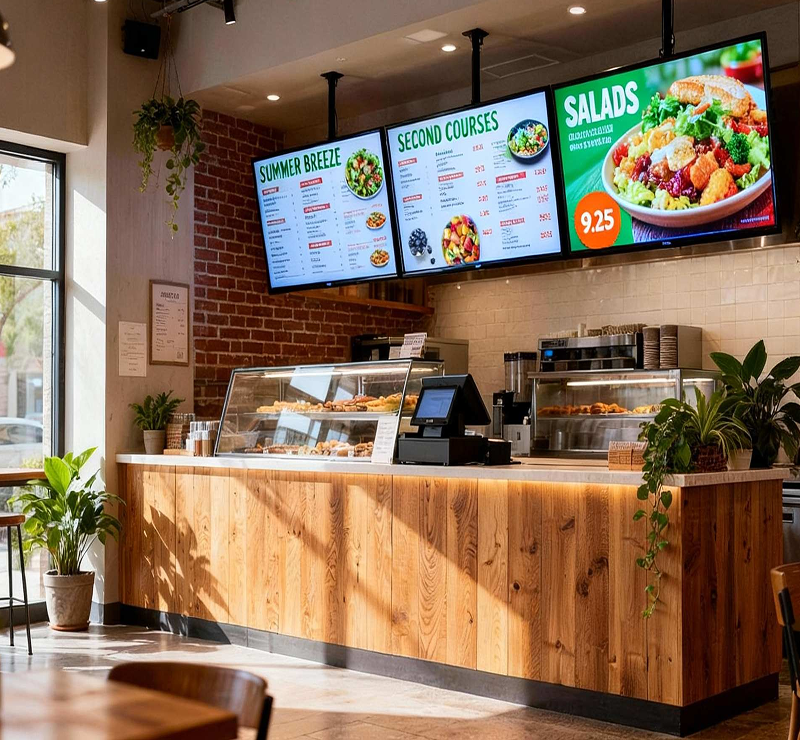
Show menus and order screens on Android TV in real time.
More control over how content appears on Android TV.

Show vertical phone content on Android TV without black bars.

Adjust screen orientation and size without stretching.

Turn photos into a smooth TV slideshow.

Send files to Android TV for viewing and discussion.

Automatically compress large files while preserving visual quality.

Save files directly on your TV or an external storage device for easy access and playback.
 Specifications
 What's New?


 Download for Amazon Fire TV

 Download