How to Mirror a Samsung or Android Phone to a TV
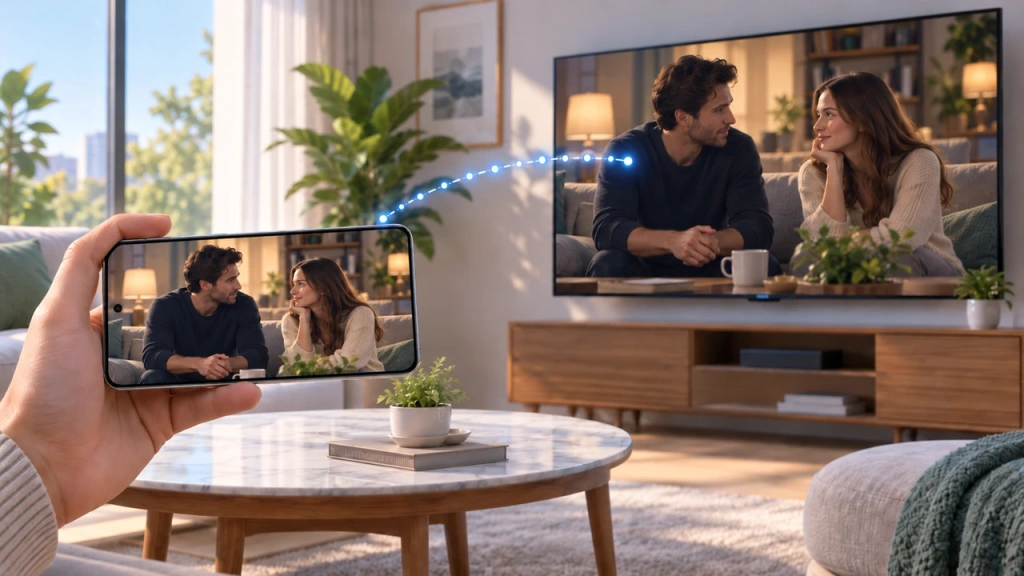
Want to put your phone on a bigger screen? If you have a Samsung Galaxy phone and a compatible Samsung TV, start with Smart View. It mirrors your phone’s full display to the TV over the same Wi-Fi network. If you use another Android phone, use an app’s Cast button for supported media, or try the phone’s built-in screen-sharing feature when you need to mirror the whole screen. If neither route is available, use a compatible HDMI connection or, with a supported Android TV or Google TV streaming device, an app-based option such as 1001 TVs.
Use the method selector below to choose the option that matches what you want to show and what your devices support.
Choose the Right Way to Connect Your Phone to a Samsung TV
Use this quick guide before you start.
| If you have… | Start with | Check first |
| A Samsung Galaxy phone and a compatible Samsung TV | Smart View | Use the same Wi-Fi network and approve the TV connection |
| An Android phone and an app with a Cast icon | Supported in-app casting, such as Google Cast | The app and TV model support the connection |
| Another Android phone with a screen-sharing feature | The phone’s built-in screen mirroring | Phone and TV compatibility varies by brand and model |
| No usable wireless option | USB-C-to-HDMI | The phone supports video output over USB-C |
Smart View is specifically Samsung’s Galaxy screen-mirroring feature. It is different from casting: mirroring duplicates what is on your phone, while casting normally sends video or audio from one supported app to the TV and leaves your phone free to do other things.
Do not assume every Android phone supports Smart View, or that every Samsung TV supports Google Cast. The available method can depend on the phone, TV model, software version, region, and app. For a broader device-by-device overview, see our complete Samsung TV screen mirroring guide.
Before You Start
For wireless methods, make sure the phone and Samsung TV are powered on and connected to the same Wi-Fi network. If the TV asks you to approve the connection, allow it. A VPN, guest network, or outdated software can interfere with discovery, so check these only if the TV does not appear.
Method 1: Mirror a Samsung Galaxy Phone with Smart View
Smart View is the direct option for showing your Galaxy phone’s whole screen on a Samsung TV. That includes photos, a browser, an app interface, or other on-screen activity—not just video from a single supported app.
Open Smart View from Quick Settings
On your Galaxy phone, swipe down from the top of the screen to open the Quick settings panel. Tap Smart View.
If you do not see it immediately, expand the panel or edit the Quick settings layout to look for the Smart View tile. Smart View is a built-in Galaxy feature, not a separate app you need to download; Samsung’s screen-mirroring guide identifies it as the Galaxy screen-mirroring feature in Quick Settings.
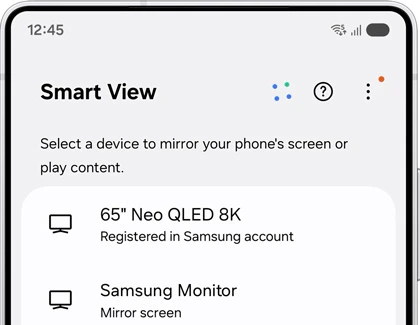
Select Your Samsung TV and Approve the Connection
Smart View will search for available devices. Select your Samsung TV from the list, then tap Start now if prompted.
You may see a request on the TV to allow the connection, or a prompt to enter a PIN. Complete that request on the TV or phone. Once connected, your phone display should appear on the TV.
Your phone remains the control device. This makes Smart View useful for photos, web pages, presentations, and many apps that do not offer their own Cast button.
Adjust the Display If the Picture Does Not Fill the TV
If the mirrored image looks too small or has unexpected borders, check Smart View’s display settings. On supported Galaxy devices, open the Smart View controls, choose More options, then look for Settings and Phone aspect ratio. Samsung’s Smart View display guidance notes that 16:9 is a good fit for many TVs.
Keep this adjustment simple: try the default view first, then change the aspect ratio only if the image does not look right on your TV.
Stop Mirroring When You Are Finished
To disconnect, tap the Smart View icon on your phone and choose Disconnect. You can also use the Smart View controls shown while the phone is connected.
Method 2: Cast from an Android App to a Samsung TV
Casting is often the better choice when you only want to play content from a supported video, music, or photo app. Instead of copying your entire phone screen, the app sends its content to the TV while your phone acts as a remote.
Look for the Cast Icon in the App
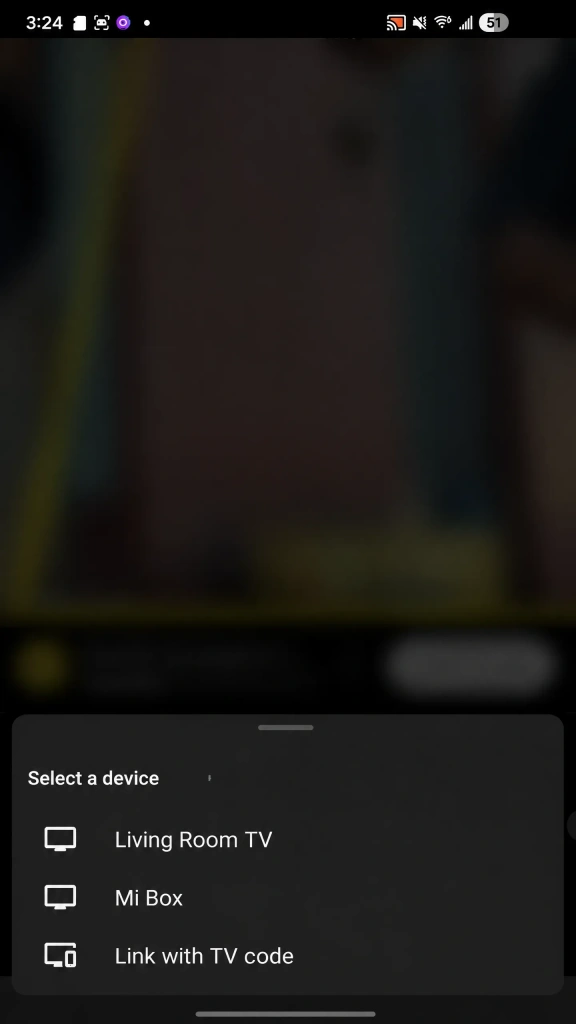
Open the app you want to use and look for its Cast icon. Tap it, choose your Samsung TV if it appears, and begin playback.
With a successful cast, the video or audio plays on the TV. You can usually pause, skip, or choose something else from the phone without mirroring every part of your phone display.
Check Whether Your Samsung TV Supports Google Cast
Google Cast support varies by Samsung TV model, model year, region, software, and app. If your TV does not appear as a Cast target, check Samsung’s current support information for your exact model and market before relying on this method.
If your app does not show a Cast icon, or your TV is not listed, move to the next method instead of assuming the problem is with the app alone.
When Casting Is Better Than Mirroring
Use casting when the app supports it and your main goal is to watch or listen to that app’s content on the TV. It keeps the TV focused on playback and usually lets you use the phone for other tasks.
Use screen mirroring when you need to show the whole phone display—for example, an app without a Cast option, a website, a photo album, or a presentation.
Method 3: Mirror a Non-Samsung Android Phone to a Samsung TV
Other Android brands may offer their own screen-sharing controls, but the feature name and underlying compatibility can vary. Seeing a Cast, Screen share, or Wireless display option on the phone does not guarantee that a particular Samsung TV will appear in its device list.
Try the Phone’s Built-In Screen-Mirroring Feature
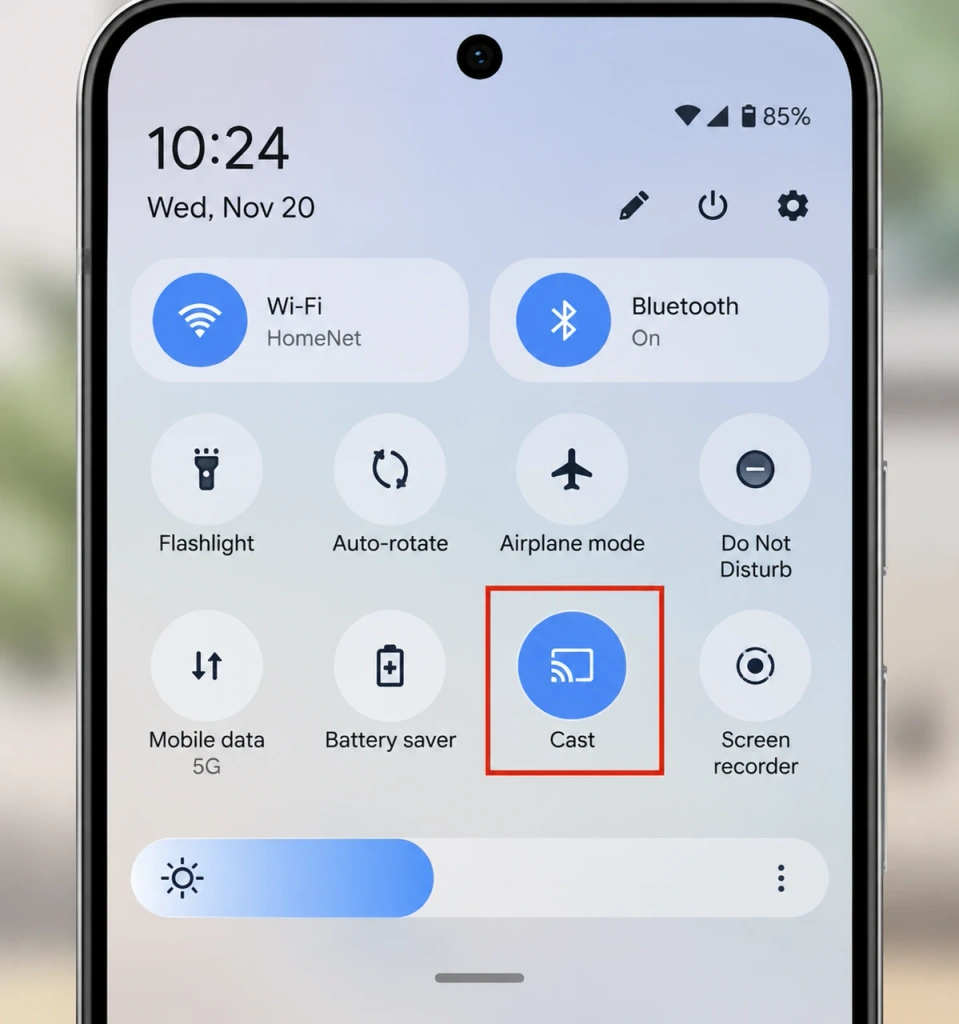
Open Quick Settings or your phone’s Settings app and look for a sharing option such as Cast, Screen share, Wireless display, or the manufacturer’s equivalent.
Start the search, then select your Samsung TV only if it appears as an available device.
Avoid treating a third-party mirroring app as a universal fix. It may add another layer of compatibility limits without changing whether the phone and TV can use the same connection method.
If the TV Does Not Appear, Use the Supported App-Casting Route Instead
If your actual goal is to watch something from a streaming, music, or photo app, check whether that app offers its own Cast button. A supported in-app casting route can work even when full-screen mirroring is not available for your phone-and-TV combination.
This is also the cleaner option when you do not need to display notifications, messages, or other parts of your phone on the TV.
Use a Wired HDMI Connection When Wireless Mirroring Is Not Supported
A wired connection is a fallback when wireless sharing is unavailable or incompatible with your phone and TV. Connect a compatible USB-C-to-HDMI adapter or cable to the phone, plug the HDMI end into an available TV input, and switch the TV to that input.
This only works when the phone supports video output over USB-C. Check your phone maker’s specifications before buying an adapter, because USB-C ports do not all provide display output.
Another option if you use a streaming device
If your Samsung TV does not support a compatible native mirroring method, 1001 TVs can provide an app-based wireless route when you use a compatible Android TV or Google TV streaming device with the TV. Install 1001 TVs on your Android phone and the streaming device, connect both to the same Wi-Fi network, then start screen mirroring from the phone.
Samsung TV Not Showing Up?
If the TV does not appear or the connection fails:
- Confirm that the phone and TV are on the same Wi-Fi network.
- Restart both devices and approve any connection request shown on the TV.
- Temporarily disable a VPN or hotspot, then install available software updates.
- If wireless mirroring still is not supported, try in-app casting or a compatible HDMI connection.
If you can connect but see a black screen, a video playback issue, or repeated connection failure, see our Samsung TV screen-mirroring troubleshooting guide.
Start with the Native Method That Matches Your Devices
For a Samsung Galaxy phone and compatible Samsung TV, start with Smart View. For another Android phone, try an app’s Cast option first, then the phone’s own screen-sharing feature. If neither works, use a supported streaming device with a mirroring app or a compatible HDMI connection.

Read More
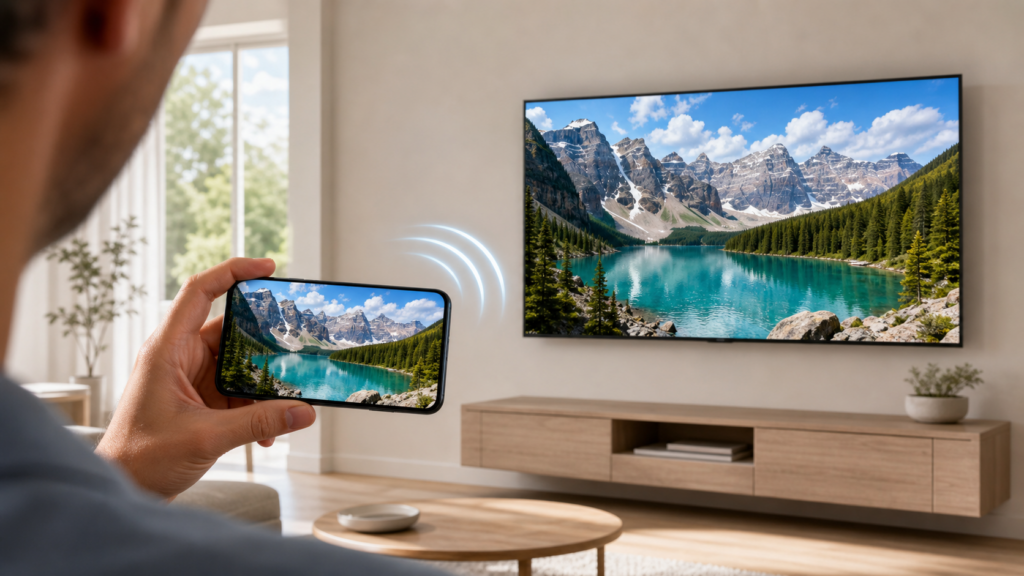 Samsung TV Screen Mirroring: The Complete Guide (All Devices)
To mirror your screen to a Samsung TV, start with the built-in option for your device: Smart View on a compatible Galaxy phone, AirPlay…
Samsung TV Screen Mirroring: The Complete Guide (All Devices)
To mirror your screen to a Samsung TV, start with the built-in option for your device: Smart View on a compatible Galaxy phone, AirPlay…
 How to Watch Süper Lig on TV in Türkiye
To watch Süper Lig in Türkiye during the 2026–2027 season, start with beIN SPORTS coverage through Digiturk or TOD. The right TV viewing option…
How to Watch Süper Lig on TV in Türkiye
To watch Süper Lig in Türkiye during the 2026–2027 season, start with beIN SPORTS coverage through Digiturk or TOD. The right TV viewing option…

