(Android) How to Disable Audio Casting by Default in 1001 TVs
If you don’t want sound to be cast every time you mirror your screen, or if you’re tired of manually turning off “Audio Casting,” this quick guide will show you how to disable audio casting by default in 1001 TVs.
Follow these three simple steps:
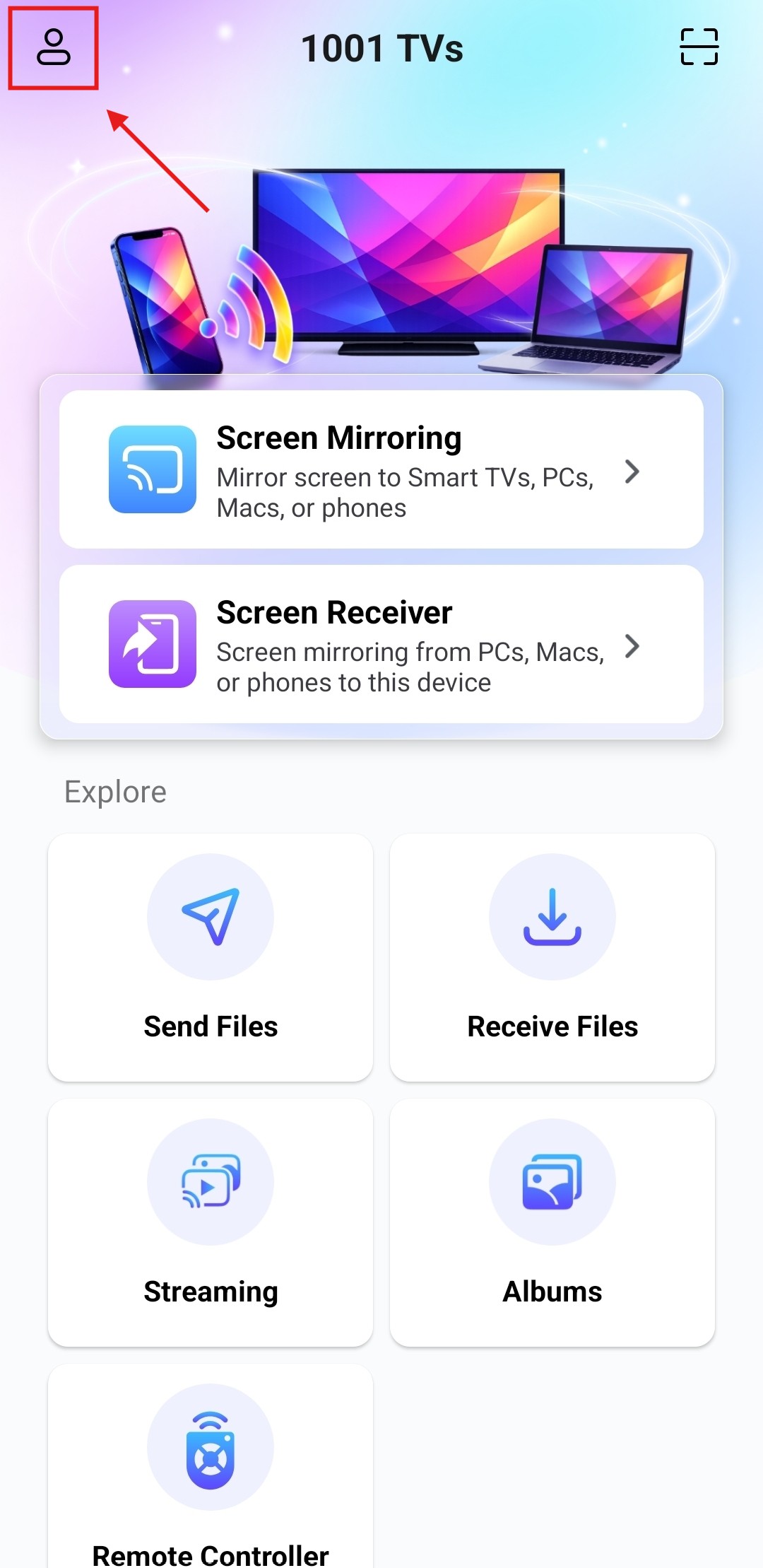
1. Open the 1001 TVs app and tap the icon in the top-left corner.
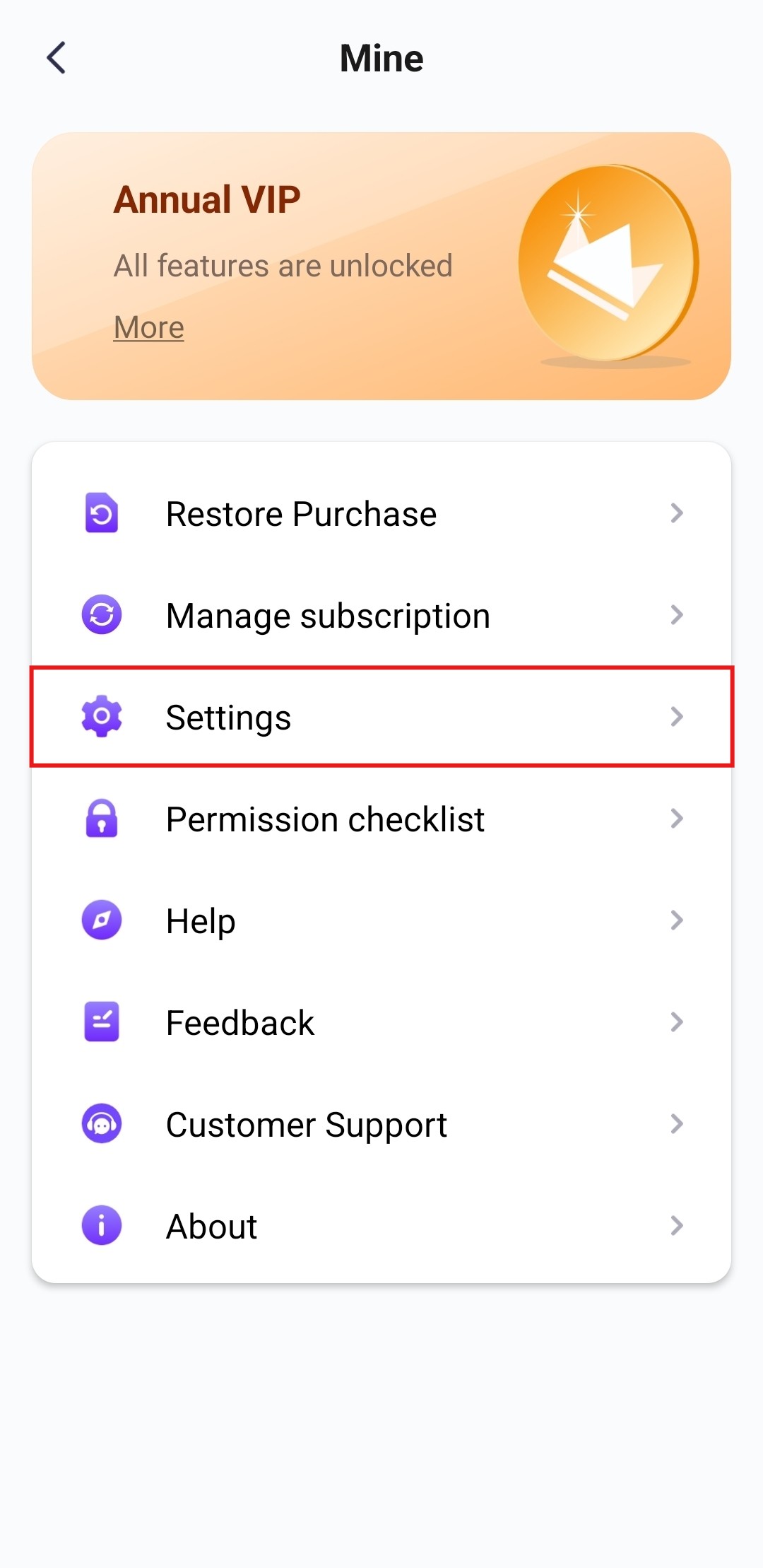
2. On the “Mine” page, tap Settings.
3. Turn off Auto enable sound.
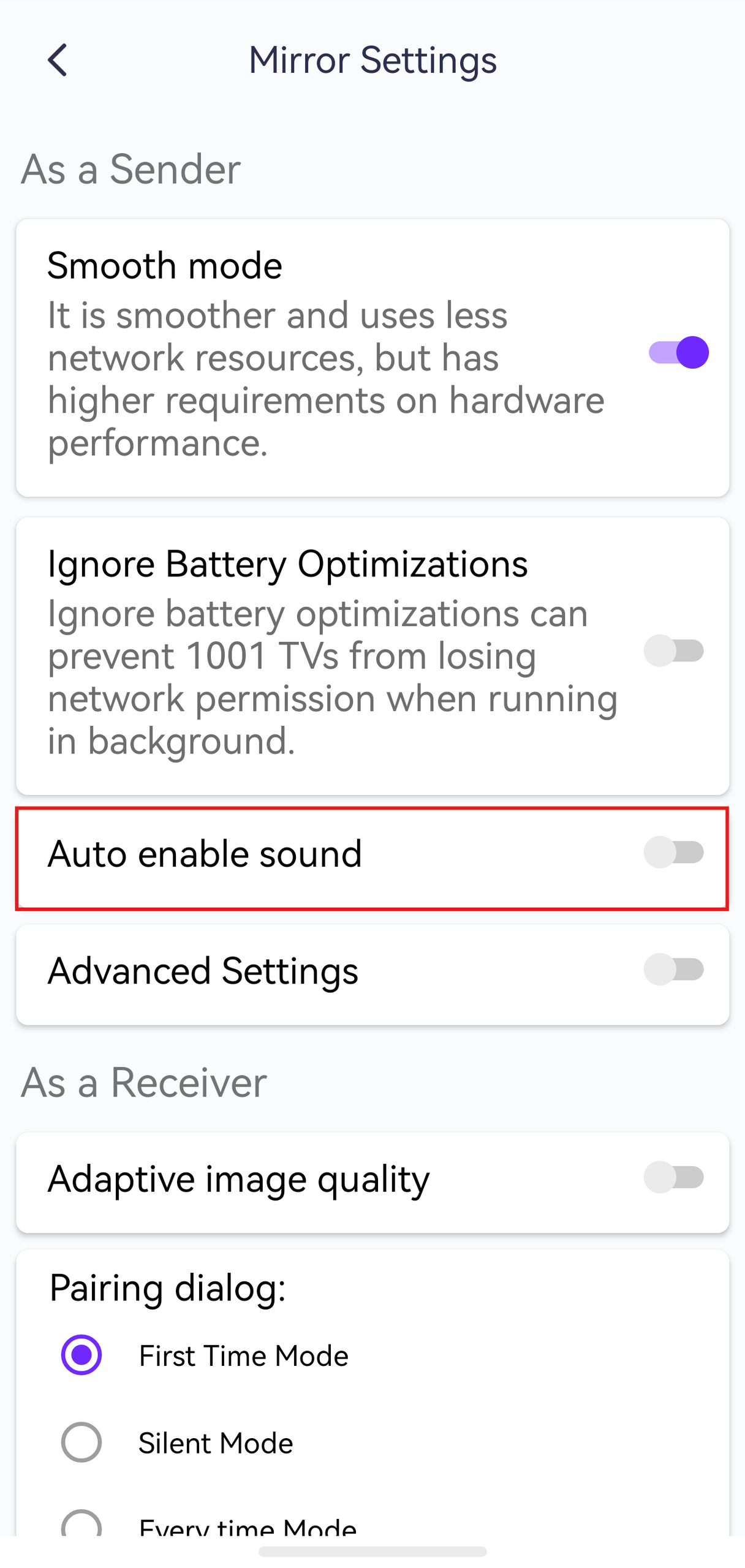
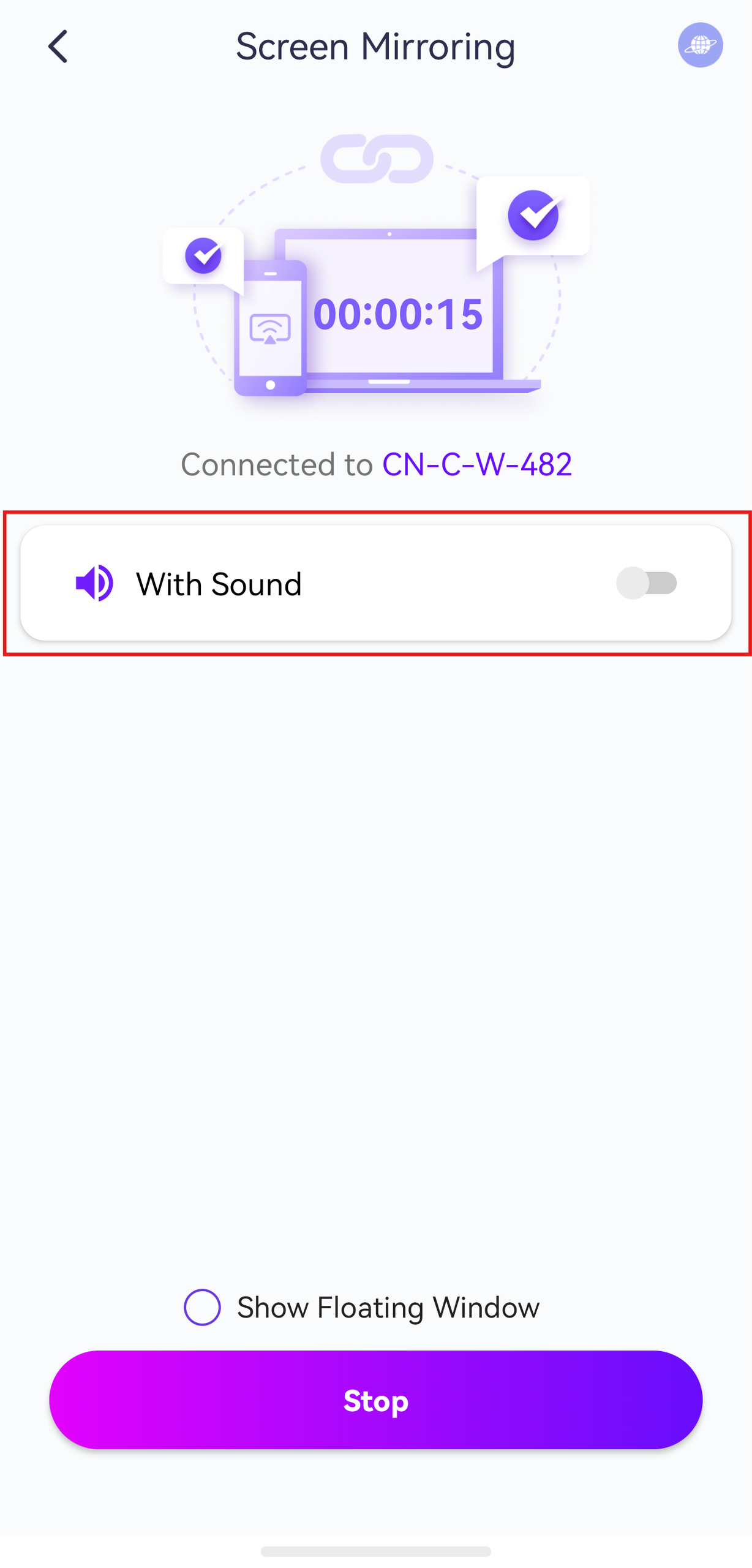
Once it’s turned off, audio casting will remain disabled by default the next time you cast. You won’t need to manually turn it off every time anymore.
More Tips
You can find more screen mirroring tutorials for 1001 TVs here:
👉 https://www.1001tvs.com/guidance/

Read More
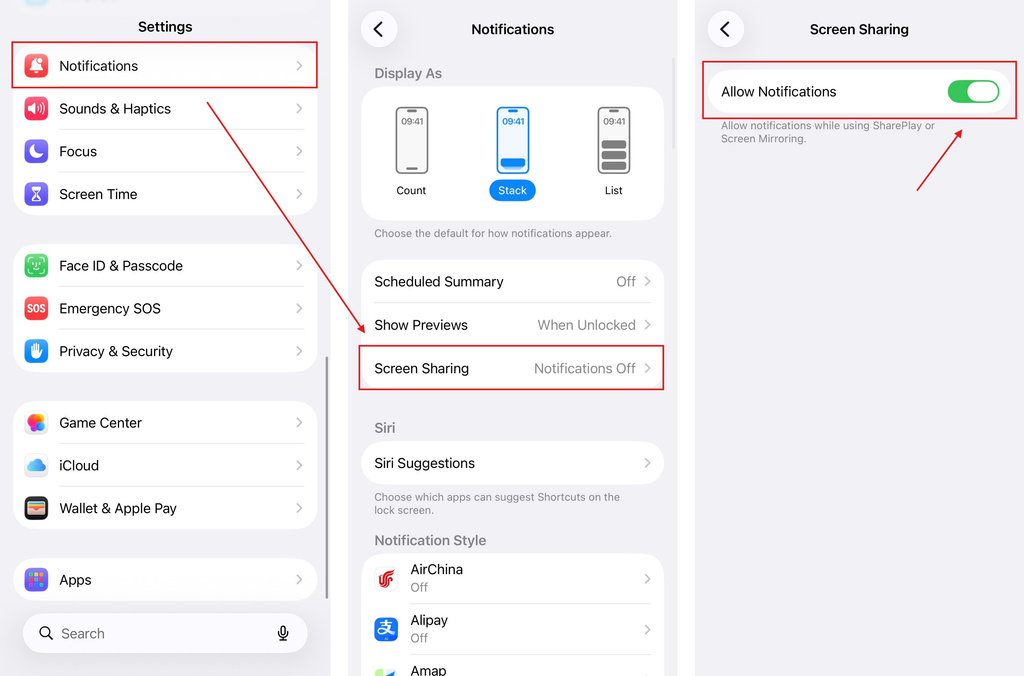 iOS: How to Fix Missing App Notifications During Screen Mirroring
Why Notifications Are Missing When you mirror your iPhone screen, notifications from other apps may not appear on the mirrored screen. This can happen…
iOS: How to Fix Missing App Notifications During Screen Mirroring
Why Notifications Are Missing When you mirror your iPhone screen, notifications from other apps may not appear on the mirrored screen. This can happen…
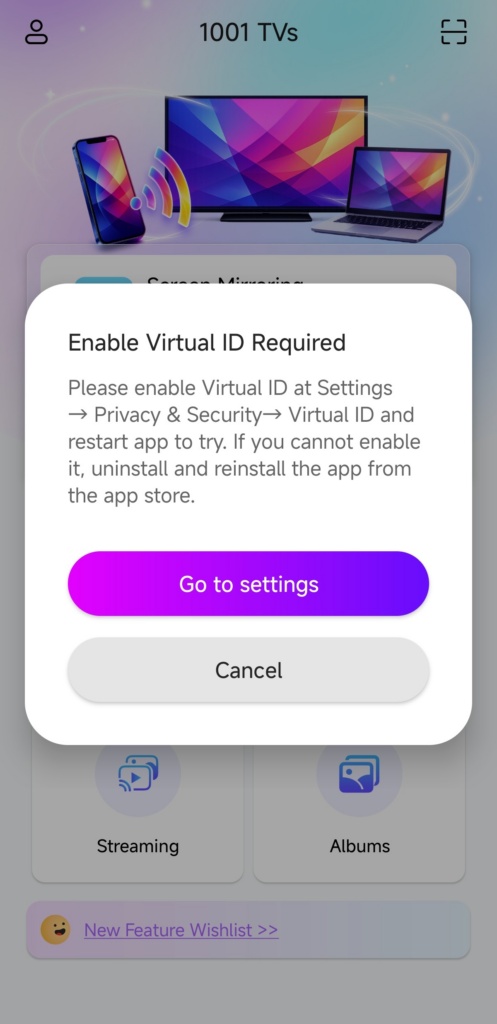 How to Fix the Enable Virtual ID Required Pop-Up
If you're using a Xiaomi or Redmi phone or tablet, you might see a pop-up that says "Enable Virtual ID Required" when you launch…
How to Fix the Enable Virtual ID Required Pop-Up
If you're using a Xiaomi or Redmi phone or tablet, you might see a pop-up that says "Enable Virtual ID Required" when you launch…

