检测到浏览器语言为中文,点此切换到中文页面 →
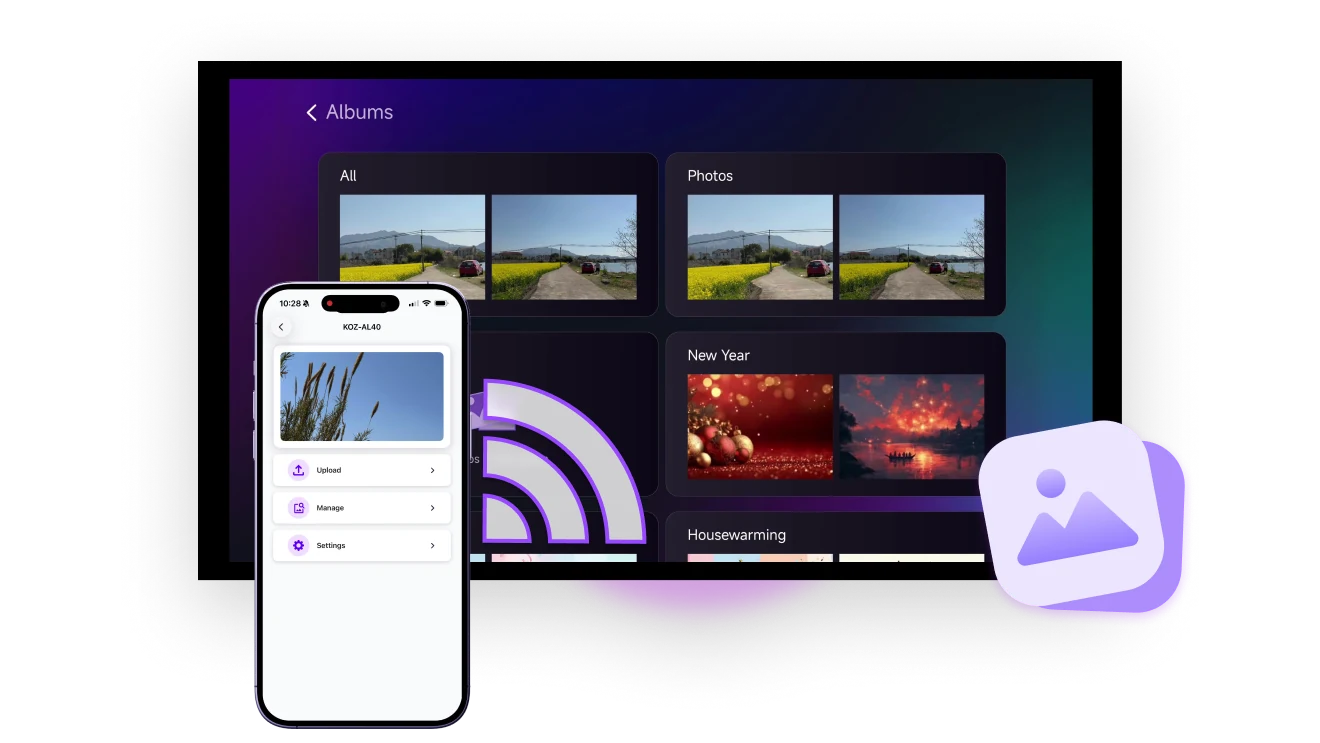
How to use Albums in 3 Easy Steps
1
Install the App
Download and open the app on both your phone and TV.
2
Connect Devices
Ensure both devices are connected to the same Wi-Fi. Tap “Albums” on your phone and select your TV.
3
Display Your Photos
Select photos or videos and tap to send. On the TV, go to “Albums” and press “Play” to start viewing.
Display Your Photos and Videos Better on the Big Screen
INSTANT VIEWING
No USB, no cables — wirelessly display your photos and videos on the big screen with no compression. View them individually or play them as a slideshow.
instant-viewing
4K DISPLAY
Photos and videos fill the screen in original quality — see every detail and relive your memories in full resolution.
4K display
Use Cases
Slideshow Albums
Memories & Moments
Business Slideshows
Cast Albums Anywhere — No Login Required
From travel memories and product showcases to company updates — display your albums on any screen with a single tap.

No cables. No compression. No sign-up.

Perfect for home sharing, in-store displays, public information, and event highlights.
share-scenic-memories
Your Smart Frame for Every Memory
Turn your TV into a personal display that grows with your life.

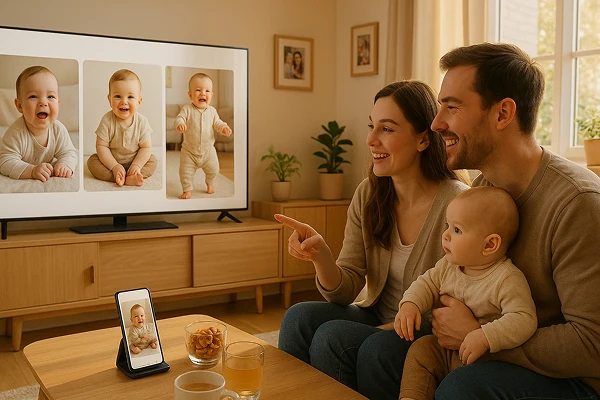
Show your favorite photos, baby albums, travel memories, or seasonal decor — all with one tap, no login needed.

Whether it’s a birthday, a holiday, or an ordinary day made special, let your screen reflect the memories that matter.
document-baby-growth
Smarter Displays for Your Business
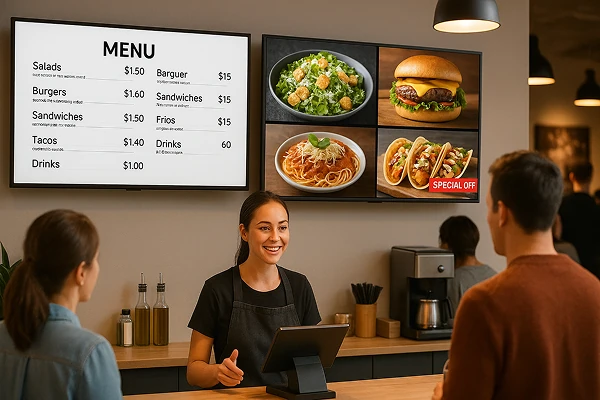
Skip the printing — turn any TV into a digital menu or sign, updated anytime from your phone.

Easily show menus, promotions, product photos, or videos. Great for restaurants, cafés, and retail stores.

Support horizontal and vertical screens to highlight details, attract attention, and boost sales.
easy-menu-promo-display
Download
FAQs
Albums sends selected photos and videos from your phone to a TV and lets you view them individually or as a slideshow. It can be used for family memories, events, product displays, menus, promotions, and digital signage.
Albums works between a supported iPhone or Android phone and a TV that can run the 1001 TVs app. Install the latest app version on both devices and connect them to the same local network.
No. Albums displays photos and videos in their original quality without media compression.
No. Albums does not require sign-up or cloud storage. Photos and videos are shared through a direct local-network connection rather than uploaded to a cloud album.
1001 TVs offers a limited-time free trial for Albums. After the trial, weekly, monthly, yearly, and lifetime plans are available; paid membership is only needed on the phone sending the album, while the receiving TV does not need a separate subscription. Local prices are shown in the app, and recurring subscriptions can be managed or canceled through the store or account used for purchase.
Please contact us at 1001tvs@nero.com.