[Tablet iOS] How to Mirror Screen to iPad Browser (Chrome)
1.Connect to the Same Wi-Fi:
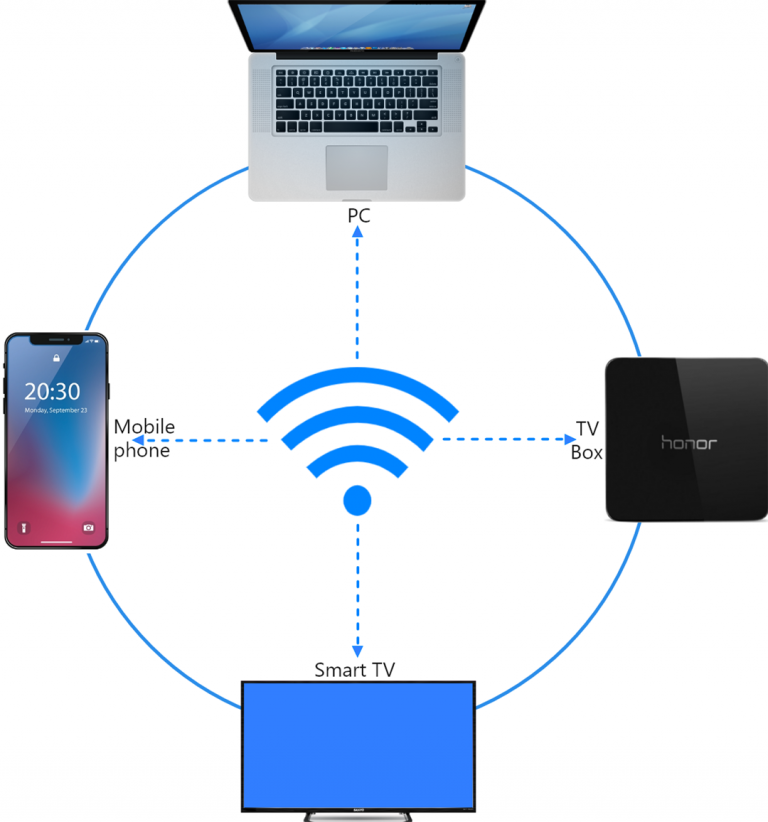
Make sure both your phone and iPad are connected to the same Wi-Fi network. (A 5G band Wi-Fi connection is recommended for the best performance.)
2. Install and Open 1001 TVs
To mirror your phone screen to a browser, all you need is the 1001 TVs app on your phone.
📱 iOS App: Download from App Store
3. Screen Mirroring
Tap “Browser” and select your mode: Basic Mode (no audio) or Pro Mode (with audio support).
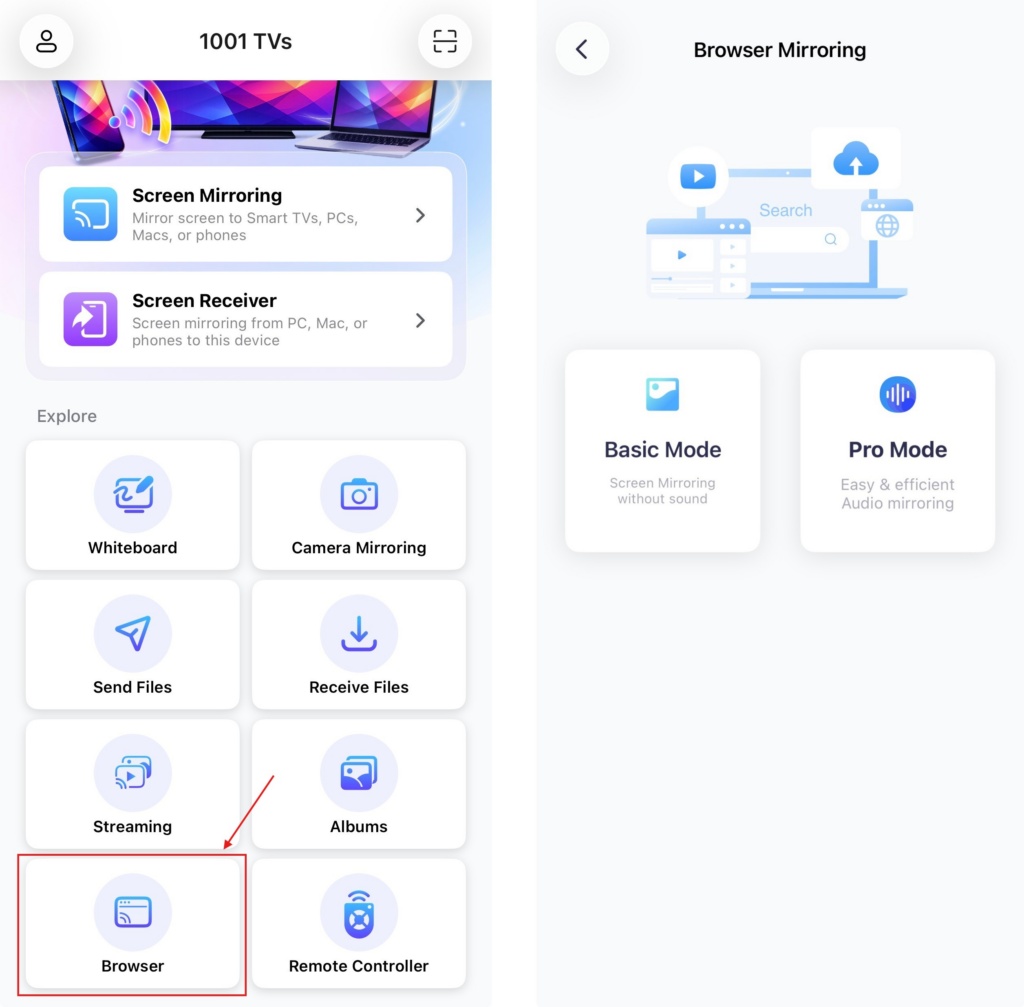
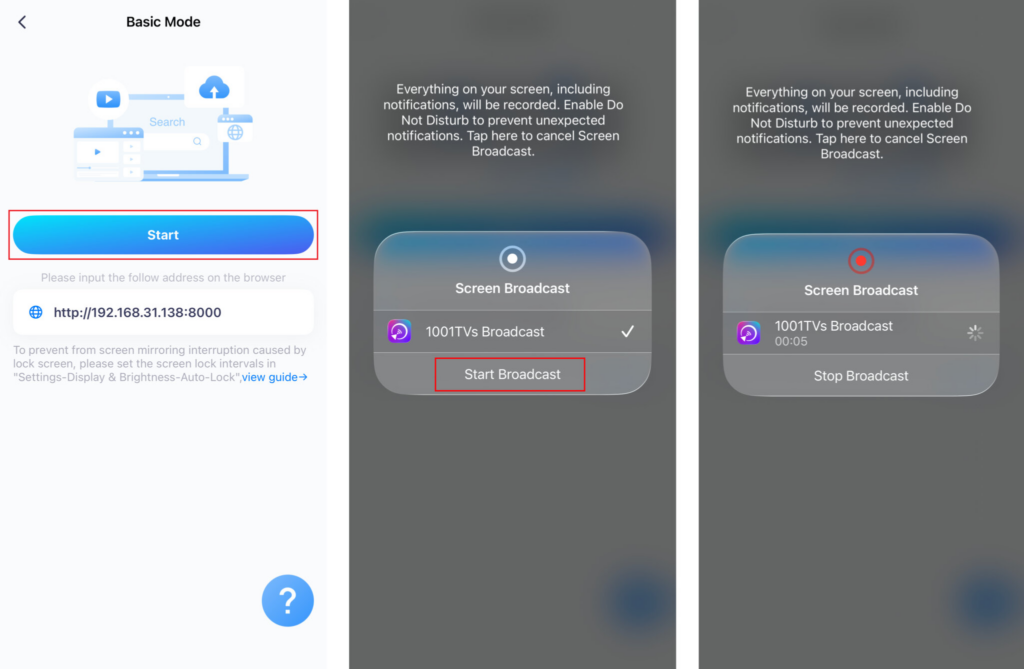
Basic Mode:
· Enter the IP address displayed on your phone into the browser.
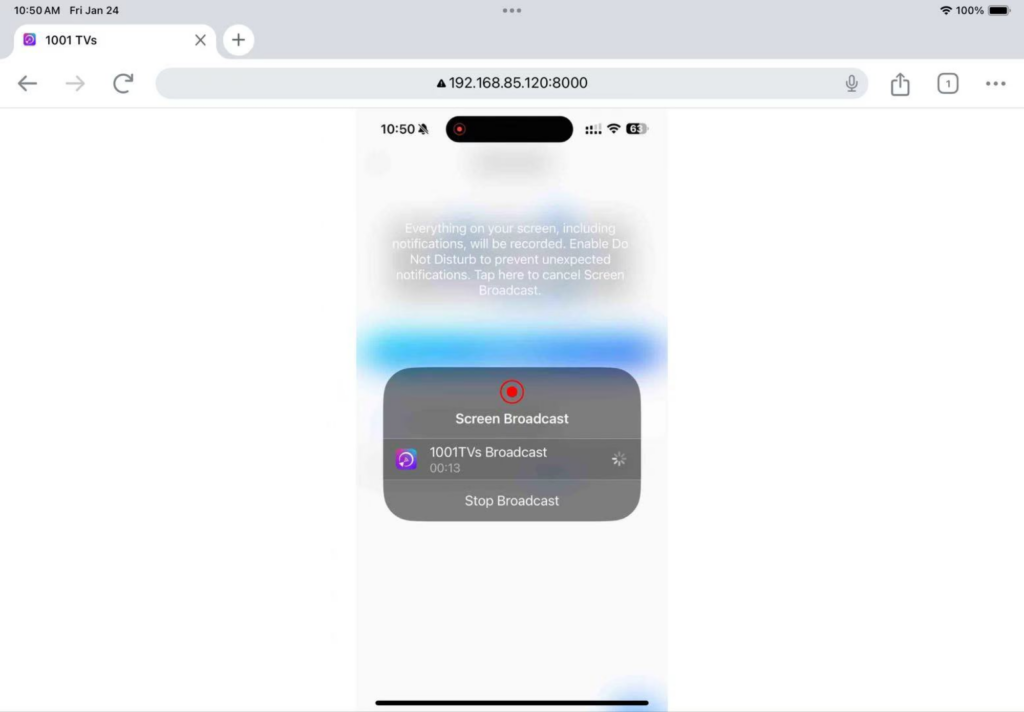
· Tap “Start Mirror” ➜ “Start Broadcast” After a 3-second countdown, your screen will appear on the browser.
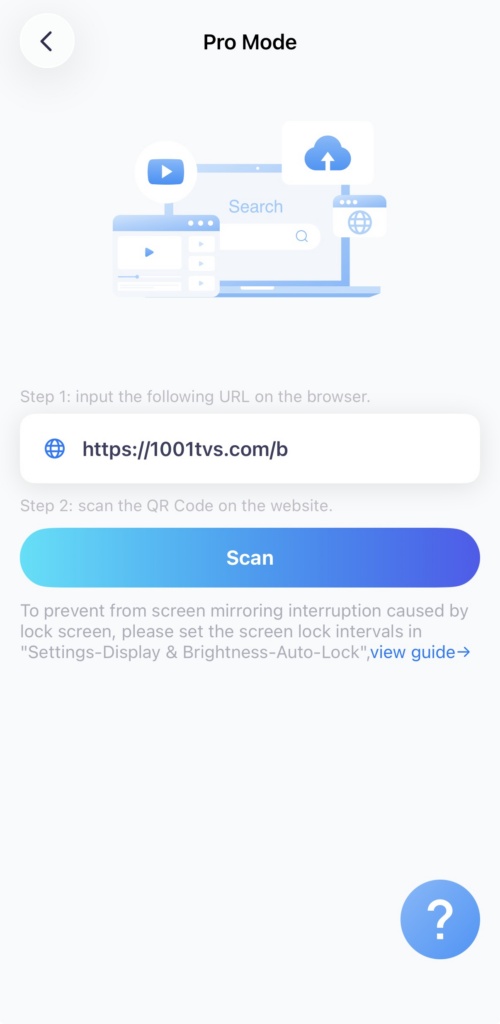
Pro Mode:
· Enter the URL displayed on your phone into the browser (Chrome is recommended).
· Tap “Scan” and use your phone to scan the QR code shown on the browser page.
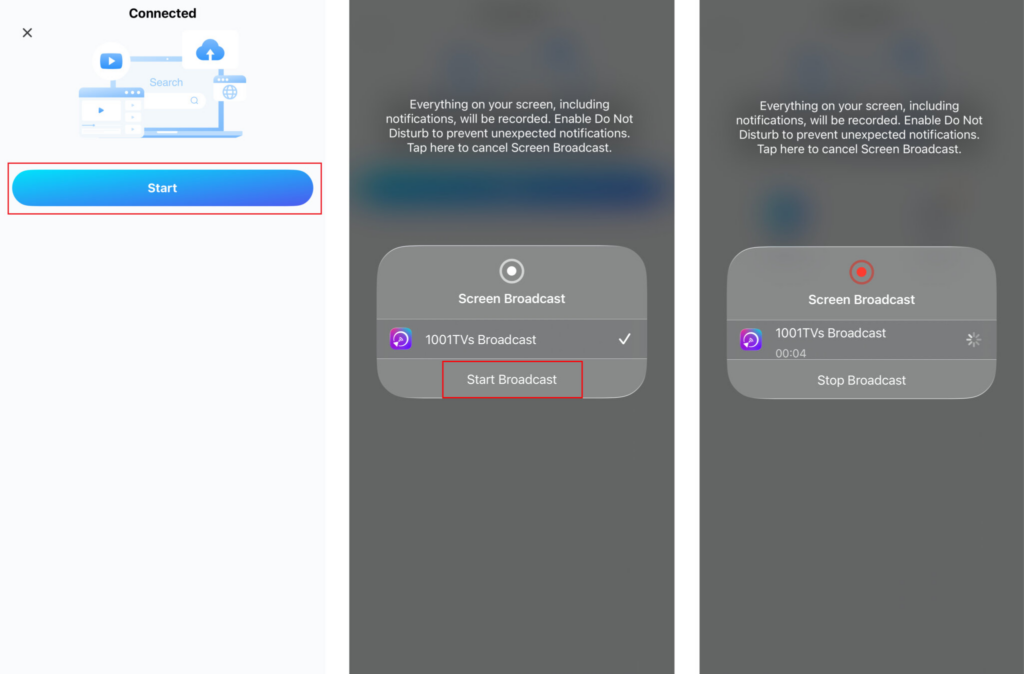
· Once connected, tap “Start” > “Start Broadcast”.
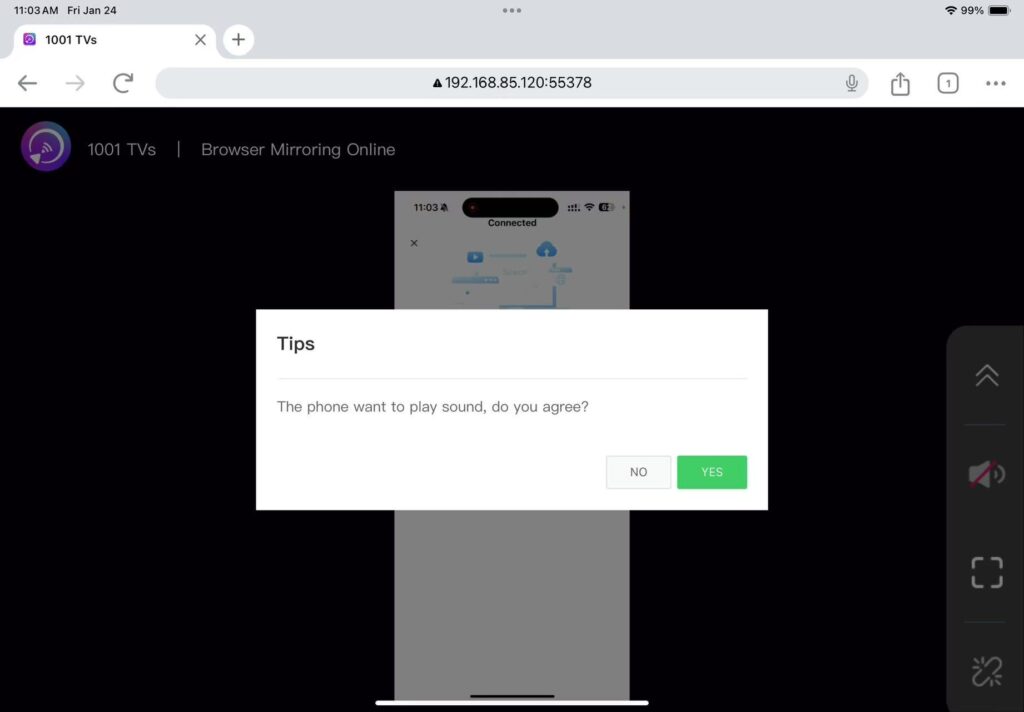
To enable audio in Advanced Mode:
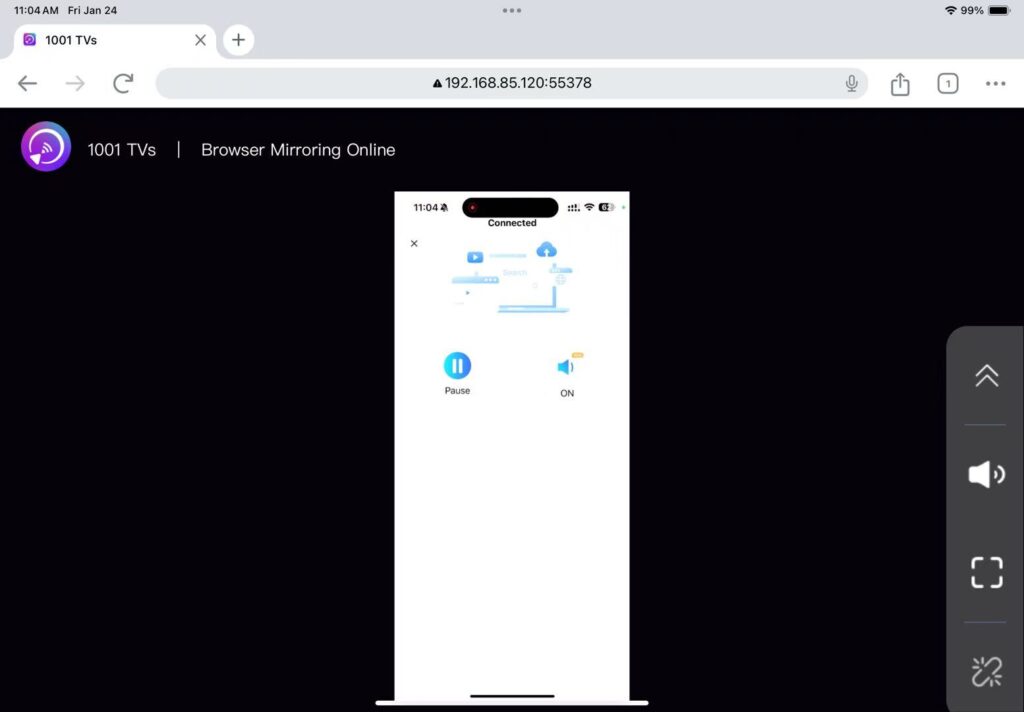
· Turn on the sound on your phone.
· Click “YES” on the browser page to start sound playing.
That’s it! You’re ready to enjoy smooth screen mirroring, with or without audio, right from your browser.
Get 1001 TVs Now
📱 iOS App: Download from App Store

Read More
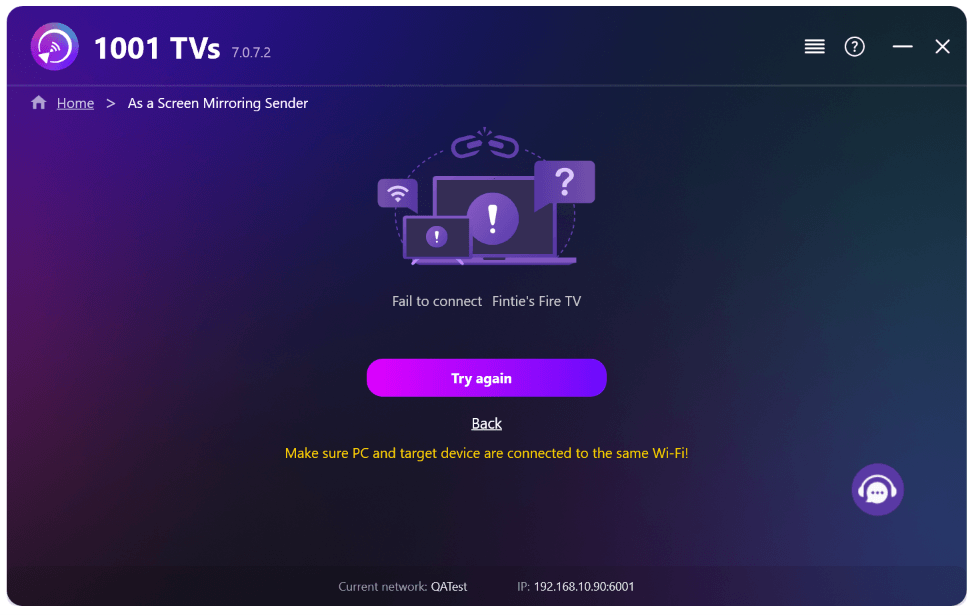 New Setting: No More Pop-ups When Mirroring Ends
When you're mirroring your PC screen to a TV and stop the session using the TV remote, the 1001 TVs window pops back up…
New Setting: No More Pop-ups When Mirroring Ends
When you're mirroring your PC screen to a TV and stop the session using the TV remote, the 1001 TVs window pops back up…
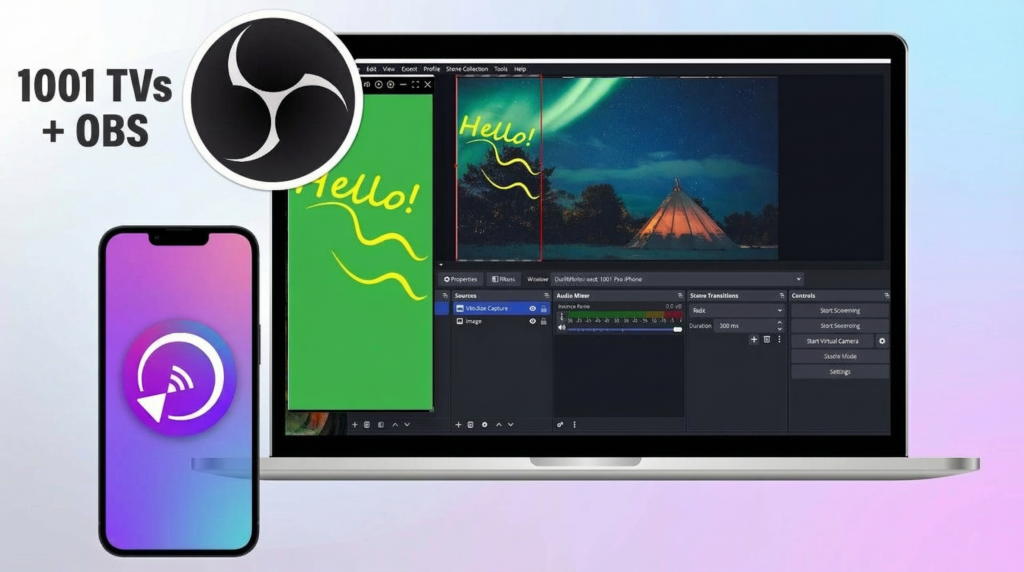 How to Capture Screen Mirroring in OBS (Android & iPhone)
Want to capture screen mirroring in OBS for mobile gameplay, tutorials, or live content? With 1001 TVs, you can easily mirror your phone screen…
How to Capture Screen Mirroring in OBS (Android & iPhone)
Want to capture screen mirroring in OBS for mobile gameplay, tutorials, or live content? With 1001 TVs, you can easily mirror your phone screen…

