How to Loop Photos and Videos on a Store TV (Simple Options for Small Businesses)
If your TV has a USB media player with a Repeat option, that’s usually the simplest way to keep a menu or promo video playing. Plug in a flash drive, start the file, and turn on repeat. For a mix of product photos and clips, a TV album app can be easier to update. If you need to change what’s on screen while talking to a customer, mirror it from your phone or laptop.
The part worth testing is what happens the next morning. A video can loop perfectly all afternoon, then leave you staring at the TV’s home screen after you turn it back on. If nobody will be there to press ئويناش, check how the TV wakes up before you settle on a setup.
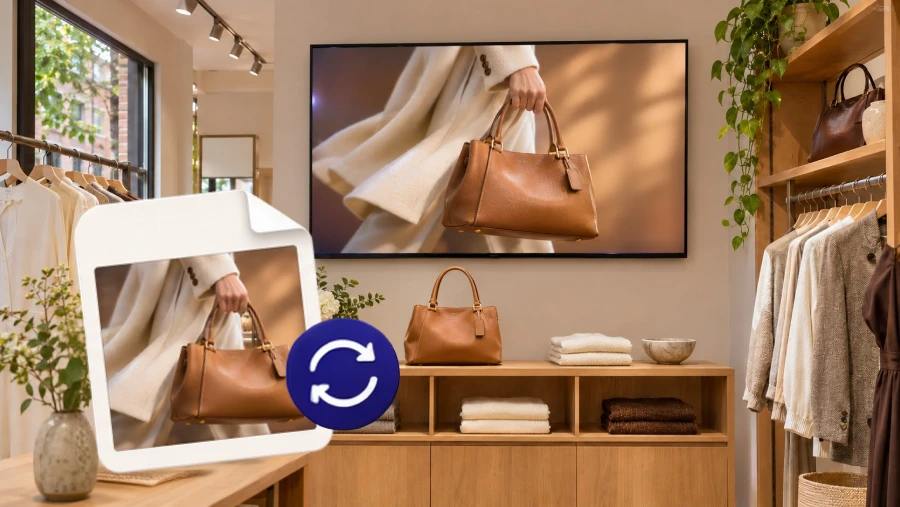
1. Choose a setup that fits your store
A bakery showing the same specials all week can keep things simple. A café that switches menus at noon, or a shop with three screens showing the same sale, may want an easier way to update them.
| If you need to… | Try this | Check before relying on it |
|---|---|---|
| Loop one video or menu on one TV | The TV’s USB player | Does it repeat the file and remember the setting? |
| Rotate through product photos | A slideshow on the TV or streaming box | Does the last slide return to the first? |
| Play photos and videos from an album on the TV | 1001 TVs Albums | Does your TV app version loop the album? |
| Change the display on the spot | Screen mirroring from a phone or computer | Can the sending device stay awake and connected? |
| Update several screens regularly | Cloud sync or digital signage | Can each screen start playing again after a restart? Does the update sync correctly? |
2. Loop photos or videos from a USB drive
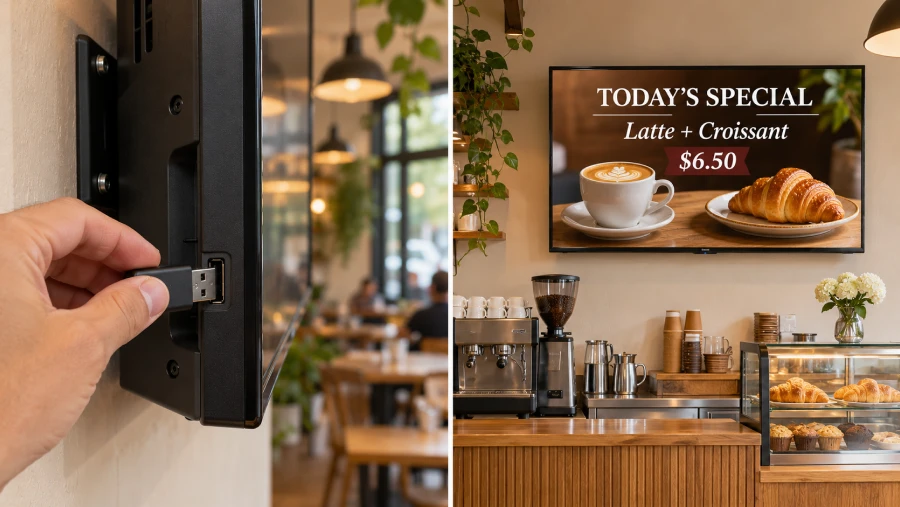
Start with USB if you have one TV and the content rarely changes. The TV plays the files directly, so your phone stays free and playback doesn’t depend on Wi-Fi.
- Put a few sample photos or videos on a USB drive and plug it into the TV.
- Open the TV’s USB source or Media Player.
- Start a video or photo slideshow. Open the playback controls and look for Repeat, Loop, or a circular arrow.
- If offered, choose Repeat One for a single video or Repeat All for a folder or playlist.
- Let the last item finish and watch what happens. The first item should play again without a button press.
Some TVs put photos and videos in separate menus. If yours won’t play both in one sequence, turn the photos and clips into a single video and repeat that file. Leave each photo on screen long enough for someone standing at the counter to read the price or offer.
JPEG photos and an H.264 MP4 video are good starting points. If the TV can see the drive but won’t open a file, check your model’s manual for supported formats. Menu names and playback options vary by model. Samsung’s USB media guide
3. Set up a slideshow or TV album
Use a slideshow for a rotating set of product photos. Open the album or slideshow feature on your TV or streaming box, set how long each photo should stay on screen, and look for a repeat option. Try a short album first. A slideshow that stops after the last image is fine for showing someone a few photos, but it won’t keep a shop display running.
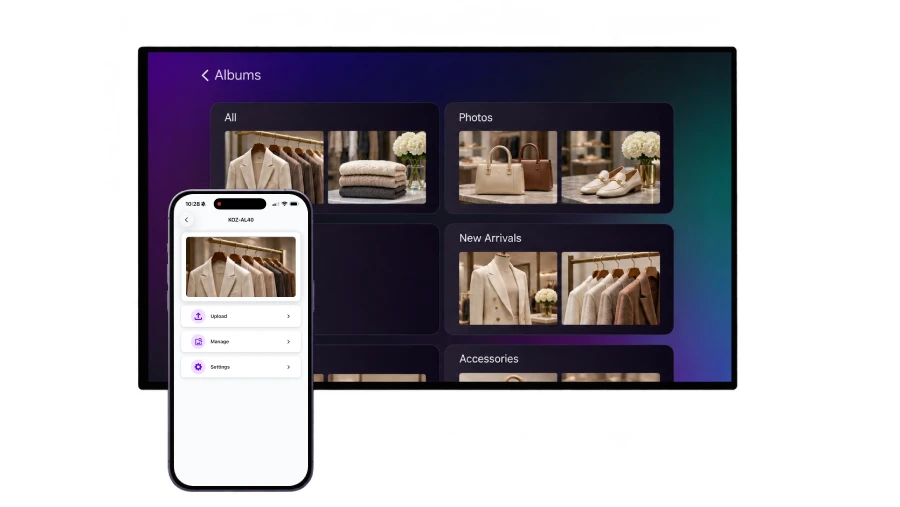
If you’d rather send files from your phone than swap a USB drive, try 1001 TVs Albums on a compatible TV. Send your photos and videos, open the album in the TV app, and turn on loop playback if your TV app version offers it. Once the files are on the TV, you can use your phone for something else. Try a three-item album with a video at the end and check that it returns to the first photo. How to add videos to a 1001 TVs album

4. Mirror a loop when you need to control it live
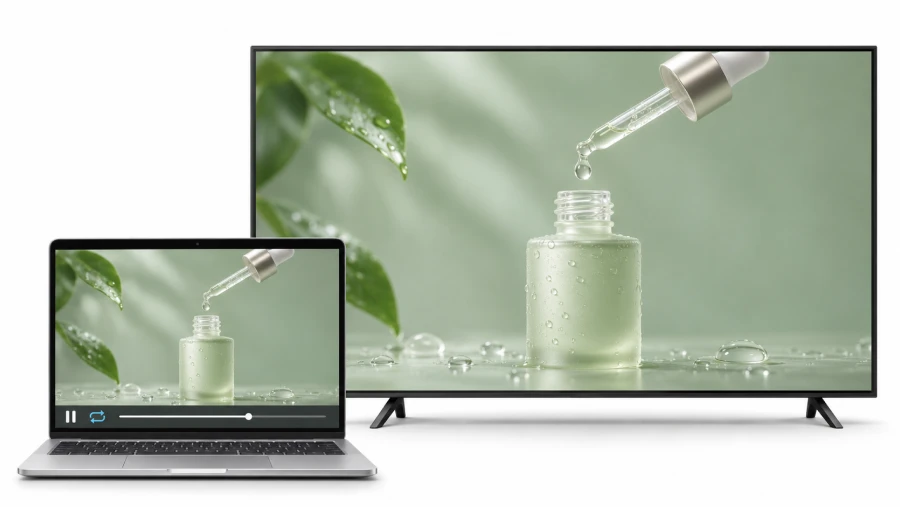
Screen mirroring is handy when someone is there to run the display. At a pop-up, for example, you can keep a promo reel playing between conversations, then pull up a specific product when someone asks about it.
- Open the video or slideshow on your phone or computer and set the player to repeat.
- Connect to a compatible TV using 1001 TVs Screen Mirroring or another mirroring method your devices support.
- Check the picture and volume on the TV. Keep the sending device powered and awake as needed, and check which notifications can appear on screen.
The player on your phone or computer runs the loop. If the device sleeps or loses its connection, you may need to reconnect it. If you only want to play one file on the TV while you’re there, see the phone-to-TV media streaming guide.
5. Use cloud sync when you update several screens
Cloud sync is worth a look when every promotion means walking around the store with a flash drive. If you also need breakfast and lunch menus to switch at set times, look for a signage player or app that explicitly supports scheduling.
بىلەن 1001 TVs Digital Signage, you can pair a compatible TV and upload photos or videos to the 1001 TVs folder in OneDrive. The TV app automatically downloads those files. Before using it for an unattended display, confirm that your TV app version can loop the content, restart playback after a reboot, and keep playing downloaded files if the network goes down.
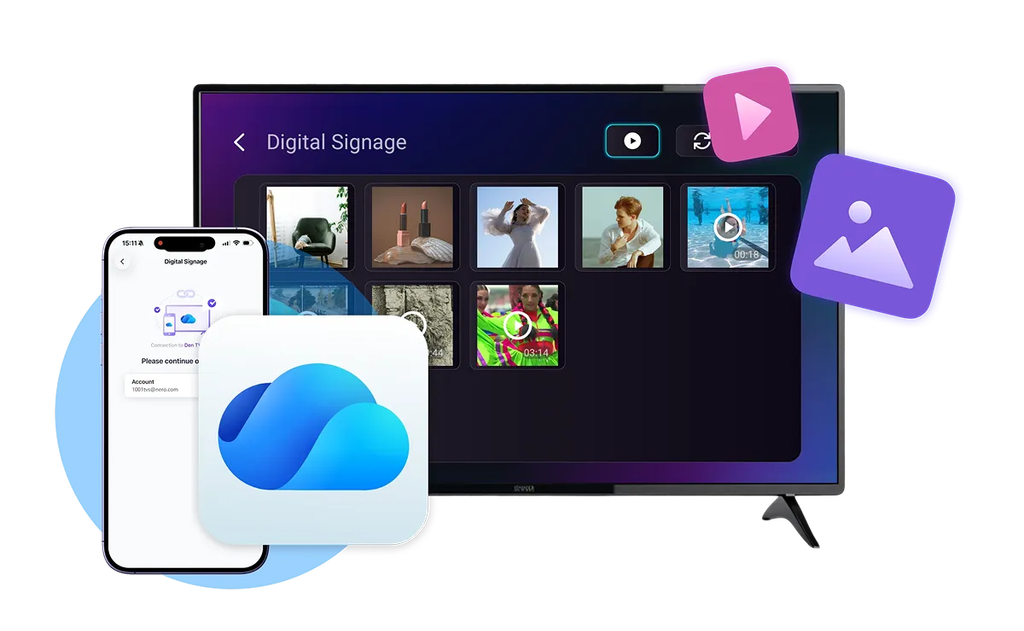
If you need scheduled playlists, automatic startup, or a way to check what’s playing remotely, look at dedicated signage software or players. Test one screen with your actual setup before rolling it out to the rest of the store.
6. Check whether the loop restarts on its own
For an unattended loop, the TV needs to turn on, return to the right input or app, and start playing. Those are three separate checks. An HDMI player can be running while the TV is still off, and a TV can reopen an album that’s waiting for someone to press ئويناش.
| If you’re using… | If this happens… | What to check |
|---|---|---|
| USB | The TV opens its home screen, or the video plays once and stops. | Check whether the TV can reopen the USB player automatically and whether it remembers the Repeat setting. |
| A TV slideshow or 1001 TVs Albums | The TV turns on, but the slideshow doesn’t resume. | Check whether the app reopens the last album and starts playback. If you use a streaming box, check that the TV returns to the right HDMI input. |
| ئېكران ئەينىكى | The TV turns on, but the mirrored picture is gone. | Check whether the phone or laptop is still awake and playing, then see whether it reconnects to the TV on its own. |
| Cloud sync or digital signage | The files are on the TV, but nothing plays after a restart. | Check whether the app or player opens automatically and starts the playlist. With 1001 TVs Digital Signage, check playback separately from OneDrive file sync. |
Run the test after closing. First, put the TV in standby with the remote, then wake it and see whether playback resumes. Next, follow the manufacturer’s guidance to test a full power restart with the TV and any external player. Wait to see what comes back without touching the remote. If you use cloud sync, also check whether downloaded content keeps playing during a network interruption. Example guide: Sony’s guide to TV timers and HDMI-CEC settings
If someone needs to press ئويناش each morning and staff are already there to open the shop, add it to the opening checklist. If the screen has to recover on its own, use a setup that passes the restart test on your hardware.
7. Avoid leaving the same image on screen all day
Give the screen a break outside business hours and vary what stays in the same spot. A slideshow can change every minute while a bright logo or price column sits in exactly the same place. On OLED TVs in particular, repeatedly showing fixed elements can contribute to image retention.
Vary the layout between slides, keep brightness at a level customers can comfortably read, and leave the TV’s panel protection features enabled. Follow the manufacturer’s shutdown instructions before using a timer that cuts power at the outlet. If you’re buying a screen for all-day use, check its rated operating hours and commercial-use warranty.
For one TV and a weekly special, start with USB or a TV album. If updating several screens is the part that takes up your time, try cloud sync. Either way, run the loop through one full business day and check that it’s ready again the next morning.

Read More
 Chromecast Not Showing in Chrome? How to Fix It
If Chrome’s Cast list is empty and your Chromecast is already set up, check whether a phone or another computer on your home network…
 [2026] iPhone، iPad، Mac ۋە تېلېۋىزورلاردا AirPlay نى قانداق ئېتىۋېتىش كېرەك
To stop mirroring your iPhone or iPad, open Control Center, tap Screen Mirroring, then tap Stop Mirroring. If you’re only streaming a video or…

