A função de espelhamento do ecrã da TV Samsung não está a funcionar? Como resolver o problema
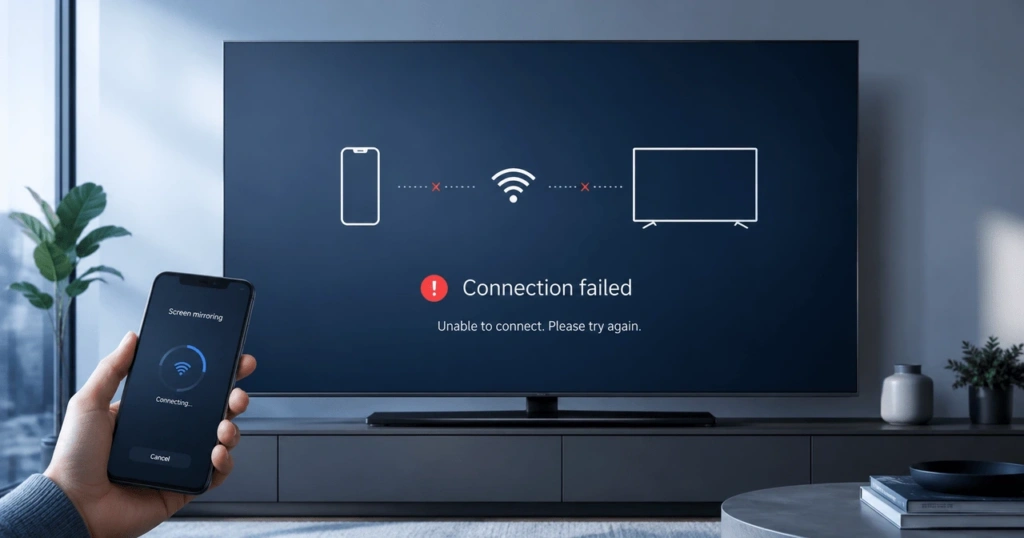
A duplicação de ecrã na TV Samsung falha normalmente devido a um problema de rede, de autorizações, de software ou de compatibilidade. Comece por reiniciar ambos os dispositivos. Em seguida, verifique se está a utilizar um método de duplicação de ecrã suportado pela TV e pelo dispositivo emissor.
Uma ligação que provoca um ecrã preto é um caso diferente. A causa pode ser, em vez disso, um vídeo protegido ou uma ligação Wi-Fi fraca.
Os passos abaixo começam com soluções rápidas. Se estas não funcionarem, utilize a tabela de sintomas para encontrar a secção adequada.
Experimente primeiro estas soluções rápidas
Estes cinco passos resolvem muitos problemas temporários relacionados com a duplicação de ecrã:
- Reinicie a televisão Samsung e o dispositivo de transmissão.
- Sempre que possível, ligue ambos os dispositivos à mesma rede doméstica.
- Saia da rede Wi-Fi para visitantes e desative qualquer VPN.
- Ative o AirPlay, o Smart View ou o Wireless Display.
- Elimine o emparelhamento antigo ou o registo de dispositivos autorizados, caso essa opção esteja disponível, e, em seguida, volte a ligar-se.
Teste a duplicação de ecrã após cada passo. Não é necessário reiniciar a televisão se o reinício resolver o problema.
Para obter ajuda na escolha e configuração de um método de ligação, consulte o nosso Guia completo sobre a função de espelhamento do ecrã na televisão Samsung.
Descubra a causa a partir dos sintomas
Os problemas de espelhamento de ecrã são mais fáceis de resolver quando se começa por analisar o sintoma. Consulte esta tabela antes de alterar mais definições.
| O que acontece | Causa mais provável | Por onde começar |
| A televisão Samsung não aparece | Detecção de rede ou incompatibilidade | Detecção de redes e dispositivos |
| A televisão aparece, mas não se liga | Problema de autorização, emparelhamento ou de software | Emparelhamento e software |
| Falta o AirPlay ou o Smart View | Funcionalidade não suportada ou desativada | Compatibilidade com dispositivos |
| A função de espelhamento estabelece a ligação, mas o vídeo aparece a preto | DRM ou restrição de aplicações | Ecrãs pretos e reprodução |
| A imagem está desfocada ou com atraso | Sinal Wi-Fi fraco ou congestionamento da rede | Estabilidade da ligação |
| A ligação está sempre a cair | Interferência ou poupança de energia | Estabilidade da ligação |
| O Windows indica que não há suporte para ecrã sem fios | Limitação do Miracast ou do controlador | Compatibilidade com o Windows |
A Samsung salienta que as funcionalidades disponíveis variam consoante o modelo de televisor, a região, o dispositivo e a versão do software. O Smart View não está disponível em todos os telemóveis. A empresa guia oficial de espelhamento de ecrã fornece detalhes sobre a configuração atual.
Resolver problemas de deteção de redes e dispositivos
Uma televisão Samsung que não aparece está, normalmente, a ser bloqueada pela rede ou a utilizar um método de ligação incompatível. Reinicie primeiro ambos os dispositivos. Em seguida, verifique se conseguem comunicar entre si localmente.
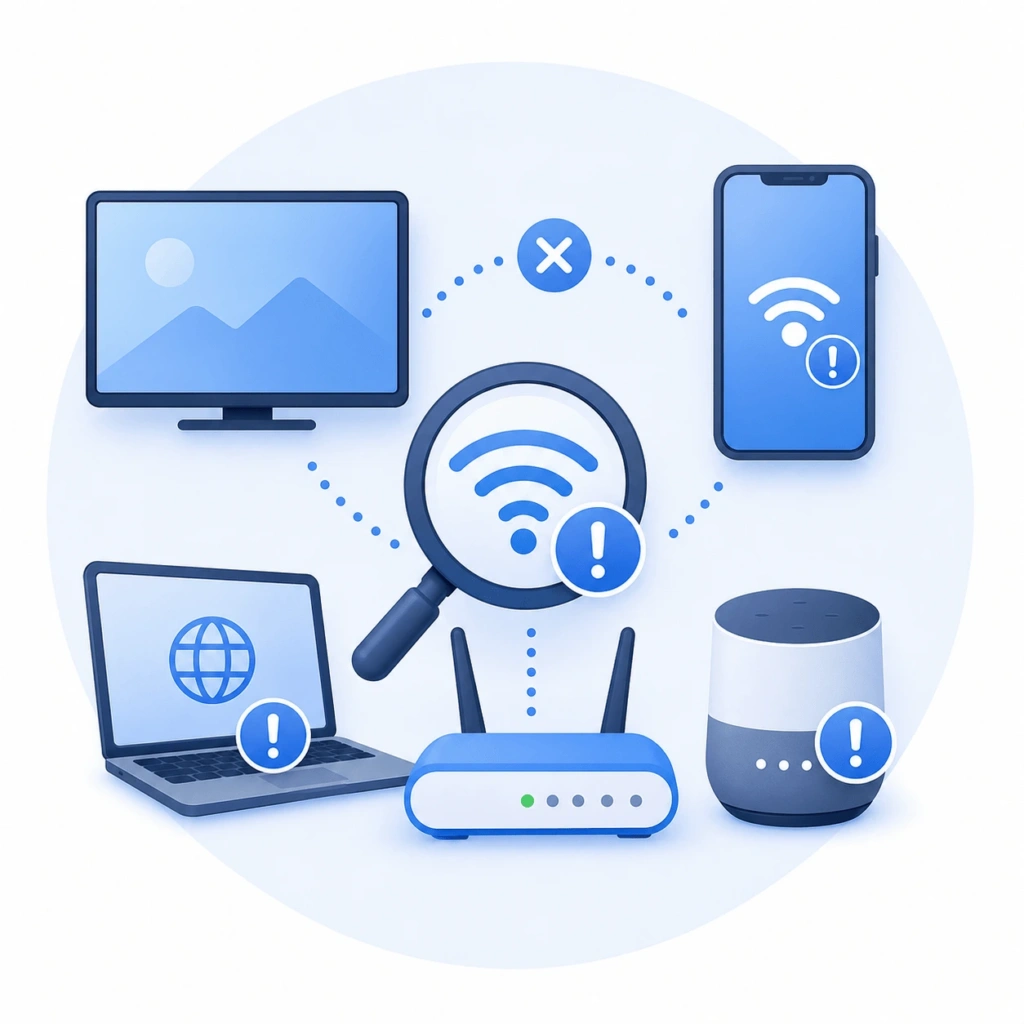
Reinicie a televisão e o dispositivo emissor
Um simples toque no botão de ligar da televisão pode apenas colocá-la em modo de espera. Um reinício completo elimina mais dados temporários de ligação.
Desligue a televisão e retire-a da tomada durante cerca de 30 segundos. Volte a ligá-la à corrente e aguarde até que o ecrã inicial seja carregado.
Alguns comandos da Samsung permitem efetuar um arranque a frio. Mantenha premido o botão de alimentação até a televisão se desligar e voltar a ligar. Solte-o quando o logótipo da Samsung aparecer.
Reinicie também o telemóvel, o tablet ou o computador. Experimente fazer o espelhamento do ecrã depois de ambos os dispositivos terem restabelecido a ligação.
Se faltarem vários dispositivos locais, reinicie o router. Aguarde até que a rede Wi-Fi volte a funcionar na totalidade.
Verifique a rede local
O AirPlay e a duplicação de ecrã através de aplicações requerem, normalmente, a mesma rede local. Coloque a televisão Samsung e o dispositivo de envio na sua rede doméstica principal.
A Samsung também recomenda utilizar a mesma rede Wi-Fi para o Smart View. Seguir essa recomendação elimina muitos problemas de deteção.
O Miracast pode utilizar o Wi-Fi Direct em algumas configurações. Nem sempre é necessário ter acesso à Internet. A compatibilidade continua a variar consoante os dispositivos e os modelos de televisão.
Um telemóvel na banda de 5 GHz consegue, muitas vezes, comunicar com uma televisão na banda de 2,4 GHz. O router tem de permitir o tráfego entre ambas as bandas.
O facto de os nomes das redes Wi-Fi coincidirem nem sempre garante o acesso local. Alguns routers isolam os dispositivos ligados por predefinição.
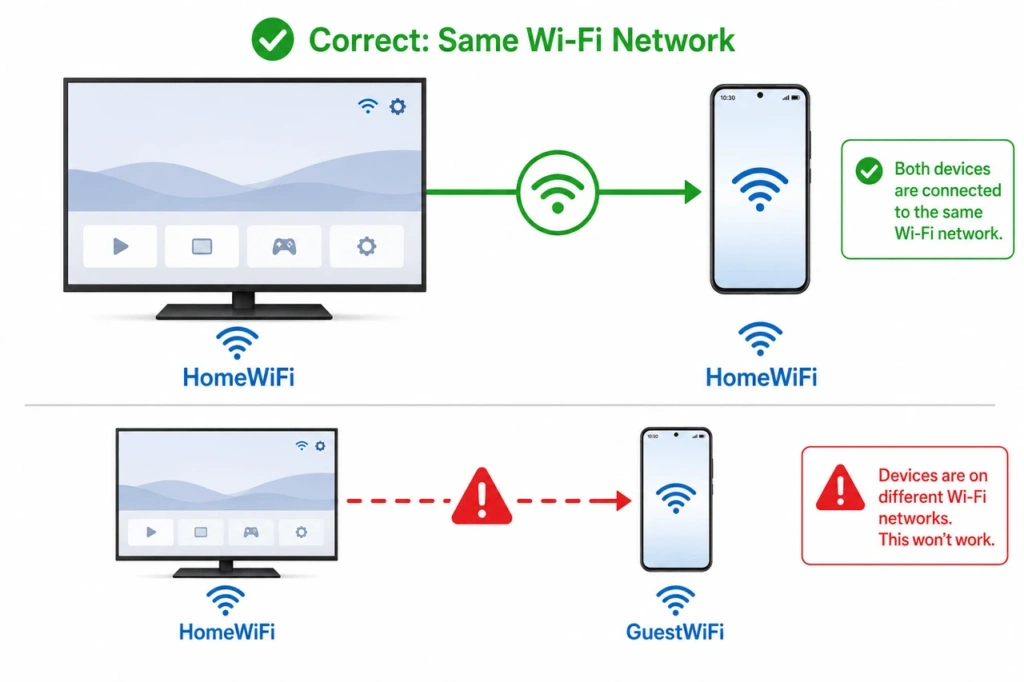
Saia da rede Wi-Fi para visitantes e desligue a VPN
As redes para visitantes impedem frequentemente que os dispositivos se detetem uns aos outros. As redes de hotéis, escolas, escritórios e apartamentos partilhados podem aplicar restrições semelhantes.
Ligue ambos os dispositivos a uma rede doméstica privada. Teste novamente depois de se terem reconectado.
Uma VPN também pode bloquear a descoberta de dispositivos locais. Desligue-a para fazer um teste rápido.
Os dispositivos de trabalho geridos podem utilizar software de segurança que não pode ser desativado. Consulte o administrador antes de alterar essas definições.
Normalmente, não é necessário desativar o Apple Private Relay. Não se trata de uma VPN que abrange todo o dispositivo e, normalmente, não bloqueia a deteção local do AirPlay.
Verifique a firewall e o router
Uma firewall do computador pode bloquear a duplicação de ecrã através de uma aplicação. Conceda à aplicação de duplicação de ecrã permissão para aceder à rede local.
Não deixe a firewall desativada. Reative-a após os testes.
No Windows, um perfil de rede privada pode facilitar a deteção por parte das aplicações. Esta alteração não garante que o Miracast funcione. O Miracast poderá criar uma ligação Wi-Fi Direct separada.
As definições do router podem incluir o isolamento do ponto de acesso, o isolamento do cliente ou o isolamento da rede sem fios. Estas funcionalidades impedem que os dispositivos locais comuniquem entre si.
Desative o isolamento apenas numa rede doméstica de confiança. As redes públicas e geridas devem manter os seus controlos de segurança.
Melhorar uma ligação instável
Uma ligação Wi-Fi fraca pode causar vídeo desfocado, atrasos no áudio e desconexões repetidas. A duplicação de ecrã envia um fluxo contínuo de dados através da rede.
Aproxime o dispositivo emissor do router. Verifique se a televisão também recebe um sinal forte.
Suspende os backups na nuvem, os downloads de grande dimensão e outras transmissões de vídeo. Estas atividades podem reduzir a largura de banda disponível para a replicação.
Experimente a banda de 5 GHz quando os dispositivos estiverem próximos do router. Muitas vezes, esta banda está menos congestionada do que a de 2,4 GHz. O seu alcance pode ser menor.
A Ethernet pode melhorar a ligação da televisão, desde que o modelo a suporte. Uma televisão ligada por cabo e um telemóvel sem fios podem, mesmo assim, partilhar a mesma rede local.
A função de poupança de energia pode interromper uma sessão ativa em alguns telemóveis e computadores portáteis. Mantenha o dispositivo emissor ativo durante o teste.
Reinicie a rede da televisão como último recurso
Reiniciar a rede pode ajudar quando a televisão tem acesso à Internet, mas não consegue detetar dispositivos locais. Guarde este passo para quando as soluções mais simples não tiverem resultado.
Nas televisões Samsung de 2022 e mais recentes, aceda a Definições > Todas as definições > Ligação > Rede > Repor rede. Em muitos modelos de 2021 e anteriores, utilize Definições > Gerais > Rede > Repor rede.
As versões mais recentes do software podem colocar essa opção noutro local. Procure nas definições da televisão se não a conseguir encontrar.
Volta a ligar a televisão à rede Wi-Fi após a reinicialização. Em seguida, testa novamente a duplicação de ecrã.
Uma reinicialização da rede não deve eliminar todas as aplicações de televisão nem as definições pessoais. É diferente de uma reinicialização para as definições de fábrica.
A Samsung fornece orientações específicas para cada modelo no seu Instruções para reiniciar a rede de televisão.
Resolver problemas relacionados com permissões, emparelhamento e software
Se a televisão aparecer, mas não conseguir estabelecer ligação, é provável que a rede não seja o principal problema. Verifique a configuração de espelhamento, as autorizações do dispositivo, o emparelhamento guardado e a versão do software.
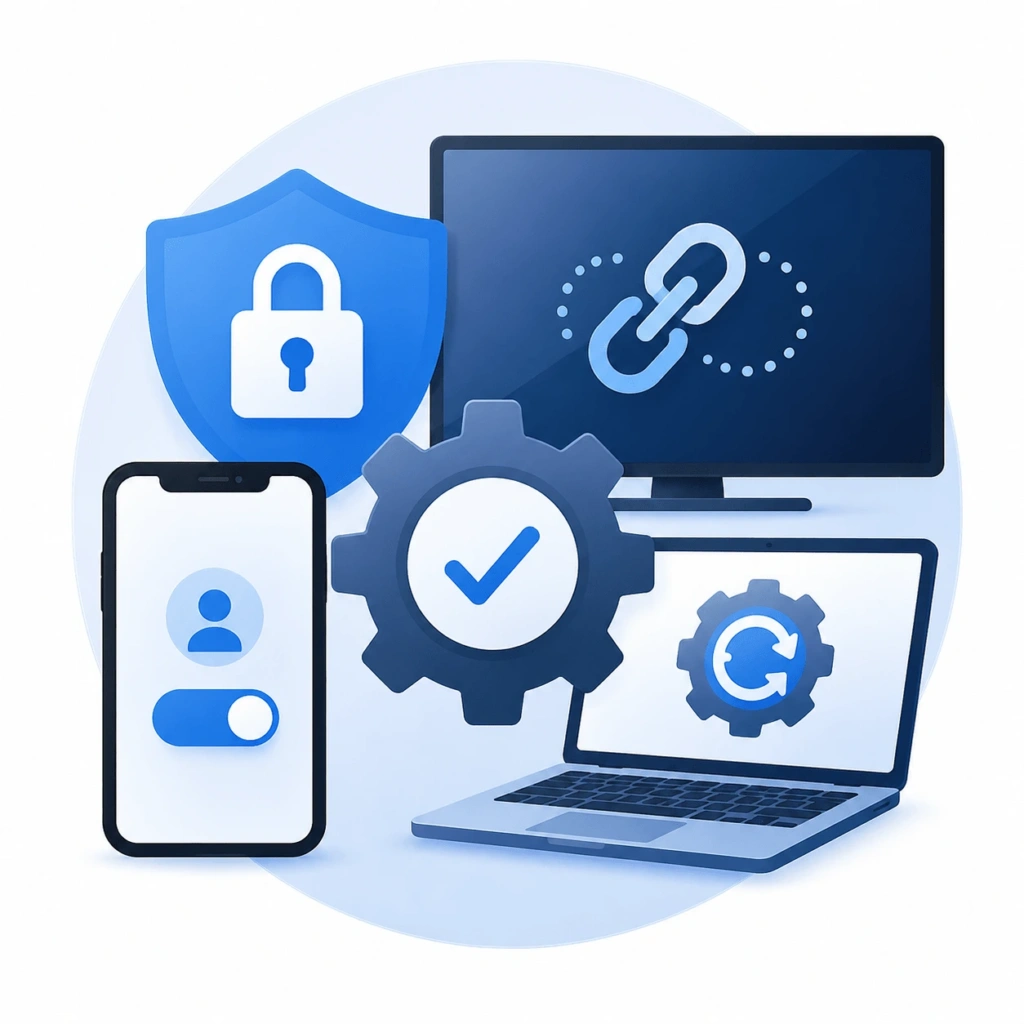
Ativar a funcionalidade de espelhamento correta
Os dispositivos Apple requerem suporte para o AirPlay na televisão Samsung. Abra as definições da televisão e procure as «Definições do Apple AirPlay».
Ative o AirPlay, caso esteja desativado. A localização do menu varia consoante o modelo.
Os telemóveis Galaxy compatíveis costumam ligar-se através do Smart View. Abra as «Definições Rápidas» no telemóvel e selecione «Smart View».
Os computadores Windows utilizam o Wireless Display ou o Miracast. Prima Windows + K para procurar um televisor compatível.
Uma configuração que existe num modelo da Samsung pode não estar disponível noutro. Consulte o manual da televisão caso a funcionalidade esperada não esteja disponível.
Verifique se existe um pedido de ligação bloqueado
A televisão Samsung poderá apresentar um pedido de autorização quando um novo dispositivo se ligar. Selecione «Permitir» para continuar.
Um pedido que tenha sido recusado anteriormente pode bloquear tentativas futuras. Abra a lista de dispositivos ligados à televisão e verifique se existe algum telemóvel ou computador bloqueado.
Em alguns modelos, esta lista encontra-se na secção «Gestor de ligações de dispositivos». Os nomes dos menus variam consoante o ano de fabrico e a região.
Elimine o registo bloqueado quando necessário. Inicie uma nova ligação e aprove o dispositivo.
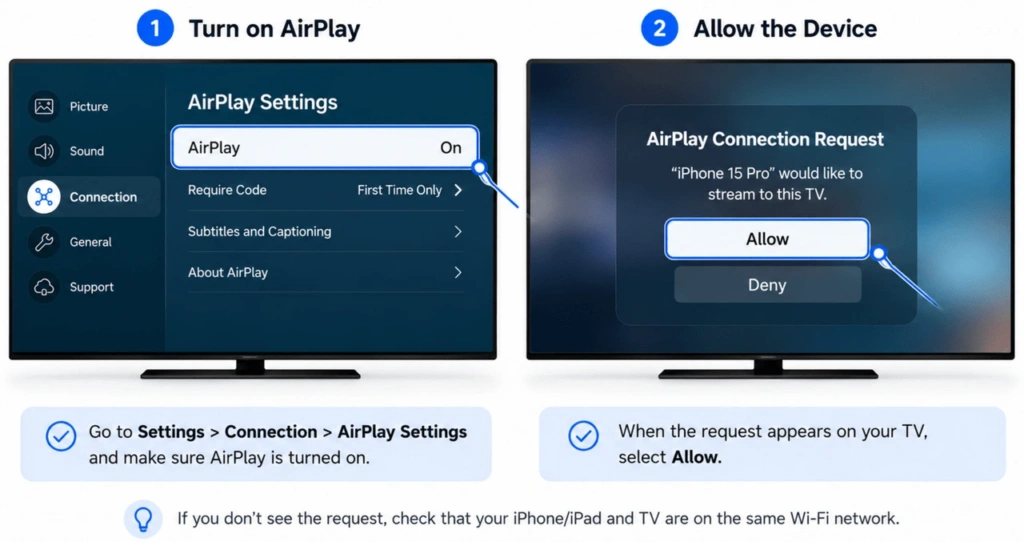
Remover o emparelhamento antigo
Os dados de ligação guardados podem ficar desatualizados após uma atualização de software ou uma alteração na rede. Elimine o emparelhamento antigo em ambos os dispositivos.
Num dispositivo Apple, termine a sessão do AirPlay. Selecione novamente a televisão Samsung na opção «Screen Mirroring».
Os utilizadores do Windows podem remover a televisão da lista de dispositivos ligados. Reinicie o computador antes de voltar a ligar através da combinação de teclas Windows + K.
Elimine também o dispositivo emissor da lista da televisão. Deverá aparecer um novo pedido de ligação na próxima tentativa.
Os códigos do AirPlay podem mudar após uma sessão mal sucedida. Introduza o código mais recente apresentado no televisor.
Atualizar a televisão e o dispositivo de transmissão
As atualizações de software podem corrigir erros relacionados com a deteção e o emparelhamento. Podem também melhorar a compatibilidade com telemóveis e computadores mais recentes.
Muitas televisões Samsung utilizam este caminho:
Definições > Suporte > Atualização de software > Atualizar agora
Em alguns modelos, a opção «Atualização de software» encontra-se na secção «Todas as definições». Mantenha a televisão ligada até que a atualização termine.
Instale também as atualizações disponíveis no dispositivo de envio. Verifique o iOS, o iPadOS, o macOS, o Android ou o Windows.
Os utilizadores do Windows devem atualizar tanto os controladores de Wi-Fi como os de vídeo. O Miracast depende do suporte desses componentes.
Reinicie os dispositivos atualizados antes de voltar a testar.
Verifique se os seus dispositivos são compatíveis
Dois dispositivos podem, ambos, suportar a função de espelhamento de ecrã e, mesmo assim, utilizar tecnologias diferentes. O AirPlay, o Smart View, o Miracast e o Google Cast não são intercambiáveis.
| Dispositivo de envio | Método habitual | Limitação importante |
| iPhone ou iPad | AirPlay | A televisão Samsung tem de ser compatível com o AirPlay |
| Mac | AirPlay | As televisões mais antigas podem não ser compatíveis |
| Samsung Galaxy | Smart View | A disponibilidade varia consoante o dispositivo |
| PC com Windows | Miracast | O hardware e os controladores têm de ser compatíveis com esta funcionalidade |
| Google Pixel | Google Cast | O método oficial de projeção sem fios da Google utiliza o Google Cast em vez do Miracast |
| Outro telemóvel Android | Cast ou Miracast | O suporte depende do fabricante |
A Google apresenta o Google Cast como o método de projeção sem fios para os telemóveis Pixel. É possível que um Pixel não consiga detetar uma televisão Samsung que apenas aceite Miracast.
iPhone, iPad e Mac
Normalmente, um dispositivo Apple utiliza o AirPlay com uma televisão Samsung. O modelo da televisão tem de ser compatível com o AirPlay e a funcionalidade tem de estar ativada.
Abra o Centro de Controlo no dispositivo Apple. Selecione «Screen Mirroring» e escolha a televisão.
Se a televisão fizer parte de uma configuração do Apple Home, verifique se as definições do Home restringem o acesso ao AirPlay. Isto não se aplica quando a televisão não tiver sido adicionada à aplicação Home.
A Apple recomenda verificar a alimentação do dispositivo, o software, a rede local e o acesso ao AirPlay. As suas recomendações atuais estão disponíveis no Guia oficial de resolução de problemas do AirPlay.
É possível que os televisores Samsung mais antigos não sejam compatíveis com o AirPlay. Verifique o modelo exato, em vez de se basear apenas no ano de compra.
Para outras opções de ligação, veja como fazer o espelhamento do ecrã de um iPhone numa televisão Samsung sem a Apple TV.
Samsung Galaxy e outros telemóveis Android
Os telemóveis Galaxy compatíveis utilizam normalmente o Smart View. Esta funcionalidade aparece nas Definições Rápidas.
A funcionalidade Smart View não está disponível em todos os telemóveis Android. A presença de um botão «Cast» num telemóvel de outra marca não significa necessariamente que o telemóvel seja compatível com o Miracast.
Os telemóveis Google Pixel utilizam o Google Cast para projeção sem fios. É possível que um Pixel não consiga detetar uma televisão Samsung que suporte apenas Miracast.
A Google documenta a saída de vídeo com fios para o Pixel 8 e modelos posteriores. Este método requer uma ligação compatível USB-C para DisplayPort ou HDMI. Consulte as informações mais recentes Instruções para a projeção de píxeis antes de comprar um adaptador.
Outras marcas de Android utilizam padrões diferentes. Verifique as especificações do telemóvel para saber se suporta Miracast, transmissão sem fios ou Google Cast.
Computadores com Windows
O Windows utiliza o Miracast para se ligar a um ecrã sem fios compatível. Prima Windows + K para iniciar uma pesquisa.
Mantenha o Wi-Fi ligado durante a ligação. Isto pode continuar a ser necessário mesmo quando o computador utiliza a Ethernet para aceder à Internet.
Uma mensagem a indicar que o computador não suporta o Miracast pode dever-se a controladores desatualizados. Também pode significar que o hardware não dispõe do suporte necessário.
Atualize primeiro os controladores de Wi-Fi e de placa gráfica. Se o PC continuar a não ser compatível, utilize uma ligação HDMI ou um recetor externo compatível.
A Microsoft recomenda verificar a compatibilidade com o Miracast, o Wi-Fi, os controladores e os dispositivos guardados. Siga as suas instruções atuais Passos para a resolução de problemas com ecrãs sem fios para o Windows 11 ou o Windows 10.
Resolva problemas de ecrã preto, lentidão e reprodução
Uma ligação bem-sucedida não garante que todos os vídeos sejam reproduzidos. Restrições de DRM, uma ligação Wi-Fi fraca ou hardware não compatível podem afetar o resultado.
| Problema | O que isso normalmente significa | O que fazer |
| A Netflix ou outra aplicação apresenta um vídeo a preto | O conteúdo pode estar protegido por DRM | Utilize a aplicação de TV ou uma função de transmissão compatível |
| O som reproduz-se sem imagem | Problema com a reprodução protegida ou com o adaptador | Teste com uma fotografia local |
| A imagem está desfocada | A rede está a comprometer a qualidade | Melhorar o Wi-Fi e reduzir o tráfego |
| A replicação apresenta um atraso considerável | Latência ou congestionamento nas ligações sem fios | Aproxime-se ou utilize o HDMI |
| A ligação está sempre a cair | Sinal fraco ou modo de poupança de energia | Estabilizar o Wi-Fi e manter o dispositivo ativo |
| O HDMI não apresenta imagem | Porta ou adaptador não suportado | Verifique a saída de vídeo e a compatibilidade com HDCP |
Teste com conteúdo normal
Abra a galeria de fotografias e inverta uma imagem normal. Também pode testar o ecrã inicial do dispositivo.
Se esse conteúdo for exibido, significa que a ligação básica funciona. É provável que a aplicação original esteja a restringir a reprodução em espelho.
A Netflix, a Disney+ e outros serviços podem proteger os vídeos através de sistemas de gestão de direitos digitais. A reprodução em ecrã inteiro pode resultar numa janela preta.
Sempre que possível, utilize a aplicação de TV do serviço de streaming. Um botão «Cast» ou «AirPlay» compatível dentro da aplicação também poderá funcionar.
Nenhuma aplicação de espelhamento deve alegar que contorna as restrições de DRM.
Reduzir o atraso e a má qualidade da imagem
É normal que haja um pequeno atraso no espelhamento sem fios. Um atraso significativo indica, normalmente, congestionamento da rede ou um sinal fraco.
Aproxime-se do router e suspenda outras atividades que consumam muita largura de banda. Experimente a frequência de 5 GHz a curta distância.
A duplicação de ecrã sem fios não é a melhor opção para jogos competitivos ou trabalhos em que o tempo é um fator crucial. A ligação HDMI proporciona, normalmente, um resultado mais consistente.
Verificar o equipamento de áudio e HDMI
Um ecrã preto com áudio a funcionar pode ser causado por um vídeo protegido. Faça um teste com uma fotografia antes de substituir qualquer componente de hardware.
No caso de uma ligação com fios, verifique se a televisão está a utilizar a entrada HDMI correta. Volte a ligar o cabo e o adaptador.
Nem todas as portas USB-C permitem a saída de vídeo. Verifique primeiro as especificações do dispositivo emissor.
O conteúdo protegido pode exigir um adaptador e um cabo compatíveis com HDCP. Os adaptadores de baixo custo nem sempre cumprem este requisito.
O que fazer quando o método integrado é incompatível
A reinicialização da rede não resolve um problema de incompatibilidade de protocolos. Se a televisão e o dispositivo emissor não forem compatíveis com AirPlay, Miracast ou Google Cast, utilize um recetor compatível ou uma ligação com fios.
Utilize o 1001 TVs com um recetor compatível
O 1001 TVs oferece uma opção de espelhamento através de uma aplicação em várias plataformas. Tanto o remetente como o destinatário têm de ser compatíveis com esta funcionalidade.
O atual centro de downloads apresenta versões para iPhone, iPad, Android, Windows, Mac, Android TV e Apple TV. Também inclui ligações para opções de recetores para o Roku e a Amazon Fire TV.
O Samsung Tizen não está, de momento, listado como um cliente nativo do 1001 TVs. Não afirme que os utilizadores podem instalar a aplicação diretamente a partir de qualquer loja de aplicações da Samsung TV.
Uma televisão Samsung pode continuar a funcionar com o 1001 TVs através de um recetor externo compatível. Entre os exemplos contam-se um dispositivo Android TV compatível, a Apple TV, a Fire TV ou um dispositivo Roku.
Ligue o emissor e o recetor à mesma rede local. Siga as instruções de emparelhamento apresentadas na aplicação.
Verifique a compatibilidade atual com a plataforma e obtenha a versão correta a partir do Centro de downloads da 1001 TVs.
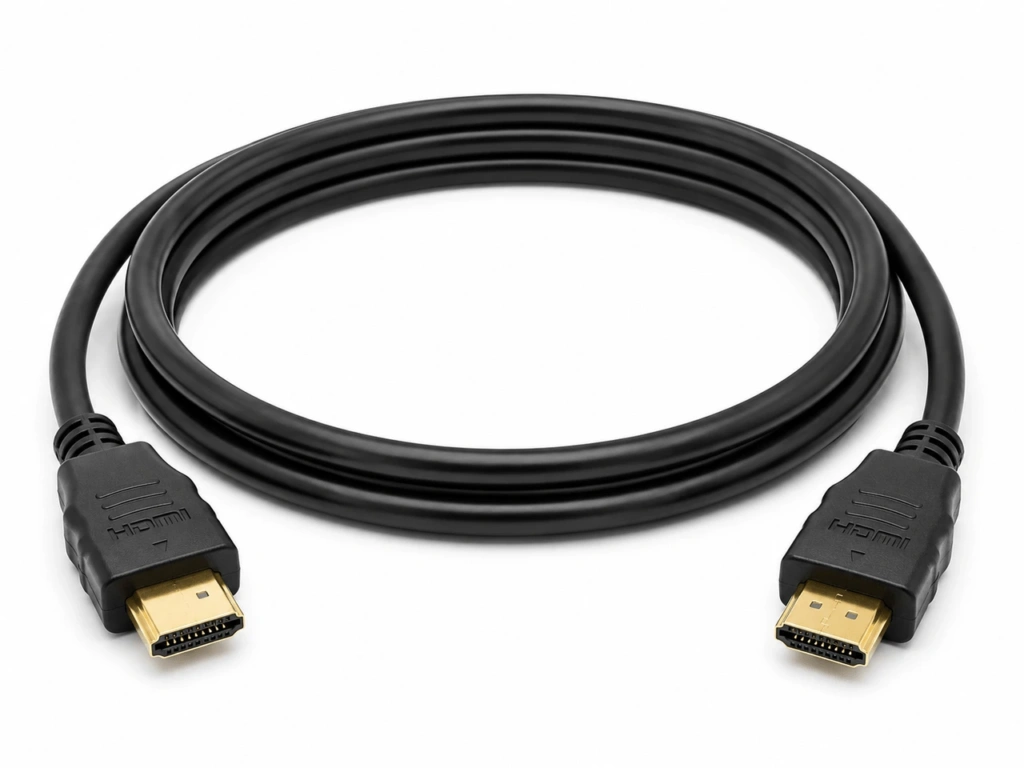
Utilize uma ligação HDMI
O HDMI evita a deteção sem fios e a maioria dos problemas de rede. É uma opção fiável para apresentações e sessões prolongadas de visualização.
Os iPhones compatíveis com USB-C podem ligar-se a um ecrã HDMI com o cabo ou adaptador adequado. Atualmente, a Apple indica a série iPhone 15, os modelos iPhone 16 (exceto o iPhone 16e) e os modelos iPhone 17 (exceto o iPhone 17e). Os iPhones mais antigos com conector Lightning necessitam de um adaptador de vídeo Lightning.
Muitos iPads e Macs suportam a saída de vídeo através de USB-C ou Thunderbolt. A compatibilidade depende do modelo específico.
Alguns telemóveis Android permitem a transmissão de vídeo através de USB-C. Muitos não o permitem. Verifique as especificações antes de comprar um adaptador.
Os portáteis Windows podem dispor de HDMI, USB-C ou DisplayPort. A porta e o adaptador selecionados têm de suportar a saída de vídeo.
Ligue o cabo e selecione a entrada HDMI correspondente na televisão.
Perguntas frequentes
Todas as televisões Samsung suportam a função de espelhamento do ecrã?
Não. A compatibilidade depende do modelo da televisão, do ano de fabrico, da região e do software. Uma televisão pode ser compatível com o Smart View, mas não com o AirPlay ou o Google Cast. Consulte o manual ou a página de apoio da Samsung para obter informações sobre o modelo específico.
O meu telemóvel e a minha televisão Samsung precisam da mesma rede Wi-Fi?
O AirPlay e a duplicação de ecrã através de aplicações requerem normalmente a mesma rede local. A Samsung também recomenda utilizar a mesma rede Wi-Fi para o Smart View. O Miracast pode utilizar o Wi-Fi Direct, pelo que nem sempre é necessário ter acesso à Internet.
A duplicação de ecrã funciona sem ligação à Internet?
Sim, em alguns casos. O Miracast permite estabelecer uma ligação sem fios direta, e o HDMI não requer rede. O AirPlay e os métodos baseados em aplicações dependem normalmente de uma rede local partilhada, embora essa rede possa não necessitar de acesso ativo à Internet.
Qual é a diferença entre a transmissão de conteúdo e a duplicação de ecrã?
A duplicação de ecrã reproduz na íntegra o ecrã do telemóvel ou do computador. A transmissão envia os conteúdos multimédia selecionados para uma aplicação de TV ou um recetor compatível. O dispositivo emissor passa então a funcionar mais como um comando à distância.
Posso espelhar o ecrã numa televisão Samsung sem utilizar o AirPlay ou o Miracast?
Sim. Utilize uma ligação HDMI ou ligue um recetor externo compatível. Um sistema baseado numa aplicação também pode funcionar quando tanto o dispositivo emissor como a plataforma recetora são compatíveis.

Ler mais
 Como fazer o espelhamento do ecrã numa televisão Sony Bravia (Google TV)
Uma Sony Bravia Google TV não utiliza um método universal de “Screen Mirroring” para todos os telemóveis e computadores. A escolha certa depende tanto...
Como fazer o espelhamento do ecrã numa televisão Sony Bravia (Google TV)
Uma Sony Bravia Google TV não utiliza um método universal de “Screen Mirroring” para todos os telemóveis e computadores. A escolha certa depende tanto...
 Como transmitir para uma TV LG webOS
Pode transmitir — ou, em alguns casos, espelhar — um iPhone, iPad, telemóvel Android, computador com Windows ou Mac para uma televisão LG webOS. O método adequado depende...
Como transmitir para uma TV LG webOS
Pode transmitir — ou, em alguns casos, espelhar — um iPhone, iPad, telemóvel Android, computador com Windows ou Mac para uma televisão LG webOS. O método adequado depende...

