Como espelhar a tela do celular em um PC com Windows 11
Como espelhar a tela do celular em um PC com Windows 11
Espelhar a tela do seu celular em um PC com Windows 11 permite que você visualize e controle seu dispositivo móvel diretamente da tela do computador. Seja para jogar jogos de celular em uma tela maior, apresentar conteúdo durante reuniões ou simplesmente gerenciar seu celular sem precisar pegá-lo, o espelhamento de tela faz a ponte entre seus dispositivos. Este guia completo aborda os métodos mais eficazes para estabelecer uma conexão sem fio entre seu smartphone e o Windows 11, com base em experiências reais de usuários e recomendações de especialistas.
O que é o espelhamento de celular?
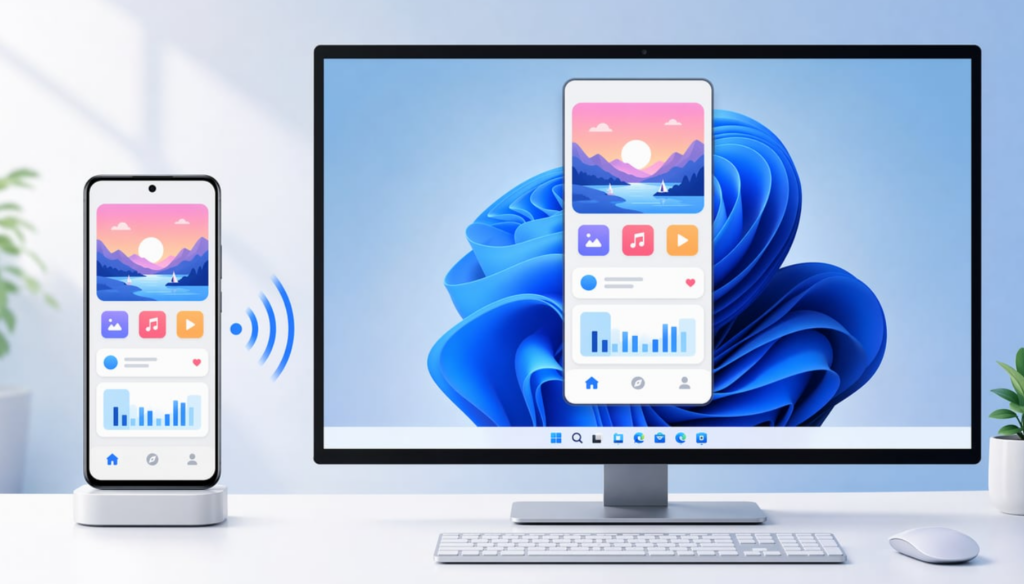
O espelhamento de tela do celular é uma tecnologia que exibe a tela do seu smartphone no seu PC com Windows 11 em tempo real. Existem dois tipos principais:
- Espelhar tela: Simplesmente exibe a tela do seu celular no PC, permitindo que você visualize o conteúdo em uma tela maior
- Controle da tela: Espelhamento avançado que também permite controlar seu celular usando o teclado e o mouse do computador
O nível de controle depende do método escolhido. Métodos básicos de espelhamento, como o Wireless Display, mostram apenas a tela do seu dispositivo, enquanto soluções avançadas, como o Phone Link (para dispositivos Samsung), oferecem recursos de controle total.
Método 1: Usando o Windows Phone Link (solução integrada)
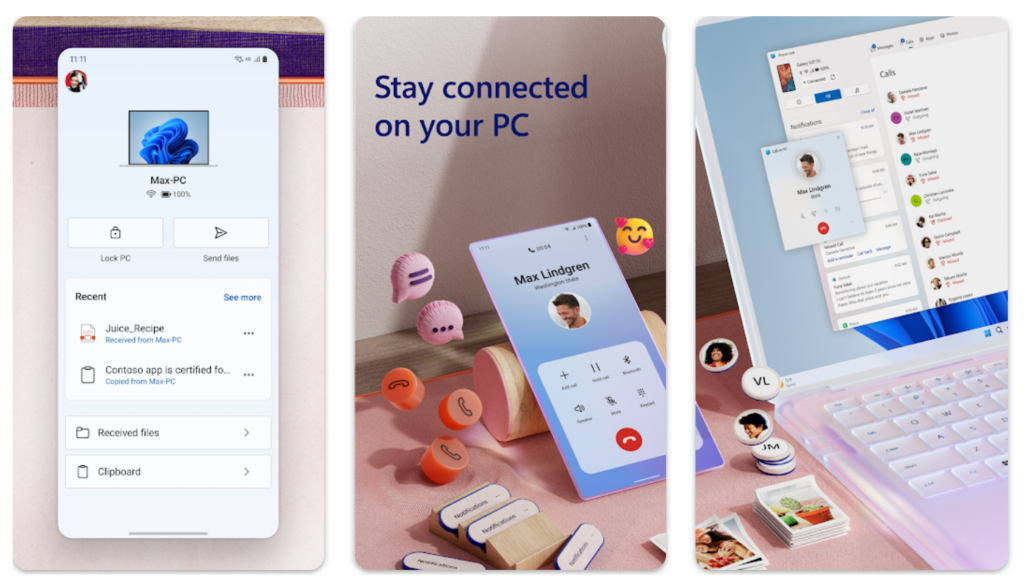
O Windows 11 inclui um aplicativo nativo chamado Link do telefone (anteriormente chamado de “Your Phone”) que funciona perfeitamente com dispositivos Android.
Requisitos:
1. PC com Windows 11
2. Android 7.0 ou versão posterior
Ambos os dispositivos conectados à mesma rede Wi-Fi
Etapas de configuração:
1.Em seu PC: Abra o aplicativo Phone Link (procure-o no menu Iniciar)
2.Entrar com sua conta da Microsoft
3.No seu celular: Instale o “Aplicativo ”Link to Windows” na Google Play Store
4.Digitalize o código QR exibido no seu PC usando o seu celular
5.Conceder permissões quando for solicitado no seu celular
6. A tela do seu celular aparecerá agora no aplicativo Phone Link
Principais recursos:
1. Visualizar notificações e responder a elas
2. Enviar e receber mensagens de texto
3. Acessar fotos (os últimos 2.000 arquivos de mídia)
4. Fazer e receber chamadas
5. Espelhamento em tela cheia (apenas para dispositivos Samsung e alguns modelos ASUS ROG)
6. Executar aplicativos Android individualmente em janelas separadas
7. Arrastar e soltar arquivos entre o celular e o PC
8. Área de transferência compartilhada para copiar e colar sem interrupções
Limitações importantes:
O Phone Link apresenta algumas restrições importantes que os usuários devem conhecer. Para os usuários de iPhone, o aplicativo é significativamente mais limitado — é possível gerenciar chamadas, mensagens de texto e notificações, mas A função de espelhamento de tela não está disponível, e não é possível visualizar imagens nas mensagens de texto. Além disso, o Phone Link só pode sincronizar um dispositivo por vez, o que pode ser frustrante se você precisar alternar entre vários celulares. O aplicativo também exige muitas permissões no seu celular, o que alguns usuários consideram preocupante do ponto de vista da privacidade.
Método 2: Usando aplicativos de terceiros – 1001TVs
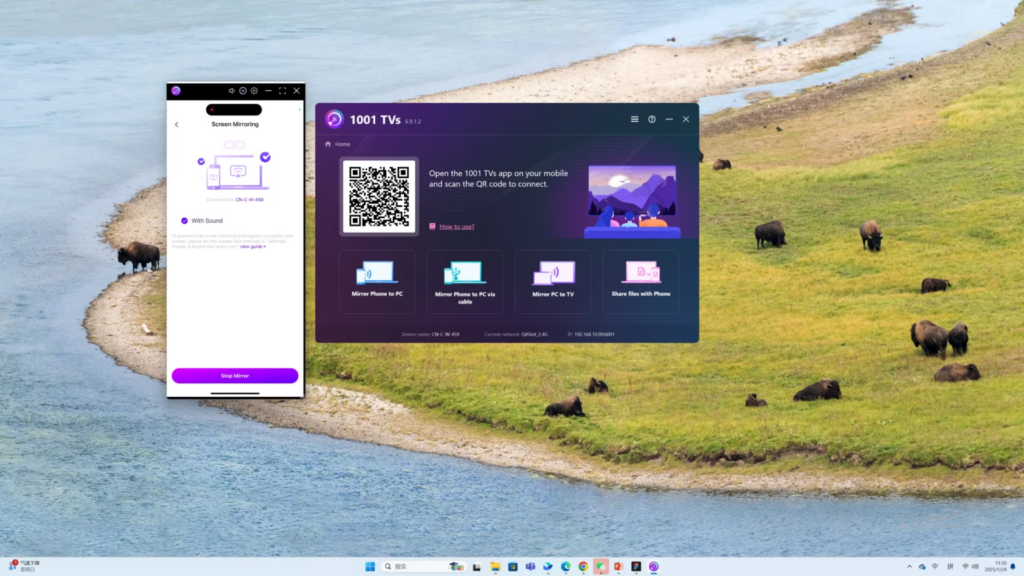
Para recursos de espelhamento mais avançados com maior compatibilidade com dispositivos, 1001TVs oferece uma solução abrangente tanto para dispositivos Android quanto para iOS.
Baixe o 1001TVs: https://www.1001tvs.com/download

Por que escolher a 1001TVs:
1.Suporte multiplataforma: Funciona tanto no Android quanto no iOS
2.Streaming de alta qualidade: Resolução de até 1080p a 60 fps
3.Baixa latência: Atraso mínimo para jogos e reprodução de vídeos
4.Não é necessário ter acesso como root: Funciona em dispositivos padrão
Passos para espelhar a tela:
Método 3: Usando o recurso de exibição sem fio integrado do Windows
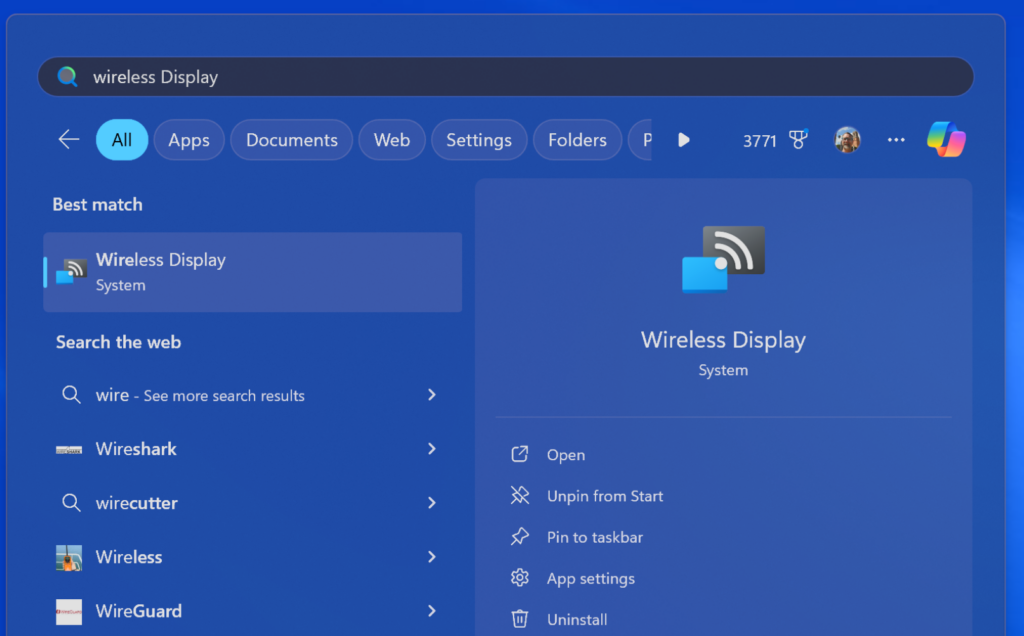
O Windows 11 inclui um recurso nativo Exibição sem fio recurso (anteriormente chamado de “Connect app”) que permite a transmissão direta da tela sem a necessidade de aplicativos adicionais. Esse método utiliza a tecnologia Miracast e funciona com a maioria dos dispositivos Android.
Requisitos:
1. Windows 11, versão 22H2 ou posterior
2. Computador com suporte a Miracast (verifique se os drivers da placa de vídeo estão atualizados)
3. Dispositivo Android com o recurso Cast/Smart View
Ambos os dispositivos devem estar conectados à mesma rede Wi-Fi (de preferência na banda de 5 GHz, para melhor desempenho)
Etapas de configuração:
1.Em seu PC: Vá para Configurações > Sistema > Projetar neste PC
2. Defina a opção “Solicitar para projetar neste PC” como Apenas na primeira vez (ou “Sempre” para maior segurança)
3. Defina “Exigir PIN para emparelhamento” como Primeira vez (recomendado)
4. Abra o Exibição sem fio aplicativo (procure-o no menu Iniciar)
5.No seu celular: Deslize para baixo para acessar as Configurações rápidas
6. Toque Visão inteligente, Tela de elencoou Exibição sem fio (o nome varia de acordo com o fabricante)
7. Selecione seu PC na lista de dispositivos disponíveis
8. Digite o PIN exibido no seu PC, se solicitado
9. Toque Aceitar para iniciar o espelhamento
Prós:
1. Não é necessário nenhum software adicional
2. Funciona com a maioria das marcas de Android (Samsung, OnePlus, Xiaomi, etc.)
3. Conexão direta com latência mínima
4. Gratuito e integrado ao Windows 11
Contras:
1. Restrito apenas a dispositivos Android (não compatível com iOS)
2. Requer hardware compatível com Miracast
3. Alguns dispositivos podem apresentar problemas de compatibilidade
Comparação: qual método você deve escolher?
| Recurso | Link do telefone | 1001TVs | Exibição sem fio |
|---|---|---|---|
| Suporte para Android | ✓ | ✓ | ✓ |
| Suporte para iOS | Limitada | ✓ | ✗ |
| Espelho de tela cheia | Apenas Samsung | ✓ | ✓ |
| Desempenho em jogos | Baixa | Alta | Médio |
| Suporte a vários dispositivos | Apenas 1 dispositivo | Múltiplos | 1 dispositivo |
| Custo | Grátis | Freemium | Grátis |
| Dificuldade de configuração | Fácil | Fácil | Médio |
| Transmissão ao Vivo | ✗ | ✓ | ✗ |
Solução de problemas comuns
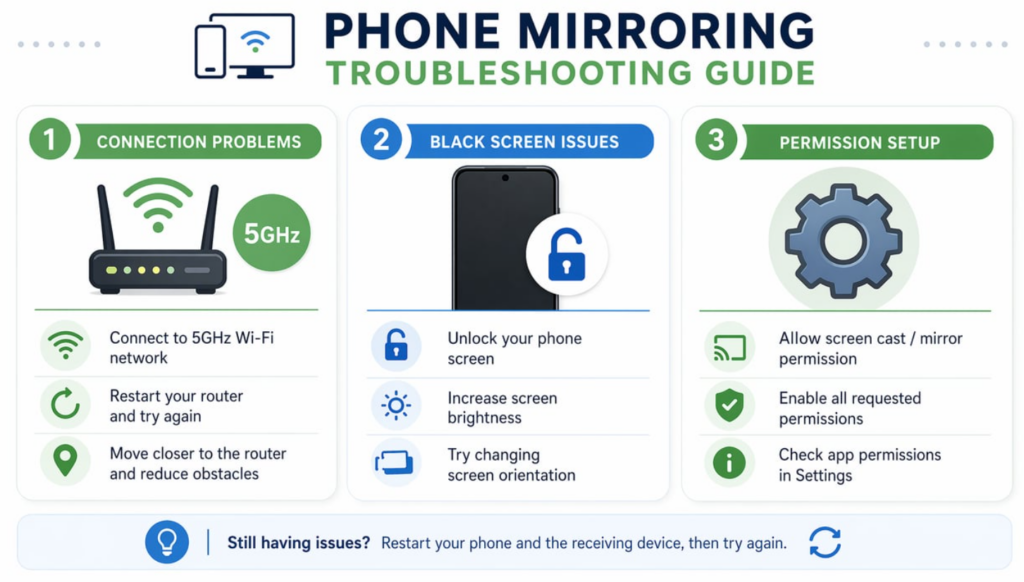
Problemas de conexão:
1. Certifique-se de que ambos os dispositivos estejam conectados à mesma rede Wi-Fi (recomenda-se a banda de 5 GHz para um melhor desempenho)
2. Desative a VPN temporariamente durante a configuração
3. Verifique as configurações do firewall no Windows 11 e permita o acesso do aplicativo de espelhamento
4. Para exibição sem fio: verifique se o seu PC é compatível com Miracast, conferindo se os drivers da placa de vídeo estão atualizados
5. Reinicie os dois dispositivos e tente se reconectar
Atraso ou travamento:
1. Use uma conexão Wi-Fi de 5 GHz em vez de 2,4 GHz para obter um desempenho significativamente melhor
2. Feche os aplicativos desnecessários nos dois dispositivos para liberar recursos
3. Reduza a qualidade do streaming nas configurações do aplicativo (experimente 720p em vez de 1080p)
4. Aproxime-se do seu roteador Wi-Fi para melhorar a intensidade do sinal
5. Para jogos: considere usar uma conexão USB em vez da conexão sem fio para obter o mínimo de latência
O áudio não está funcionando:
1. Verifique as configurações de saída de áudio no aplicativo de espelhamento
2. Certifique-se de que os alto-falantes do seu PC estejam configurados como dispositivo de áudio padrão
3. Atualizar os drivers de áudio no Windows 11
4. Alguns métodos de espelhamento não oferecem suporte a áudio — verifique a documentação do seu aplicativo
Problemas com a tela preta:
1. Se você vir uma tela preta ao usar o Smart View ou o Wireless Display, desbloqueie o celular primeiro. A maioria dos métodos de espelhamento exige que o celular esteja desbloqueado antes de exibir o conteúdo
2. Clique na tela ou toque em “Usar Smart View”, se solicitado
3. Tente girar o celular para o modo paisagem, o que pode fazer com que a tela seja atualizada
Problemas específicos do Phone Link:
1. Se os aplicativos aparecerem em janelas minúsculas no modo retrato, use o novo botão “visualização ampliada” (atualmente em fase de testes) ou utilize o recurso de espelhamento de tela e gire o celular para o modo paisagem
2. Lembre-se de que o Phone Link só pode se conectar a um dispositivo por vez—desconecte os outros telefones antes de emparelhar um novo
3. Conceda todas as permissões solicitadas durante a instalação; alguns recursos não funcionarão sem elas
Conclusão
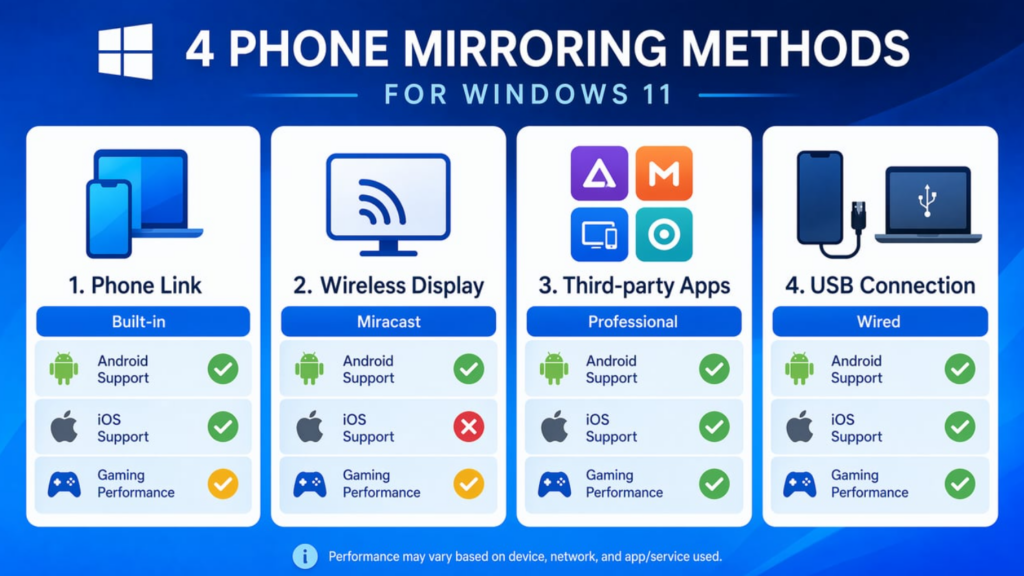
Espelhar a tela do seu celular em um PC com Windows 11 aumenta a produtividade e o entretenimento, unindo os ambientes móvel e de desktop. Embora o Windows Phone Link ofereça uma solução nativa para usuários do Android, opções de terceiros como 1001TVs oferecem recursos mais abrangentes e compatibilidade entre plataformas. Escolha o método que melhor se adapte à compatibilidade do seu dispositivo e aos seus requisitos de recursos.
Para uma experiência mais versátil e repleta de recursos, baixe o 1001TVs em https://www.1001tvs.com/download e comece a espelhar seu celular hoje mesmo.

Leia mais
 Como assistir à NBA na TV nos EUA
Assistir aos jogos da NBA na TV nos EUA é mais fácil quando você toma duas decisões nessa ordem: primeiro, verifique qual serviço autorizado transmite...
Como assistir à NBA na TV nos EUA
Assistir aos jogos da NBA na TV nos EUA é mais fácil quando você toma duas decisões nessa ordem: primeiro, verifique qual serviço autorizado transmite...
 Como fazer o espelhamento de tela na TV Sony Bravia (Google TV)
Uma TV Sony Bravia com Google TV não utiliza um único método universal de “Screen Mirroring” para todos os celulares e computadores. A escolha certa depende tanto...
Como fazer o espelhamento de tela na TV Sony Bravia (Google TV)
Uma TV Sony Bravia com Google TV não utiliza um único método universal de “Screen Mirroring” para todos os celulares e computadores. A escolha certa depende tanto...

