
How to Screen Mirror Your Phone to Your Laptop for High-Quality Game Streaming
Are you a mobile gamer wanting to stream Impacto do Genshin, PUBG Mobileou Free Fire on TikTok or Twitch? To look like a pro, you need to get your phone screen onto your laptop so you can use Estúdio OBS ou Streamlabs.
In 2026, you don’t need to be a tech expert to set this up. You have two main paths: the Physical Capture Card (the hardware route) or Screen Mirroring app like 1001TVs (the wireless software route). Here is how to choose the best setup for your channel.
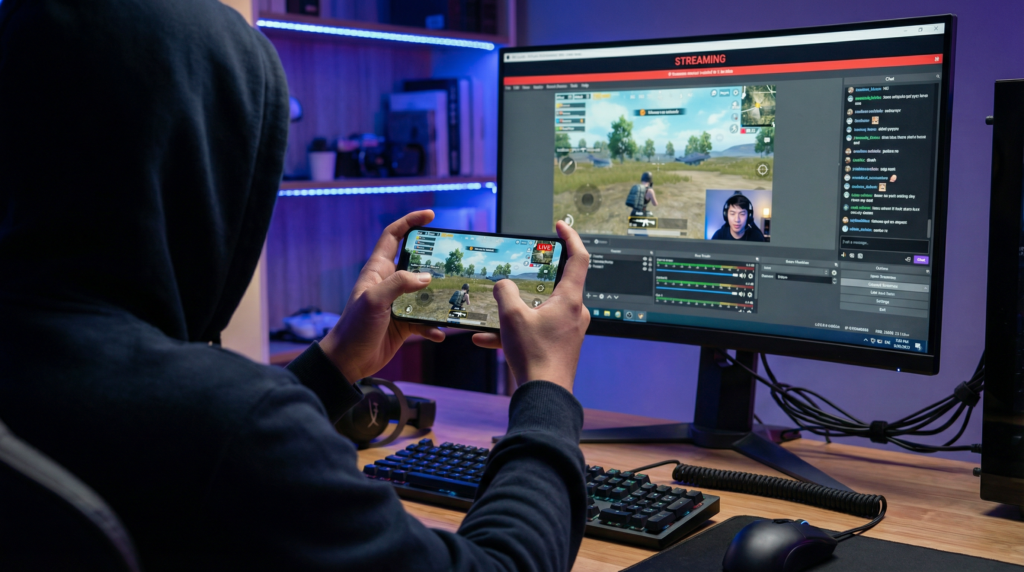
Option 1: The “Pro Hardware” Setup (Capture Card)
Professional streamers often use a capture card. It acts as a bridge that turns your phone into a high-definition video source for your computer.
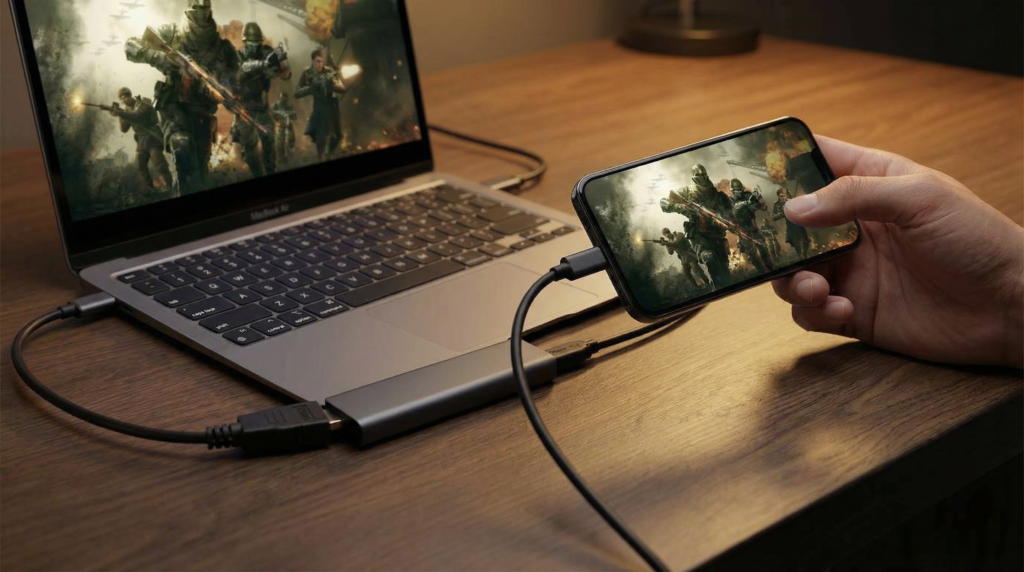
How it works with your phone:
⬩ Get the Adapter: You need to turn your phone’s port into an HDMI port.
⬩ The Connection: Plug an HDMI cable from your phone’s adapter into the “HDMI IN” port on the capture card.
⬩ The PC Link: Plug the capture card’s USB cable into your laptop.
⬩ The Result: In OBS, add a “Video Capture Device” source. Your phone screen appears instantly with near-zero lag.
Why choose this?
It provides minimal latency e uncompressed video quality. Because it uses a physical wire, there is zero risk of “wireless interference” or screen stuttering. It’s the gold standard for competitive esports where every millisecond—and every pixel—counts.
However, this level of performance comes with a price tag. A reliable, name-brand capture card (like an Elgato ou AVerMedia) typically costs at least $130. You also need to buy a specific adapter for your phone ($30–$50) and high-quality HDMI cables ($10–$20).
Option 2: The “Smart Wireless” Setup (1001TVs)
If you don’t want to spend $100 on cables and gear, 1001TVs is the professional wireless alternative. It is designed specifically for espelhamento de tela with high performance.
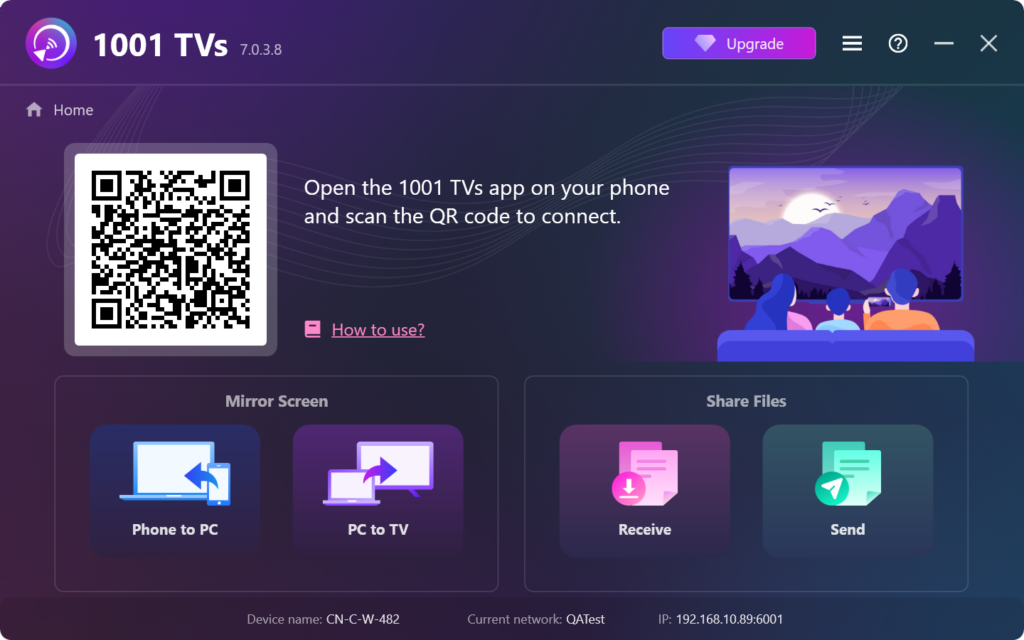
How to stream with 1001TVs:
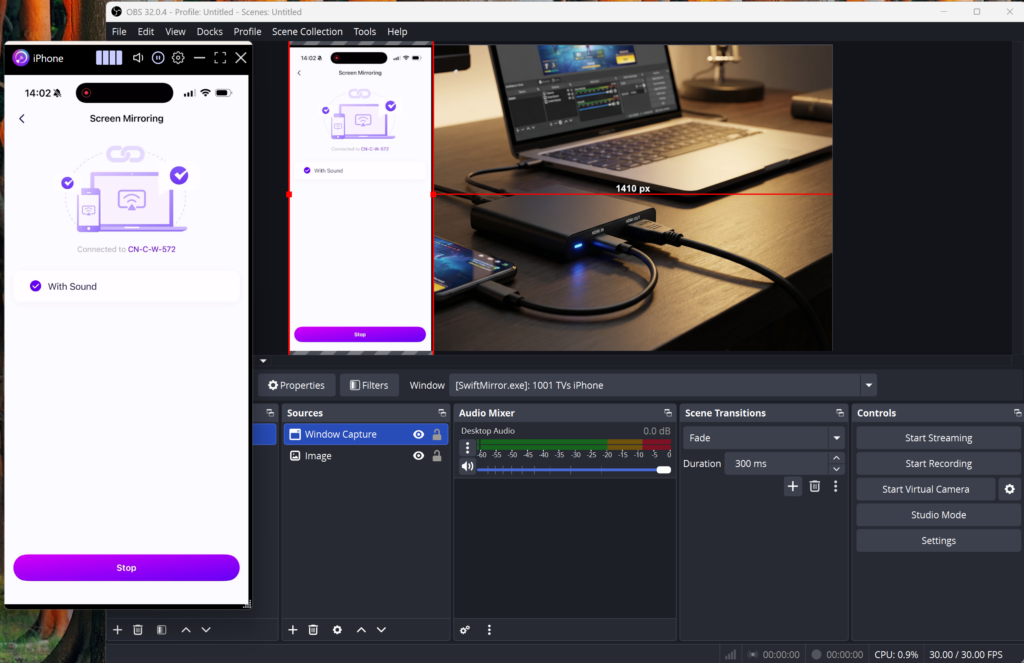
⬩ Launch: Open 1001TVs on both your phone and your laptop.
⬩ Pair: Scan the QR code on your laptop screen with your phone’s 1001 TVs in-app scanner.
⬩ The Network Secret: 1001TVs uses your Local Wi-Fi to send the signal. It doesn’t use your internet data plan, so it won’t slow down your game’s “ping” or eat up your data cap.
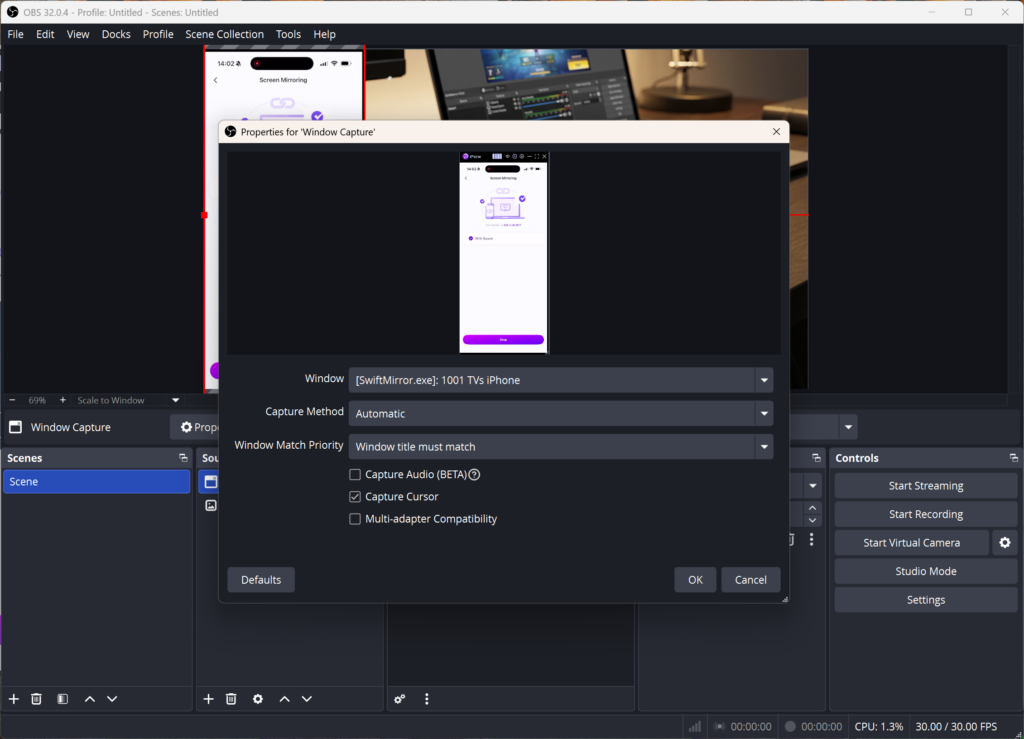
⬩ OBS Setup: In OBS, add a “Captura de janela” and select the 1001TVs window.
Why choose this?
It is a budget-friendly, wireless solution that delivers smooth and stable screen mirroring without the need for expensive hardware.
Instead of being “tethered” to your laptop by short cables, you can lean back on your couch and play comfortably from anywhere in the room.
The advanced screen mirroring technology ensures high-quality visuals and minimal latency, keeping your gameplay responsive and professional. It’s the perfect way for new creators to start streaming immediately while keeping their setup clean and mobile.
Comparing Your Options: Hardware vs. Software
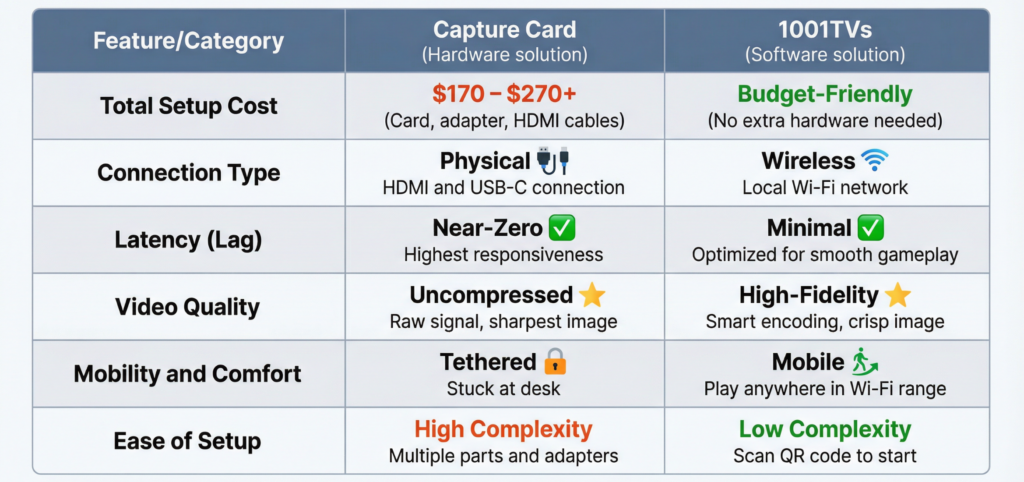
Which one should you choose?
➤ Choose a Capture Card if: You have a dedicated desk setup, a high budget, and play at a professional esports level where every millisecond of lag is a dealbreaker.
➤ Choose 1001TVs if: You want a clean, cable-free setup, you prefer the comfort of playing anywhere in the room, and you want to start streaming immediately without the $200 price tag.
Conclusion: Level Up Your Stream Today
Choosing between hardware and software depends on your goals, but for most mobile creators in 2026, the answer is clear. You don’t need to drop $200 on cables and capture cards just to share your gameplay with the world.
Com 1001TVs, you get a professional, high-fidelity streaming setup that respects both your budget and your comfort. Whether you’re climbing the ranks in PUBG Mobile or hosting an app tutorial, our advanced connection engine ensures your audience sees every move in real-time, without the lag or the mess.
Ready to start your journey as a creator? Skip the cables and experience the freedom of wireless streaming.
[Download 1001TVs for Windows and Mobile – Start Streaming Now]