AirPlay No Sound on TV? Fix Audio When the Picture Works
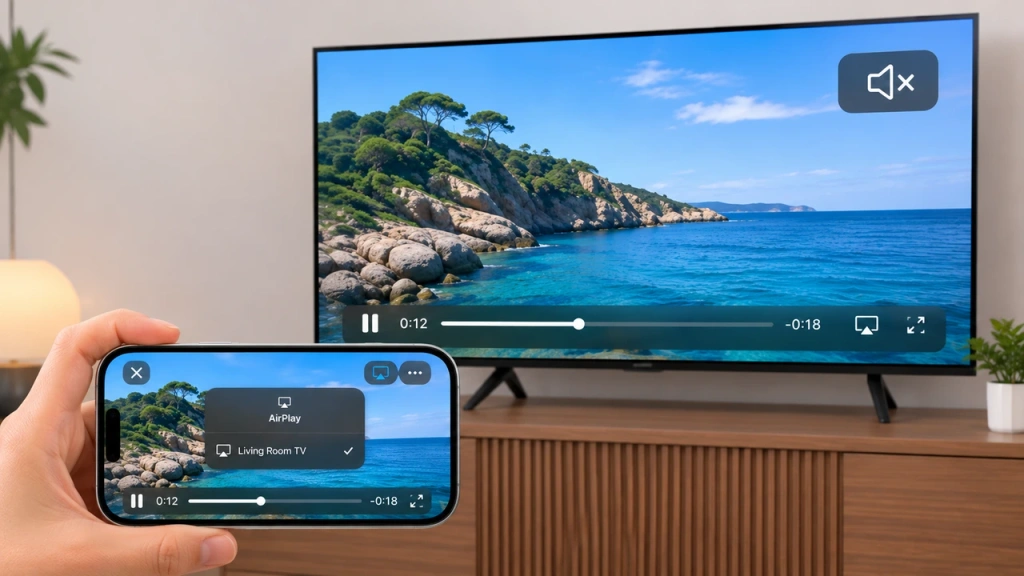
If AirPlay shows a picture on your TV but no sound, start with the player’s mute control, the selected audio output, and the TV or receiver volume. Then use a short video you know has sound to separate a source-device problem from an AirPlay or TV-audio problem.
If only one app is silent, check that app before changing your network. If the TV’s own content is silent too, check the TV’s audio output first.
Find Out Where the Sound Stops
If you can already hear the video’s audio on your phone, Mac, or headphones instead of the TV, go straight to Section 2.
Otherwise, stop AirPlay and play a short video you recorded yourself and know contains sound. If it is silent on your device, fix local playback first. Then test it through AirPlay:
- If you were using Screen Mirroring: Start mirroring again, then play the clip on your device.
- If you were using a streaming app’s AirPlay button on iPhone or iPad: You do not need to open your recording inside that app. Instead, open the clip in Photos, tap Share, choose AirPlay, and select your TV or Apple TV. Apple’s AirPlay video instructions cover this Photos route.
- If you’re using a Mac: Open Control Center, choose Screen Mirroring, and select your TV. Play the test clip while mirroring. If your original app offers its own AirPlay button, test that playback route separately and note which method produces sound.
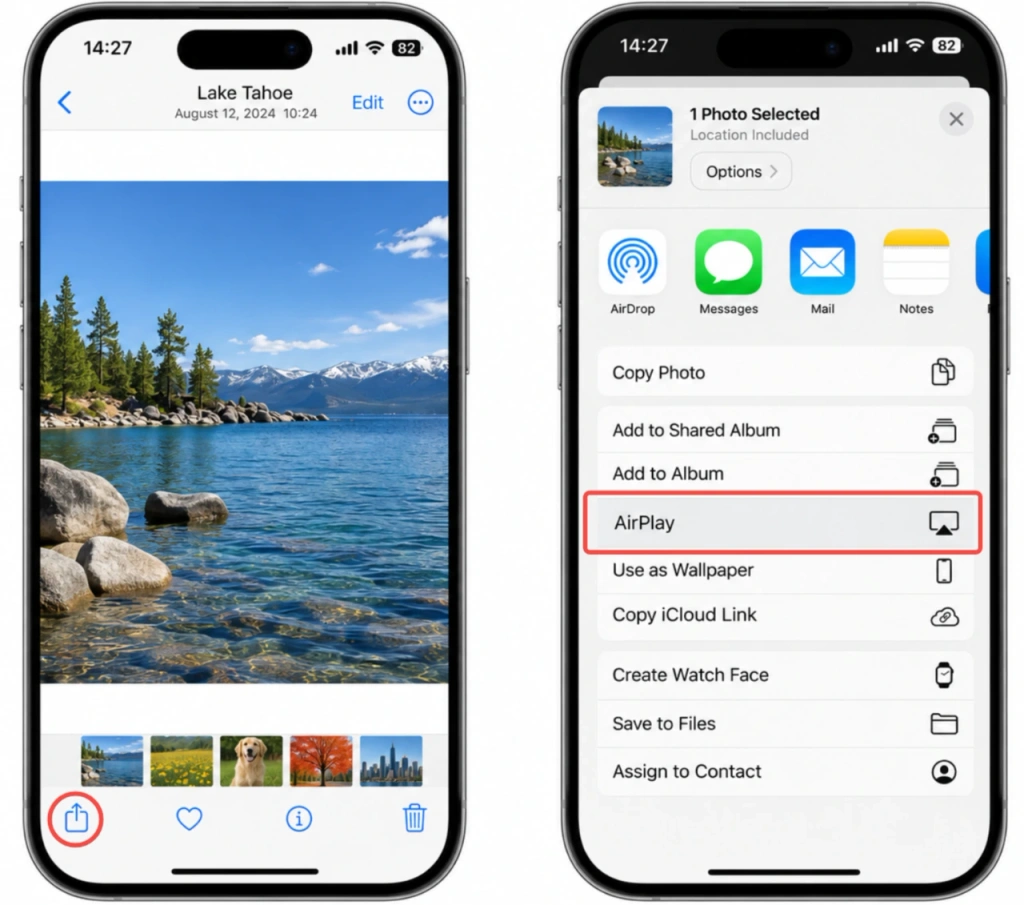
If the Photos test has sound but your streaming app does not, continue to Section 4 to check the app’s AirPlay support and settings.
If your TV has built-in apps, play something you know has sound in one of them. If you use an external Apple TV box, also play something directly on that box: its HDMI audio path needs a separate check even when the TV’s own apps sound fine.
More than one issue may be present. If several checks fail, start with the source or TV audio problem you can reproduce without AirPlay, then test AirPlay again.
| What you find | Where to go next |
| The clip is silent on the source device without AirPlay | Check the player and local audio output in Section 2. |
| Sound comes from the phone, Mac, or headphones instead of the TV | Check the actual output in Section 2. |
| The TV’s own content or the Apple TV box’s own content is silent | Follow the matching receiver branch in Section 3. |
| An AirPlay test works, but your intended app is still silent | Check that app in Section 4. |
| Local and receiver playback work, but the AirPlay test is silent | Complete Sections 2 and 3, then isolate the session in Section 5. |
After a setting change, replay the same content through the same route. Switching apps or moving from streaming to mirroring is a separate comparison, not simply another setting change.
If you are unsure which route you started, our AirPlay vs. Screen Mirroring guide explains the controls. If the TV never appears or you cannot get a picture, use the screen mirroring connection guide em vez disso.
Check Mute, Volume, and the Actual Audio Output
On iPhone or iPad
While the video is playing, check the player’s speaker or mute button. Then check the device’s media volume and use the TV or receiver remote to confirm that its output is not muted. Changing ringtone volume is not the same as checking video volume.
Da Apple guidance for AirPlay video without audio specifically recommends checking volume and mute on both the source device and the television or receiver when streaming to Apple TV.
If you can hear sound from the iPhone, iPad, or headphones, check where playback is directed:
- Para in-app AirPlay, inspect the app’s playback controls and selected AirPlay destination.
- Para Espelhar tela, confirm the active mirroring destination, then inspect the current playback controls and any available audio-output selection.
If headphones are receiving the sound, temporarily disconnect them, recheck the intended destination, and replay the clip. Leave Bluetooth alone if no accessory is taking the audio.
If the source clip remains silent even without AirPlay, try another recording with known audio. Get local playback working before returning to the TV test.
On Mac
First, confirm the destination in the app’s AirPlay controls or the active Screen Mirroring session. Then open System Settings → Sound → Output and inspect the current sound output. Check the player’s own volume as well as any available system volume control.
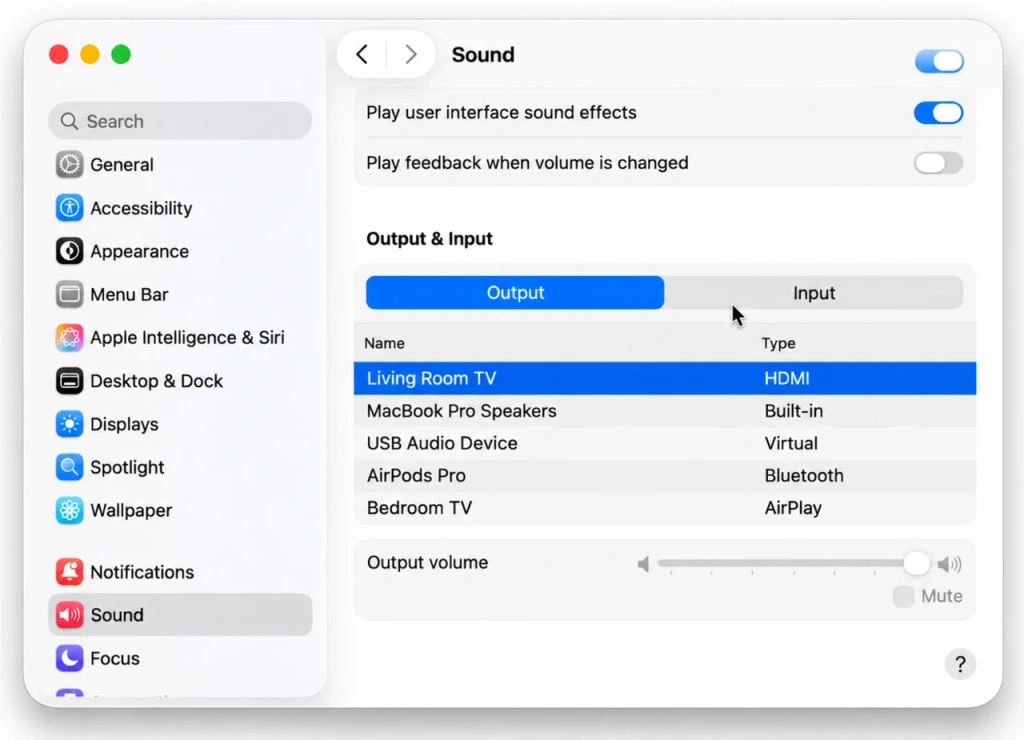
If the intended AirPlay device appears in the output list, select it if needed for an audio-output comparison and replay the clip. If it is absent, continue with the receiver checks below.
Da Apple Mac sound-output settings let you choose available AirPlay audio devices. This is a separate check, not a required extra step for every mirroring session. For an app with its own AirPlay controls, check its playback destination too; if only that app is silent, continue to Section 4.
Check the TV and Any External Audio Equipment
Whether AirPlay is built into your TV or arrives through an Apple TV box, start by checking the TV’s selected sound output. If you use a soundbar or AV receiver and the TV has built-in speakers, temporarily select those speakers and replay the test content. Use your TV model’s instructions for the exact menu names.
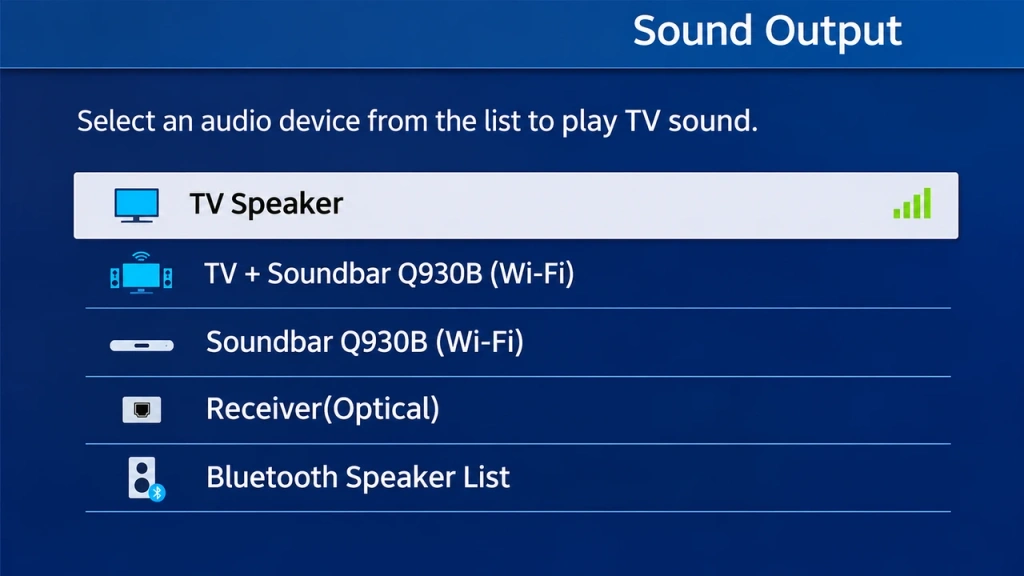
If sound returns through the TV speakers, check that the external equipment is powered on, using the intended input, and connected as the manufacturer specifies. Follow its connection guidance before changing ARC/eARC or audio-format settings.
If Your TV Has AirPlay Built In
If a built-in TV app has sound but AirPlay remains silent through the same speakers, return to your AirPlay test and continue to Section 4 or 5 according to the result. If the TV’s own content is also silent through its speakers, use the TV manufacturer’s audio troubleshooting first.
If You Use an Apple TV Box
This branch is for Apple TV hardware connected by HDMI, not the Apple TV app installed on a smart TV.
Play content directly on the Apple TV box, without AirPlay. If that is silent too, check the connection between the box and your audio equipment:
- Reseat both ends of the Apple TV’s HDMI cable and test again.
- If needed, try another suitable HDMI cable.
- If the Apple TV connects through an HDMI switch or AV receiver, try connecting it directly to the TV.
If a direct connection restores sound, consult the switch or receiver manufacturer about the intermediate connection.
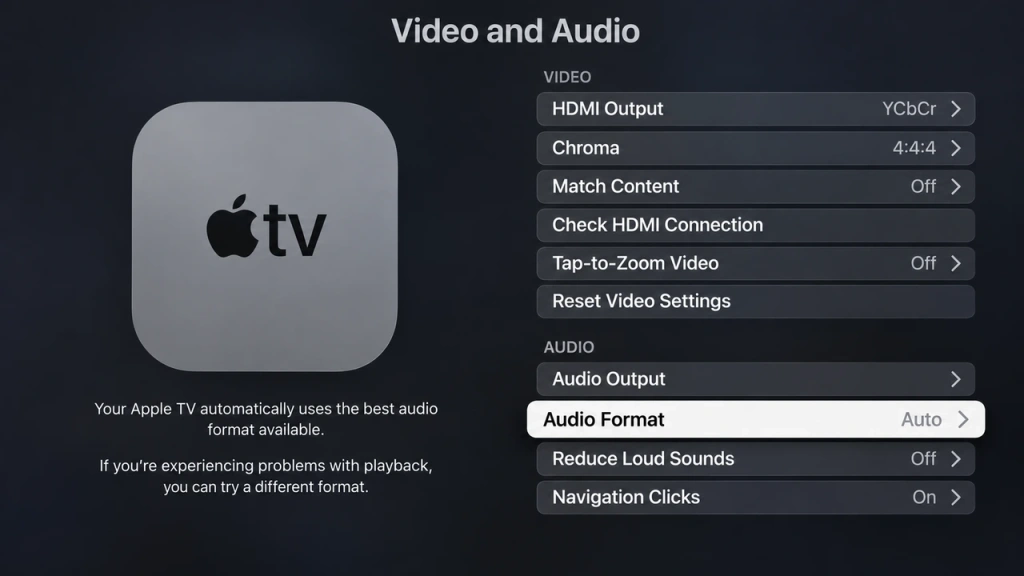
If the Apple TV is still silent, follow Apple’s Apple TV no-sound troubleshooting. It includes further checks under Settings → Video and Audio, such as Audio Format, Audio Mode, and Audio Output. Choose the checks that match your Apple TV software and connected equipment, recording the original setting before each change.
If Only One App Has No Sound, Check That App
If an AirPlay test plays with sound but your intended app remains silent, return to that app. Check its player mute control and selected destination, then try another item in the same app that you know contains audio.
Check the app’s current help documentation for AirPlay support, including whether it supports in-app streaming, Screen Mirroring, or both. If it supports both, test the other route and note whether sound returns.
When the service restricts a playback route or protected content, use its TV app or another connection it officially supports. Silence alone does not establish a DRM restriction, and another mirroring tool is not a way to bypass one.
Call audio needs its own checks and is outside this playback troubleshooting path.
If AirPlay Still Has No Sound, Isolate the Session
Restart AirPlay and Narrow Down the Problem
Once you’ve checked the volume, audio output, and TV speakers, end the AirPlay session. Reconnect your device and replay the same test video using the same AirPlay method.
If there’s still no sound, try these steps one at a time:
- Restart your iPhone, iPad, or Mac, then reconnect to the TV and test again.
- Restart your TV or Apple TV box. If you use a separate soundbar or AV receiver, restart that device separately.
- Check for software updates on your Apple device, TV, and affected app. Test the audio after each change.
If the problem continues, try another Apple device with the same TV using the same AirPlay method, if one is available. You can also test your original device with another compatible receiver.
These comparisons can help determine whether the issue follows your Apple device or the receiving TV.
If AirPlay remains silent, contact Apple, your TV manufacturer, or the affected app’s support team. Share your device models, software versions, AirPlay method, connected audio equipment, and the results of your playback tests.
Alternative: Try 1001 TVs for Screen Mirroring
If AirPlay still has no sound but your TV’s audio works normally, 1001 TVs offers another way to mirror your iPhone or iPad to a compatible TV.
1001 TVs supports screen mirroring with audio on compatible device combinations, including supported Android TV and Apple TV setups.

To get started:
- Instalar 1001 TVs on your iPhone or iPad and compatible Android TV or Apple TV.
- Conecte os dois dispositivos à mesma rede Wi-Fi.
- Open 1001 TVs, select Espelhar tela, choose your TV, and follow the prompts to start mirroring.
Try playing a video you know has sound to check whether audio works with your setup. Keep in mind that audio support depends on your devices and the content being played. Some apps may restrict audio capture or screen mirroring.

Leia mais
 [2026] O espelhamento de tela não está funcionando? Causas comuns e soluções práticas
Se o espelhamento de tela não estiver funcionando, a causa quase sempre é uma dessas três: os dois dispositivos não conseguem se detectar na...
 Como estender sua tela no Windows ARM
O 1001 TVs agora roda nativamente no Windows ARM — com extensão de tela, e não apenas espelhamento. Seu aplicativo Arm64 é executado diretamente nos processadores ARM, em vez de por meio de...

