Hoe je veelvoorkomende problemen met schermspiegeling kunt oplossen voordat de groepsfase van het WK 26 van start gaat
Los veelvoorkomende problemen met schermspiegeling op voordat de groepsfase van het WK 26 van start gaat, door je installatie voor de aftrap te testen. Een mislukte verbinding, eindeloos bufferen of een zwart scherm kunnen een livewedstrijd op het grote scherm gemakkelijk verpesten.
Nu steeds meer fans de wedstrijden van het WK voetbal 2026 via draadloze casting en schermspiegeling bekijken, is een stabiele streamingverbinding belangrijker dan ooit. 1001 TVs helpt gebruikers hun apparaten naar tv’s te spiegelen via flexibele verbindingsmethoden die zijn ontworpen voor een soepelere streaming op wedstrijddagen.
In deze handleiding leer je hoe je veelvoorkomende problemen met schermspiegeling kunt oplossen voordat het toernooi begint.
Wat zijn de meest voorkomende problemen bij schermspiegeling?
Problemen met schermspiegeling worden meestal veroorzaakt door onstabiele wifi-verbindingen, compatibiliteitsproblemen tussen apparaten, verouderde firmware of streamingbeperkingen van bepaalde apps.
De meest voorkomende problemen zijn onder meer:
- Schermspiegeling werkt helemaal niet
- De tv wordt niet weergegeven tijdens het casten
- Het spiegelen van het scherm wordt willekeurig verbroken
- Zwart scherm tijdens het streamen via sportapps
- Audio en video lopen niet goed synchroon
- Ernstige vertraging en buffering tijdens livewedstrijden
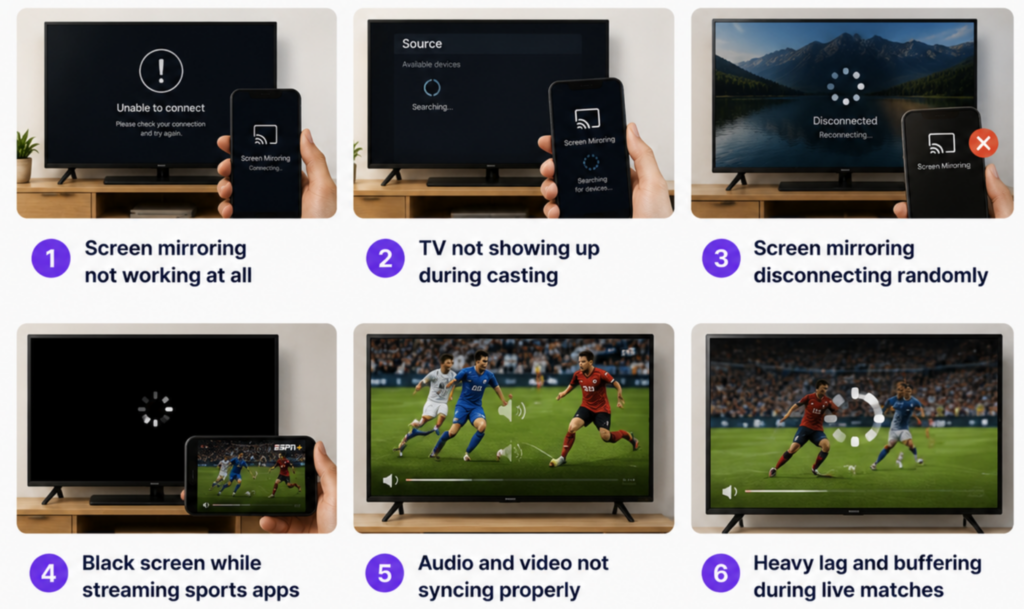
Deze problemen vallen nog meer op tijdens live voetbalwedstrijden, omdat het streamen van sportwedstrijden realtime synchronisatie en een lage latentie vereist.
Veel gebruikers ondervinden deze problemen bij het gebruik van traditionele AirPlay-, Chromecast- of Miracast-verbindingen. 1001 TVs biedt alternatieve methoden voor draadloze schermspiegeling, waaronder verbinding via een QR-code en schermspiegeling via de browser, waardoor compatibiliteitsproblemen bij oudere tv’s en opstellingen met verschillende apparaten kunnen worden verminderd.
Waarom problemen met schermspiegeling tijdens WK-wedstrijden erger worden
Voor het live streamen van voetbal is een stabiele realtime-uitzending nodig
In tegenstelling tot films of opgenomen video’s worden voetbalwedstrijden in realtime gestreamd. Door snelle camerabewegingen en snelle scènewisselingen is gedurende de hele wedstrijd een continue, snelle gegevensoverdracht nodig.
Zelfs een kleine verstoring in het netwerk kan leiden tot buffering, vertraagde doelpunten, problemen met de audiosynchronisatie, frameverlies of plotselinge verbroken verbindingen op belangrijke momenten.
Tijdens wedstrijdavonden strijden meerdere apparaten om de wifi-verbinding
Tijdens de wedstrijden van het WK voetbal 2026 maken vaak veel apparaten in hetzelfde huishouden tegelijkertijd gebruik van hetzelfde wifi-netwerk. 4K-streaming, gamen, videogesprekken en downloads op de achtergrond strijden allemaal om bandbreedte.
Op oudere of minder krachtige routers kan dit extra dataverkeer de stabiliteit van het streamen snel verminderen en ervoor zorgen dat problemen met schermspiegeling veel duidelijker merkbaar worden.
Sommige sportapps beperken de traditionele schermspiegeling
Veel streamingplatforms voor sportwedstrijden maken gebruik van DRM of beveiliging tegen schermopnames. In sommige gevallen kun je geluid horen terwijl er op de tv alleen een zwart scherm te zien is.
Als een streaming-app schermspiegeling blokkeert, lost het overschakelen naar een andere spiegelingsmethode het probleem mogelijk niet op. Gebruik de officiële tv-app van de dienst of de ondersteunde Cast- of AirPlay-optie, indien beschikbaar.
1001 TVs kan nog steeds apps, webpagina's, lokale media en andere inhoud weergeven waarvan een schermafbeelding kan worden gemaakt.
Wat te doen als schermspiegeling niet werkt
Als het spiegelen van het scherm helemaal niet lukt, begin dan met deze basiscontroles:
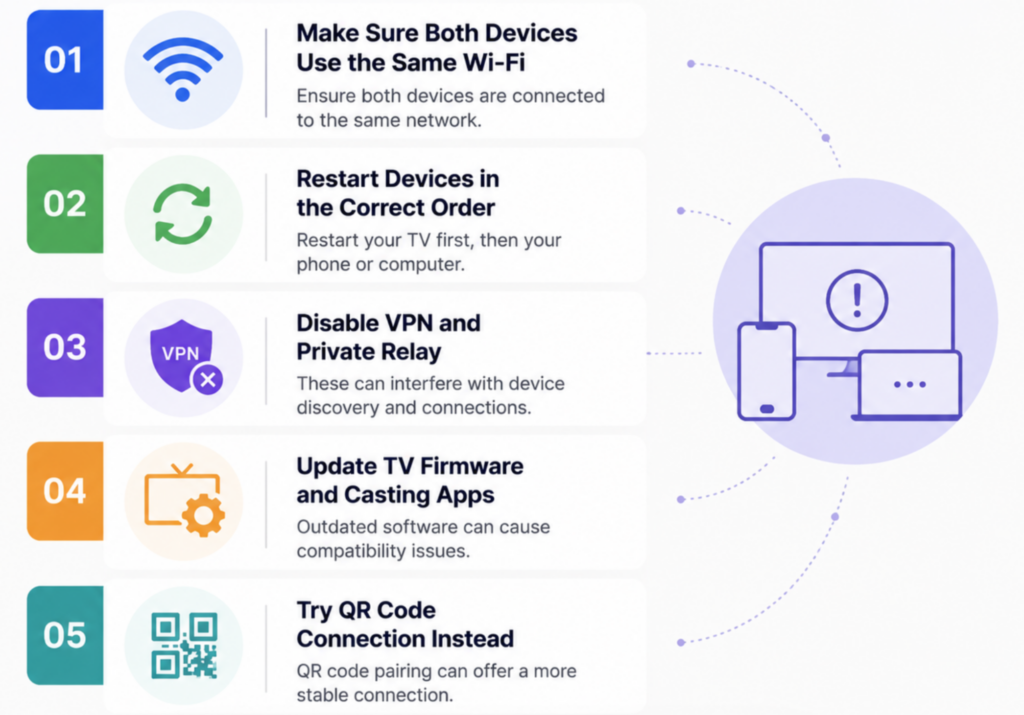
1. Zorg ervoor dat beide apparaten verbinding hebben met hetzelfde wifi-netwerk
Je telefoon, laptop en tv moeten verbinding maken met precies hetzelfde netwerk. Wi-Fi voor gasten, mobiele hotspots of afzonderlijke 2,4 GHz- en 5 GHz-netwerken kan ervoor zorgen dat apparaten elkaar niet goed kunnen detecteren.
Voor een stabielere stream van voetbalwedstrijden zorgt een 5 GHz-wifi-verbinding doorgaans voor een lagere latentie en een vloeiendere weergave.
2. Start de apparaten in de juiste volgorde opnieuw op
Opnieuw starten:
- Router
- TV
- Telefoon of laptop
Hiermee worden de apparaatdetectie en de netwerkverbindingen vernieuwd.
3. UitschakelenVPN en Private Relay
VPN’s en privacyrelays blokkeren vaak de detectie van lokale netwerken die nodig is voor AirPlay en Chromecast.
1001 TVs raadt ook aan om VPN-verbindingen uit te schakelen bij het gebruik van browserspiegeling.
4. Werk de firmware van de tv en de streaming-apps bij
Verouderde firmware kan gemakkelijk compatibiliteitsproblemen tussen apparaten veroorzaken.
Zorg ervoor dat je Smart-tv-systeem, Chromecast-firmware, AirPlay-diensten en streaming-apps worden allemaal vóór de wedstrijddag bijgewerkt.
5. Probeer in plaats daarvan verbinding te maken via een QR-code
De traditionele zoekfunctie werkt soms niet op oudere tv’s of bij onstabiele netwerken.
Met 1001 TVs kunnen gebruikers apparaten verbinden door een QR-code te scannen, in plaats van volledig te vertrouwen op automatische detectie.
Wat te doen als de tv niet wordt weergegeven tijdens het spiegelen van het scherm
Als uw tv niet in de lijst met apparaten wordt weergegeven, heeft het probleem meestal te maken met netwerkdetectie of compatibiliteit.
Op de iPhone en via AirPlay
Als je tv niet op je iPhone verschijnt, heeft het probleem meestal te maken met de AirPlay-instellingen of het detecteren van het netwerk. Zorg ervoor dat AirPlay op de tv is ingeschakeld en verbind beide apparaten opnieuw met hetzelfde wifi-netwerk.
Bluetooth-verbindingen en oude AirPlay-koppelingen kunnen soms de detectie van apparaten verstoren. Door de verbinding te vernieuwen of beide apparaten opnieuw op te starten, wordt de tv vaak weer weergegeven.
Op Android en Chromecast
Problemen met het detecteren van Chromecast op Android worden vaak veroorzaakt door beperkingen op het gebied van machtigingen of beperkingen van het systeem op de achtergrond.
Als je tv niet wordt gedetecteerd, controleer dan of de machtiging voor ‘Apparaten in de buurt’ is ingeschakeld en zorg ervoor dat de batterijoptimalisatie niet verhindert dat Google Cast-diensten op de achtergrond correct werken.
Op Windows en Mac
Bij laptops en desktopcomputers hebben problemen met schermspiegeling vaak te maken met firewallinstellingen of ondersteuning voor draadloze beeldweergave.
Windows-gebruikers moeten controleren of hun apparaat Miracast ondersteunt, terwijl Mac-gebruikers mogelijk de machtigingen voor schermdeling opnieuw moeten inschakelen of opnieuw verbinding moeten maken met het lokale netwerk voordat de tv weer zichtbaar wordt.
Waarom oudere tv’s vaak defect raken
Oudere tv’s hebben vaak moeite met moderne streamingstandaarden, omdat ze de protocollen AirPlay, Miracast of Google Cast niet volledig ondersteunen.
In dergelijke situaties kan het traditionele herkennen van apparaten mislukken, zelfs als de wifi-verbinding normaal functioneert. 1001 TVs kan de compatibiliteit helpen verbeteren door alternatieve verbindingsmethoden aan te bieden die niet volledig afhankelijk zijn van de ingebouwde ondersteuning voor AirPlay of Miracast.
Hoe los je het probleem op dat Screen Mirroring steeds de verbinding verbreekt?
Niets is zo frustrerend als het verlies van de verbinding tijdens een strafschop of een doelpunt in de laatste minuut.
Veelvoorkomende redenen voor verbroken verbindingen
Screen mirroring wordt meestal onderbroken omdat de draadloze verbinding tijdens het livestreamen onstabiel wordt. Zwakke wifi-signalen, automatisch wisselen van netwerk, de slaapstand van de telefoon en strenge instellingen voor batterijbesparing kunnen allemaal de verbinding zonder waarschuwing verbreken.
Deze problemen vallen tijdens voetbalwedstrijden veel meer op, omdat live sportuitzendingen een continue realtime-uitzending vereisen.
Hoe je de stabiliteit kunt verbeteren
Met een paar kleine aanpassingen kun je het spiegelen van het scherm tijdens lange wedstrijden een stuk betrouwbaarder maken. Laat je telefoon aan de lader zitten, schakel de automatische vergrendeling tijdelijk uit en ga dichter bij de router zitten kan helpen om plotselinge onderbrekingen te voorkomen.
Het helpt ook om het aantal downloads op de achtergrond te verminderen en te voorkomen dat er tijdens de wedstrijd veel netwerkverkeer op andere apparaten ontstaat.
Gebruik een bekabelde back-up voor belangrijke wedstrijden
Als het draadloos streamen nog steeds onstabiel aanvoelt, zorgen bekabelde verbindingen doorgaans voor een soepelere weergave en een lagere vertraging bij het kijken naar live sportwedstrijden.
Met behulp van een USB-C-naar-HDMI- of Lightning-naar-HDMI-adapter kan helpen om buffering en willekeurige verbroken verbindingen volledig te voorkomen. Sommige gebruikers melden ook stabielere prestaties wanneer ze de bekabelde modus combineren met 1001 TVs tijdens het streamen van voetbalwedstrijden.
Hoe een zwart scherm tijdens het casten of spiegelen te verhelpen
Een zwart scherm verschijnt meestal omdat streaming-apps het spiegelen van beveiligde inhoud blokkeren.
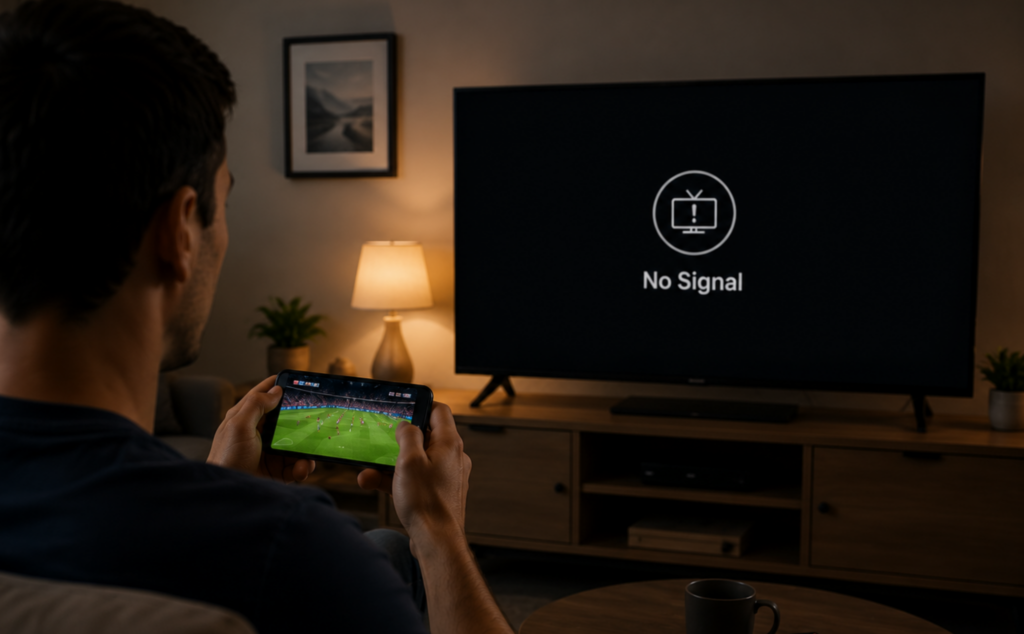
Waarom er een zwart scherm verschijnt
Veel streamingplatforms voor sportwedstrijden maken gebruik van DRM-beveiliging om ongeoorloofde opnames of verspreiding te voorkomen. Hierdoor kan het zijn dat de app tijdens het spiegelen van het scherm wel het afspelen van geluid toestaat, maar de video volledig blokkeert.
Dit probleem doet zich vaak voor bij live sportuitzendingen en streamingplatforms die strengere maatregelen voor inhoudsbeveiliging hanteren.
Mogelijke oplossingen
In plaats van weergave op volledig scherm werkt de ingebouwde Cast-functie van de app vaak betrouwbaarder, omdat de tv de video rechtstreeks vanuit de dienst zelf streamt.
Het bijwerken van de streaming-app, het opnieuw opstarten van de browser of het uitschakelen van de hardwareversnelling van de browser kan ook helpen om problemen met een zwart scherm te verminderen.
Gebruik de door de streamingdienst ondersteunde afspeelmethode
Als er tijdens het spiegelen een zwart scherm wordt weergegeven bij een sportuitzending, kan het zijn dat de app het maken van schermafbeeldingen beperkt, in plaats van dat er sprake is van een verbindingsprobleem.
Controleer of de dienst een eigen tv-app, Google Cast of AirPlay ondersteunt. Met deze opties kun je beveiligde video’s mogelijk rechtstreeks op de tv afspelen, in plaats van het scherm van je telefoon te spiegelen.
Als de inhoud schermspiegeling ondersteunt, kan 1001 TVs het scherm van je telefoon of computer spiegelen naar een compatibel ontvangstapparaat binnen hetzelfde lokale netwerk.
Veelgestelde vragen
Waarom wordt mijn tv niet weergegeven bij het spiegelen van het scherm?
Meestal komt dit doordat beide apparaten niet op hetzelfde wifi-netwerk zijn aangesloten, AirPlay/Chromecast is uitgeschakeld of de firmware van de tv verouderd is.
Waarom treedt er vertraging op bij het spiegelen van het scherm tijdens voetbalwedstrijden?
Live sportuitzendingen vereisen realtime transmissie met een lage latentie, waardoor wifi-netwerken zwaarder worden belast dan bij gewone video’s.
Waarom geven sportapps een zwart scherm weer tijdens het casten?
Veel apps voor het streamen van sportwedstrijden maken gebruik van DRM-beveiliging die standaard schermspiegeling blokkeert.
Kunnen VPN’s invloed hebben op het spiegelen van het scherm?
Ja. VPN’s en Private Relay-diensten blokkeren vaak de detectie van lokale netwerken die nodig is voor het casten.
Wat moet ik doen als een sport-app een zwart scherm weergeeft?
Sommige apps voor het streamen van sportwedstrijden beperken het maken van schermafbeeldingen of het spiegelen van het scherm vanwege DRM-beveiliging. Als de video niet op de tv wordt weergegeven, gebruik dan de eigen tv-app van de streamingdienst of een ondersteunde Cast- of AirPlay-optie.
Kan ik mijn scherm weergeven op een tv die geen AirPlay ondersteunt?
Ja, als de tv of een aangesloten streamingapparaat de 1001 TVs-ontvanger-app ondersteunt. Beide apparaten moeten op hetzelfde lokale netwerk zijn aangesloten. Voor een niet-smart-tv is een compatibel streamingapparaat of een andere externe ontvanger nodig.
Conclusie
Voordat de groepswedstrijden van het WK 2026 van start gaan, is het de moeite waard om je installatie van tevoren te testen, zodat je veelvoorkomende problemen met schermspiegeling nog voor de aftrap kunt oplossen. Met een stabiele wifi-verbinding en compatibele castmethoden kun je buffering, verbroken verbindingen en zwarte schermen tijdens livewedstrijden voorkomen.
Als traditionele AirPlay- of Chromecast-verbindingen onstabiel aanvoelen, 1001 TVs biedt ook alternatieve verbindingsmethoden die zijn ontworpen voor soepeler streamen op telefoons, computers en tv’s.
Raadpleeg onze handleiding op [link] voor een volledige installatiehandleiding. hoe je het WK voetbal 2026 op tv kunt bekijken met behulp van schermspiegeling

Lees meer
 Hoe kun je de NBA op tv bekijken in de VS?
Het bekijken van NBA-wedstrijden op je tv in de VS gaat het gemakkelijkst als je twee beslissingen in de juiste volgorde neemt: ten eerste moet je nagaan welke erkende dienst...
Hoe kun je de NBA op tv bekijken in de VS?
Het bekijken van NBA-wedstrijden op je tv in de VS gaat het gemakkelijkst als je twee beslissingen in de juiste volgorde neemt: ten eerste moet je nagaan welke erkende dienst...
 Hoe je je scherm kunt spiegelen naar een Sony Bravia-tv (Google TV)
Een Sony Bravia Google TV maakt geen gebruik van één universele “Screen Mirroring”-methode voor alle telefoons en computers. De juiste keuze hangt af van zowel...
Hoe je je scherm kunt spiegelen naar een Sony Bravia-tv (Google TV)
Een Sony Bravia Google TV maakt geen gebruik van één universele “Screen Mirroring”-methode voor alle telefoons en computers. De juiste keuze hangt af van zowel...

