De beste apps voor schermspiegeling om te installeren voordat het WK voetbal 26 van start gaat
FIFA Wereldkampioenschap 26 begint op 11 juni 2026, en als je van plan bent om thuis wedstrijden te kijken, is de opstelling van je scherm van belang. Een telefoon is prima om hoogtepunten te bekijken, maar volstaat niet voor een volledige wedstrijd, een kijkfeestje of een doelpunt in de blessuretijd.
Het praktische probleem is simpel: je wedstrijd wordt misschien uitgezonden via een app op je telefoon, de browser van je laptop, een tablet of een streamingdienst die geen eigen tv-app heeft. Daarom kan het installeren van de juiste app voor schermspiegeling vóór aanvang van het toernooi je de meest voorkomende frustraties op wedstrijddagen besparen: geen cast-knop, geen geluid op de tv, haperende video of een zwart scherm als gevolg van inhoudsbeveiliging.
In deze gids worden de beste apps voor schermspiegeling voor het WK voetbal 26 vergeleken op basis van echte kijksituaties, en niet alleen op basis van een lijst met functies.
Kort antwoord: Welke app moet je installeren?
| Je instellingen | De beste keuze | Waarom |
|---|---|---|
| iPhone + Apple TV | AirPlay | De snelste ingebouwde optie voor Apple-gebruikers |
| Android + Chromecast of Google TV | Google-cast | Dit werkt het beste als de streaming-app het casten ondersteunt |
| Verschillende apparaten thuis | 1001 TVs | Werkt op iOS, Android, Windows, Mac, Android TV en Apple TV |
| Laptop naar groter scherm streamen | 1001 TVs of HDMI-back-up | Handig als de wedstrijd beter werkt in een browser |
| Eenvoudige spiegeling van telefoon naar pc | LetsView | Eenvoudige optie voor het delen van je scherm in een informele setting |
| Geavanceerde bediening via de telefoon | ApowerMirror | Geschikt voor gebruikers die extra bedieningsmogelijkheden willen |
1. 1001 TVs: Ideaal voor WK-kijkfeestjes met verschillende apparaten
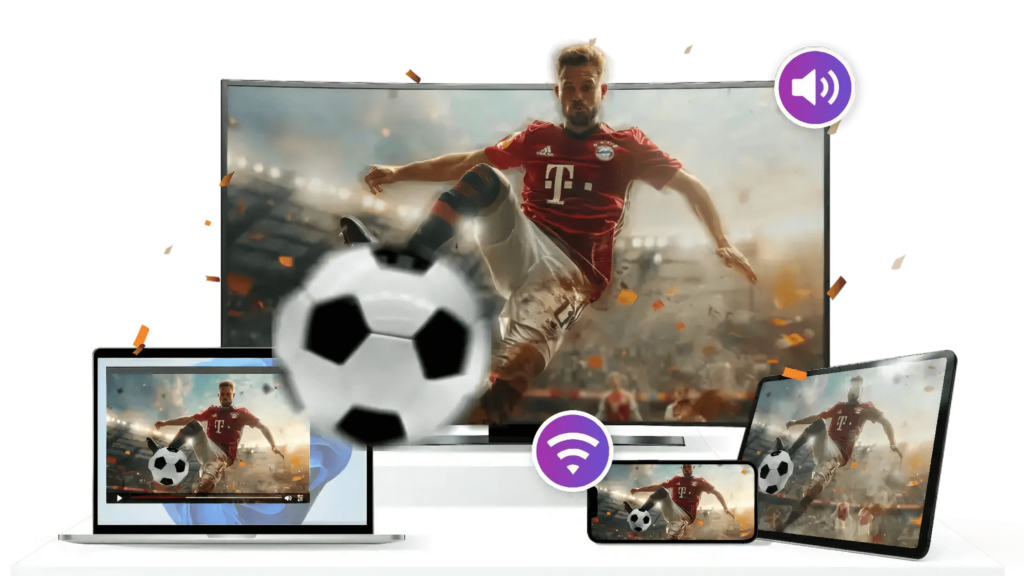
Als je maar één tip uit deze lijst opvolgt, laat het dan deze zijn: installeer vóór het toernooi een platformonafhankelijke app voor het spiegelen van je scherm, vooral als je thuis zowel Apple- als Android-apparaten hebt.
1001 TVs is handig omdat het niet gebonden is aan één ecosysteem. Volgens de officieel downloadcentrum, 1001 TVs ondersteunt iOS, Android, Mac, Windows-pc, Apple TV en Android TV. Daarnaast worden functies vermeld zoals schermspiegeling, browserspiegeling, bestandsoverdracht, het afspelen van streaminginhoud, bediening op afstand, een whiteboard en albums.
Dat maakt het een praktische keuze voor het WK voetbal 26, omdat de opstellingen op wedstrijddagen zelden overzichtelijk zijn. De ene persoon heeft misschien de officiële app van de omroep op een iPhone staan. Een ander volgt misschien de live-statistieken op een Windows-laptop. Weer iemand anders wil misschien een herhaling laten zien vanaf een Android-toestel. Met een flexibele mirroring-app kun je content naar het grootste scherm verplaatsen zonder afhankelijk te zijn van het casting-systeem van één bepaald merk.
Download 1001 TVs hier: https://www.1001tvs.com/downloads/

De beste toepassingen voor 1001 TVs tijdens het WK voetbal 26
Gebruik 1001 TVs als dat nodig is:
- Een iPhone of Android-telefoon op een tv weergeven
- Het scherm van een laptop naar een groter beeldscherm casten
- Gebruik een tv die AirPlay of Chromecast niet goed ondersteunt
- Zorg ervoor dat je een back-upmethode hebt ingesteld vóór een belangrijke wedstrijd
- Sluit verschillende apparaten van gasten aan zonder je hele opstelling te hoeven aanpassen
2. AirPlay: het beste als iedereen Apple-apparaten gebruikt
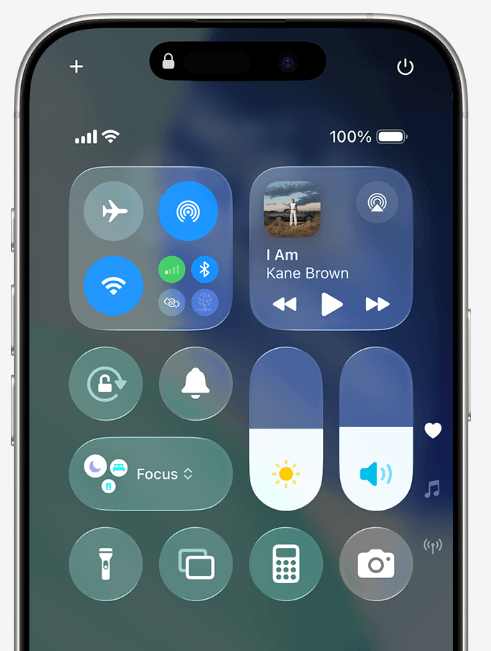
AirPlay is de beste keuze als je uitsluitend Apple-apparaten gebruikt: iPhone, iPad, Mac, Apple TV of een AirPlay-compatibele smart-tv.
Het is eenvoudig omdat je meestal geen extra app hoeft te installeren. Open het Controlecentrum, kies ‘Schermspiegeling’ en selecteer je tv. Voor een gezin dat iPhones en Apple TV gebruikt, is dit vaak de meest overzichtelijke opstelling.
Wanneer AirPlay het beste werkt
AirPlay is het meest geschikt voor:
- Spiegelen van iPhone naar Apple TV
- Van de Mac-browser naar het tv-scherm
- Fragmenten bekijken vanuit Foto’s of Safari
- Snel hoogtepunten delen vanaf een iPad
Wanneer AirPlay niet volstaat
AirPlay is minder handig als gasten een Android-telefoon of een Windows-laptop meenemen. Het hangt ook af van de vraag of de streaming-app schermspiegeling toestaat. Sommige sportstreaming-apps kunnen schermspiegeling blokkeren, waardoor er een zwart scherm te zien is. Test dit voor de wedstrijddag.
3. Google Cast: het meest geschikt voor gebruikers van Chromecast, Google TV en Android
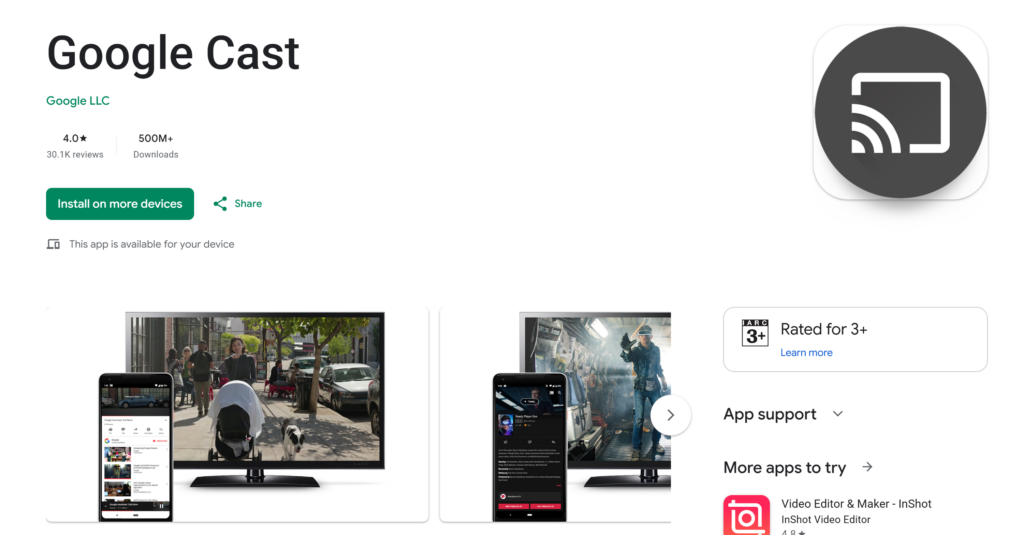
Google-cast is de eenvoudigste optie als je streaming-app een ‘Cast’-knop heeft en je tv Chromecast of Google TV ondersteunt.
In tegenstelling tot het spiegelen van het volledige scherm kan je bij ‘casting’ de videostream rechtstreeks naar de tv sturen. Dit verloopt vaak soepeler en is beter voor de levensduur van de batterij. Het is een goede eerste keuze voor Android-gebruikers.
Wanneer Google Cast het beste werkt
Gebruik Google Cast wanneer:
- Je tv heeft Chromecast ingebouwd
- Je streaming-app geeft een cast-pictogram weer
- Je bekijkt dit via Chrome op een laptop
- Je wilt een video afspelen zonder het volledige scherm van je telefoon te spiegelen
Wanneer kun je beter een andere app gebruiken?
Als je wedstrijdstream wordt weergegeven in een browsertabblad, een mobiele app die geen ondersteuning biedt voor Google Cast of een regiospecifieke app van een omroep, werkt Google Cast mogelijk niet betrouwbaar. In dat geval kan een app voor spiegelen op volledig scherm, zoals 1001 TVs, een beter alternatief zijn.
4. LetsView: het beste voor eenvoudig scherm delen
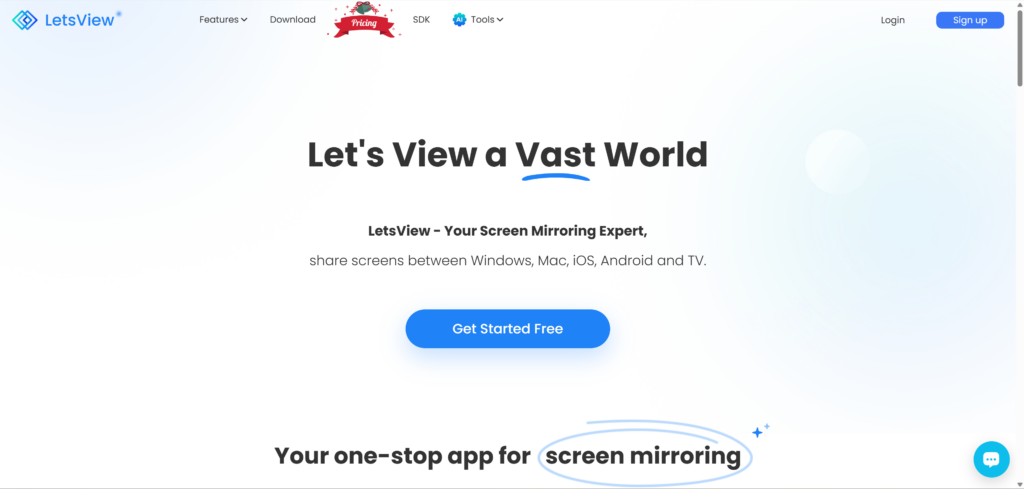
LetsView is een eenvoudige optie voor gebruikers die vooral op zoek zijn naar basisfuncties voor draadloos spiegelen. Het kan handig zijn als je voorbeschouwingen van wedstrijden, reacties op sociale media of korte filmpjes op een groter scherm wilt weergeven.
Het is niet voor elke tv-opstelling de beste keuze, maar voor incidenteel gebruik is het eenvoudig genoeg.
Beste voor
- Spiegelen van telefoon naar pc
- Snel video's delen
- Informele schermweergave
- Gebruikers die geen geavanceerde instellingen nodig hebben
5. ApowerMirror: het beste voor geavanceerde bediening
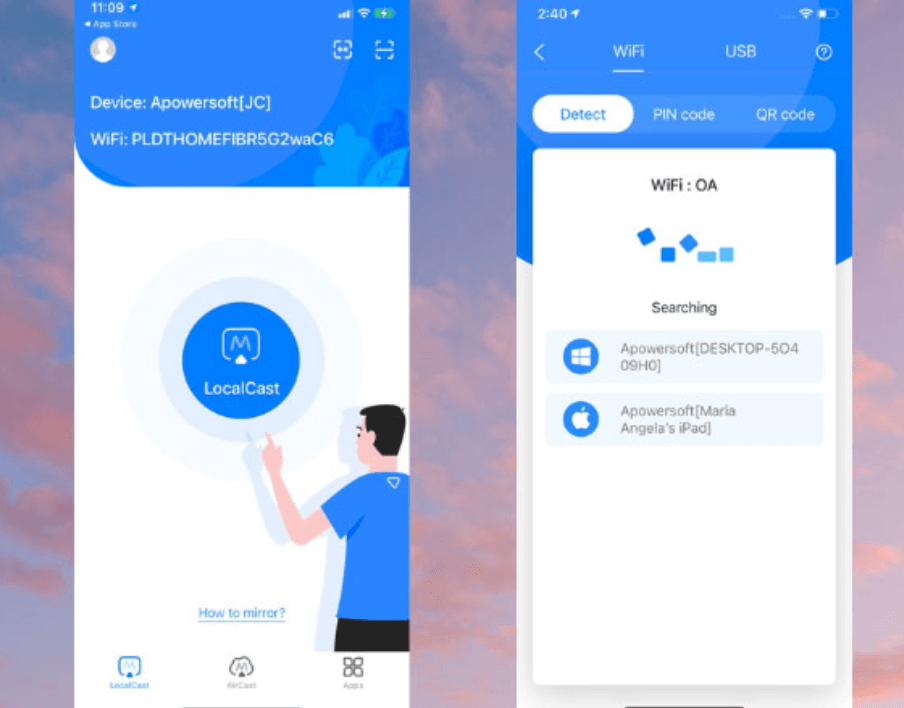
ApowerMirror is een betere keuze voor gebruikers die meer willen dan alleen standaard schermspiegeling. Het ondersteunt zowel het spiegelen van een telefoon naar een pc als naar een tv, en kan, afhankelijk van de instellingen van je apparaat, ook bedieningsfuncties bieden.
Voor het WK 26 is ApowerMirror handig als je een wat technischer opstelling wilt gebruiken, bijvoorbeeld om het scherm van een telefoon op een computer weer te geven terwijl je de telefoon vanaf het bureaublad bedient.
Beste voor
- Geavanceerde workflows tussen telefoon en pc
- Gebruikers die behoefte hebben aan bedieningsfuncties
- Scherm delen op meerdere apparaten
- Meer technische kijkopstellingen
Veelvoorkomende problemen en oplossingen
De tv wordt niet weergegeven
Zorg ervoor dat beide apparaten op hetzelfde wifi-netwerk zijn aangesloten. Schakel VPN en de mobiele hotspot-modus uit. Start de mirroring-app op beide apparaten opnieuw op.
De wedstrijd loopt achter
Ga dichter bij de router zitten, sluit apps op de achtergrond af en vermijd het downloaden van grote bestanden tijdens de wedstrijd. Gebruik indien mogelijk 5 GHz wifi in plaats van een druk 2,4 GHz-netwerk.
Er is geen geluid
Controleer of de telefoon nog steeds geluid naar zichzelf stuurt. Maak opnieuw verbinding met de mirroring-sessie en selecteer de tv of de receiver als audio-uitgang.
Het scherm wordt zwart
Dit gebeurt vaak omdat de streaming-app het opnemen of spiegelen van het scherm blokkeert. Gebruik de officiële Cast-knop, de officiële tv-app of een andere goedgekeurde weergavemethode.
De foto is wazig
Zorg eerst dat het wifi-netwerk minder overbelast raakt. Als de app kwaliteitsinstellingen heeft, kies dan voor een stabiele modus in plaats van de hoogste resolutie. Een vloeiende weergave is beter dan een scherp beeld dat om de paar seconden vastloopt.
Definitieve aanbeveling
Voor het WK voetbal 26 hangt de beste app voor schermspiegeling af van je apparaten. AirPlay is het beste voor huishoudens die uitsluitend Apple-apparaten gebruiken. Google Cast is het beste voor gebruikers van Chromecast en Google TV. Maar voor huishoudens met verschillende apparaten, kijkfeestjes en alternatieve kijkopties, 1001 TVs is de handigste app om te installeren voordat het toernooi begint.
Het ondersteunt meerdere platforms, biedt je meer manieren om telefoons en computers te spiegelen en helpt de compatibiliteitsproblemen met apparaten te voorkomen die vaak vlak voor de aftrap de kop opsteken.
Installeer het vóór de wedstrijddag: Download 1001 TVs van de officiële website
Veelgestelde vragen
Wat is de beste app voor schermspiegeling voor het WK voetbal 26?
Voor huishoudens met uitsluitend Apple-apparaten is AirPlay de eenvoudigste oplossing. Voor Chromecast-gebruikers is Google Cast handig. Voor huishoudens met verschillende apparaten en kijkfeestjes, 1001 TVs is de beste keuze in het algemeen, omdat het iOS, Android, Windows, Mac, Apple TV en Android TV ondersteunt.
Kan ik WK-wedstrijden vanaf mijn telefoon naar mijn tv streamen?
Ja, maar dat hangt af van je streaming-app. Bij sommige officiële sportstreaming-apps is casten mogelijk, terwijl andere apps schermspiegeling blokkeren om auteursrechten te beschermen. Test je installatie altijd even voor de wedstrijd.
Waarom wordt mijn scherm zwart als ik een livewedstrijd spiegel?
Een zwart scherm betekent meestal dat de streaming-app het spiegelen van het scherm blokkeert. Probeer de officiële cast-knop van de app te gebruiken, een smart-tv-app of een methode via de browser of tv die door de omroep wordt ondersteund.
Is 1001 TVs nuttig als ik al AirPlay of Chromecast heb?
Ja, vooral als back-up. AirPlay en Chromecast werken prima binnen hun eigen ecosystemen, maar 1001 TVs is handig als je verschillende soorten apparaten met elkaar wilt verbinden.
Waar kan ik 1001 TVs downloaden?
Je kunt het downloaden via het officiële 1001 TVs-downloadcentrum: https://www.1001tvs.com/downloads/

Lees meer
 Hoe kun je de NBA op tv bekijken in de VS?
Het bekijken van NBA-wedstrijden op je tv in de VS gaat het gemakkelijkst als je twee beslissingen in de juiste volgorde neemt: ten eerste moet je nagaan welke erkende dienst...
Hoe kun je de NBA op tv bekijken in de VS?
Het bekijken van NBA-wedstrijden op je tv in de VS gaat het gemakkelijkst als je twee beslissingen in de juiste volgorde neemt: ten eerste moet je nagaan welke erkende dienst...
 Hoe je je scherm kunt spiegelen naar een Sony Bravia-tv (Google TV)
Een Sony Bravia Google TV maakt geen gebruik van één universele “Screen Mirroring”-methode voor alle telefoons en computers. De juiste keuze hangt af van zowel...
Hoe je je scherm kunt spiegelen naar een Sony Bravia-tv (Google TV)
Een Sony Bravia Google TV maakt geen gebruik van één universele “Screen Mirroring”-methode voor alle telefoons en computers. De juiste keuze hangt af van zowel...

