
How to Watch F1 Onboard Cameras on Your TV (Multiview Guide)

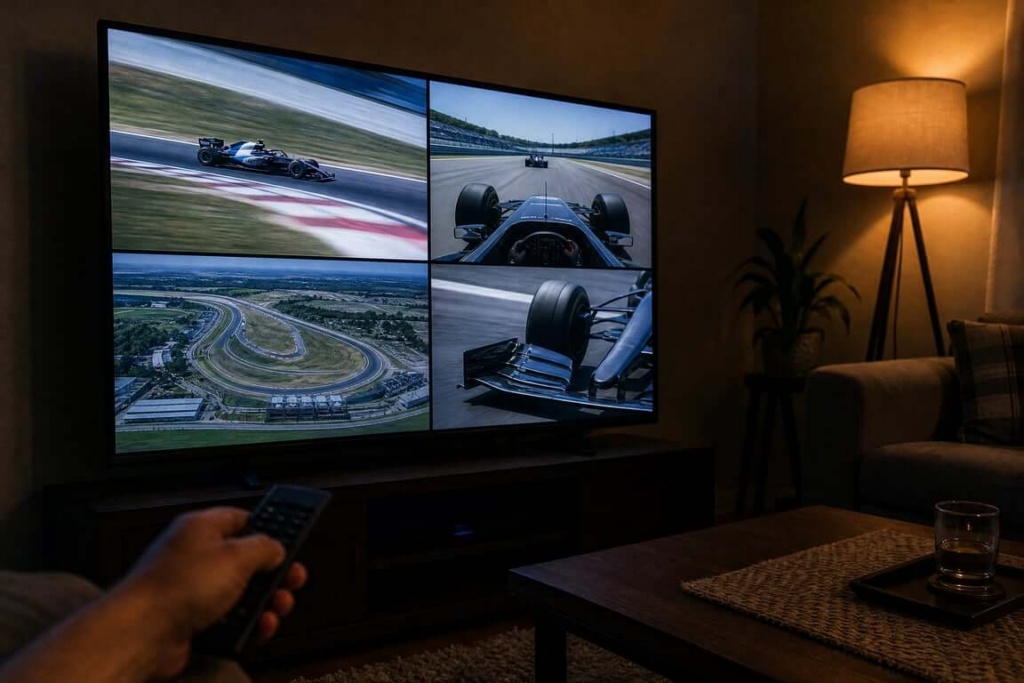
Monza is five weeks out, and it is the worst possible weekend to discover that your TV can’t show you a driver’s onboard. The Italian Grand Prix runs September 4–6, 2026, on the fastest layout of the season, where the whole story is slipstream: who tows whom down the main straight, who lifts first into the Rettifilo, who gets a run out of Parabolica. The world feed picks one car. Onboards let you pick yours.
Here is the short version, before the details.
To watch F1 onboard cameras on a TV, you need F1 TV Pro or Premium (Access has no live video), and your device decides what you get once you’re subscribed. Onboard cameras work on essentially every supported living-room platform. Multiview — several feeds on screen at once — does not. As of this writing, F1 lists Multiview on iOS, tvOS, Android phone/tablet, and desktop Chrome or Edge. Not Roku. Not Android TV or Google TV. Not Safari. If your television isn’t on that list, the fix isn’t a different subscription — it’s building the grid on one of those screens and then getting that screen onto the TV, by cable or by mirroring.
That single gap drives most of the confusion in this topic, so start with the routing table.
| お客様の設定 | Live onboard cameras | Multiview | What to do |
|---|---|---|---|
| Apple TV 4K | はい | はい | Install F1 TV, or use the Apple TV app if you’re in the US |
| Apple TV HD | はい | いいえ | F1 says Apple TV HD does not support Premium features |
| Roku (Gen 8+) | Yes, up to 2160p HDR | いいえ | Great single-feed box; mirror a computer or phone for Multiview |
| Fire TV | はい | Not documented | Solid Pro route; verify Premium behavior yourself |
| Google TV / Android TV | Yes, up to 2160p HDR | いいえ | Multiview isn’t supported; the box makes a good mirroring receiver |
| Samsung Tizen / LG webOS | No native F1 TV app | いいえ | Add a streamer, or mirror a computer or phone (see below) |
| Desktop Chrome or Edge | はい | はい | Where you build the grid — then send it to the TV by HDMI or mirroring |
| Console browser | Unsupported | Unsupported | Don’t build your race weekend on this |
What an “onboard camera” actually is
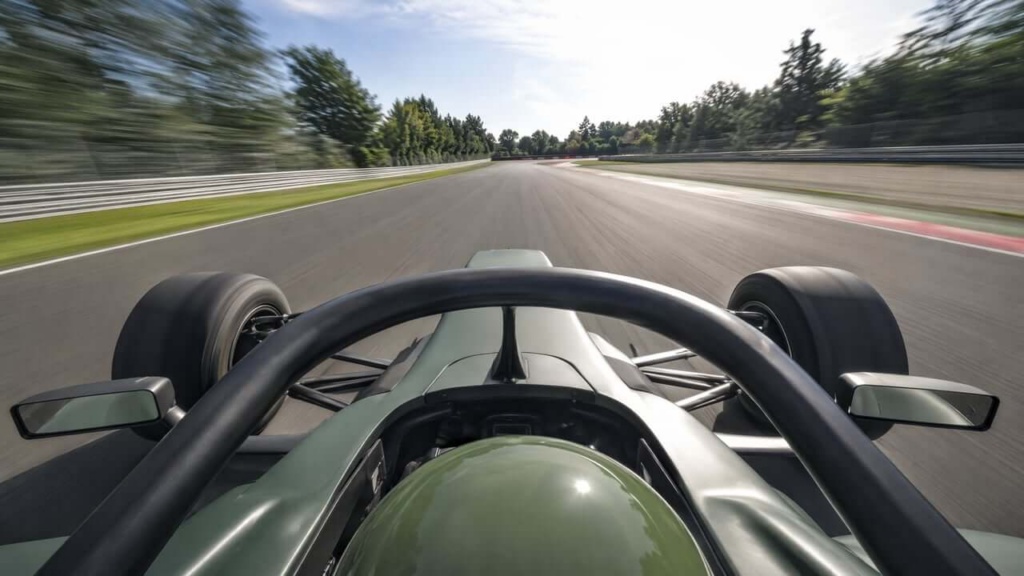
Worth clearing up first, because it shapes what you should expect to see. You are not choosing a physical lens on a car. You are choosing a driver channel that a production team fills.
The hardware underneath is genuinely dense. The 2026 FIA technical regulations require six camera positions per car, with cameras mandatory in positions 4 and 5, cameras or housings at positions 1 and 2, and helmet or position-6 cameras fitted when the commercial rights holder asks for them. Raceteq’s teardown of the T-Cam notes that the roll-hoop pod most people think of as “the onboard camera” actually holds two cameras, one forward-facing and one rearward-facing, plus two antennas, in an assembly weighing around 1.5 kg. The in-helmet driver’s-eye camera is roughly 8 mm across. Raceteq also reports that all onboard cameras become 4K-capable in 2026 while still broadcasting at 1080p, because carrying that many 4K onboard streams would eat more bandwidth than the system can spare.
What reaches your remote is thinner and tidier than that. Apple’s support page for Formula 1 in the Apple TV app describes 22 onboard driver cameras alongside live data and a driver tracker. F1’s current race-weekend pages talk about Premium giving you 26 feeds to choose from on supported devices. Either way, the unit of choice is the car, not the lens. If a driver’s feed suddenly flips to a rear-facing view mid-lap, that was the director, not you.
This matters at Monza specifically. When the tow game starts on the run to Turn 1, the rear-facing angle inside a leading car’s feed is often the best shot on the whole broadcast, and no amount of clicking will summon it on demand.
Step 1: get the right subscription, in the right country
Rights come before devices. Always.
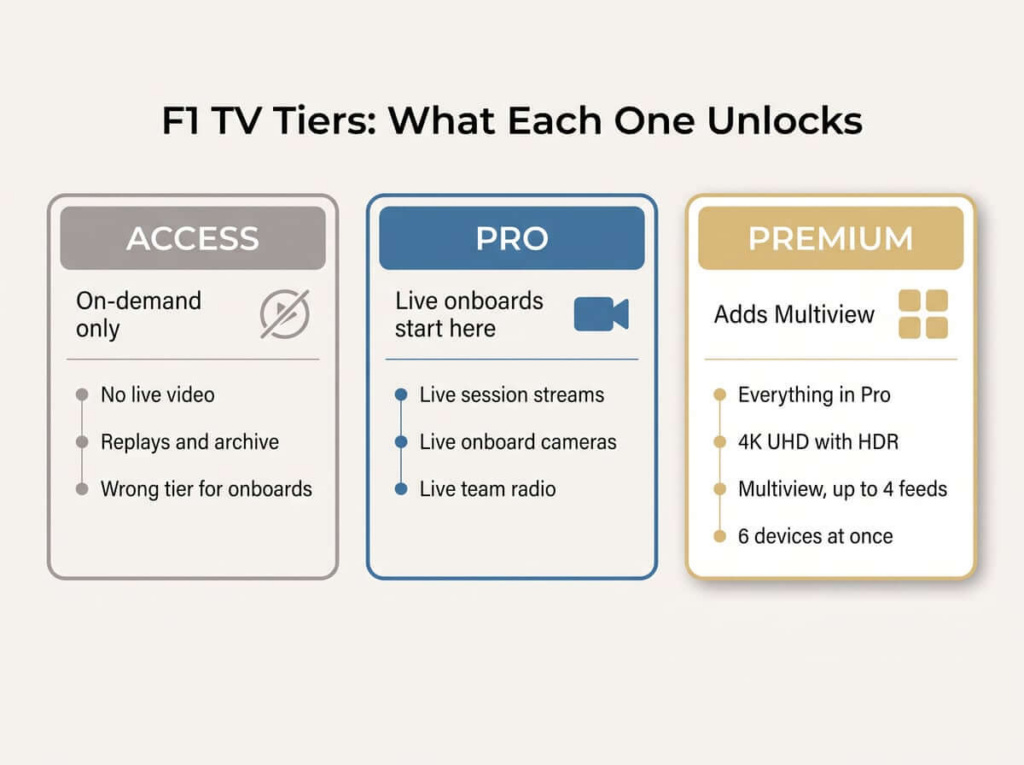
F1 TV sells three tiers. アクセス is on-demand only and has no live video, which makes it the wrong purchase for anyone reading this. プロ is the entry point that matters: live session streams, live onboard cameras, live team radio. プレミアム adds 4K UHD with HDR, Multiview with up to four live feeds at once, and streaming on up to six devices simultaneously.
Then check Location Availability for your country before you pay. F1 TV is sold in selected territories only, live and replay rights differ between them, and your plan gets tied to your country of residence at signup.
Two regional notes that will otherwise waste your afternoon:
United States. Apple TV is the exclusive US home of Formula 1 in 2026. Formula 1 says F1 TV Premium remains available to US viewers through Apple TV at no additional cost for subscribers. If you’re American, start with the Apple path and ignore most standalone-subscription advice written before this season.
Italy. For the home race, Sky Italia holds the broadcast rights, per F1’s own broadcast information page. “How to watch the Italian GP on TV” and “how to watch onboards with feed selection” are not the same question in every market, and Monza is a good example of the two answers diverging.
Step 2: build the grid before you think about the television
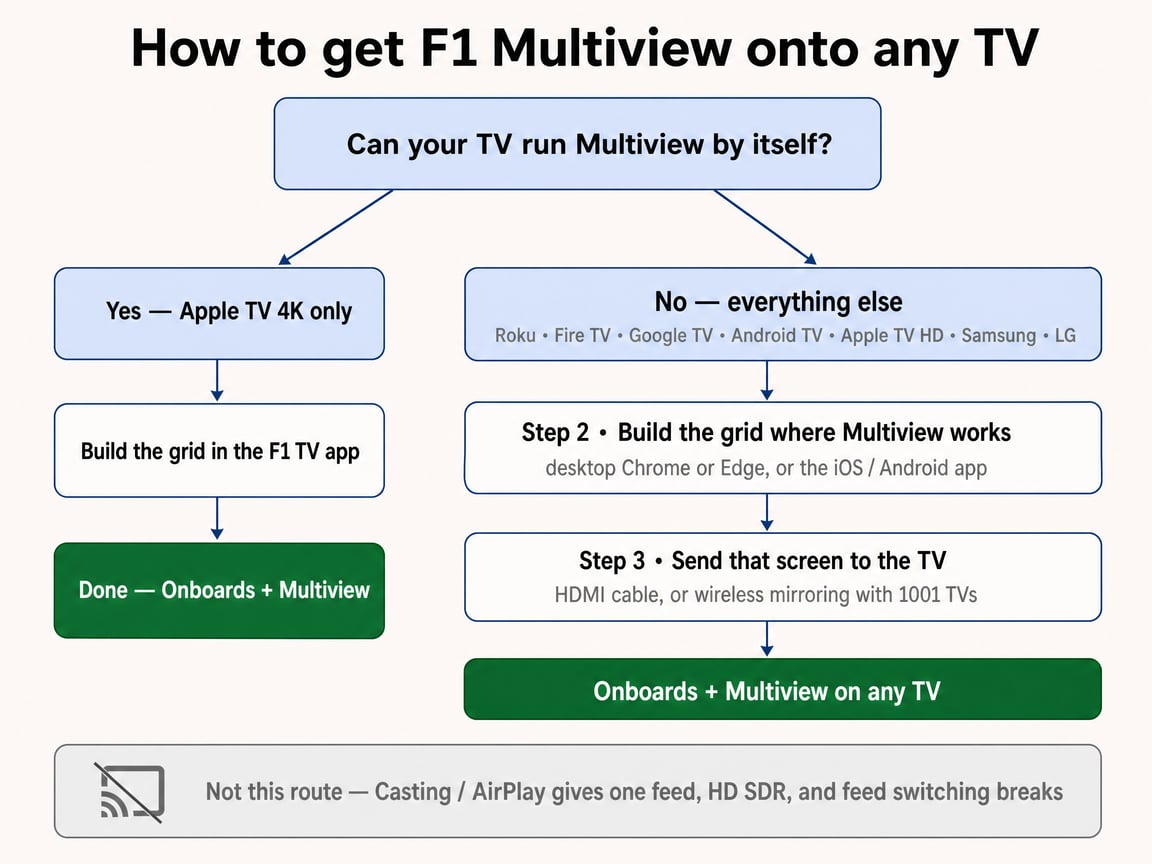
Notice what the routing table above is actually saying. Of every device that might be sitting under your TV, exactly one — Apple TV 4K — can run Multiview by itself. So the first decision isn’t “which device should I install F1 TV on.” It’s which screen is going to hold the grid, and for most people that screen is not the television.
Separate the two things you might want, because their availability is nothing alike.
Onboards are the easy half. Essentially every supported living-room platform carries them — Apple TV 4K, Apple TV HD, Roku Gen 8 or newer, Fire TV, Google TV and Android TV, most of them up to 2160p HDR on capable hardware. Install F1 TV from your platform’s store, sign in with the Formula 1 account that holds the subscription, and a single driver’s camera fills the screen. If that’s all you came for, skip ahead to the troubleshooting list. One wrinkle worth knowing first: a persistent cluster of Roku community reports describes the F1 image appearing zoomed or cropped, with users fixing it by forcing 4K @60 or dropping output to 720p. Try that before you conclude the app is broken.
Multiview is the scarce half, and this is where the device list collapses.
Where Multiview actually works
Four places, and that is the entire list: Apple TV 4K (1st gen and newer), desktop Chrome or Edge, the iOS app, and the Android phone or tablet app. Roku can’t. Google TV and Android TV can’t. Fire TV isn’t documented. Samsung and LG have no app at all. Even Apple TV HD is cut out of Premium features, and F1’s help pages note the Multiview toggle sits greyed out in Safari.
Which means your source picks itself, and there are only two outcomes:
- You own an Apple TV 4K. The source and the television are the same box, so build the grid in the app and you’re finished at the end of this step. F1 recommends a steady 15 Mbps or better, and protected 4K playback needs HDCP 2.1, an HDMI port, and a high-speed HDMI cable end to end.
- You own anything else. Build the grid in desktop Chrome or Edge, or in the F1 TV app on a phone or tablet. That leaves you with the right picture on the wrong screen — a transport problem, and Step 3 exists entirely to solve it.
The layout rules
Apple publishes the clearest documentation of how Multiview behaves, so treat it as the shape to aim for. It describes the tvOS app specifically; the browser and mobile grids follow the same logic without matching the menus exactly.
| Feeds on screen | Layout options |
|---|---|
| Two | 50/50, or 70/30 |
| Three | 70/30 only — no equal-size option |
| Four | Equal 2×2 grid, or one large plus three small |
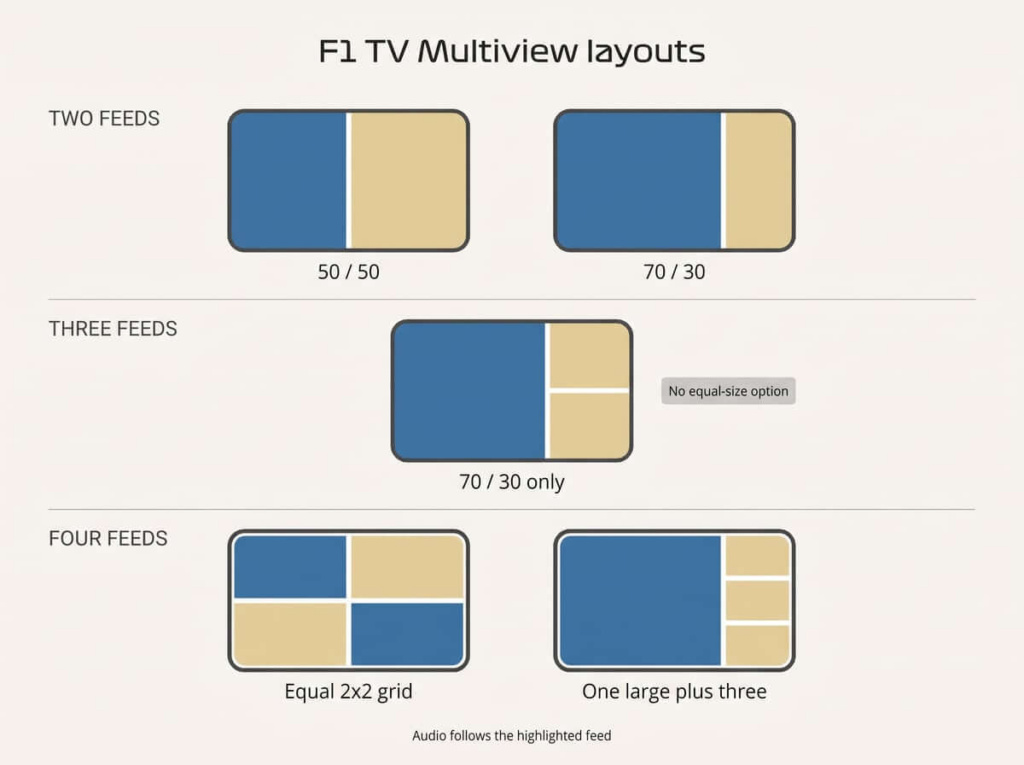
Multiview hides behind the circle icon made of four squares, and Premium supports up to four live feeds at once. Audio follows whichever stream is currently highlighted, so you change commentary by moving the highlight rather than hunting through a menu. During live sessions you can take a preset team Multiview or assemble your own from the available feeds, including driver cameras and course maps, and feeds can be moved or dropped mid-session.
A Monza grid that earns its screen space
World feed large, then the two cars fighting for the tow, then the driver tracker. Skip the fourth onboard. On a circuit this fast, the tracker shows you where the slipstream train is forming a full straight before any camera does.
Build this now, at your desk, before the television enters the conversation. Assembling a grid while a mirroring session is already running is the surest way to spend the formation lap fiddling with a laptop.
Step 3: get that screen onto the TV
If you built the grid on an Apple TV 4K, you’re done — skip ahead to troubleshooting. Everyone else is now holding a working Multiview grid on a laptop or a phone, in front of a television that can’t produce one on its own. That is no longer a subscription problem or a device-support problem. It’s a transport problem, and there are three ways to solve it, ordered here from most official to least useful.
HDMI cable — the official answer, when the geometry allows
F1’s own answer to “my television doesn’t do Multiview” is a cable from a computer that does, and it earns the first slot honestly. It costs nothing if you already own the cable, adds no latency, negotiates with no app, and passes whatever your desktop outputs straight to the panel. Nothing further down this list beats it on fidelity.
It also carries one requirement that quietly disqualifies most households: the machine holding your grid has to sit within cable reach of the screen. If your desk faces the television, stop here — this is the best option available to you. If it doesn’t, a laptop balanced on the coffee table for three hours is not a setup anyone repeats twice, which is what the next section is for.
Wireless screen mirroring with 1001 TVs — the cable’s result, without the cable
Samsung and LG owners land here because Tizen and webOS have no F1 TV app at all. But so does everyone on Roku, Google TV, Android TV, or Apple TV HD — platforms that run the app perfectly well and still can’t put two cars on screen at once. Mirroring does precisely what that HDMI run does, without asking your furniture to cooperate.
1001 TVs does that job in two parts, with roughly 1.7 million installs worldwide: a receiver on the Apple TV or Android TV box already attached to your set, and a sender on whatever device holds your Multiview grid — Windows, Mac, Android, or iOS. Put both on the same Wi-Fi and the big screen becomes a live copy of the small one. If your television has no streamer at all, a cheap Android TV stick is enough; it never runs F1 TV, it only receives a picture.
Mirroring is not casting, and that difference is the whole point. Casting hands a stream to the television and lets the app on the far end decide what to render — which is exactly why the camera-switching sidebar vanishes. Mirroring never negotiates with the app. It copies your screen, whatever that screen is showing. Build a four-up grid in Chrome and the TV shows a four-up grid; swap a driver on the laptop and the television follows in real time, because it isn’t running F1 TV at all. And since F1 supports Multiview on iOS and Android too, you can build the grid on a phone and mirror that instead, which leaves the phone in your hand as the feed-switching remote.
One practical note carried over from Step 2: have the grid built before you start mirroring, and set the scaling mode to Fit or Fill so a 16:9 layout doesn’t arrive letterboxed. Traffic stays inside your local network instead of routing through an external server, which keeps latency low and leaves your bandwidth free for F1 TV’s recommended 15 Mbps. Free trial on the sender side, subscription after that.
One honest caveat, true of every mirroring and casting method including this one: protected streams sometimes fight the display chain, and the failure mode is audio with a black screen. Do a dry run during a practice session, not two minutes before lights out at Monza. You’ll need it on both ends, TV and source: download it at 1001tvs.com.

Casting and AirPlay — convenient, and the weakest option
Use this when you want one feed on the TV and nothing else. F1’s own streaming-quality documentation caps AirPlay and casting at HD SDR, so you’re giving up 4K and HDR before you start. Both グーグルキャスト そして エアプレイ require the source device and the receiver to sit on the same Wi-Fi network.
Then there’s the caveat almost nobody sees coming. F1’s help pages say Android casting works to Chromecast 3rd Gen and newer, Chromecast Ultra, and Chromecast with Google TV, but not to smart TVs whose only qualification is “Chromecast built in.” If you own a Sony, TCL, or Hisense set and assumed the built-in receiver counted, it doesn’t.
Worse for this particular use case: multiple years of user reports say that once a cast session starts, the camera-switching sidebar disappears from the source device, and changing drivers means stopping the cast, switching, and casting again. That behavior isn’t in F1’s official documentation, so treat it as widely reported rather than guaranteed. But if switching between onboards is the point of your evening, cast is the wrong tool.
The four endings, side by side
| How the grid reaches the TV | Works on which TVs | Multiview on the big screen | Switch feeds without interrupting | Ceiling |
|---|---|---|---|---|
| No transport — Apple TV 4K runs it natively | Only if you own one | はい | はい | Up to 2160p HDR |
| HDMI cable from a laptop or desktop | Any TV within cable reach | はい | はい | Whatever your desktop outputs |
| Wireless mirroring (1001 TVs) | Any TV with a streamer attached | はい | はい | Whatever your source screen outputs |
| Casting / AirPlay | Chromecast 3rd Gen+ and AirPlay targets | いいえ | Widely reported as no | HD SDR, capped by F1 |
Read the second column downward and the pattern is hard to miss. One row asks you to own a particular box. One row asks your desk to face the sofa. One row works on the television already in the room, with nothing bought and nothing moved. And one row doesn’t deliver Multiview at all.
Troubleshooting, in the order worth trying
Work down this list. It resolves most reported failures.
- Confirm the tier. Onboards need Pro or Premium. Multiview needs Premium. Access has no live video at all.
- Confirm the territory. Check Location Availability. Live access abroad may be restricted even on a valid subscription.
- Confirm the device is on the supported list. F1’s supported devices page is the authority, and it changes.
- Check bandwidth. F1 asks for a steady 15 Mbps or higher. Full HD, UHD, and Multiview availability all depend on connection and device capability together.
- Same Wi-Fi network for anything cast, mirrored, or AirPlayed. On iOS, cast-enabled apps may also need Local Network permission granted.
- Missing Multiview toggle? You’re probably in Safari, on Roku, or on Android TV. None of them support it. Build the grid in Chrome, Edge, or the iOS/Android app instead, then mirror that screen to the TV.
- Sound but no picture? Walk the display chain: TV input, any receiver or soundbar in the path, the cable, then the source device. Premium playback on Apple TV 4K requires HDCP 2.1 end to end, and a single non-compliant link in the chain kills the video while leaving the audio. If it happens while mirroring or casting, it’s the same problem one step further out — the protected stream is refusing the display path, which is why you rehearse during practice rather than at lights out.
- Zoomed or cropped video on Roku? Force a different output resolution. 4K @60 and 720p are the two workarounds users report success with.
- Trying a mobile browser? Stop. F1 says F1 TV isn’t accessible through mobile browsers at all. Use the app.
Two expectations worth lowering in advance. Feeds do not lock perfectly in sync — users regularly report onboards leading or lagging the world feed and the timing data, and multi-feed sports viewing is unusually sensitive to that. And the Samsung TV Plus “F1 Channel” is a free ad-supported channel carrying replays and analysis. It is not F1 TV, and it has no selectable onboard cameras.
Frequently asked questions
Do I need F1 TV Premium to watch onboard cameras?
No. Pro covers live session streams, live onboard cameras, and live team radio. Premium is what you pay for if you want Multiview with up to four feeds at once, 4K UHD with HDR, and streaming on six devices simultaneously. Access is on-demand only and carries no live video.
Can you watch F1 Multiview on Roku?
No. Roku Gen 8 and newer run the F1 TV app well for single-feed onboard viewing at up to 2160p HDR, but Multiview is not supported on the platform. To run a four-up grid in a Roku household, build it in desktop Chrome, Edge, or the F1 TV mobile app, then mirror that screen to the television.
Does F1 TV work on Samsung or LG smart TVs?
There is no native F1 TV app for Samsung Tizen or LG webOS, so you have to add something — but what you add depends on what you want. For onboards alone, any streamer does it: Apple TV 4K, Roku Gen 8 or newer, or Fire TV. For Multiview, only two things work: an Apple TV 4K, which runs it natively, or a screen mirroring receiver such as 1001 TVs on an Apple TV or Android TV box, receiving the grid you built in Chrome or on your phone. Adding a Roku or Fire TV will not get you Multiview, and casting alone will not either.
How do you get Multiview onto a TV that doesn’t support it?
Move it there from a device that does. Build the grid in desktop Chrome or Edge, or in the mobile app, then send that screen to the television. If your desk faces the TV, an HDMI cable is the cleanest possible version of this. If it doesn’t, mirror the screen with a tool such as 1001 TVs — mirroring sends a live copy of your display instead of handing a stream to the TV app, so feed switches follow instantly.
Can you mirror F1 TV Multiview from a phone to a TV?
Yes. F1 lists Multiview as supported on iOS and Android phones and tablets, so you can build the grid in the mobile app and mirror the phone to a television. 1001 TVs mirrors Android and iOS alongside Windows and Mac, which keeps a laptop out of the living room.
How many F1 onboard cameras can you choose from?
Apple’s support documentation lists 22 onboard driver cameras in the Apple TV app alongside live data and a driver tracker, while F1’s race-weekend pages describe Premium offering 26 feeds on supported devices. Each entry is a driver channel, not a specific lens — the director controls which angle it shows.
Can you switch drivers while casting to a TV?
Not reliably. Multiple years of user reports say the camera-switching sidebar disappears from the source device once a cast session starts, so changing drivers means stopping the cast, switching, and casting again. Screen mirroring avoids this entirely — with 1001 TVs the television shows whatever your screen shows, so switches land instantly.
How do US viewers watch F1 onboards in 2026?
Apple TV is the exclusive US home of Formula 1 in 2026, and Formula 1 says F1 TV Premium remains available to US viewers through Apple TV at no additional cost for subscribers. Start there rather than following standalone-subscription guides written before this season.
Your Monza checklist
You have roughly five weeks. Use two of them.
- This week: confirm your country’s rights situation and pick your tier. US readers, go through Apple TV.
- Next practice session you can catch: test the whole chain end to end — build the grid where Multiview works, then get that screen onto the TV. Onboards, Multiview, feed switching, audio focus. Whatever breaks, breaks now instead of on Sunday.
- If your TV can’t do Multiview — Samsung, LG, Roku, Google TV, Android TV, Apple TV HD: decide between buying an Apple TV 4K and mirroring the screen you already build grids on, then set it up and rehearse it. Install 1001 TVs on both ends if you go the mirroring route.
- Friday of Monza weekend, September 4: open everything an hour before FP1. Apps update, layouts move, and support pages get quietly revised between races.
Then take Verstappen’s onboard through Ascari with the volume up, and let the world feed cover the pit stops.