
Vertical Mirroring Upgrade: Photos and Videos in Albums Can Also Play Vertically!
If you’re already used to using 1001 TVs for vertical screen mirroring (see our vertical mirror guide:👉Vertical Screen Mirroring ), you might not know this yet: the Albums feature also supports vertical playback.
As long as your TV is mounted in portrait orientation, both photos and videos can be displayed in a very immersive and clear way.
Below we’ll show you the full flow:
Upload from your phone ➜ Play vertically on the TV.
1. On your phone: upload photos/videos to the TV first
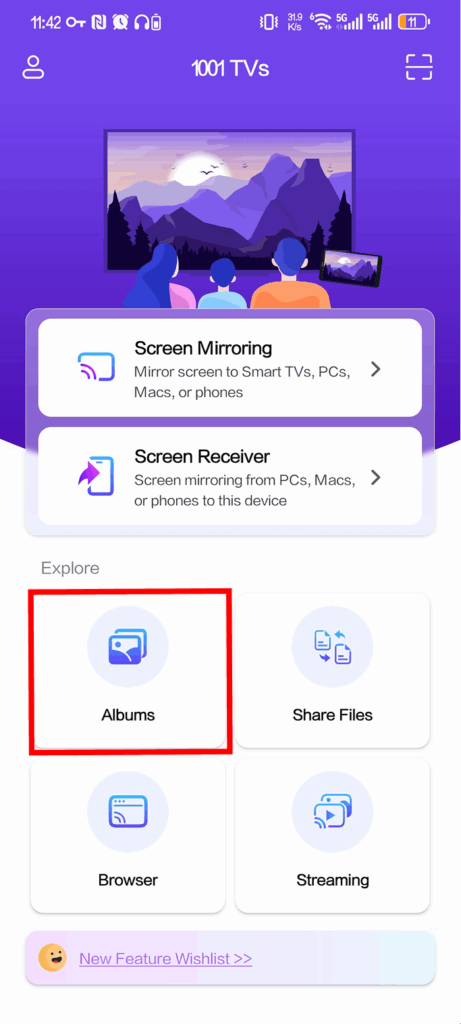
❶ Open the 1001 TVs mobile app and tap Άλμπουμ προβολής
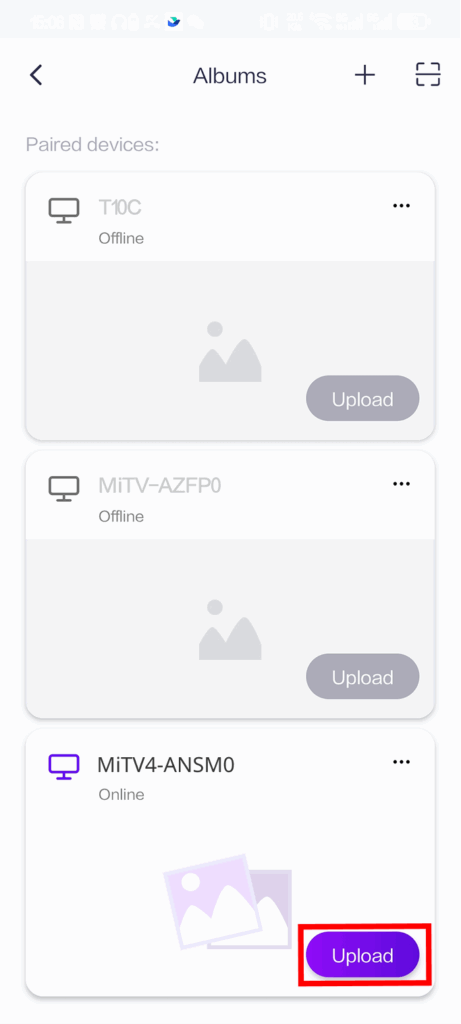
❷ On the paired TV card, tap Upload in the bottom-right corner
Make sure your TV is online, then choose the TV you want to upload to and tap Upload.
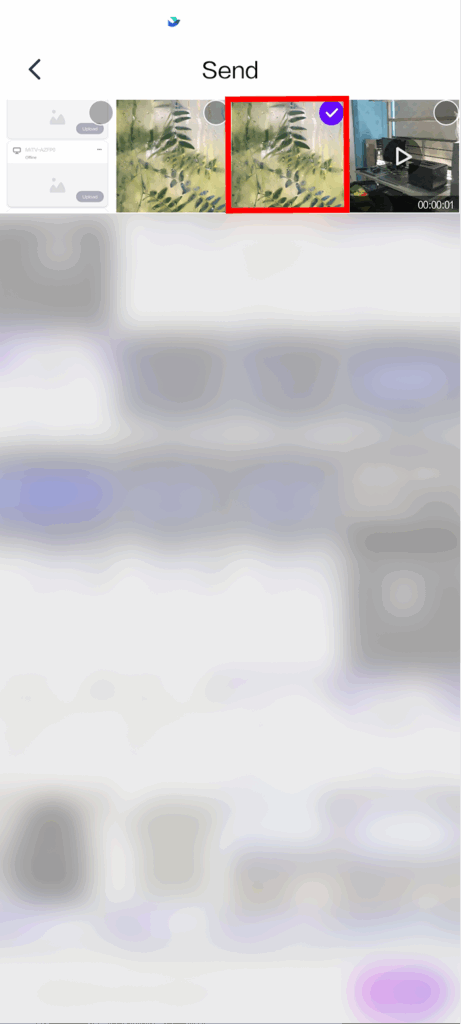
❸ Select the photos or videos you want to upload
After selecting, πατήστε Στείλτε in the bottom-right corner.
Once the upload is complete, these items will appear in My Album on the TV.
2. On the TV: play your photos/videos in vertical orientation
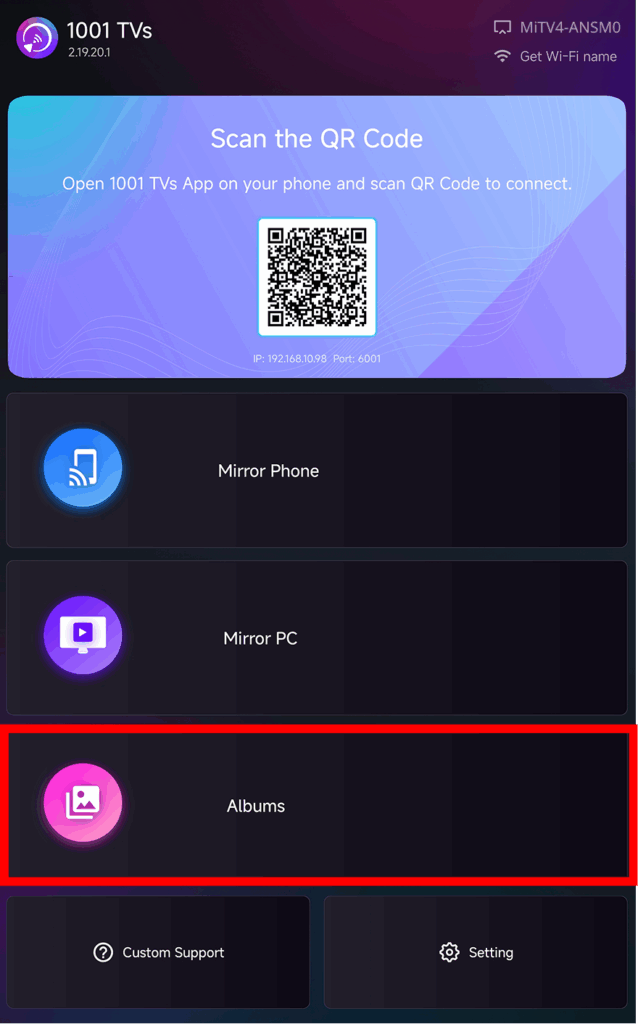
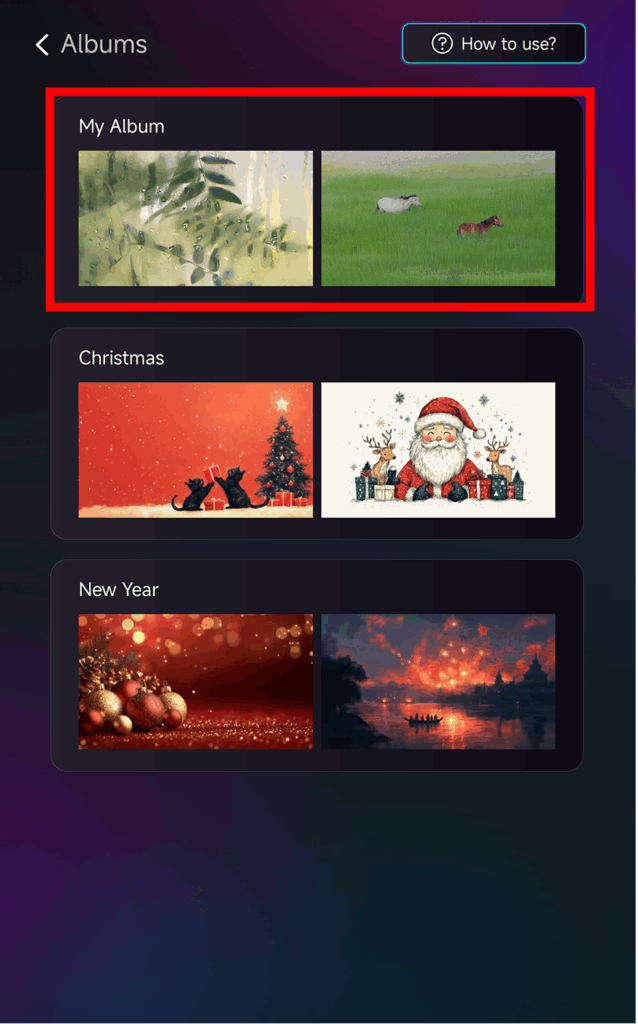
❶ Open the 1001 TVs TV app and tap Άλμπουμ προβολής on the Home screen
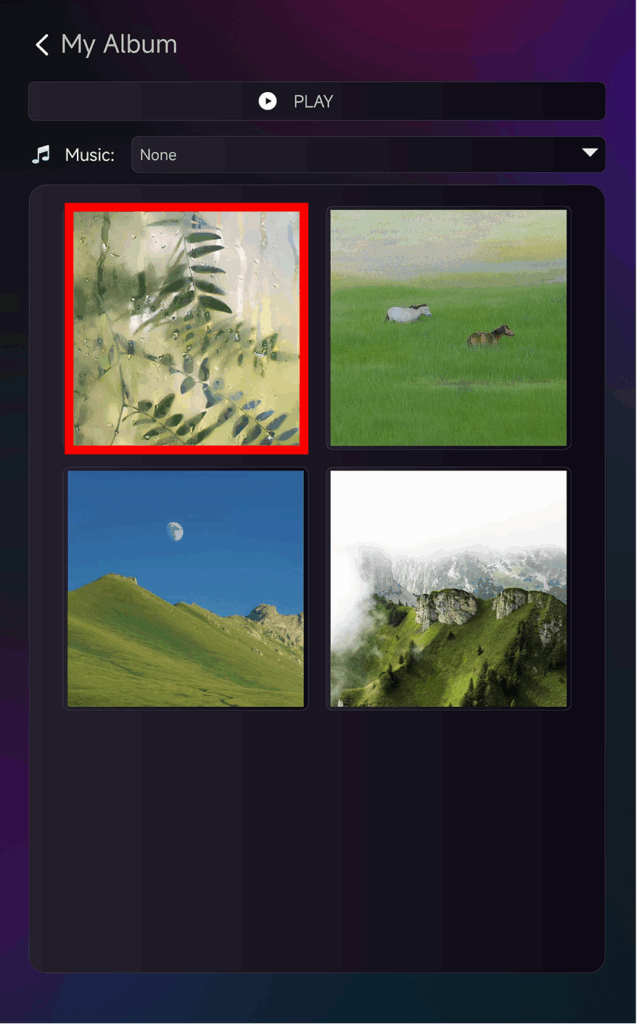
❷ Go to My Album to view the uploaded content
You’ll see the photos and videos that were just sent from your phone.
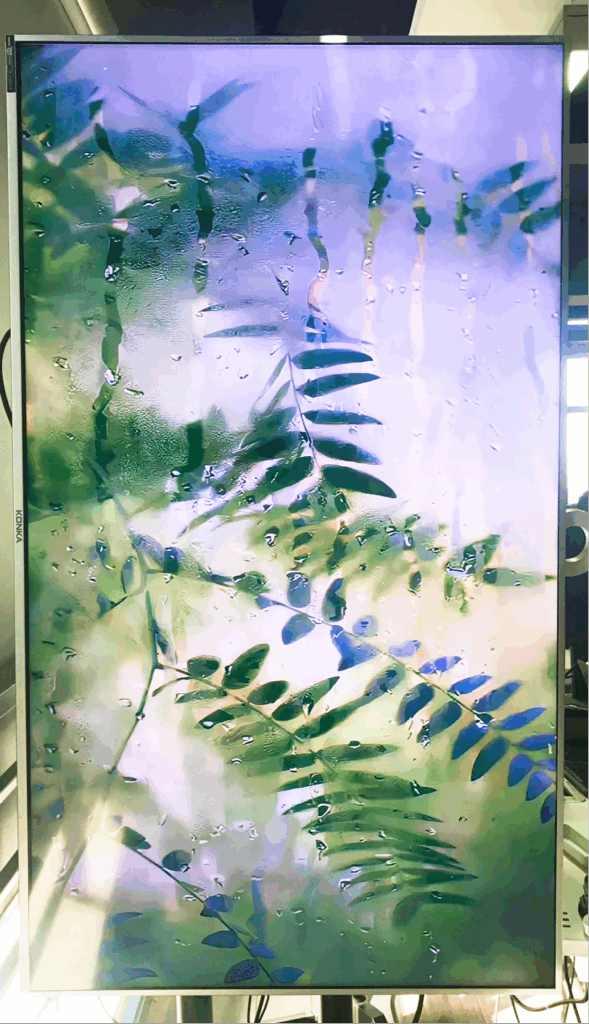
❸ Select any vertical photo (or video) to play, and it will appear on the vertical TV
When played on a portrait-mounted TV, your content will follow the vertical orientation and look natural on the screen.
If you also want to remove black bars (for a more immersive look)
You can refer to this separate guide:
👉 Remove Black Bars When Vertical Mirroring
✨ This feature is especially useful for:
- Cafés or homes using a vertical TV as an ambience screen
- Stores showing menus, product photos, or promotional posters on a vertical TV
- Art or photography studios displaying their work
- Looping self-made vertical short videos
- Family gatherings or birthday parties as a background screen
- Using a vertical TV as a “background live screen” or “portrait digital signage”