How to Share Only One Window to a TV During a Presentation
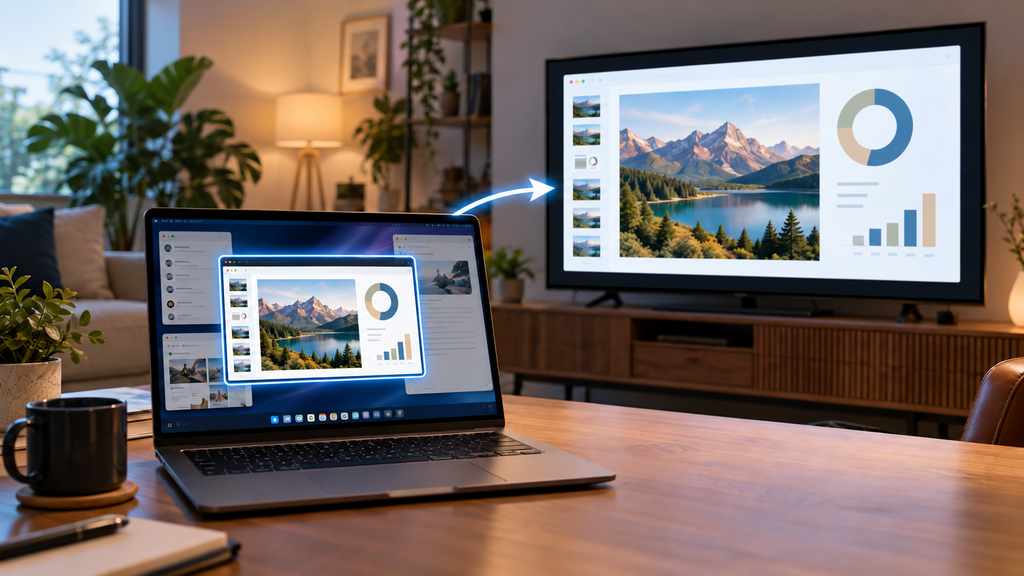
To share only one window to a TV, either use a tool that can mirror a single window, or set the TV up as an extended display and move just that window onto it. On a Mac with macOS 15.2 or later, AirPlay can mirror one window directly. On Windows, press Win + P, vælg Forlæng, and drag the window to the TV. If what you’re showing lives in a Chrome tab, Chrome can cast that tab on its own. Whichever you use, email, chat and everything else stay on your laptop.
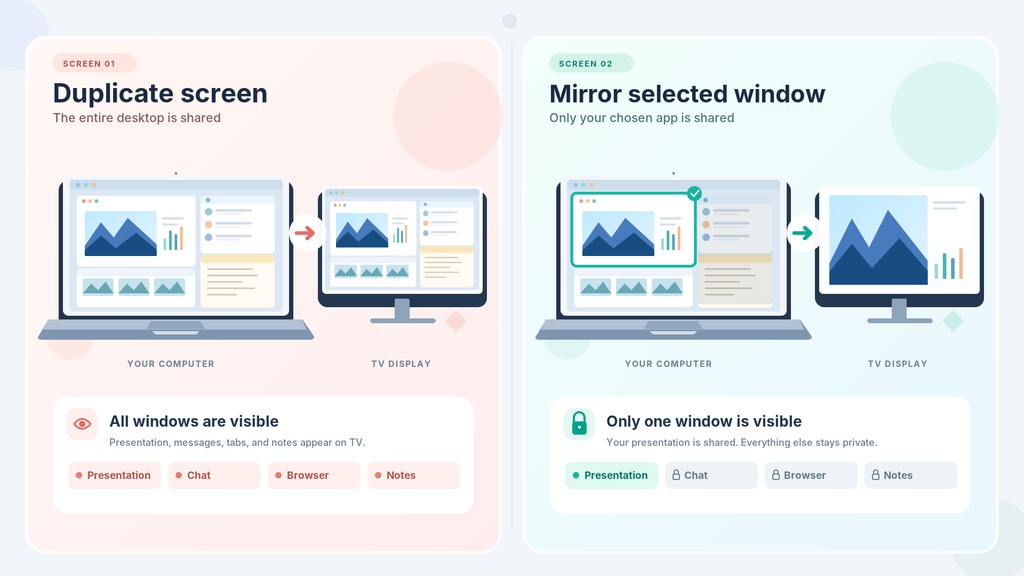
Ordinary screen mirroring sends the whole desktop, so the room sees every notification and every window you switch to.
| Din opsætning | Quickest way to show one window |
|---|---|
| Windows laptop + HDMI or Miracast TV | Extend, then move the window (Method 1) |
| Mac + Apple TV or AirPlay 2 TV | AirPlay with a single window chosen (Method 2) |
| Content in a Chrome tab + Chromecast or Google TV | Cast the tab (Method 3) |
| PC + Apple TV or Android TV, no cable | 1001 TVs Vælg vindue (Method 4) |
Mirror vs. extend: why the TV shows everything
A TV has no idea what a window is. It shows whatever the computer sends, and the computer sends one of two things:
| Display mode | What the TV shows | What stays private |
|---|---|---|
| Duplicate / Mirror | An exact copy of your laptop screen | Nothing |
| Extend / Separate display | Only the windows you move onto it | Everything else |
Every method below either sets up an extended display or uses software that captures one window or tab instead of the full screen.
Method 1: Extend the display on Windows
- Connect the TV with an HDMI cable and switch it to the matching input, or press
Win + Kto connect wirelessly if your PC and TV support Miracast. - Tryk på
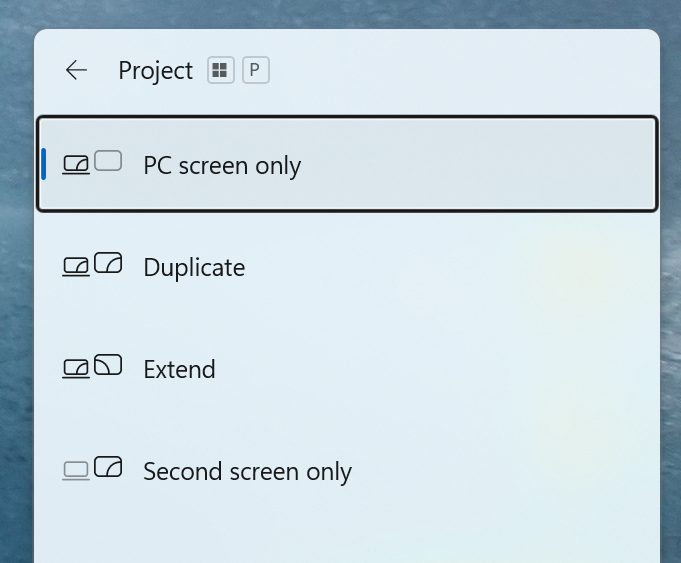
Win + Pog vælg Forlæng. The laptop keeps your desktop; the TV gets an empty one. - Click the window you want to show, then press
Win + Shift + Left/Right arrowto move it to the TV, or drag it there by the title bar. Maximize it.
Before you start, change two settings. Go to Settings > Personalization > Taskbar > Taskbar behaviors and clear Show my taskbar on all displays, so the TV doesn’t show your open apps. Then turn on Do not disturb so notifications don’t pop up while you present.
Method 2: Mirror a single window with AirPlay on a Mac
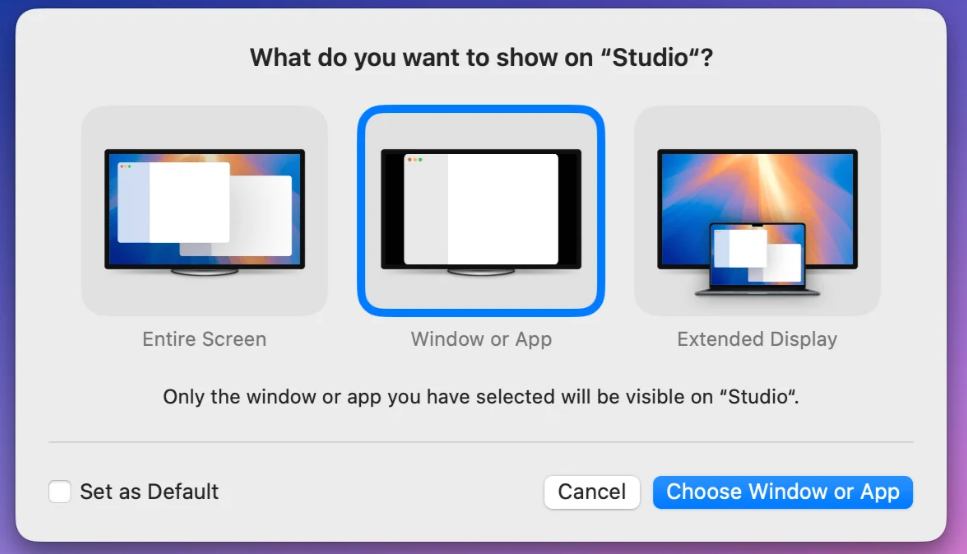
Since macOS 15.2 Sequoia, AirPlay can send one window or one app instead of the whole screen.
- Connect the Mac and the Apple TV, or an AirPlay 2–compatible smart TV, to the same Wi-Fi network.
- Åben Control Center > Screen Mirroring og vælg tv’et.
- Klik på Choose Content (it reads Change if you’re already mirroring), select Window, then Choose Window or App.
- Click the window you want, then click Mirror This Window.
To switch to another window, select the current one and click Stop Mirroring This Window, then choose the new one.
On older macOS versions, use the extend approach instead. After connecting, open Spejling af skærm again, choose Use As Separate Display (mirroring is the default), and drag the window across to the TV.
Method 3: Cast a single Chrome tab
If your TV is a Google TV, has Chromecast built in, or has a Chromecast plugged into it, Chrome can send one tab and nothing else. Open the three-dot menu, choose Cast, save, and share > Cast…, åben Kilder og vælg Fanen »Medvirkende«, then select your TV.
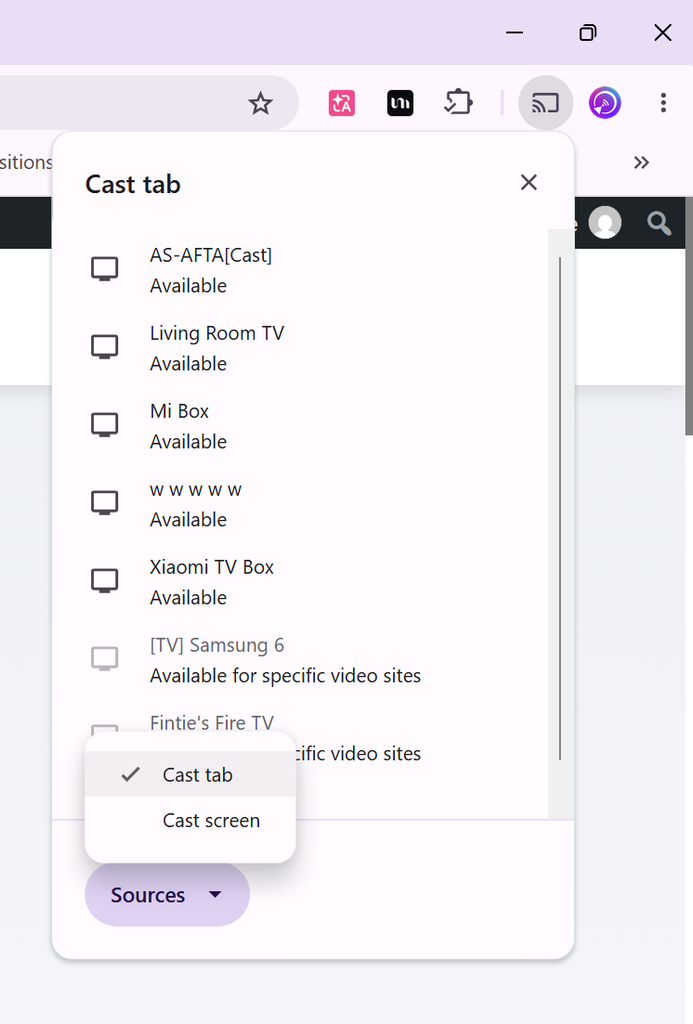
Other tabs, other apps and notifications stay off the TV. Sound from the cast tab plays on the TV, while sound from other tabs keeps playing on your computer. Be careful with links: if you click one in the casting tab, the TV shows the new page too, so keep the tab you’re casting separate from the one you browse in.
This only works in Chrome on a computer, and only with a Chromecast or Google TV device.
Method 4: Send one window with 1001 TVs
Methods 1 and 2 depend on a cable, Miracast or AirPlay. 1001 TVs sends a single window from a PC over Wi-Fi. You don’t have to set up a second display, and only the window you choose appears on the TV.

- Install 1001 TVs on the TV and on the PC, then open it on both devices.
- Slut begge enheder til det samme Wi-Fi-netværk.
- On the PC, choose Send.
- Vælg Select Screen > Select Window.
- Choose the window you want from the drop-down list.
Nothing else on your desktop is sent, which is the key difference from mirroring.
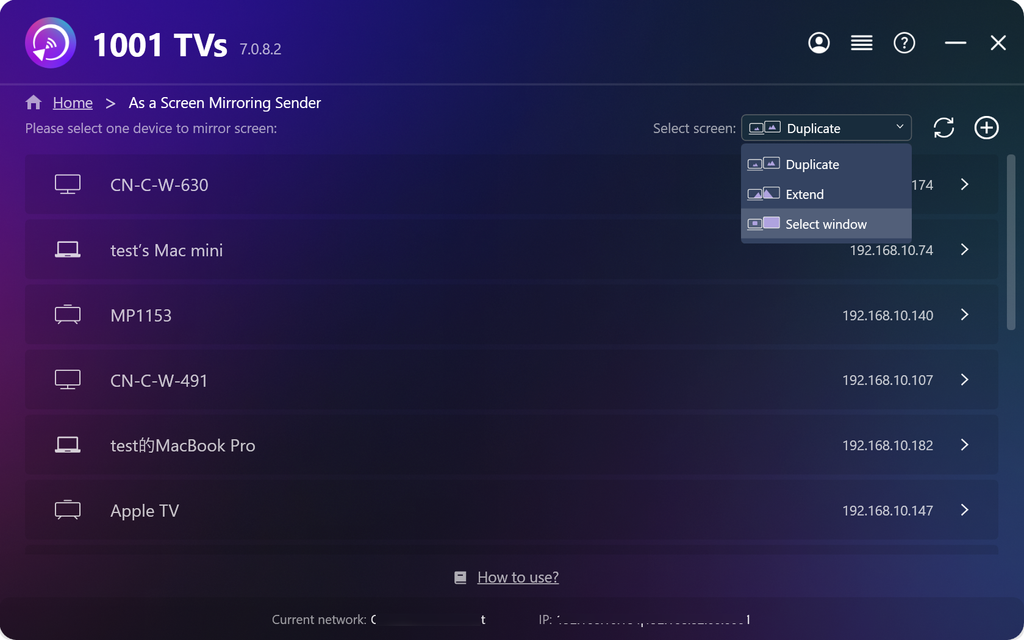
Check the TV first: 1001 TVs works with Apple TV and Android TV. For a Samsung Tizen or LG webOS set, use Method 1, or Method 2 if the TV supports AirPlay 2.
Keep your notes off the TV
PowerPoint’s Presenter View, Keynote’s presenter display and Google Slides’ presenter view show you the current slide, the next slide, your notes and a timer, while the audience sees only the slide. To use them with a TV, set it up as an extended display. If the screens are duplicated, the audience sees your notes too.
If you’re sharing a single window instead (Method 2, Method 4 or a video call), run the slideshow in a window. In PowerPoint, go to Slide Show > Set Up Slide Show og vælg Browsed by an individual (window). In Keynote, choose Play > Play Slideshow in Window.
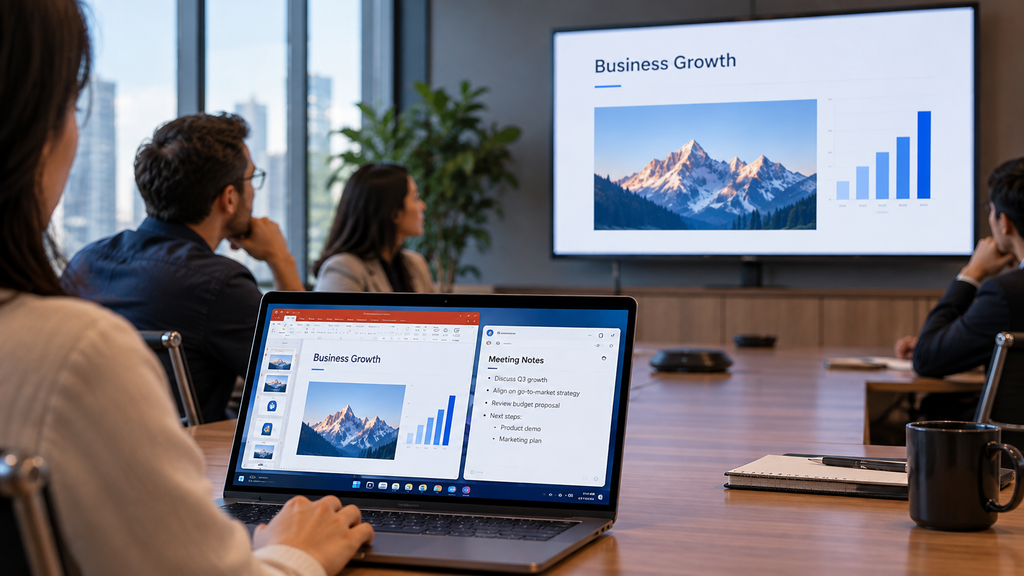
If you’re also presenting on a video call
A hybrid meeting has two audiences: the people in the room and the people on the call. In Zoom, click Share Screen and pick the window instead of the screen. In Teams, open Share og vælg Window. In Google Meet, click Present now og vælg A window eller A tab. Remote attendees then see only that window.
The room is a separate connection. If you mirror your whole laptop screen to the TV while presenting on a call, the people in the room also see participant videos and chat. Share one window on the call and one window on the TV, and both groups see only the slides.
What can still show up on the TV
Even when you share one window, some things can still appear on the TV. Pop-ups that belong to that window, such as autofill suggestions, cookie banners and file dialogs, appear along with it. When you extend the display, the TV also shows your mouse pointer whenever you move it onto that screen, and new windows sometimes open on whichever screen you used last. If the laptop goes idle, the screensaver can start on both screens. Before you present, turn on Do not disturb or a Focus mode, then move each new window where you want it.
Ofte stillede spørgsmål
Can I share one window to a TV without a cable?
Yes. Use AirPlay on a Mac with macOS 15.2 or later, cast a Chrome tab to a Chromecast or Google TV device, or send a window from a PC with 1001 TVs to an Apple TV or Android TV. Every wireless method depends on your Wi-Fi, so for presentations with a lot of video, an HDMI cable is the most reliable choice.
Why does the TV show my whole desktop?
The connection is mirroring the screen. On Windows, switch to Forlæng; on a Mac, choose a single window or Use As Separate Display. Then show only the window you want.
Will notifications show up on the TV?
When you extend the display, notifications normally appear on your main display, which is usually the laptop. If you mirror the screen, they also appear on the TV. Turn on Do not disturb either way.
Does Windows have a built-in way to mirror one window to a TV?
No. Windows can only mirror or extend the whole display. To show one window, extend the display and move the window, or use an app that can share one window, such as 1001 TVs or a Chrome tab cast.
Before your next presentation, pick the method that matches your laptop and TV, and do a two-minute test run.

Læs mere
 How to Watch Süper Lig on TV in Türkiye
To watch Süper Lig in Türkiye during the 2026–2027 season, start with beIN SPORTS coverage through Digiturk or TOD. The right TV viewing option...
How to Watch Süper Lig on TV in Türkiye
To watch Süper Lig in Türkiye during the 2026–2027 season, start with beIN SPORTS coverage through Digiturk or TOD. The right TV viewing option...
 How to Cast Photos from Your Phone to a TV
You can cast phone photos to a compatible TV using AirPlay on iPhone, Google Photos with Chromecast, or 1001 TVs Streaming and Albums. The...
How to Cast Photos from Your Phone to a TV
You can cast phone photos to a compatible TV using AirPlay on iPhone, Google Photos with Chromecast, or 1001 TVs Streaming and Albums. The...

