
如何通过 USB 将 iPhone 镜像到 Mac
iOS 裝置的有線螢幕鏡像功能現已推出!只需使用纜線將 iPhone 或 iPad 連接到 Mac。.
无需在 iPhone 或 iPad 上下载 1001 TVs!
1.在 MacBook 上安裝並開啟 1001 TVs
📥 Mac App: 从 App Store 下载
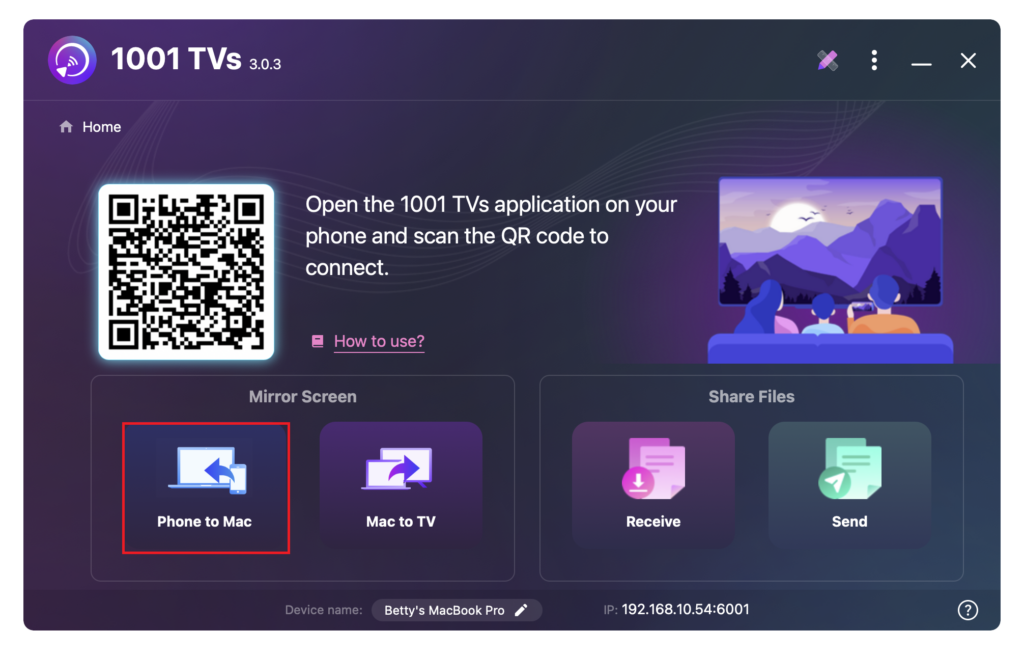
点击 “手機到 Mac“.
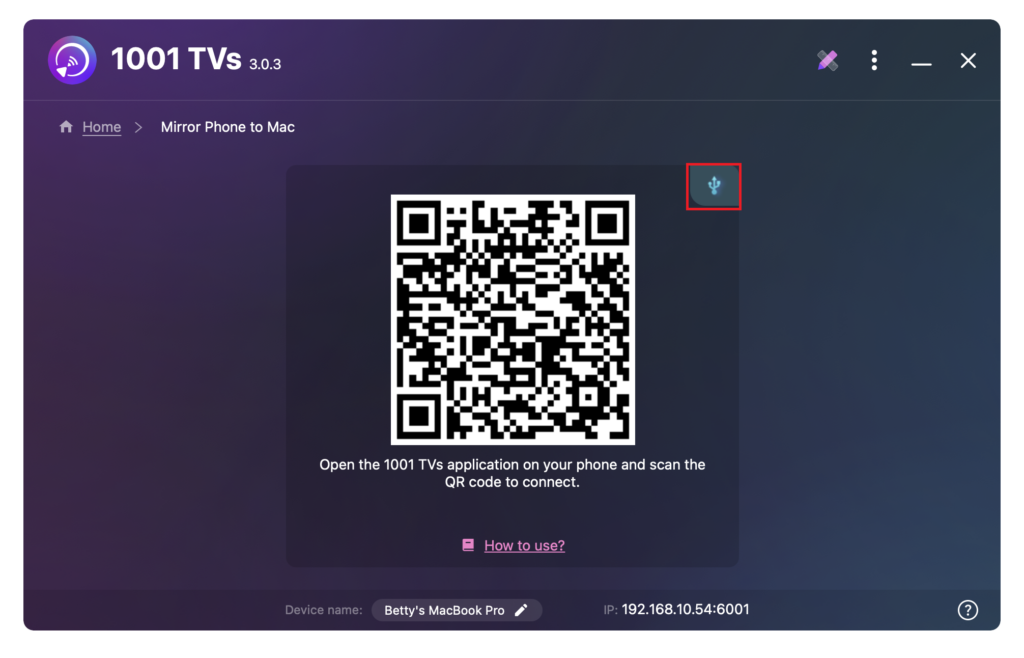
點選纜線圖示。.
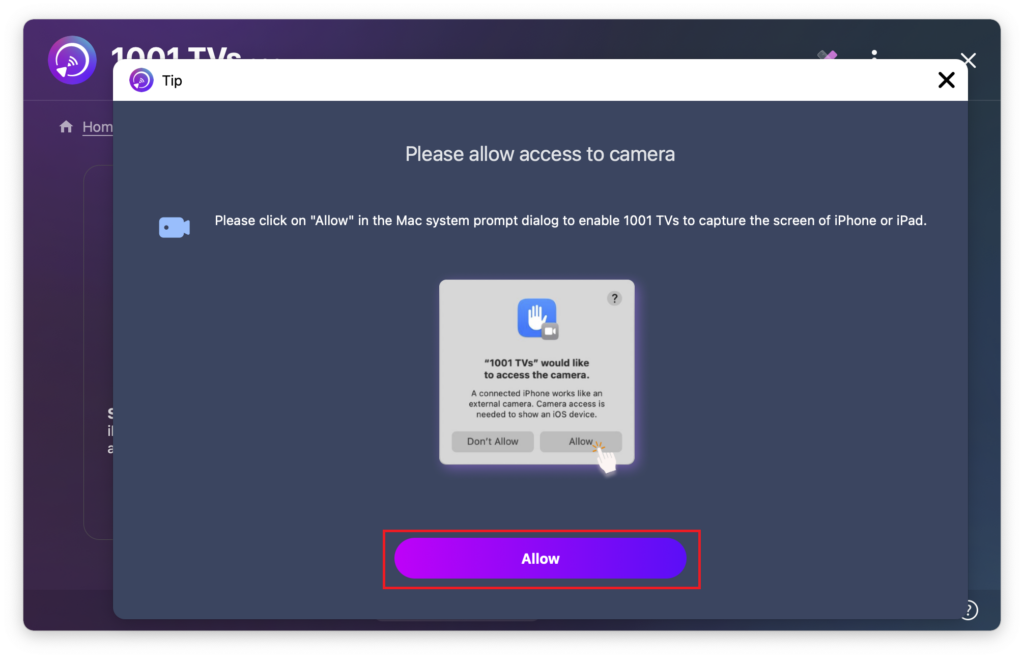
出現權限彈出視窗時,按一下“ "。“允许” 以授予存取權並確保正常使用。.
將會出現以下畫面。.
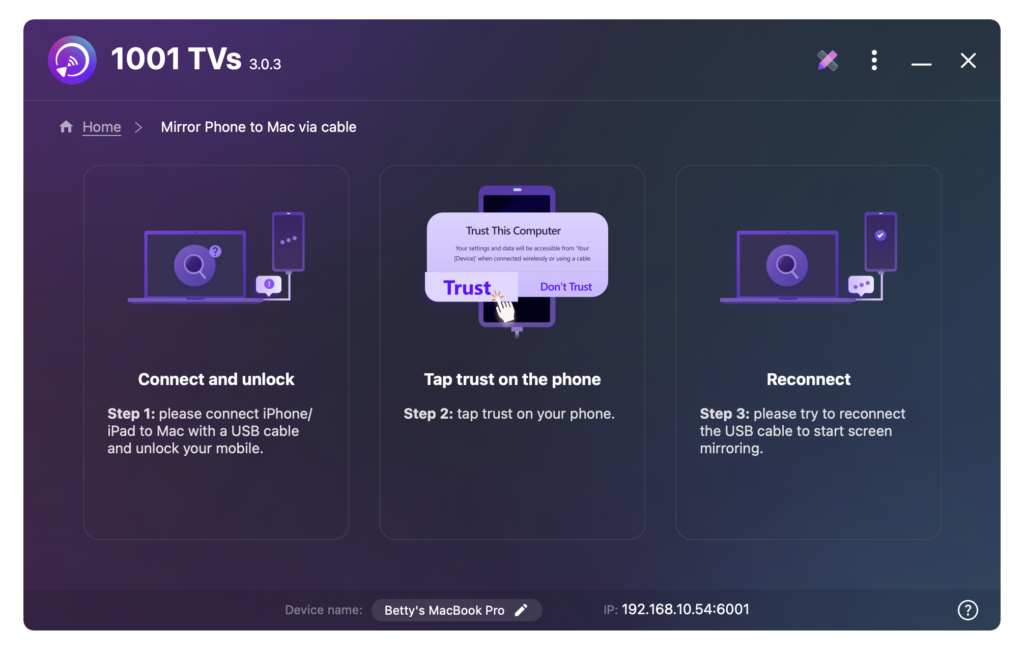
2.透過纜線將 iPhone/iPad 連接到 Mac
iPhone/iPad 上會出現權限提示 - 選擇 "信任" 以实现正常功能。
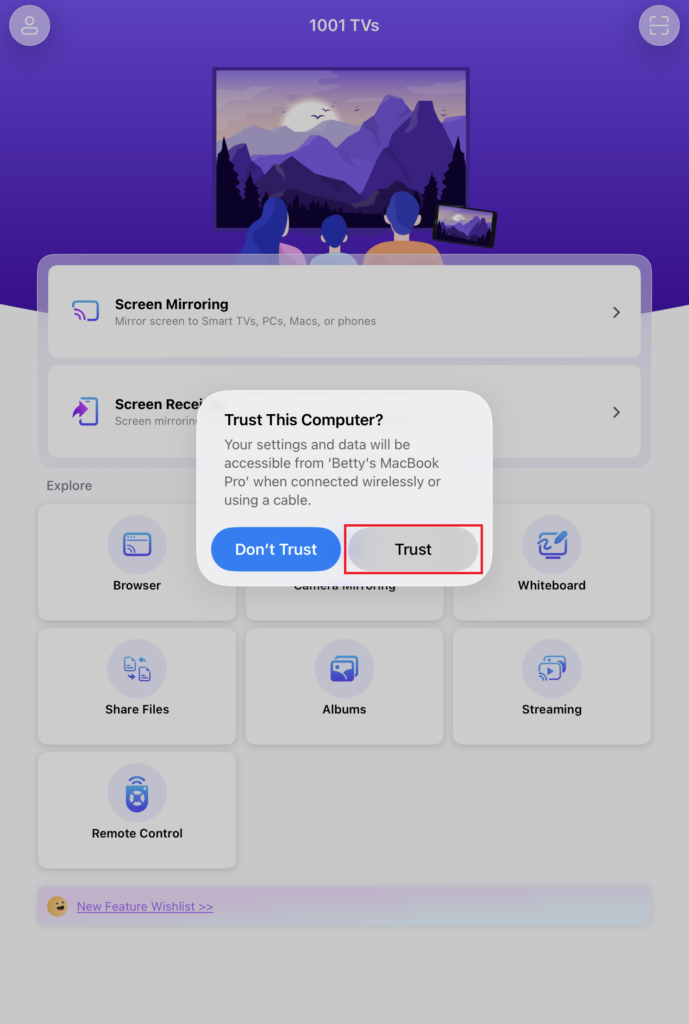
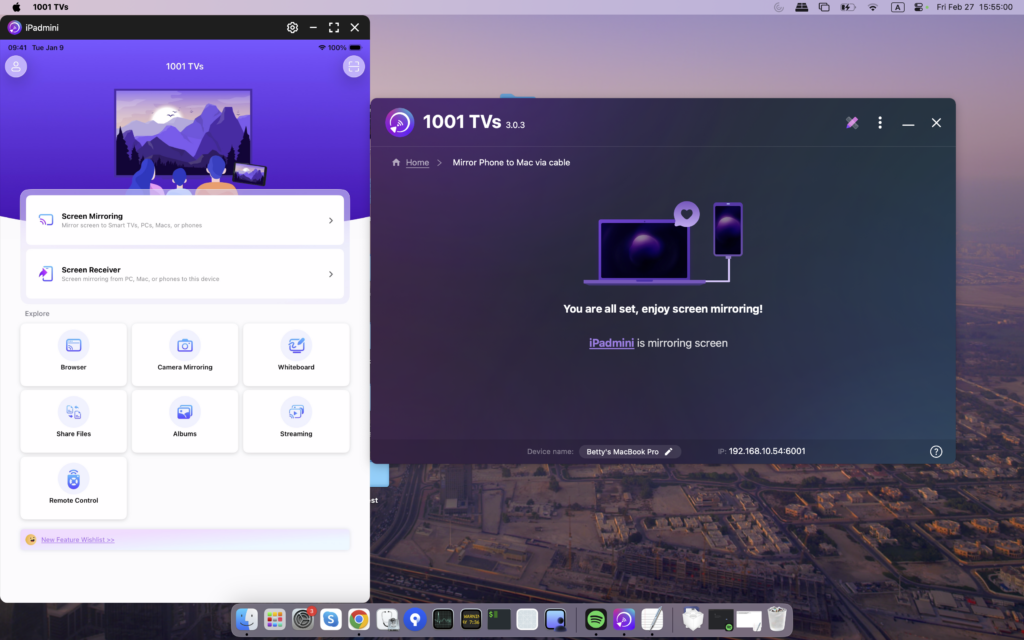
重新連接您的裝置. .成功後,介面會如下所示。.
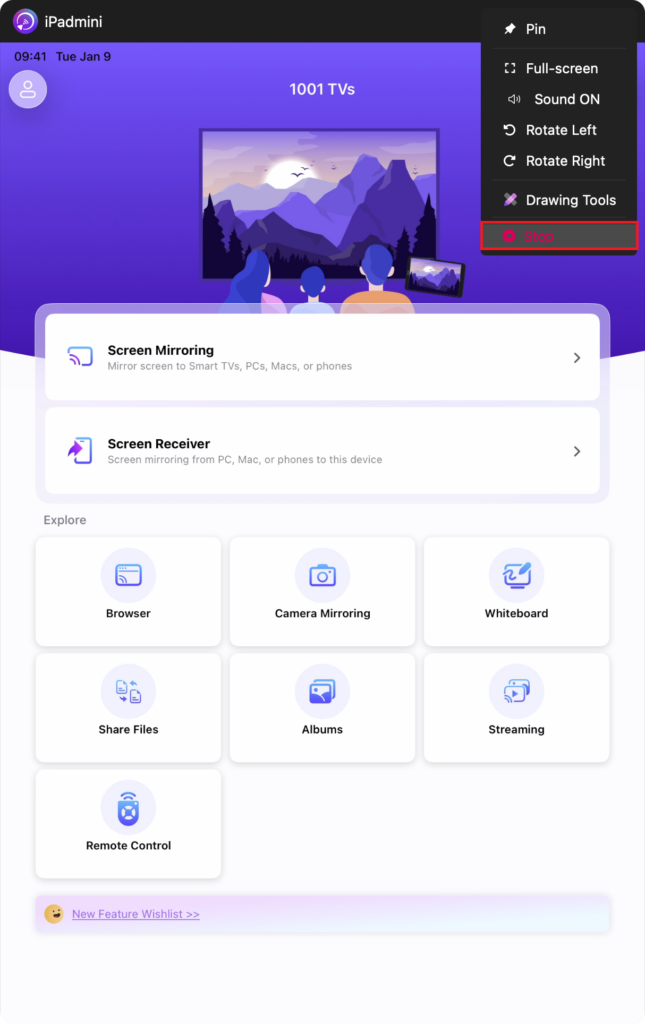
3.隨時關閉和重新開啟鏡像
Notes:
螢幕鏡像載入中 - 請勿在此期間連接或拔除資料傳輸線,以免中斷。.
如果遇到鏡像失敗或出現「無訊號」訊息等問題,請嘗試下列解決方案:
- 重新連接資料傳輸線。.
- 在 MacBook 上重新啟動 1001 TVs。.
- 重新啟動 MacBook。.
立即取得 1001 TVs!
📥 Mac App: 从 App Store 下载