Chromecast Not Showing in Chrome? How to Fix It
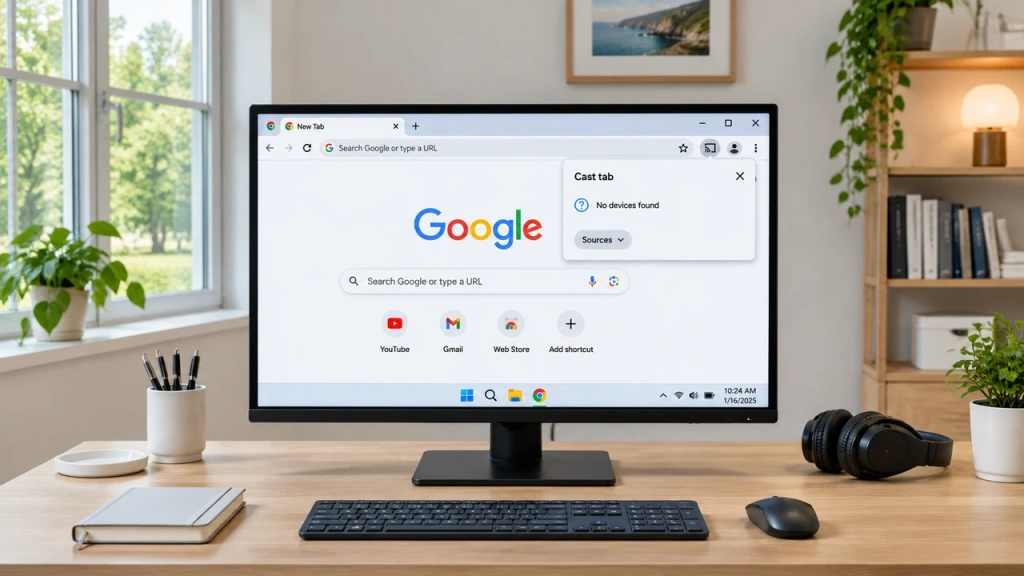
If Chrome’s Cast list is empty and your Chromecast is already set up, check whether a phone or another computer on your home network can see it. If the second device finds it, start with Chrome and the computer that’s having trouble. If both devices come up empty, start with the Chromecast and your home network. The same checks apply to a TV with Google Cast.
1. Open Chrome’s Cast List and Confirm What’s Missing
On your Windows PC or Mac, open Chrome and go to More (⋮) → Cast, save and share → Cast…. You can open the list even if the Cast icon is missing from the toolbar. To keep the Cast icon visible, right-click it when it appears and choose Keep in Toolbar.
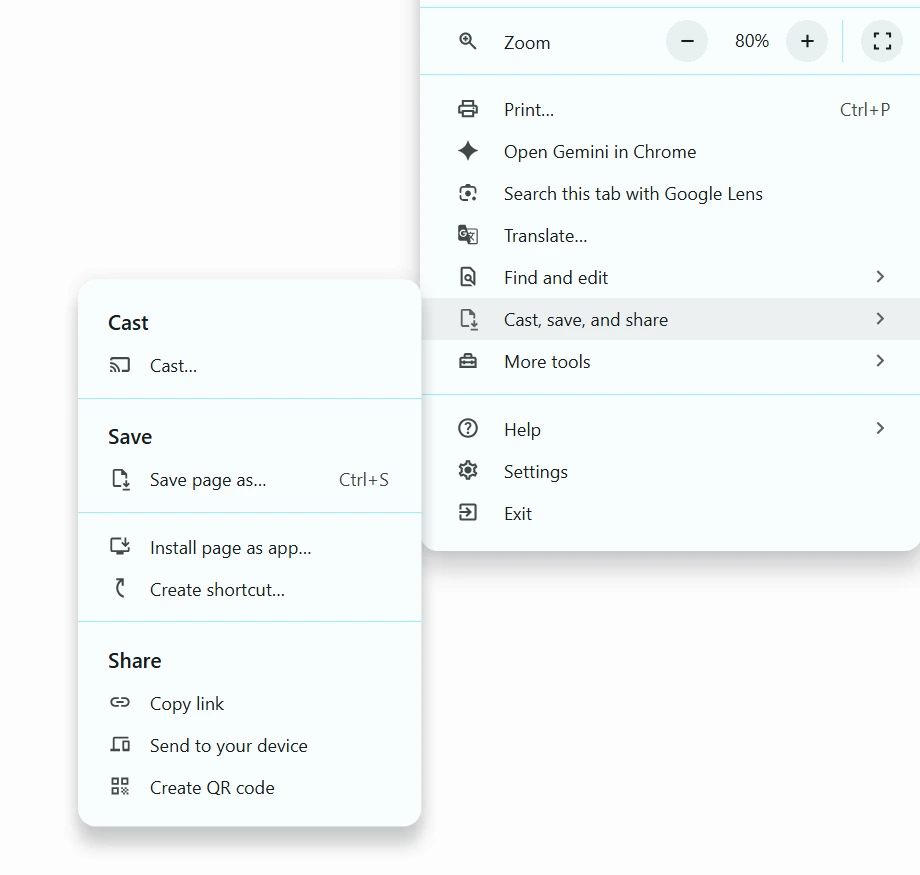
- The toolbar icon is missing. Use the menu path above to open the Cast list.
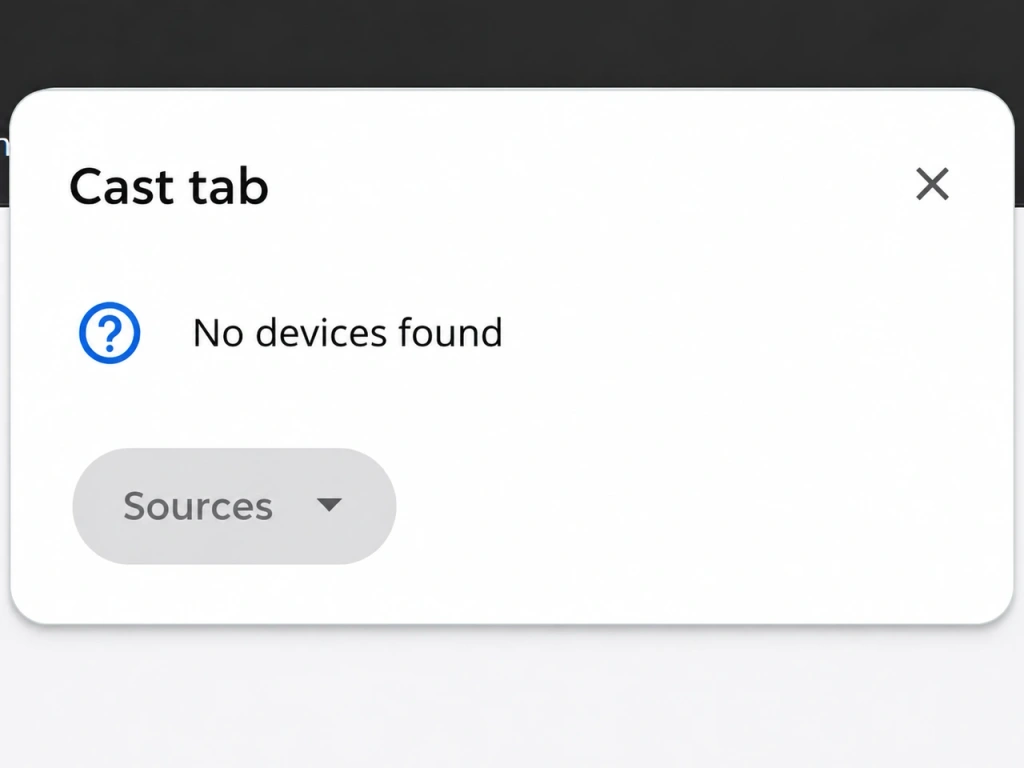
- The list opens but shows no devices. Continue to step 2.
- Your Chromecast appears, but clicking it fails. Chrome has already found the receiver. The issue occurs when Chrome tries to connect.
2. Check Whether Another Device Can See the Chromecast
Leave the receiver powered on. Connect a second device to the same home network and look for the receiver by name. Use one of these options for the test.
- Android. Open a Google Cast-enabled app and tap its Cast button.
- iPhone or iPad. Use the Cast button in a Google Cast-enabled app. On iOS or iPadOS 14 or later, make sure that app has Local Network access in Settings → Privacy & Security → Local Network. Use the app’s Cast list for this check.
- Another Windows PC or Mac. Open the Cast list in desktop Chrome. If the second computer runs macOS 15 or later, check that Chrome has Local Network access before testing. The Mac steps are in the next section.
Use the result to decide where to start. The comparison helps narrow the search, and several settings can produce the same result.
| What you see | What to check first |
| A phone or tablet lists the receiver, but Chrome on your computer doesn’t. | Your computer’s network settings, Chrome, and relevant system permissions. Go to step 3. |
| Chrome on a second computer lists the receiver, but Chrome on the original computer doesn’t. | Chrome and system settings on the original computer. Go to step 3. |
| Neither device lists the receiver after the permission checks. | The receiver and your home network. Go to step 4. |
3. If Another Device Sees It, Check Chrome and Your Computer
Update Chrome, quit it completely, then reopen it and check the Cast list. Confirm that the computer is connected to the home network you used for the comparison. If you use a personal VPN or proxy that you control, disconnect it briefly and reopen the Cast list, then restore it. Test one change at a time so you can tell what affects discovery.
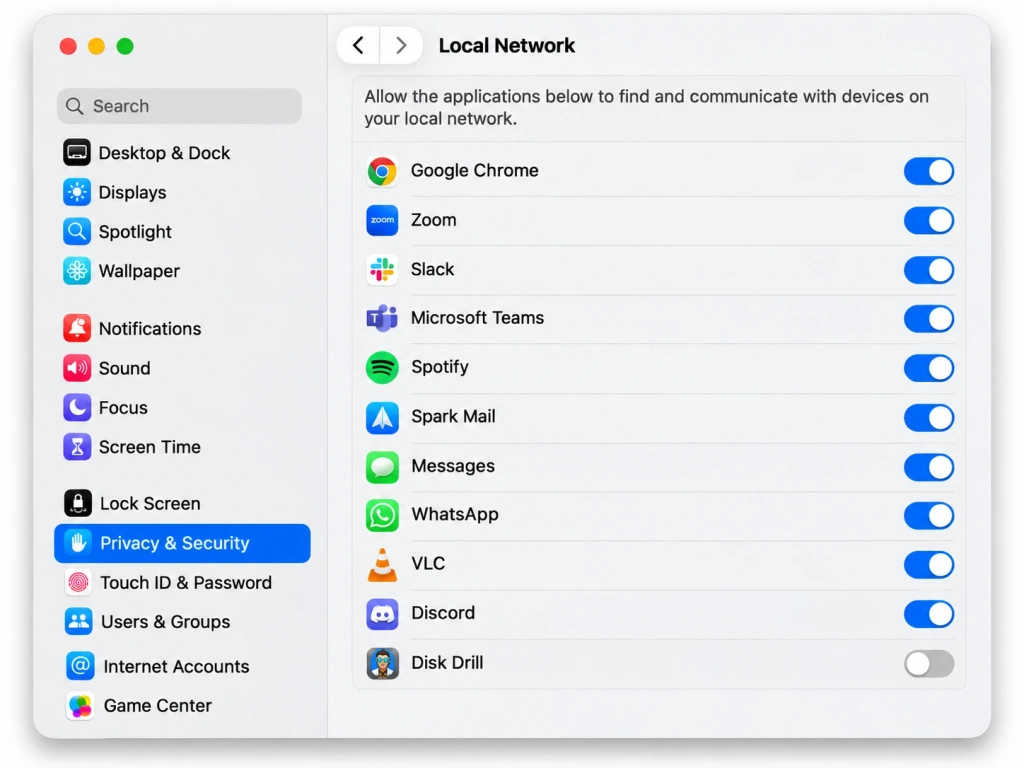
On Mac. If you’re running macOS 15 or later, open System Settings → Privacy & Security → Local Network. If access is off for Google Chrome, turn it on. Quit and reopen Chrome, then check the list again.
If Chrome already has Local Network access and the list is still empty, open the Mac firewall options under System Settings → Network → Firewall → Options if the firewall is on. Leave the firewall enabled. If Block all incoming connections is on, Google recommends turning off that option before retesting Chrome. Check the app rules for Google Chrome. If it’s set to block incoming connections, allow them for Chrome. Save your changes, quit Chrome completely, then reopen it and check the Cast list.
On Windows. Open your active connection’s properties under Settings → Network & internet and check its network profile. If it’s Public, switch it to Private only if this is your own trusted home network, then check Chrome again. Keep public Wi-Fi connections on the Public profile.
If the receiver still doesn’t appear, review Windows Firewall or your third-party security software for a rule that blocks Chrome’s local communication. Keep protection enabled. If a rule change is needed, allow Chrome through the firewall using an app-specific exception.
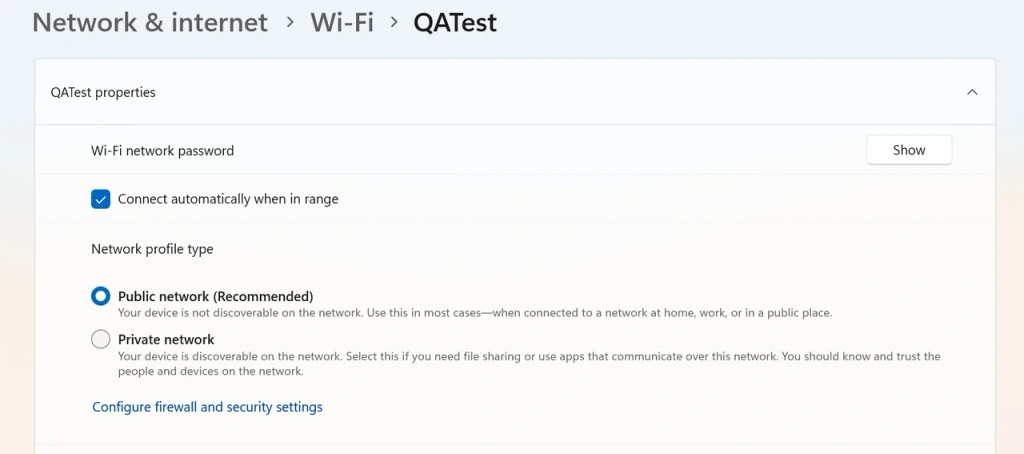
On a school or work device or network, ask IT whether its policy allows Google Cast and device discovery between the computer and the receiver.
4. If Neither Device Sees It, Check the Receiver and Home Network
- Check the receiver’s power and network connection. Make sure it’s on the home network you intend to use. Restart the receiver, wait until it comes back online, then check both devices’ Cast lists again.
- Retest on your primary home network. Move the computer and receiver off any guest network and check that the second test device is on the primary network too. Matching Wi-Fi names alone don’t guarantee the devices can reach one another. Devices on different Wi-Fi bands can still discover one another when the router lets them communicate.
- Check for device isolation. On a router or extender you manage, look for settings called AP isolation or client isolation. If isolation is enabled on your trusted primary home network, turn it off on the router or extender that’s applying it, then retest. For a guest network, use the move to the primary home network in step 2.
Reopen Chrome’s Cast list after each change. Once the intended receiver appears, device discovery is working again. Our screen mirroring troubleshooting guide covers general connection checks.
The receiving device must be able to install and run 1001 TVs. Classic Chromecast dongles that only act as Google Cast receivers aren’t supported, but some Chromecast with Google TV models are compatible. Check the supported Android TV device list before installing. Use the app’s own Screen Mirroring option to select the TV. Chrome’s Cast list uses Google Cast discovery.

Read More
 How to Loop Photos and Videos on a Store TV (Simple Options for Small Businesses)
If your TV has a USB media player with a Repeat option, that’s usually the simplest way to keep a menu or promo video…
 [2026] How to Turn Off AirPlay on iPhone, iPad, Mac, and TV
To stop mirroring your iPhone or iPad, open Control Center, tap Screen Mirroring, then tap Stop Mirroring. If you’re only streaming a video or…

