
میڈیا فائلوں کو فون سے ٹی وی تک کیسے سٹریم کریں۔
کے ساتھ 1001 TVs, ، آپ آسانی سے اسٹریم کرسکتے ہیں۔ تصاویر، ویڈیوز اور موسیقی آپ کے فون سے a سمارٹ ٹی وی. شروع کرنے کے لیے ان آسان اقدامات پر عمل کریں:
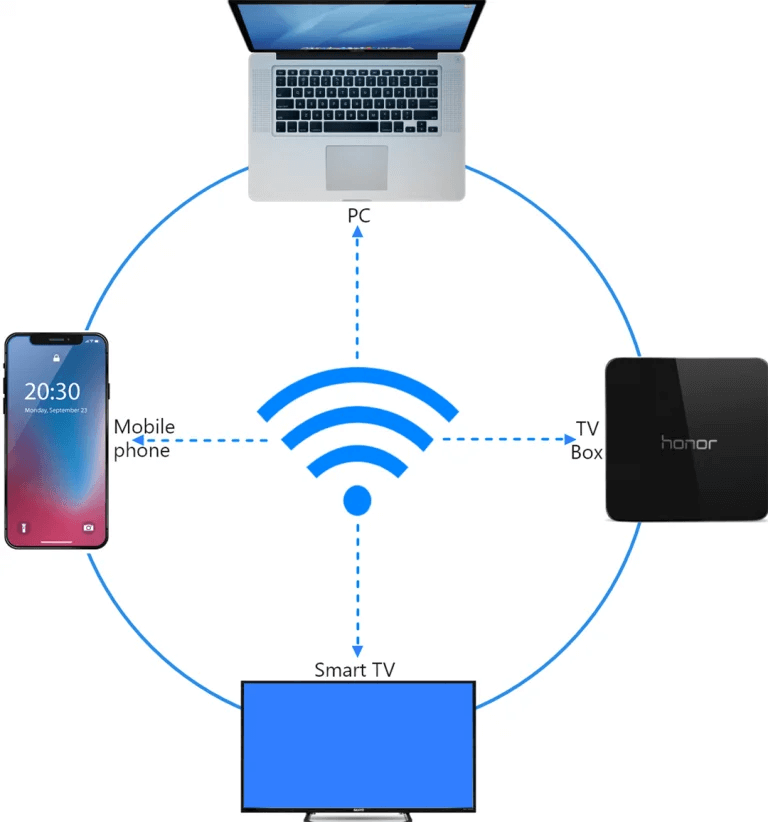
1. اسی Wi-Fi نیٹ ورک سے جڑیں۔
یقینی بنائیں کہ آپ کی فون اور ٹی وی سے جڑے ہوئے ہیں۔ ایک ہی Wi-Fi نیٹ ورک.
💡 ٹپ: A 5GHz Wi-Fi connection is recommended for the best performance.
اگر Wi-Fi دستیاب نہیں ہے، تو آپ بھی استعمال کر سکتے ہیں۔ ذاتی ہاٹ سپاٹ.
2. Find and Connect to Your TV
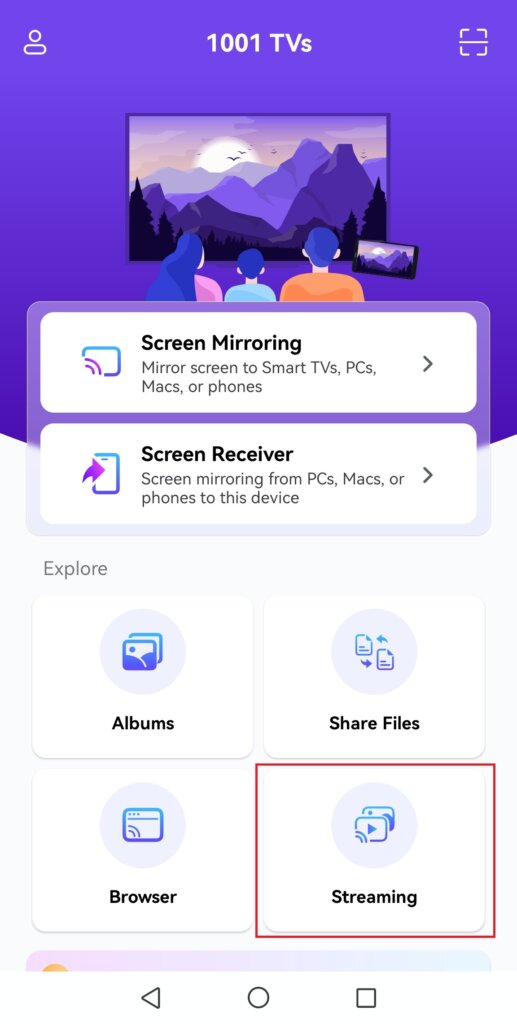
1) Install and open the 1001 TVs ایپ.
📥 ٹی وی ایپ: اپنے ٹی وی پر 1001 TVs کیسے انسٹال کریں۔
📱 iOS ایپ: ایپ اسٹور سے ڈاؤن لوڈ کریں۔
📱 اینڈرائیڈ ایپ: گوگل پلے سے ڈاؤن لوڈ کریں۔
2) Tap “Streaming”, then tap the refresh icon to search for available devices.
Most smart TVs and TV boxes support streaming and will appear automatically once they are connected to the same network.
3) Select your TV from the device list
Note: While your TV’s pre-installed DLNA service can be found, we recommend installing the 1001 TVs app on your Android TV for a better experience with enhanced details.
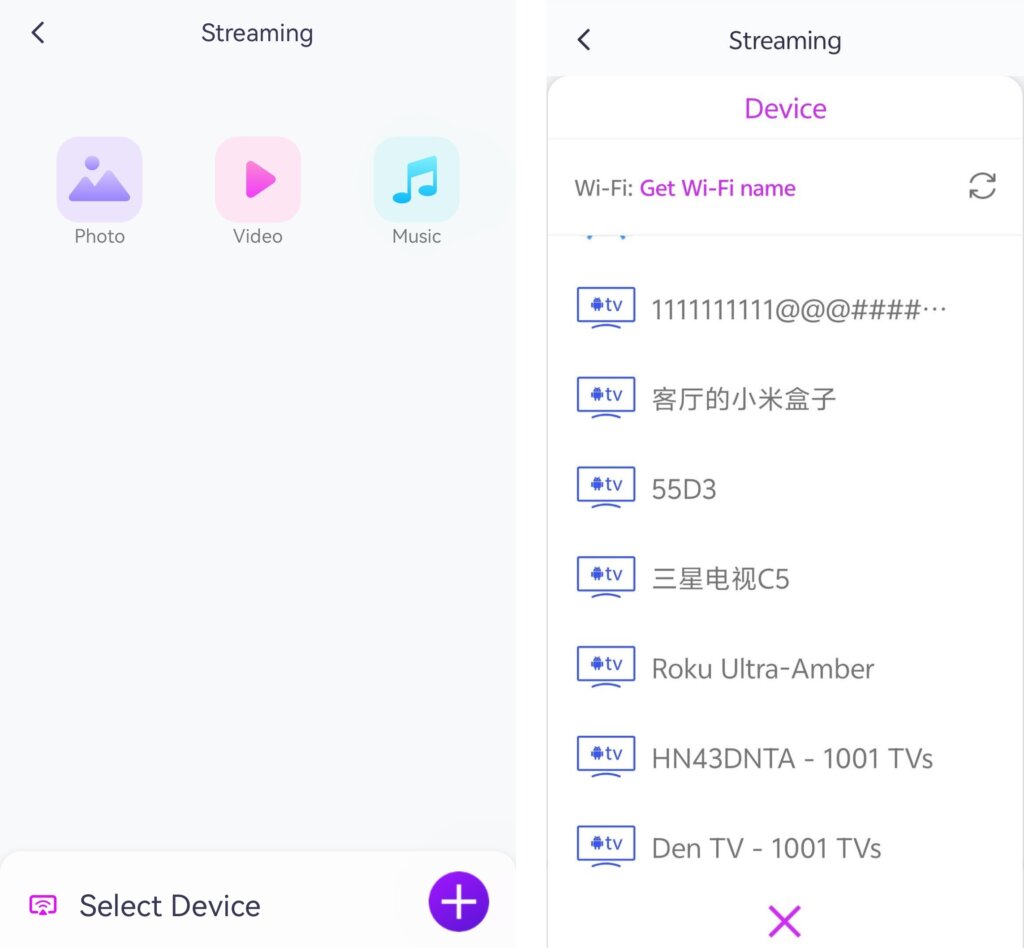
4) Choose what you want to stream:
• Photos: تھپتھپائیں۔ کھیلیں to start a slideshow. You can adjust the slideshow speed in Settings.
• Videos: Select one or more videos to play in sequence with sound.
• Music: اپنے پسندیدہ گانے براہ راست اپنے TV پر چلائیں۔.
3. اپنے پی سی پر میڈیا کو ونڈوز میڈیا پلیئر پر سٹریم کریں۔
Want to stream to your Windows PC instead? You can use Windows Media Player as your streaming destination.
1) Open Windows Media Player (Legacy) آپ کے کمپیوٹر پر.
2) Click “Stream” اور فعال کریں “Allow remote control of my Player.”
• If this is your first time using this feature, you may need to turn on media streaming first.
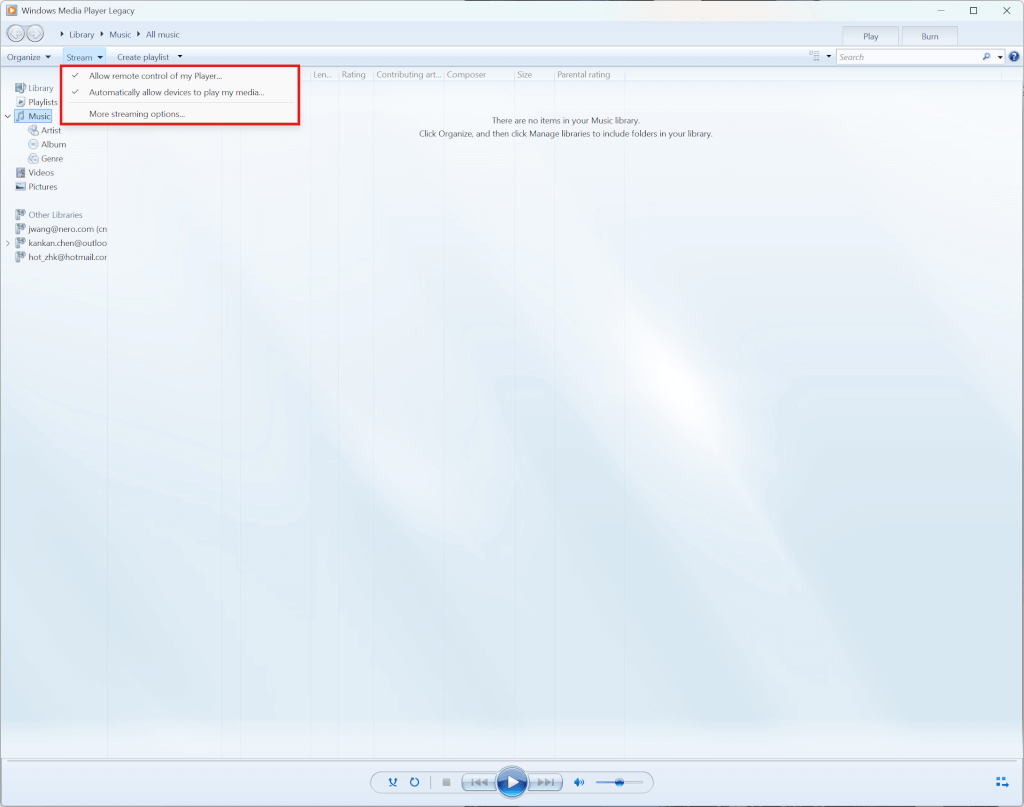
3) In 1001 TVs, تازہ کریں ڈیوائس کی فہرست اور اپنا انتخاب کریں۔ پی سی.
4) Start streaming your media files to your computer!
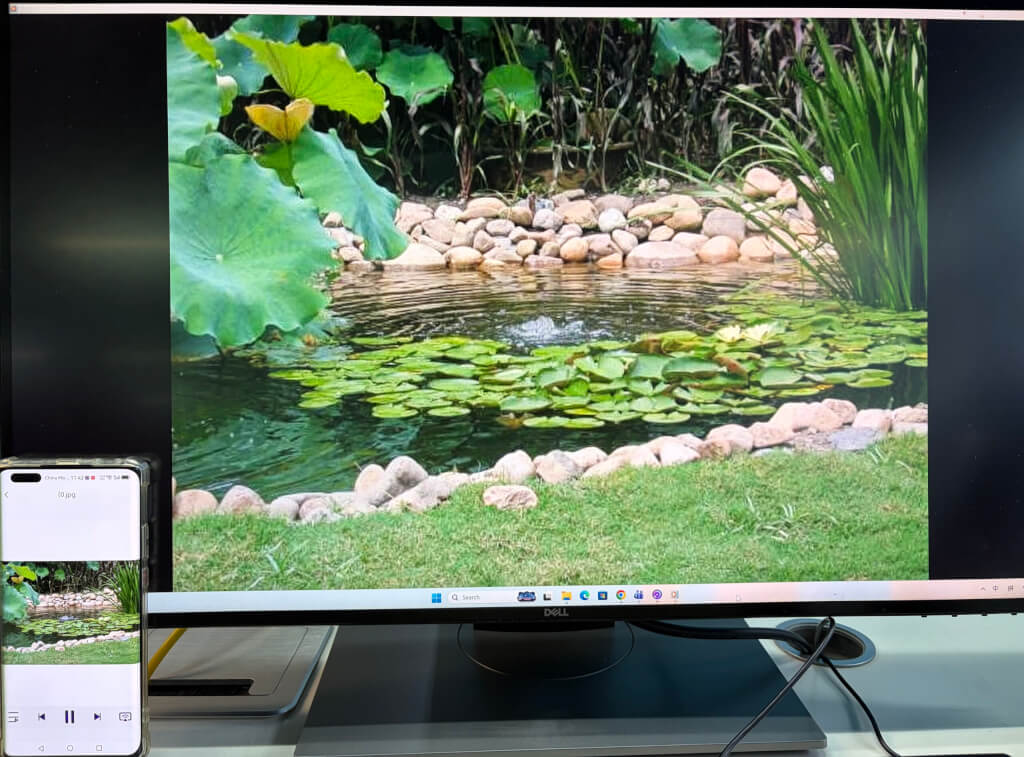
اب آپ ایک پر اپنے میڈیا سے لطف اندوز ہونے کے لیے بالکل تیار ہیں۔ بڑی سکرین کے ساتھ 1001 TVs! 🎬📺🎵
ابھی 1001 TVs حاصل کریں۔!
📥 ٹی وی ایپ: اپنے ٹی وی پر 1001 TVs کیسے انسٹال کریں۔
📥 پی سی ایپ: سے ڈاؤن لوڈ کریں۔ مائیکروسافٹ اسٹور
تفصیلی اقدامات کے لیے، کا حوالہ دیں۔ پی سی انسٹالیشن گائیڈ
📱 iOS ایپ: ایپ اسٹور سے ڈاؤن لوڈ کریں۔
📱 اینڈرائیڈ ایپ: گوگل پلے سے ڈاؤن لوڈ کریں۔
اسے ابھی آزمائیں اور لطف اٹھائیں۔ ہموار میڈیا اسٹریمنگ! 🚀