VM-finalen 2026 – så här ordnar du en tittarfest med flera skärmar var du än befinner dig
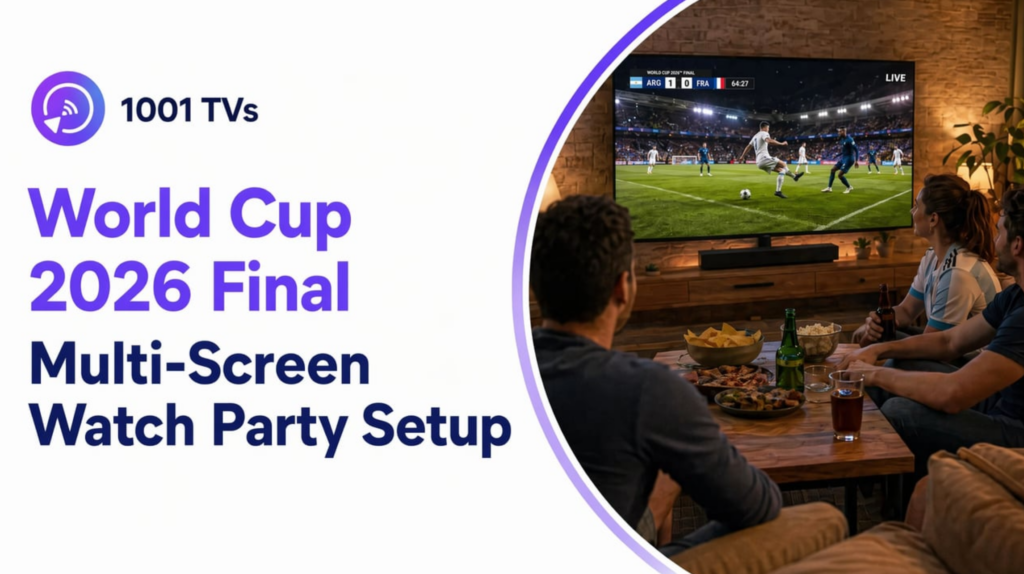
Finalen i fotbolls-VM 2026 den 19 juli förväntas locka över 1,42 miljarder tittare. I USA har turneringen redan slagit rekord. USA:s landslagsmatch i åttondelsfinalen nådde en topp på nästan 32 miljoner tittare. Tittande utanför hemmet (tittarfester, barer, sammankomster) står för cirka 25% av varje tv-kanals totala tittarskara. För de mest uppmärksammade matcherna är den siffran […]
De flesta guider för tittarfester rekommenderar att man ska köpa en större TV. Eller en HDMI-splitter. Du behöver varken det ena eller det andra. Du har redan fler skärmar än du tror. Den här guiden visar hur du kan styra dem alla från en enda telefon, trådlöst.
Vad är en VM-tittarfest med flera skärmar?
En ”watch party” med flera skärmar innebär att man streamar samma live-match till flera TV-apparater, projektorer och surfplattor samtidigt. Ingen gäst missar ett mål medan hen hämtar något att dricka. Med 1001 TVs kan en PC eller Mac spegla skärmen till flera kompatibla mottagande enheter på samma lokala nätverk. Inga HDMI-kablar eller splitters behövs. Din TV behöver inte ens vara en smart-TV.
Föreställ dig ditt hem som en sportbar. TV:n i vardagsrummet visar huvudsändningen. TV:n i köket håller kockarna uppdaterade. En projektor i trädgården tar hand om den överskjutande publiken. Allt styrs från mobilen i din ficka.
Vad du behöver för en VM-finalfest med flera skärmar
Du behöver tre saker: en mobil eller bärbar dator där VM-sändningen spelas upp, appen 1001 TVs för skärmspegling och vilken TV, projektor eller bildskärm som helst som du redan har. Du behöver varken HDMI-fördelare, smart-TV:ar på varje skärm eller professionell AV-utrustning. En enda enhet speglar bilden till dem alla.
Traditionellt kontra trådlöst: Vad förändras?
| Faktor | Traditionellt (HDMI-fördelare + kablar) | Trådlöst (1001 TVs) |
| Kablar som behövs | HDMI-fördelare + 1 kabel per skärm | Noll |
| Krävs det en smart-tv? | Nej, men det krävs en HDMI-ingång | Nej. Smart-TV-apparater med appen 1001 TVs behöver inget extra. Äldre TV-apparater behöver en prisvärd streamingstick. |
| Max antal skärmar | Begränsat av antalet splitterportar (vanligtvis 2 till 4) | Begränsat endast av din Wi-Fi-bandbredd |
| Inställningstid | 30–60 minuter (kabeldragning) | 2 till 5 minuter per skärmbild |
| Portabilitet | Fast plats | Flytta om vilken skärm som helst på ett ögonblick |
| Kostnad (utöver skärmar) | Splitter + kablar (~$50+) | Gratis app för löpning + valfria streaming-enheter |
Skillnaden ligger i friktionen. En splitter låser fast skärmarna på plats. Den begränsar dig till det antal portar du har betalat för. Med trådlös spegling kan du lägga till en skärm i köket fem minuter innan avspark, eftersom någon inte ville missa nationalsången medan hen gjorde klart guacamolen.
Din checklista för installation
- Din bärbara dator med VM-sändningen öppen
- Appen 1001 TVs är installerad
- Alla TV-apparater, projektorer eller bildskärmar som befinner sig inom Wi-Fi-räckvidden
- Ett stabilt Wi-Fi-nätverk (5 GHz rekommenderas vid 3 eller fler skärmar)
- Valfritt: en streaming-stick (Roku Streaming Stick, Amazon Fire TV Stick) för alla TV-apparater som inte är smart-TV:ar
Välj den lösning som passar ditt utrymme. Eller kombinera flera.
Konfiguration A: Kontrollcentral i vardagsrummet (en telefon kopplad till huvud-TV:n)
Den enklaste versionen är en lösning med en enda skärm, som fungerar trådlöst. Öppna matchsändningen på din mobil. Starta 1001 TVs. Välj din TV i vardagsrummet från enhetslistan. Tryck på “Starta spegling”. Matchen visas på din TV inom några sekunder. Inga kablar, inget HDMI och inga inställningsmenyer på TV:n. Ljudet spelas upp via TV:ns högtalare eller soundbar.
Steg för steg
- Anslut enheterna till samma Wi-Fi-nätverk. Din telefon och din TV måste vara anslutna till samma nätverk. Använd 5 GHz-bandet för bästa resultat. Det klarar videotrafik bättre än 2,4 GHz.
- Öppna strömmen. Starta den app du föredrar för att följa VM. Fox, Tubi, Telemundo eller din lokala rättighetsinnehavare. Sätt igång matchen. Vet du inte var matchen sänds i ditt land? Kolla in vår En komplett guide till hur du kan se fotbolls-VM 2026 live.
- Starta 1001 TVs. Öppna appen. Den söker automatiskt efter tillgängliga skärmar i ditt nätverk.
- Välj din TV. Välj TV:n i vardagsrummet från enhetslistan.
- Tryck på “Starta spegling”.” Matchen visas direkt på din TV. Din telefon fungerar nu som fjärrkontroll. Du kan pausa, spola fram eller byta sändning direkt från soffan.
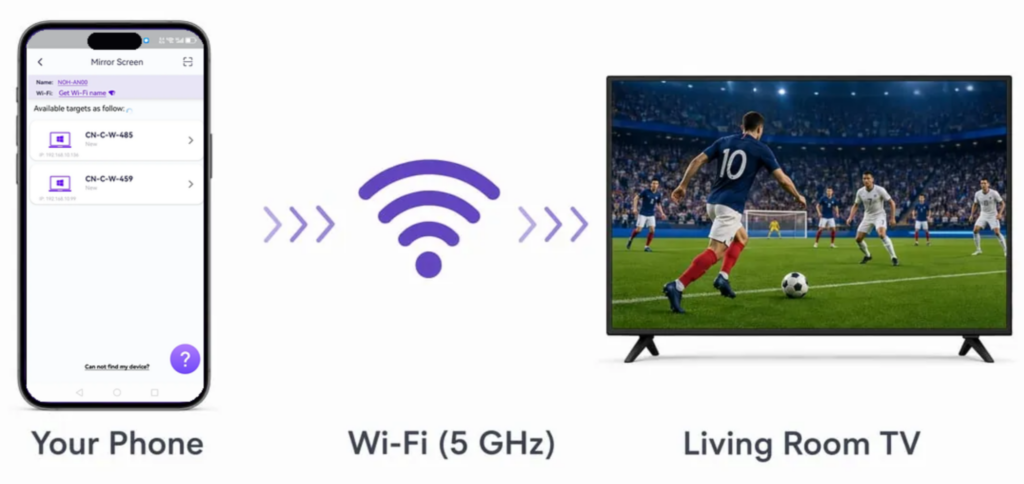
Det tar mindre än två minuter att sätta upp det här. Det fungerar för vilken match som helst, inte bara finalen. Ska du ha en liten grupp på besök och behöver bara en skärm? Sluta här. Då är du klar.
Konfiguration C: Storbildsskärm i trädgården (projektor eller utomhus-TV)
För att sätta upp en utomhusskärm ansluter du en streaming-stick (Roku Streaming Stick eller Amazon Fire TV Stick) till projektorns HDMI-port. Anslut den till ditt Wi-Fi. Spela sedan upp innehåll från 1001 TVs via din mobil. Även äldre projektorer som inte är smarta fungerar. Sticken fungerar som den trådlösa mottagare som din projektor saknar.
Det här är upplägget som förvandlar en tittarfest till ett riktigt evenemang. En 100-tums projektion av finalen. Grillen är igång. Stereon står ute. Det är den typen av upplevelse som folk minns. Och du behöver inte en $2 000 utomhus-TV för att lyckas med det.
Steg för steg
- Anslut en streaming-stick till projektorns HDMI-port. En Roku Streaming Stick eller Amazon Fire TV Stick fungerar. Priserna varierar beroende på modell och återförsäljare, men de billigaste alternativen kostar från cirka $30. Anslut den till strömkällan. De flesta stickarna får ström via en USB-port. En mobilladdare eller projektorns USB-utgång fungerar utmärkt.
- Anslut streaming-enheten till ditt Wi-Fi. Använd stickans tillhörande app. Roku-appen för Roku-enheter, Fire TV-appen för Amazon-enheter. Anslut den till ditt hemnätverk. Det här är en engångsinställning. Stickan lagrar nätverksuppgifterna.
- Placera projektorn. Rikta projektorn mot en vit vägg, ett uppspänt lakan eller en bärbar skärm. Testa skärpan och keystone-korrigeringen innan matchen börjar. Att kisa på en suddig bild i 90 minuter förstör upplevelsen. För bästa bildkvalitet, se våra Jämförelse av 4K HDR-sändningar från VM 2026 för att se vad din ström faktiskt levererar.
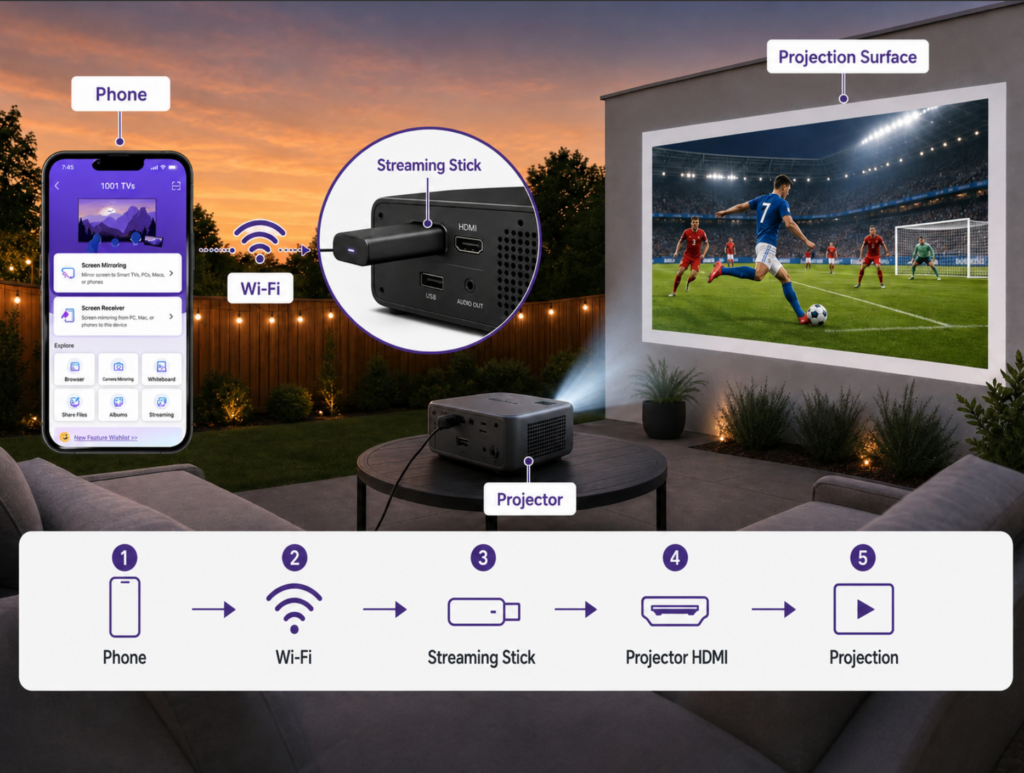
- Gjuten av 1001 TVs. Öppna appen. Välj streaming-enheten från enhetslistan. Starta speglingen. Matchen visas på projektionsytan precis som den skulle göra på en TV.
- Hantera ljud utomhus. Anslut en Bluetooth-högtalare till din telefon. Projektorns inbyggda högtalare räcker inte till för en större publik. Vid större sammankomster ska du ansluta en 3,5 mm-kabel från projektorns ljudutgång till aktiva högtalare.
Proffstips: Tidpunkten för solnedgången är viktig. Finalen den 19 juli börjar kl. 15.00 ET. Kolla upp den lokala starttiden och börja ställa in projektorn 30 minuter innan. Omgivande ljus försämrar bildkvaliteten på projektorn. Vänta tills solen har gått ner helt, eller använd en projektionsduk med hög gain (1,3+). Ett vitt lakan fungerar i nödfall. En ordentlig projektionsduk gör en märkbar skillnad i kontrasten.
Konfiguration C: Bar, restaurang eller evenemangslokal med flera skärmar
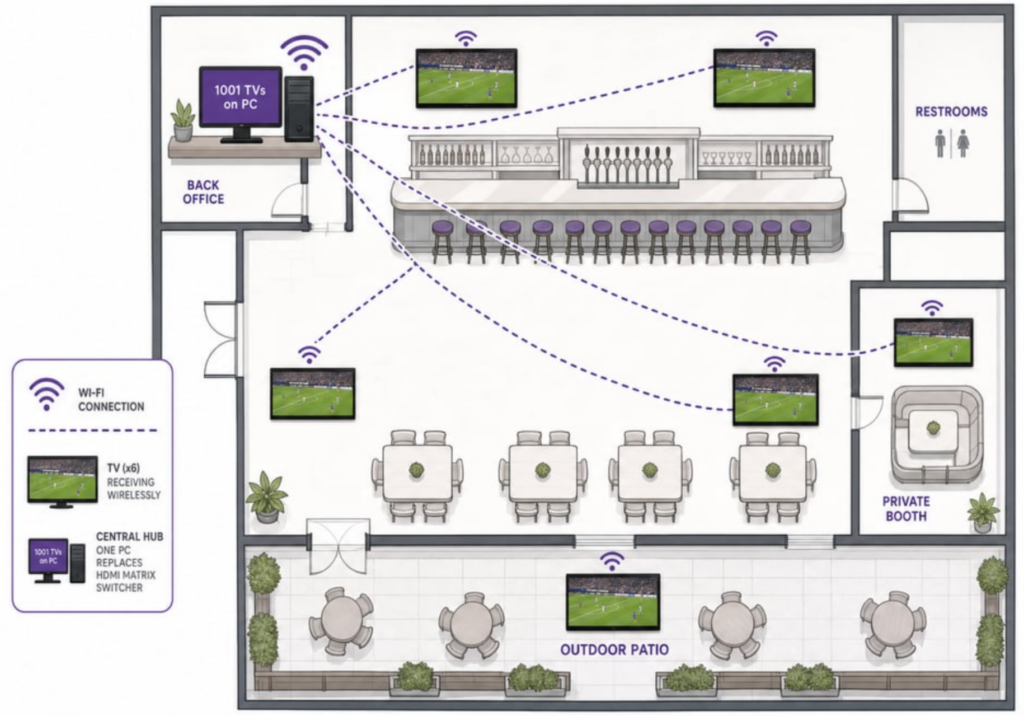
För kommersiella lokaler: Anslut en Windows-dator med 1001 TVs till lokalens nätverk. Strömma till alla TV-apparater i byggnaden samtidigt. En enda dator kan driva 4 till 8 skärmar beroende på nätverkets kapacitet. Ingen HDMI-matrisväxlare. Ingen professionell AV-installatör.
Barer och restauranger upplever sina bästa kvällar under VM-finalerna. Front Office Sports rapporterar att tittandet utanför hemmet har bidragit till turneringens rekordhöga tittarsiffror. Tittarfester på olika platser drev tittarsiffrorna till nya höjder under slutspelet. Telemundos spanskspråkiga sändningar hade i genomsnitt 4,6 miljoner tittare under gruppspelet, en ökning med 122% jämfört med 2022. Fox engelskspråkiga tittarsiffror steg med 92% till i genomsnitt 5,05 miljoner. Finalen kommer att bli höjdpunkten.
De flesta lokaler hanterar flera skärmar med hjälp av HDMI-matrisväxlare. Denna utrustning kostar några hundra dollar och kräver professionell installation. En dator med programmet 1001 TVs klarar samma uppgift trådlöst. Helt gratis. Installationen tar 15 minuter istället för att behöva ringa efter service.
Steg för steg
- Installera 1001 TVs på en Windows-dator. Ladda ner från 1001tvs.com. Datorn fungerar som din centrala styrcentral. Den står på en och samma plats och styr alla skärmar i lokalen.
- Anslut alla TV-apparater på evenemangsplatsen till samma nätverk. Använd lokalens Wi-Fi eller ett särskilt subnät för strömning. Vid fyra eller fler TV-apparater rekommenderas starkt ett särskilt subnät. Det förhindrar konkurrens om bandbredd mellan gästernas Wi-Fi och strömningstrafiken.
- Öppna VM-sändningen på datorn. Använd en webbläsare eller tv-bolagets app. Du har rätt att visa det innehåll som sänds via den plattform du har tillgång till.
- Starta 1001 TVs och välj läget ”Multi-Screen Mode”. Lägg till varje TV i lokalen en efter en. Appen visar anslutningsstatus för varje skärm.
- Testa innan avspark. Gör en 5-minuters testutsändning för att kontrollera synkroniseringen och kvaliteten på alla skärmar. Identifiera och åtgärda svaga Wi-Fi-signaler. En TV längst bort i baren som ansluter utan problem under testet men tappar anslutningen under matchen är ett vanligt problem.
Jämförelse av olika alternativ för lokalens uppställning
| Metod | Komplexitet |
| HDMI-matrisväxlare + kablar | Hög (professionell installation) |
| 1001 TVs på PC (trådlöst) | Låg (gör-det-själv) |
| 1001 TVs + dedikerad Wi-Fi-förstärkare | Låg till medelhög |
Den trådlösa lösningen är inte alltid bättre. Om du redan har en matrisväxlare installerad och i drift, behåll den. Men om du håller på att förbereda dig inför finalen och saknar befintlig infrastruktur, är tids- och kostnadsbesparingarna påtagliga.
Checklista inför matchdagen: Allt klart inför avspark
- 30 minuter innan: Slå på alla TV-apparater och projektorer. Kontrollera att alla är anslutna till Wi-Fi. Kontrollera att alla skärmar visas i 1001 TVs:s enhetslista.
- 25 minuter före: Öppna 1001 TVs på din telefon eller dator. Kontrollera att varje skärm visas i enhetslistan. Om någon saknas, kontrollera dess Wi-Fi-anslutning nu. Inte vid start.
- 20 minuter före: Gör en 2-minuters testvisning på varje skärm. Kontrollera om det förekommer fördröjningar, hackande bild eller ljudförskjutningar. Det här är din sista chans att åtgärda eventuella problem innan det är dags för avspark.
- 15 minuter före: Ställ fram mat- och dryckesstationer. Placera dem så att gästerna kan ta för sig utan att skymma TV:n. En trängsel under en straffsparksläggning förstör stämningen.
- 10 minuter före: Starta sändningen inför matchen. Kontrollera att strömmen visas live på alla skärmar. Ställ in varje sekundär skärm på ljudlöst läge.
- 5 minuter tidigare: Ställ in primärt ljud (soundbar eller huvud-TV). Gör en sista genomgång av alla rum. Kontrollera att matchen visas tydligt på alla skärmar.
- Avspark: Nu är du redo. Se till att din telefon är laddad. Den fungerar som din fjärrkontroll under hela matchen. Anslut den till laddaren om du använder flerskärmsläget. Appens Wi-Fi-användning tömmer batteriet snabbare än vanligt.
Felsökning av vanliga problem med flera skärmar
Även en välplanerad installation kan stöta på problem. Här är de vanligaste problemen och hur man löser dem. Alla går att lösa på mindre än två minuter om man vet vad man ska leta efter.
| Problem | Trolig orsak | Åtgärd |
| TV visas inte i 1001 TVs:s enhetslista | Ett annat Wi-Fi-nätverk | Se till att telefonen och TV:n är anslutna till samma nätverk. Kontrollera om de är inställda på 5 GHz eller 2,4 GHz. Vissa TV-apparater är som standard inställda på 2,4 GHz vid installationen |
| Fördröjning eller hackande på en skärm | Svag Wi-Fi-signal vid den där TV:n | Flytta routern närmare eller anslut en Wi-Fi-förstärkare. Eller ställ in TV:n på 2,4 GHz (bättre räckvidd genom väggar) |
| Ljud som ekar mellan rummen | Flera TV-apparater som spelar upp ljud samtidigt | Stäng av ljudet på alla sekundära TV-apparater. Låt ljudet endast spelas upp via en primär högtalare |
| Skärmen blir svart då och då | Överbelastning av bandbredd (för många skärmar på ett band) | Minska antalet skärmar till 3 på 5 GHz. Flytta övriga skärmar till 2,4 GHz eller en andra router |
| Telefonens batteri tar slut snabbt | Spegling i helskärmsläge (hög CPU-/GPU-användning) | Ställ in på 1001 TVs:s “mediaspelarläge”. Sänder endast videoström, inte helskärm |
| Innehåll visas inte när telefonen låses | Skärmens viloläge avbryter speglingssessionen | Ställ in tidsgränsen för telefonens skärm på “Aldrig” under matchen. Eller låt telefonen vara ansluten till laddaren |
För mer ingående frågor, se vår En komplett felsökningsguide för skärmspegling. Den omfattar alla typer av enheter och protokoll.
Vanliga frågor: Frågor om visningsfesten inför VM-finalen
Kan jag strömma VM-finalen till flera TV-apparater samtidigt?
Ja. Med 1001 TVs:s ’Multi-Screen Mode” kan en dator spegla samma match till flera TV-apparater via Wi-Fi. Alla anslutna skärmar visar sändningen synkroniserat. Den praktiska gränsen beror på din Wi-Fi-bandbredd.
Behöver jag en smart-TV för att anordna en tittarfest med flera skärmar?
Nej. Vilken TV som helst med en HDMI-port fungerar. Anslut en streaming-stick (Roku Streaming Stick, Amazon Fire TV Stick) för att få trådlös mottagningsfunktion. 1001 TVs sänder till sticken, som vidarebefordrar signalen till din TV via HDMI. Äldre plattskärms-TV:ar, icke-smarta projektorer och datorskärmar kan alla ingå i din tittarfest. För en genomgång av den grundläggande installationen, se vår guide på Hur man tittar på TV med hjälp av skärmspegling.
Kommer det att uppstå någon ljudfördröjning mellan rummen?
Ljudfördröjningen är minimal (mindre än 1 sekund) när alla skärmar är anslutna till samma Wi-Fi-band. För att undvika eko ska du stänga av ljudet på alla sekundära TV-apparater. Spela upp ljudet via en primär högtalare eller en soundbar. Vid installationer utomhus bör du använda en separat Bluetooth-högtalare som är ansluten till din telefon. Lita inte på projektorns inbyggda högtalare.
Vilken är den bästa Wi-Fi-konfigurationen för en filmkväll med flera skärmar?
Använd ett 5 GHz Wi-Fi-band för skärmar som befinner sig inom 30 fot från din router. Det ger högre bandbredd och lägre fördröjning. För skärmar som ligger längre bort (garage, trädgård) bör du använda 2,4 GHz för bättre räckvidd. Eller använd en Wi-Fi-förstärkare. Använd inte offentliga nätverk eller gästnätverk för att spela upp innehåll. De begränsar oftast strömningshastigheten. Gör ett hastighetstest innan matchen börjar. Du behöver minst 10 Mbps per skärm för smidig 1080p-spegling.
Kan jag använda den här uppställningen även i matchen om tredjeplatsen i VM?
Ja. Samma uppsättning med flera skärmar fungerar för alla direktsända matcher. Både matchen om tredjeplatsen den 18 juli och kommande turneringar. Appen 1001 TVs fungerar med alla videoströmmar på din telefon, inte bara VM-sändningarna. När du väl har ställt in den för finalen har du infrastrukturen klar för alla kommande stora sportevenemang.
Gör varje skärm till en VM-skärm
VM-finalen 2026 äger rum vart fjärde år. Titta inte på den på en enda skärm när du har fler än du tror. Ladda ner 1001 TVs. Anslut alla TV-apparater och projektorer du äger. Förvandla ditt hem till en plats för tittarfest. Inga kablar eller krav på smart-TV. Du behöver inte heller anlita en AV-installatör. Allt du behöver är din telefon och alla skärmar du redan har.
Kom igång:
- Ladda ner 1001 TVs
- Behöver du hitta din ström först? Se Var kan man se FIFA-VM 2026 live

Läs mer
 Så här tittar du på NBA på TV i USA
Det enklaste sättet att titta på NBA-matcher på din TV i USA är att fatta två beslut i följande ordning: först ska du ta reda på vilken auktoriserad tjänst som sänder...
Så här tittar du på NBA på TV i USA
Det enklaste sättet att titta på NBA-matcher på din TV i USA är att fatta två beslut i följande ordning: först ska du ta reda på vilken auktoriserad tjänst som sänder...
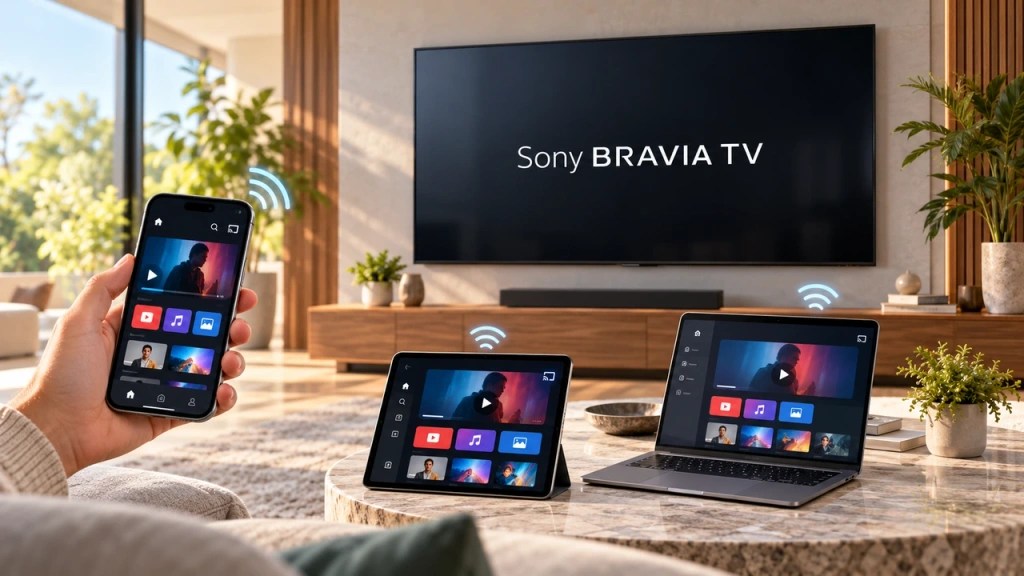 Så här speglar du skärmen till en Sony Bravia-TV (Google TV)
En Sony Bravia Google TV använder inte en och samma universell “Screen Mirroring”-metod för alla telefoner och datorer. Det rätta valet beror på både...
Så här speglar du skärmen till en Sony Bravia-TV (Google TV)
En Sony Bravia Google TV använder inte en och samma universell “Screen Mirroring”-metod för alla telefoner och datorer. Det rätta valet beror på både...

