2026 Dünya Kupası Finali: Her Yerde Çok Ekranlı İzleme Partisi Nasıl Düzenlenir?
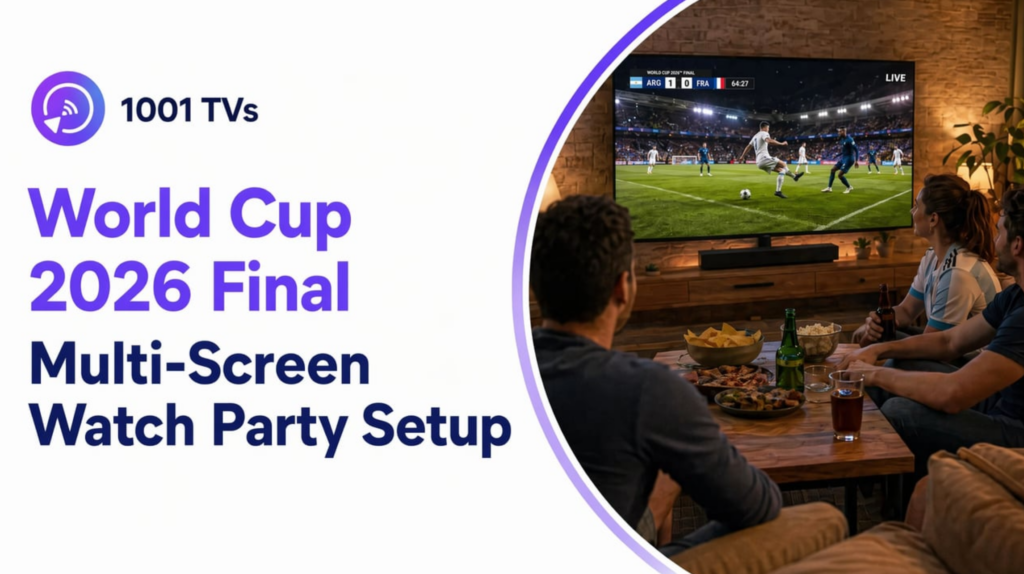
19 Temmuz’da oynanacak 2026 Dünya Kupası finalinin 1,42 milyardan fazla izleyici çekmesi bekleniyor. ABD’de turnuva şimdiden rekorları kırdı. ABD Erkek Milli Takımı’nın son 32 turu maçı, yaklaşık 32 milyon izleyiciyle en yüksek izlenme rakamına ulaştı. Ev dışı izleme (izleme partileri, barlar, toplanmalar) her kanalın toplam izleyici sayısının yaklaşık %'sini oluşturuyor. Önemli maçlarda bu rakam […]
Çoğu izleme partisi rehberi size daha büyük bir televizyon almanızı ya da bir HDMI ayırıcı almanızı önerir. Aslında ikisine de ihtiyacınız yok. Zaten sandığınızdan daha fazla ekrana sahipsiniz. Bu rehber, tüm bu ekranları tek bir telefondan kablosuz olarak nasıl kullanabileceğinizi gösteriyor.
Çok Ekranlı Dünya Kupası İzleme Partisi Nedir?
Çoklu ekran izleme partisi, aynı canlı maçı aynı anda birden fazla TV, projektör ve tablete aktarmak anlamına gelir. Konuklar, içeceklerini alırken hiçbir golü kaçırmaz. 1001 TVs ile bir PC veya Mac, aynı yerel ağdaki birden fazla uyumlu alıcı cihaza ekranını yansıtabilir. HDMI kablosuna veya ayırıcıya gerek yoktur. Televizyonunuzun akıllı TV olması bile gerekmez.
Yaşam alanınızı bir spor barı olarak hayal edin. Oturma odasındaki televizyon ana yayını gösteriyor. Mutfaktaki televizyon ise yemek hazırlayanları gelişmelerden haberdar ediyor. Arka bahçedeki projektör ise fazla kalabalığı ağırlıyor. Her şey cebinizdeki telefondan yönetiliyor.
Çok Ekranlı Bir Dünya Kupası Finali İzleme Partisi İçin Gerekenler
Üç şeye ihtiyacınız var: Dünya Kupası yayınını izleyebileceğiniz bir telefon veya dizüstü bilgisayar, 1001 TVs ekran yansıtma uygulaması ve halihazırda sahip olduğunuz herhangi bir televizyon, projektör veya monitör. HDMI ayırıcıları, her ekrana ayrı bir akıllı televizyon ve profesyonel AV ekipmanlarını bir kenara bırakın. Tek bir cihaz, hepsine aynı anda görüntü yansıtıyor.
Geleneksel ve Kablosuz: Neler Değişti?
| Faktör | Geleneksel (HDMI ayırıcı + kablolar) | Kablosuz (1001 TVs) |
| Gerekli kablolar | HDMI ayırıcı + ekran başına 1 kablo | Sıfır |
| Akıllı TV gerekli mi? | Hayır, ancak HDMI girişi gerekiyor | Hayır. 1001 TVs uygulamasına sahip akıllı TV’ler için ek bir şeye gerek yoktur. Eski model TV’ler için ise uygun fiyatlı bir akış çubuğu gereklidir. |
| Maksimum ekran sayısı | Dağıtıcı bağlantı noktalarının sayısı ile sınırlıdır (genellikle 2 ila 4) | Yalnızca Wi-Fi bant genişliğinizle sınırlıdır |
| Kurulum süresi | 30 ila 60 dakika (kablo döşeme) | Her ekran için 2 ila 5 dakika |
| Taşınabilirlik | Sabit konum | Herhangi bir ekranı anında yeniden konumlandırın |
| Maliyet (ekranlar hariç) | Dağıtıcı + kablolar (~$50+) | Ücretsiz deneme uygulaması + isteğe bağlı akış cihazları |
Aradaki fark sürtünmedir. Bir dağıtıcı, ekranlarınızı sabitler. Ödeme yaptığınız bağlantı noktası sayısıyla sınırlandırır. Kablosuz yansıtma ise, biri guacamole’yi hazırlarken milli marşı kaçırmak istemediği için maçın başlamasına beş dakika kala mutfak ekranını eklemenize olanak tanır.
Kurulum Kontrol Listeniz
- Dünya Kupası yayını açık olan dizüstü bilgisayarınız
- 1001 TVs uygulaması yüklendi
- Wi-Fi kapsama alanı içindeki herhangi bir televizyon, projektör veya monitör
- Kararlı bir Wi-Fi ağı (3 veya daha fazla ekran için 5 GHz önerilir)
- İsteğe bağlı: Akıllı TV olmayan herhangi bir televizyon için bir akış çubuğu (Roku Streaming Stick, Amazon Fire TV Stick)
Mekanınıza uygun düzeni seçin. Ya da birkaçını birleştirin.
Kurulum A: Oturma Odası Kontrol Merkezi (Ana TV’ye Tek Bir Telefon Bağlantısı)
En basit versiyon, kablosuz olarak gerçekleştirilen tek ekranlı bir kurulumdur. Telefonunuzda maç yayınına girin. 1001 TVs uygulamasını başlatın. Cihaz listesinden oturma odanızdaki TV’yi seçin. “Yansıtmaya Başla” seçeneğine dokunun. Maç, saniyeler içinde TV’nizde görünür. Hiçbir kablo, HDMI bağlantısı veya TV ayar menüsü gerekmez. Ses, TV hoparlörlerinizden veya soundbar'ınızdan duyulur.
Adım Adım
- Cihazları aynı Wi-Fi ağına bağlayın. Telefonunuz ve televizyonunuz aynı ağda olmalıdır. En iyi sonuçları elde etmek için 5 GHz bandını kullanın. Bu bant, video trafiğini 2,4 GHz’ten daha iyi işler.
- Akışı açın. Tercih ettiğiniz Dünya Kupası yayıncı uygulamasını açın. Fox, Tubi, Telemundo veya bölgenizdeki yayın hakkı sahibi. Maçı izlemeye başlayın. Maçın ülkenizde nereden yayınlandığından emin değil misiniz? Şuraya bakın: 2026 FIFA Dünya Kupası’nı canlı izlemek için eksiksiz rehber.
- 1001 TVs'yi başlatın. Uygulamayı açın. Uygulama, ağınızdaki kullanılabilir ekranları otomatik olarak tarar.
- Televizyonunuzu seçin. Cihaz listesinden oturma odanızdaki televizyonu seçin.
- “Yansıtmayı Başlat” seçeneğine dokunun.” Maç anında televizyonunuzda yayınlanmaya başlar. Artık telefonunuz uzaktan kumanda görevi görüyor. Kanepeden maçı duraklatın, ileri-geri sarın veya yayın kaynağını değiştirin.
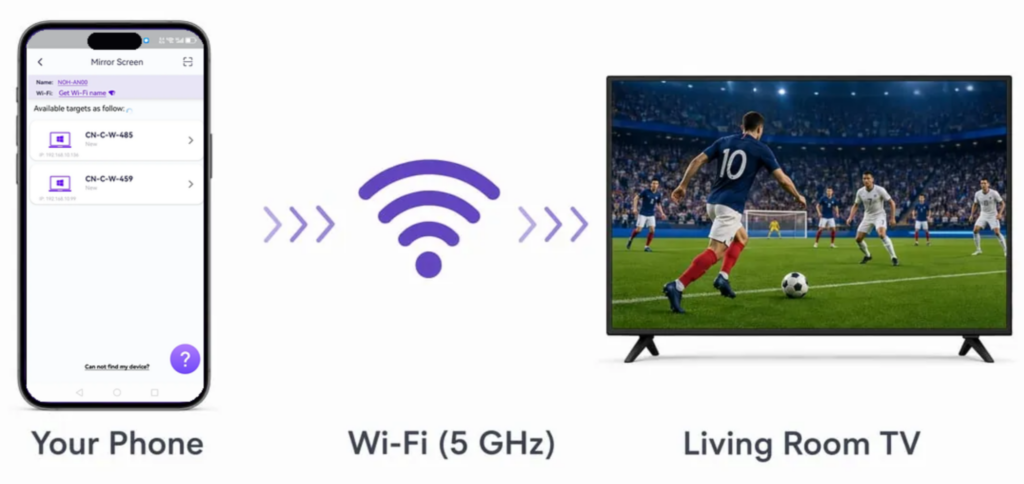
Bu kurulum iki dakikadan az sürer. Sadece final maçı için değil, her maçta işe yarar. Küçük bir grubu ağırlıyorsanız ve tek bir ekrana mı ihtiyacınız var? O zaman bu kadar. İşiniz bitti.
Kurulum C: Arka Bahçede Büyük Ekran (Projektör veya Dış Mekan TV’si)
Dış mekanda bir ekran kurmak için, bir akış çubuğunu (Roku Streaming Stick veya Amazon Fire TV Stick) projektörünüzün HDMI bağlantı noktasına takın. Cihazı Wi-Fi ağınıza bağlayın. Ardından telefonunuzdaki 1001 TVs uygulamasından ekrana yansıtın. Akıllı olmayan eski model projektörler bile bu iş için kullanılabilir. Bu çubuk, projektörünüzde bulunmayan kablosuz alıcı işlevini yerine getirir.
İşte bu düzenleme, bir maç izleme partisini tam bir etkinliğe dönüştürür. Final maçının 100 inçlik projeksiyonu. Izgara ateşi yanıyor. Dışarıda müzik çalıyor. İşte insanların hafızasında kalan versiyon budur. Ve bunu gerçekleştirmek için $2.000 model bir dış mekan televizyonuna ihtiyacınız yok.
Adım Adım
- Akış çubuğunu projektörünüzün HDMI bağlantı noktasına takın. Roku Streaming Stick veya Amazon Fire TV Stick kullanılabilir. Fiyatlar modele ve satıcıya göre değişiklik gösterir, ancak uygun fiyatlı seçenekler $30 civarında başlar. Cihazı güç kaynağına bağlayın. Çoğu stick, USB bağlantı noktasından güç alır. Bir telefon şarj cihazı veya projektörün USB çıkışı bu iş için yeterlidir.
- Akış çubuğunu Wi-Fi ağınıza bağlayın. Çubuğun eşlik eden uygulamasını kullanın. Roku cihazları için Roku uygulaması, Amazon cihazları için Fire TV uygulaması. Cihazı ev ağınıza bağlayın. Bu, tek seferlik bir kurulumdur. Çubuk, ağı hafızasına kaydeder.
- Projektörü yerleştirin. Beyaz bir duvara, gerilmiş bir çarşafa veya taşınabilir bir ekrana nişan alın. Maç başlamadan önce odak ve keystone düzeltmesini kontrol edin. 90 dakika boyunca bulanık bir görüntüye gözlerini kısarak bakmak, izleme deneyimini mahveder. En iyi görüntü kalitesi için, 2026 Dünya Kupası 4K HDR yayın karşılaştırması akışınızın gerçekte ne sunduğunu görmek için.
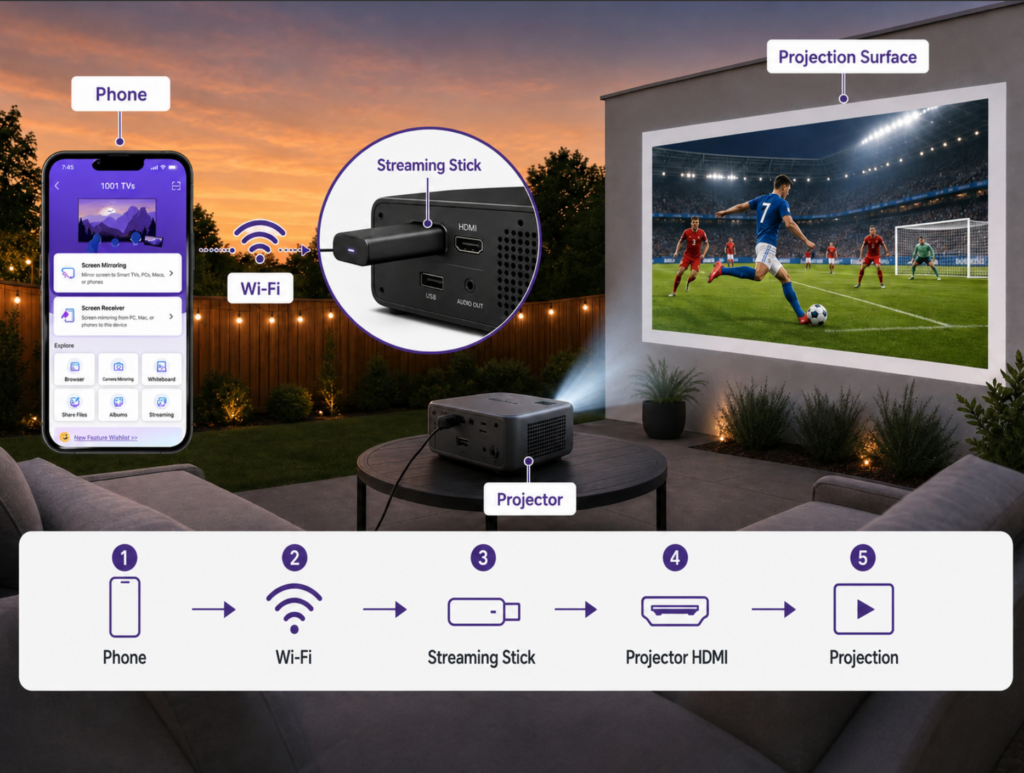
- 1001 TVs’den alıntı. Uygulamayı açın. Cihaz listesinden akış çubuğunu seçin. Ekran yansıtmayı başlatın. Maç, tıpkı bir televizyonda olduğu gibi projeksiyon yüzeyinde görünür.
- Ses işlerini açık havada halledin. Telefonunuza bir Bluetooth hoparlör bağlayın. Projektörünüzün dahili hoparlörü, kalabalık bir grup için yeterli olmayacaktır. Daha büyük toplantılar için, projektörün ses çıkışından aktif hoparlörlere bir 3,5 mm kablo bağlayın.
Profesyonel ipucu: Gün batımı saati önemlidir. 19 Temmuz’daki final maçı, Doğu Saati ile saat 15:00’te başlayacak. Yerel başlama saatinizi kontrol edin ve gösterimden 30 dakika önce projektör kurulumunu planlayın. Ortam ışığı projektörün görüntü kalitesini bozar. Güneş tamamen batana kadar bekleyin veya yüksek kazançlı (1,3+) bir ekran kullanın. Acil durumlarda beyaz bir çarşaf da iş görür. Uygun bir projeksiyon ekranı, kontrastta gözle görülür bir fark yaratır.
Kurulum C: Bar, Restoran veya Etkinlik Mekanı Çoklu Ekran
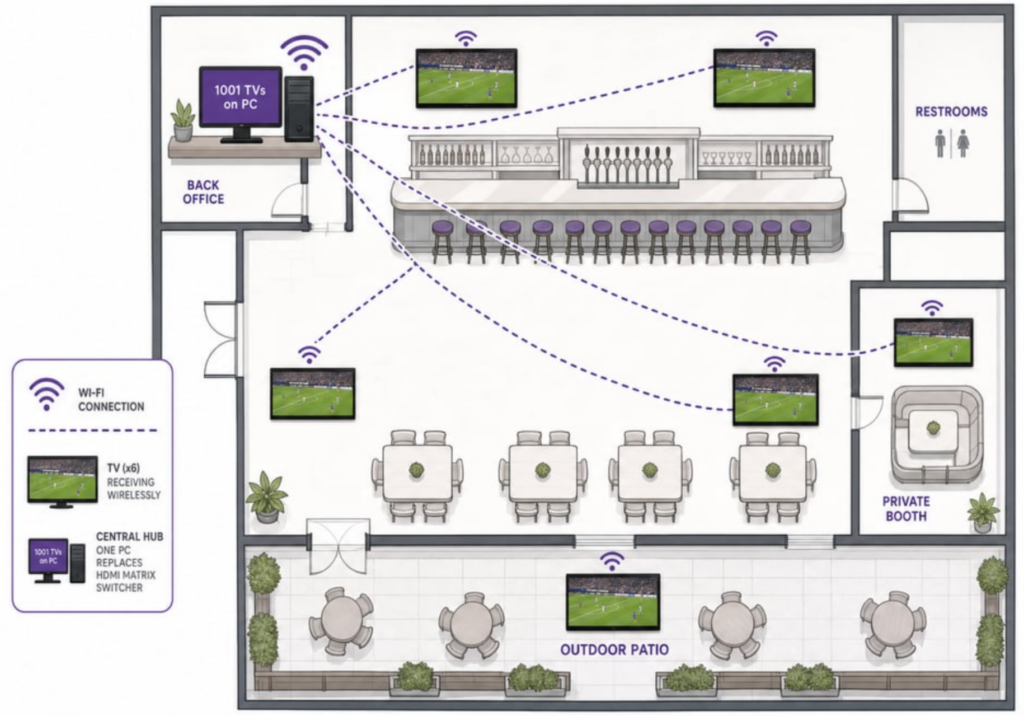
Ticari mekanlar için, 1001 TVs yazılımını çalıştıran bir Windows bilgisayarı mekanınızın ağına bağlayın. Binadaki tüm televizyonlara aynı anda yayın yapın. Tek bir bilgisayar, ağ kapasitesine bağlı olarak 4 ila 8 ekrana yayın yapabilir. HDMI matris anahtarlayıcıya gerek yok. Profesyonel AV kurulum uzmanına gerek yok.
Barlar ve restoranlar, Dünya Kupası finalleri sırasında en yoğun gecelerini yaşıyor. Front Office Sports’un haberine göre, ev dışında izleme, turnuvanın rekor izlenme oranlarına yol açtı. Mekanlarda düzenlenen izleme partileri, eleme turları boyunca izleyici sayısını yeni seviyelere çıkardı. Telemundo’nun İspanyolca yayınları, grup aşaması boyunca ortalama 4,6 milyon izleyiciye ulaştı; bu rakam 2022’ye göre 2% artış gösterdi. Fox’un İngilizce yayınlarının izleyici sayısı ise % artarak ortalama 5,05 milyona yükseldi. Final maçı, izleyici sayısının zirveye ulaşacağı an olacak.
Çoğu mekan, çoklu ekran sistemini HDMI matris anahtarlayıcılarla yönetir. Bu donanımın fiyatı birkaç yüz dolar civarındadır ve profesyonel kurulum gerektirir. 1001 TVs yazılımını çalıştıran bir bilgisayar ise aynı işi kablosuz olarak yerine getirir. Üstelik ücretsiz olarak. Kurulum, servis çağırmak yerine sadece 15 dakika sürer.
Adım Adım
- 1001 TVs’yi bir Windows bilgisayara yükleyin. 1001tvs.com adresinden indirin. Bilgisayar, merkezi yayın merkezinizdir. Tek bir yerde kalır ve mekândaki tüm ekranları kontrol eder.
- Tüm mekanlardaki televizyonları aynı ağa bağlayın. Etkinlik mekanınızın Wi-Fi ağını veya yayın için ayrılmış bir alt ağı kullanın. 4 veya daha fazla TV kullanılması durumunda, yayın için ayrılmış bir alt ağ kullanılması şiddetle tavsiye edilir. Bu, misafir Wi-Fi ağı ile yayın trafiği arasında bant genişliği çatışmasını önler.
- PC'de Dünya Kupası yayınını açın. Bir tarayıcı veya yayıncının uygulamasını kullanın. Yayını ileten platform ne olursa olsun, o yayını gösterme hakkına sahipsiniz.
- 1001 TVs uygulamasını başlatın ve Çoklu Ekran Modu’nu seçin. Mekândaki her bir televizyonu tek tek ekleyin. Uygulama, her ekranın bağlantı durumunu gösterir.
- Maç başlamadan önce test yapın. Tüm ekranlarda senkronizasyon ve kaliteyi doğrulamak için 5 dakikalık bir deneme yayını yapın. Zayıf Wi-Fi sinyali alanlarını tespit edip düzeltin. Test sırasında sorunsuz bağlanan ancak maç sırasında bağlantısı kopan, barın en ucundaki bir televizyon, sık karşılaşılan bir sorundur.
Mekan Düzenleme Seçeneklerinin Karşılaştırılması
| Yöntem | Karmaşıklık |
| HDMI matris anahtarlayıcı + kablolar | Yüksek (profesyonel kurulum) |
| PC'de 1001 TVs (kablosuz) | Düşük (Kendin Yap) |
| 1001 TVs + özel Wi-Fi sinyal güçlendirici | Düşük ila orta |
Kablosuz çözüm her zaman daha iyi değildir. Zaten kurulu ve çalışır durumda bir matris anahtarlayıcınız varsa, onu olduğu gibi bırakın. Ancak final için kurulum yapıyorsanız ve mevcut bir altyapınız yoksa, zaman ve maliyet tasarrufu gerçekten önemlidir.
Maç Günü Kontrol Listesi: Maç Başlamadan Önce Her Şey Hazır mı?
- 30 dakika önce: Tüm televizyonları ve projektörleri açın. Her birinin Wi-Fi’ye bağlı olduğunu kontrol edin. Her ekranın 1001 TVs cihaz listesinde göründüğünü kontrol edin.
- 25 dakika önce: Telefonunuzda veya bilgisayarınızda 1001 TVs uygulamasını açın. Her ekranın cihaz listesinde göründüğünü kontrol edin. Eğer bir tanesi eksikse, Wi-Fi bağlantısını hemen kontrol edin. Maç başlangıcında değil.
- 20 dakika önce: Her ekrana 2 dakikalık bir deneme yayını yapın. Gecikme, takılma veya ses senkronizasyonu bozukluğu olup olmadığını kontrol edin. Bu, maçın başlangıç düdüğü çalınmadan sorunları gidermek için son şansınızdır.
- 15 dakika önce: Yiyecek ve içecek istasyonları kurun. Bunları, konukların televizyonun önünü kapatmadan atıştırmalık alabilecekleri şekilde yerleştirin. Penaltı atışları sırasında oluşacak bir tıkanıklık, ortamı mahveder.
- 10 dakika önce: Maç öncesi yayını başlatın. Akışın tüm ekranlarda canlı olarak yayınlandığını kontrol edin. Her bir ikincil ekranın sesini kapatın.
- 5 dakika önce: Birincil ses kaynağını (soundbar veya ana TV) ayarlayın. Tüm odaları son bir kez kontrol edin. Her ekranda maçın net bir şekilde görüntülendiğinden emin olun.
- Başlama vuruşu: Hazırsınız. Telefonunuzun şarjının dolu olduğundan emin olun. Bu, maç boyunca kullanacağınız uzaktan kumandanız olacak. Çoklu ekran modunu kullanıyorsanız, telefonunuzu şarj cihazına takın. Uygulamanın Wi-Fi kullanımı, pilin normalden daha hızlı bitmesine neden olur.
Yaygın Çoklu Ekran Sorunlarının Giderilmesi
En iyi planlanmış kurulumlarda bile aksaklıklar yaşanabilir. İşte en sık karşılaşılan sorunlar ve çözümleri. Neye dikkat etmeniz gerektiğini bilirseniz, hepsi iki dakikadan kısa sürede çözülebilir.
| Sorun | Muhtemel neden | Düzelt |
| 1001 TVs cihaz listesinde TV görünmüyor | Farklı bir Wi-Fi ağı | Telefonun ve televizyonun aynı ağda olduğundan emin olun. 5 GHz ile 2,4 GHz frekanslarını kontrol edin. Bazı televizyonlar kurulum sırasında varsayılan olarak 2,4 GHz frekansını kullanır |
| Tek bir ekranda gecikme veya takılma | O televizyonda Wi-Fi sinyali zayıf | Yönlendiriciyi daha yakına getirin ya da bir Wi-Fi sinyal güçlendirici ekleyin. Ya da o televizyonu 2,4 GHz frekansına geçirin (duvarların arkasından daha iyi sinyal menzili sağlar) |
| Odalar arasında yankılanan ses | Aynı anda ses çalan birden fazla televizyon | Tüm ikincil televizyonların sesini kapatın. Sesi yalnızca bir ana hoparlörde açık tutun |
| Ekran ara sıra kararır | Bant genişliği aşırı yüklemesi (tek bir bantta çok fazla ekran olması) | 5 GHz frekansında ekran sayısını 3’e indirin. Kalan ekranları 2,4 GHz frekansına veya ikinci bir yönlendiriciye taşıyın |
| Telefonun pili çabuk bitiyor | Tam ekran yansıtma (yüksek CPU/GPU kullanımı) | 1001 TVs “medya oynatıcı moduna” geçin. Yalnızca video akışını gönderir, tam ekran moduna geçmez |
| Telefon kilitlendiğinde ekran karartılır | Ekran zaman aşımı, yansıtma oturumunu sonlandırır | Maç sırasında telefon ekranının zaman aşımını “Asla” olarak ayarlayın. Ya da telefonu şarj cihazına takılı tutun |
Daha kapsamlı konular için lütfen Ekran yansıtma sorunlarını gidermeye yönelik eksiksiz kılavuz. Her tür cihazı ve protokolü kapsar.
SSS: Dünya Kupası Finali İzleme Partisi ile İlgili Sorular
Dünya Kupası finalini aynı anda birden fazla televizyona aktarabilir miyim?
Evet. 1001 TVs’nin Çoklu Ekran Modu sayesinde, tek bir bilgisayar aynı maçı Wi-Fi üzerinden birden fazla televizyona yansıtabilir. Bağlı tüm ekranlar yayını senkronize olarak gösterir. Pratik sınır, Wi-Fi bant genişliğinize bağlıdır.
Çok ekranlı bir izleme partisi düzenlemek için akıllı TV'ye ihtiyacım var mı?
Hayır. HDMI bağlantı noktası olan herhangi bir televizyon iş görür. Kablosuz alım özelliği eklemek için bir akış çubuğu (Roku Streaming Stick, Amazon Fire TV Stick) takın. 1001 TVs, sinyali çubuğa aktarır; çubuk da bu sinyali HDMI aracılığıyla televizyonunuza iletir. Eski model düz ekran TV'ler, akıllı olmayan projektörler ve bilgisayar monitörleri de izleme partinize katılabilir. Temel kurulum adımları için kılavuzumuza bakın: Ekran yansıtma özelliğini kullanarak TV'de nasıl izlenir?.
Odalar arasında ses gecikmesi olacak mı?
Tüm ekranlar aynı Wi-Fi bandında olduğunda ses gecikmesi çok azdır (1 saniyenin altında). Yankıyı ortadan kaldırmak için tüm ikincil TV’lerin sesini kapatın. Sesi tek bir ana hoparlör veya ses çubuğu üzerinden çalın. Dış mekan kurulumlarında, telefonunuza bağlı özel bir Bluetooth hoparlör kullanın. Projektörün dahili hoparlörüne güvenmeyin.
Birden fazla ekranda izleme partisi düzenlemek için en iyi Wi-Fi kurulumu nedir?
Yönlendiricinizden 30 feet mesafedeki ekranlar için 5 GHz Wi-Fi bandını kullanın. Bu bant, daha yüksek bant genişliği ve daha düşük gecikme süresi sunar. Daha uzaktaki ekranlar için (garaj, arka bahçe), daha iyi kapsama alanı elde etmek amacıyla 2,4 GHz bandını kullanın. Ya da bir Wi-Fi sinyal güçlendirici ekleyin. Halka açık veya misafir ağları üzerinden yayın yapmayın. Bu ağlar genellikle akış hızını kısıtlar. Maç başlamadan önce bir hız testi yapın. Sorunsuz 1080p yansıtma için ekran başına en az 10 Mbps'ye ihtiyacınız vardır.
Bu dizilişi Dünya Kupası üçüncülük maçı için de kullanabilir miyim?
Evet. Aynı çoklu ekran düzeni, herhangi bir canlı maç için de geçerlidir. 18 Temmuz’daki üçüncülük maçı ve gelecekteki turnuvalar da buna dahildir. 1001 TVs uygulaması, sadece Dünya Kupası yayınlarıyla değil, telefonunuzdaki herhangi bir video akışıyla da çalışır. Final maçı için kurulumunu bir kez yaptıktan sonra, bundan sonraki tüm büyük spor etkinlikleri için gerekli altyapıya sahip olacaksınız.
Her Ekranı Bir Dünya Kupası Ekranı Haline Getirin
2026 Dünya Kupası finali dört yılda bir düzenlenir. Düşündüğünüzden daha fazla ekranınız varken, maçı tek bir ekrandan izlemeyin. 1001 TVs'yi indirin. Sahip olduğunuz tüm TV'leri ve projektörleri bağlayın. Evinizi bir izleme partisi mekanına dönüştürün. Kablo veya akıllı TV gereksinimi yoktur. AV kurulumcusuna da gerek yok. Sadece telefonunuz ve zaten sahip olduğunuz tüm ekranlar yeter.
Başlayın:
- 1001 TVs'yi İndirin
- Önce yayınınızı bulmanız mı gerekiyor? Şuraya bakın: 2026 FIFA Dünya Kupası’nı Canlı Olarak Nereden İzleyebilirim?

Daha Fazla Bilgi
 ABD’de Televizyondan NBA’yi Nasıl İzleyebilirsiniz?
ABD’de televizyonunuzdan NBA maçlarını izlemenin en kolay yolu, sırasıyla iki karar vermenizdir: ilk olarak, hangi yetkili hizmetin yayınladığını doğrulayın...
ABD’de Televizyondan NBA’yi Nasıl İzleyebilirsiniz?
ABD’de televizyonunuzdan NBA maçlarını izlemenin en kolay yolu, sırasıyla iki karar vermenizdir: ilk olarak, hangi yetkili hizmetin yayınladığını doğrulayın...
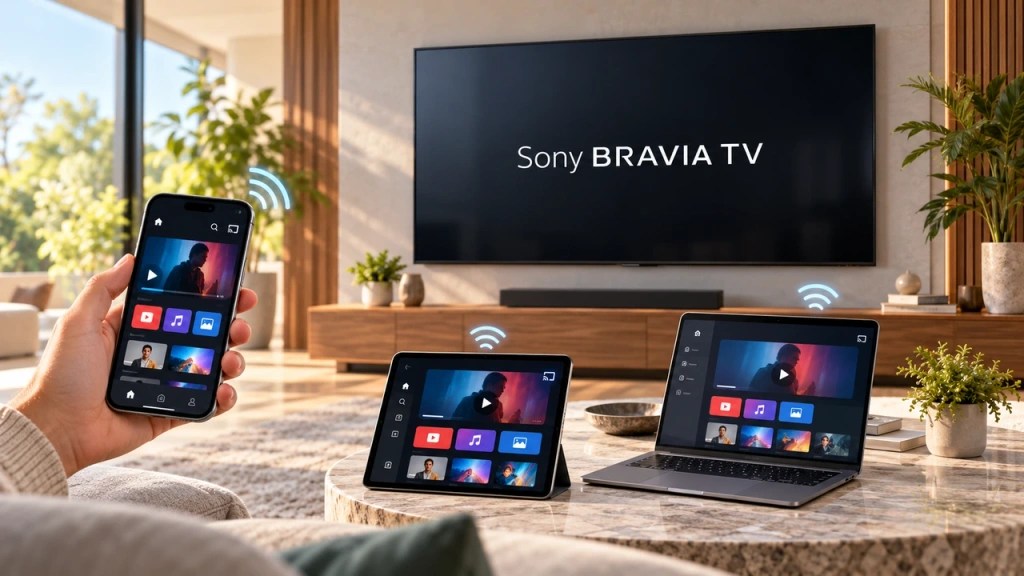 Sony Bravia TV’ye (Google TV) Ekran Yansıtme Nasıl Yapılır?
Sony Bravia Google TV, her telefon ve bilgisayar için tek bir evrensel “Ekran Yansıtma” yöntemi kullanmaz. Doğru seçim, her ikisine de bağlıdır...
Sony Bravia TV’ye (Google TV) Ekran Yansıtme Nasıl Yapılır?
Sony Bravia Google TV, her telefon ve bilgisayar için tek bir evrensel “Ekran Yansıtma” yöntemi kullanmaz. Doğru seçim, her ikisine de bağlıdır...

