Melhores aplicativos de espelhamento de tela para professores 2026: guia completo com recursos, comparações e etapas de configuração
O que é o Screen Mirroring para professores e porque é importante em 2026
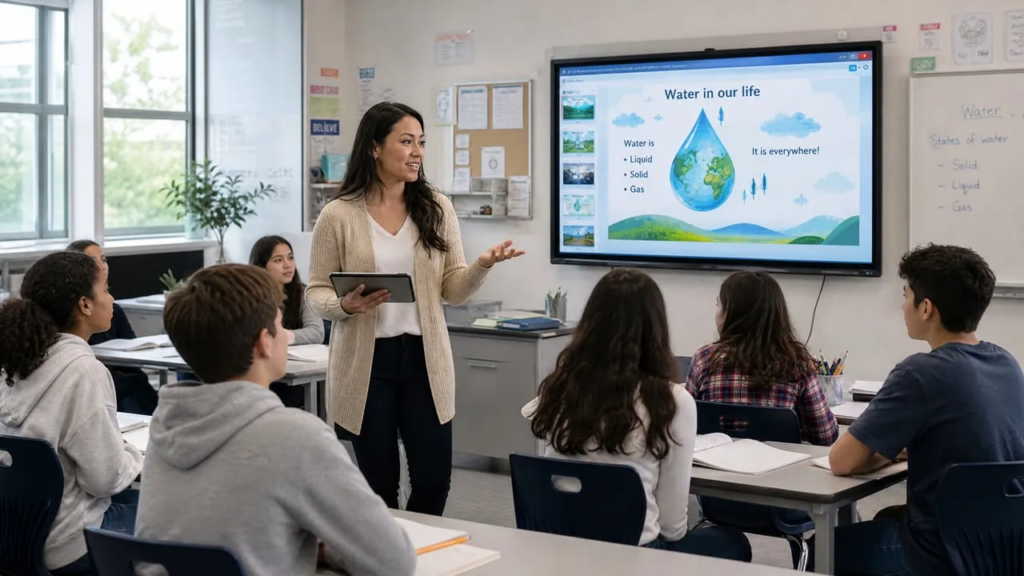
O espelhamento de ecrã para professores é uma tecnologia sem fios que lhe permite apresentar conteúdos do seu smartphone, tablet ou computador portátil diretamente nos ecrãs da sala de aula, quadros inteligentes, projectores ou dispositivos dos alunos em tempo real. Ao contrário das ligações tradicionais com fios, que o mantêm preso num único local, o moderno screen mirroring permite-lhe mover-se livremente pela sala de aula, mantendo o controlo total sobre as suas apresentações.
Em 2026, o espelhamento de ecrã tornou-se uma tecnologia essencial na sala de aula. Elimina o tempo desperdiçado em ligações por cabo, apoia iniciativas do tipo "traga o seu próprio dispositivo", permite a participação dos alunos através da partilha de vários dispositivos e cria aulas mais interessantes através da integração de multimédia.
4 factos importantes sobre o espelhamento de ecrã na educação
1. A capacidade multi-dispositivo é agora padrão: As soluções líderes suportam ligações simultâneas de 4 a 9 (ou mesmo mais) dispositivos, permitindo uma verdadeira aprendizagem colaborativa em que vários alunos podem partilhar o seu trabalho lado a lado no ecrã principal.
2. A compatibilidade entre plataformas é universal: As aplicações modernas de espelhamento de ecrã suportam todos os principais sistemas operativos - Windows, Mac, iOS, Android e ChromeOS - garantindo que nenhum aluno é deixado para trás, independentemente do seu dispositivo.
3. Qualidade HD com latência mínima: Os actuais sistemas de apresentação sem fios oferecem uma resolução de alta definição com uma latência inferior a 100 milissegundos, o que os torna adequados para demonstrações em tempo real e aplicações interactivas.
4. Interação, tela e mais funções numa única aplicação: As soluções modernas de espelhamento de ecrã integram várias ferramentas de ensino, incluindo anotações interactivas, capacidades de quadro branco digital e funcionalidades de colaboração, eliminando a necessidade de aplicações separadas.
As melhores aplicações de espelhamento de ecrã para professores
1001 TVs: O campeão dos multi-dispositivos para salas de aula interactivas
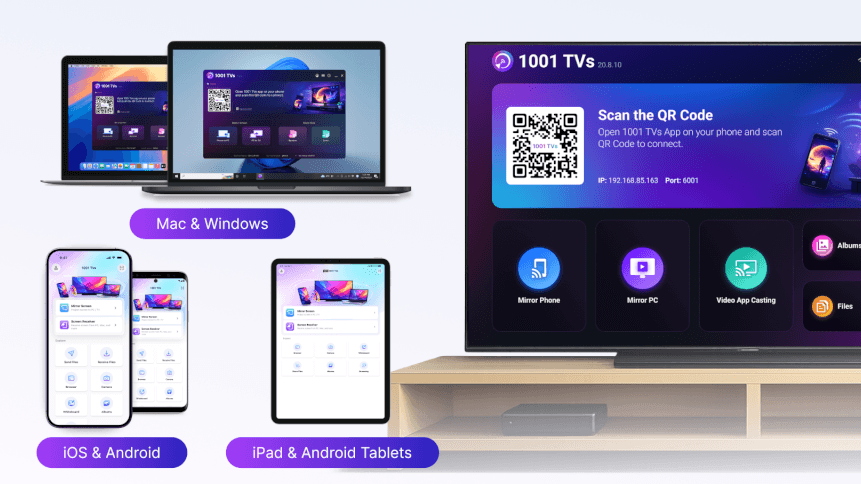
1001 TVs é uma das soluções de espelhamento de ecrã mais versáteis, especificamente concebida para ambientes educativos. Esta aplicação multiplataforma suporta o espelhamento sem fios a partir de Android, iOS, Windows, Mac e até diretamente para projectores e Smart TVs.
Caraterísticas principais para os professores:
A capacidade de destaque é o espelhamento sem fios de vários dispositivos, que permite ver os dispositivos dos alunos lado a lado ou alternar entre ecrãs com um clique. Pode demonstrar uma aplicação a partir do seu telemóvel e, simultaneamente, apresentar diapositivos a partir do seu computador portátil, aumentando a flexibilidade durante as aulas.
O 1001 TVs proporciona um espelhamento estável e de alta qualidade com uma ligação que minimiza as interrupções. O leitor incorporado permite-lhe transmitir vídeos para o televisor e controlar facilmente a reprodução a partir do seu smartphone.

Casos de utilização educativa:
Espelhe um computador portátil em vários televisores ou projectores ao mesmo tempo: Perfeito para grandes salas de aula ou múltiplos espaços de aprendizagem onde é necessário apresentar o mesmo conteúdo simultaneamente em diferentes ecrãs.
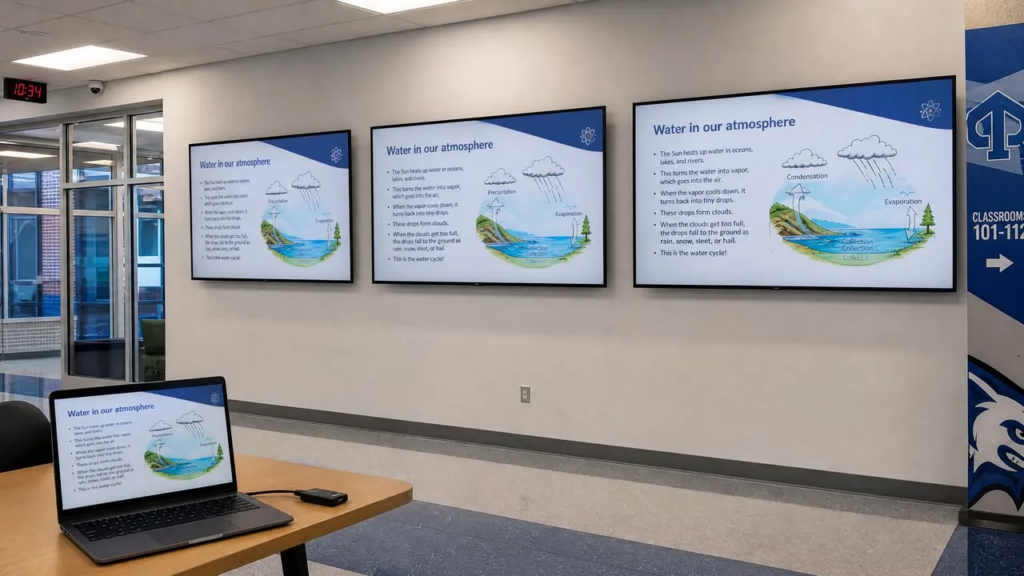
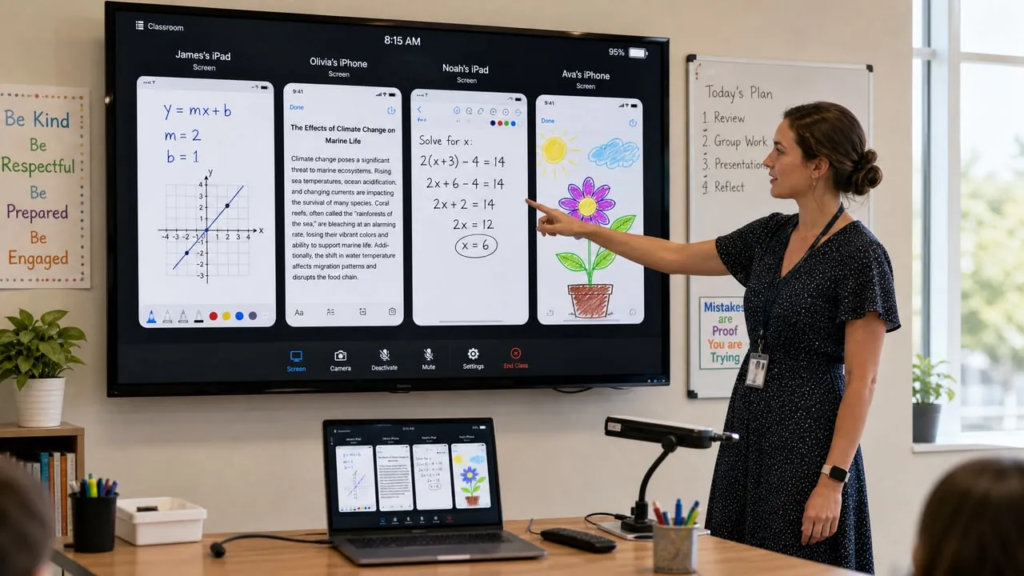
Espelhar vários dispositivos num só PC: Ideal para aulas de educação física, onde pode monitorizar e comparar os movimentos de grupos de alunos em tempo real. Também é excelente para comparar o trabalho de vários alunos lado a lado durante debates ou avaliações na aula.
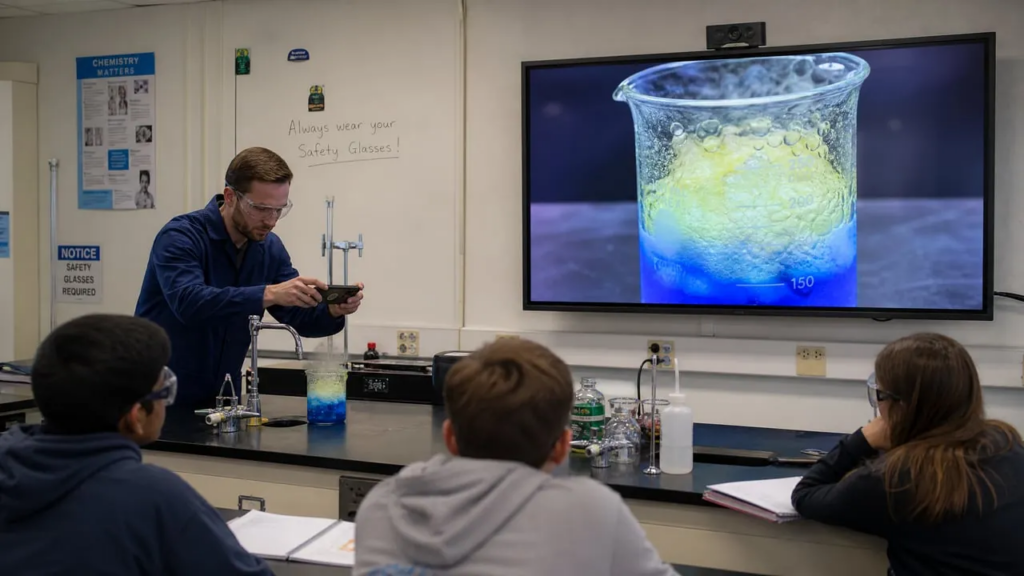
Espelhar o conteúdo da câmara na televisão: Para experiências delicadas em que os detalhes são importantes, utilize o telemóvel como uma lente e apresente imagens em tempo real na TV. Desta forma, todos na sala de aula podem ver claramente os pormenores mais complexos, desde experiências científicas a demonstrações artísticas.
Suporte de plataforma:
Disponível para iOS (App Store), Android (Google Play), Windows (Microsoft Store), Mac, projectores com sistemas Android, Apple TV e televisores Android, com opções de receção baseadas no browser que não requerem a instalação de aplicações no dispositivo de visualização.
Mirroring360 Pro da Splashtop: A solução de nível empresarial
Mirroring360 Pro é amplamente reconhecido como uma das aplicações de partilha de ecrã mais fiáveis em 2026, particularmente preferida por universidades, distritos escolares e organizações empresariais.
Capacidades essenciais:
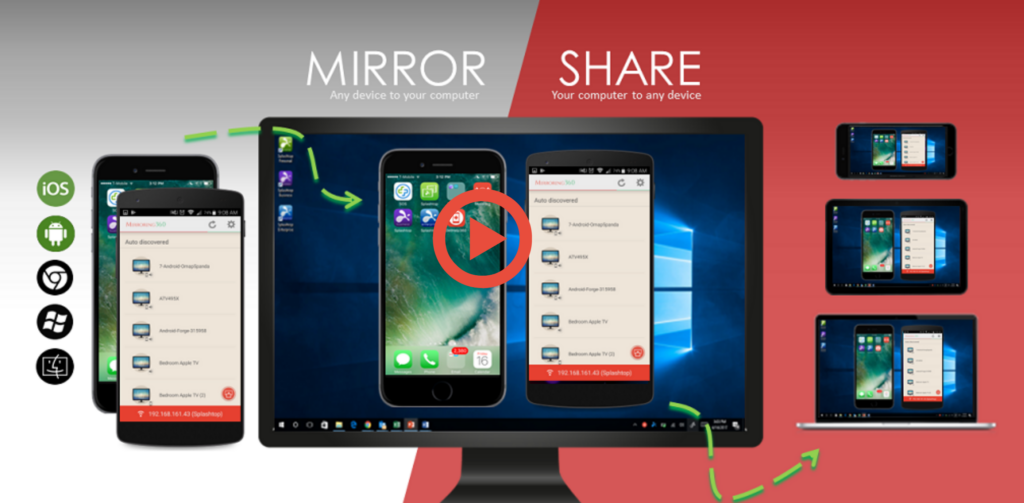
A aplicação permite-lhe partilhar ecrãs de dispositivos Windows, Mac, Android, iPhone, iPad ou Chromebook com um computador Mac ou PC sem fios. Os professores podem partilhar os ecrãs dos seus computadores com até 40 iPads em simultâneo, o que é ideal para ambientes de sala de aula de grandes dimensões.
Caraterísticas únicas:
O Mirroring360 Pro inclui capacidades de gravação de ecrã, permitindo-lhe capturar apresentações e guardá-las para os alunos ausentes ou para revisão posterior.
Melhor para:
Escolas que procuram uma solução de nível empresarial com estabilidade comprovada, instituições com implementações significativas de iPad e educadores que necessitam de uma funcionalidade de gravação fiável para o ensino híbrido.
AirBeamTV Espelhamento de ecrã na sala de aula: O especialista do iOS para o computador
Espelhamento de ecrã AirBeamTV na sala de aula foi especificamente desenvolvido para instituições de ensino que necessitam de espelhar dispositivos iOS em computadores.
Foco educacional:
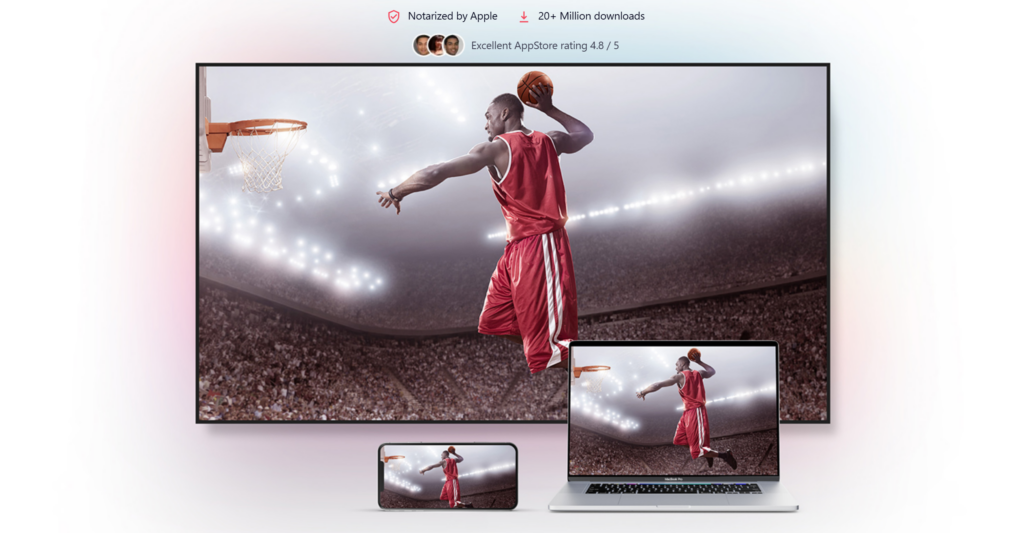
A solução permite que os professores partilhem o seu iPhone ou iPad em computadores Mac ou Windows, que podem depois ser ligados a computadores de secretária, beamers ou quadros escolares digitais. Suporta resolução Full HD e funciona com qualquer dispositivo iOS, incluindo os modelos mais recentes de iPhone, iPad Pro e iPod touch.
Vantagens de gestão:
As instituições de ensino podem adquirir licenças AirBeamTV Classroom por $24,99 por dispositivo e gerir utilizadores e dispositivos através do Apple Business Manager ou Apple School Manager, proporcionando aos departamentos de TI um controlo centralizado e uma implementação simplificada.
Melhor para:
Escolas com dispositivos iOS (iPads e iPhones) que precisam de espelhar para computadores Mac ou Windows e instituições que utilizam o Apple Business Manager para a gestão de dispositivos.
Refletor 4: A solução de espelhamento sem fios tudo-em-um
Refletor 4 é o mais recente software recetor de espelhamento de ecrã da Air Squirrels, combinando os anteriores Refletor 3 e Refletor Teacher numa única aplicação. Utilizado em mais de um milhão de lares, escolas e empresas em todo o mundo.
Capacidades essenciais:
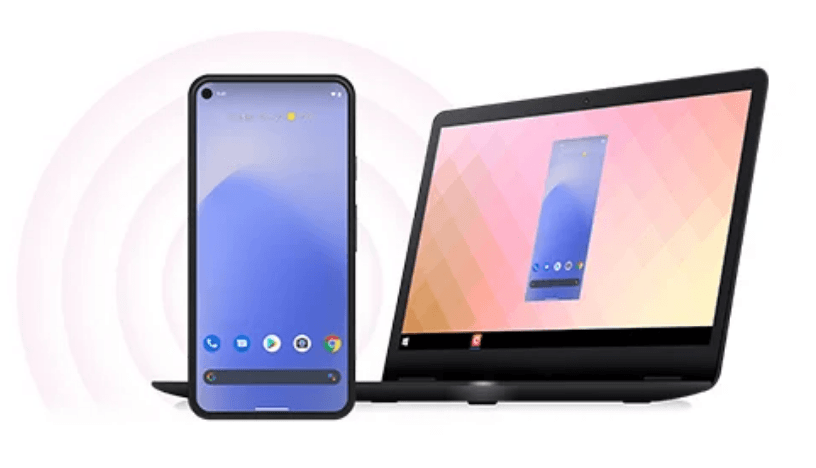
O Refletor 4 funciona em computadores Mac e Windows, recebendo ligações sem fios de iOS, Android, Chromebook e outros dispositivos através dos protocolos AirPlay, Google Cast e Miracast. Suporta o espelhamento de vários dispositivos, permitindo que vários alunos partilhem os seus ecrãs em simultâneo com um computador.
Caraterísticas principais para os professores:
Grave ecrãs com áudio de narração - perfeito para criar materiais de aula ou capturar apresentações para alunos ausentes. A aplicação complementar Refletor Student permite que os alunos vejam todos os ecrãs ligados nos seus próprios dispositivos, resolvendo problemas de visibilidade para os alunos no fundo da sala de aula.
Melhor para:
Escolas que necessitam de compatibilidade entre plataformas, educadores que pretendem gravação de ecrã com áudio e salas de aula que necessitam de capacidades de visualização em vários dispositivos.
AirDroid Cast: O especialista em controlo remoto
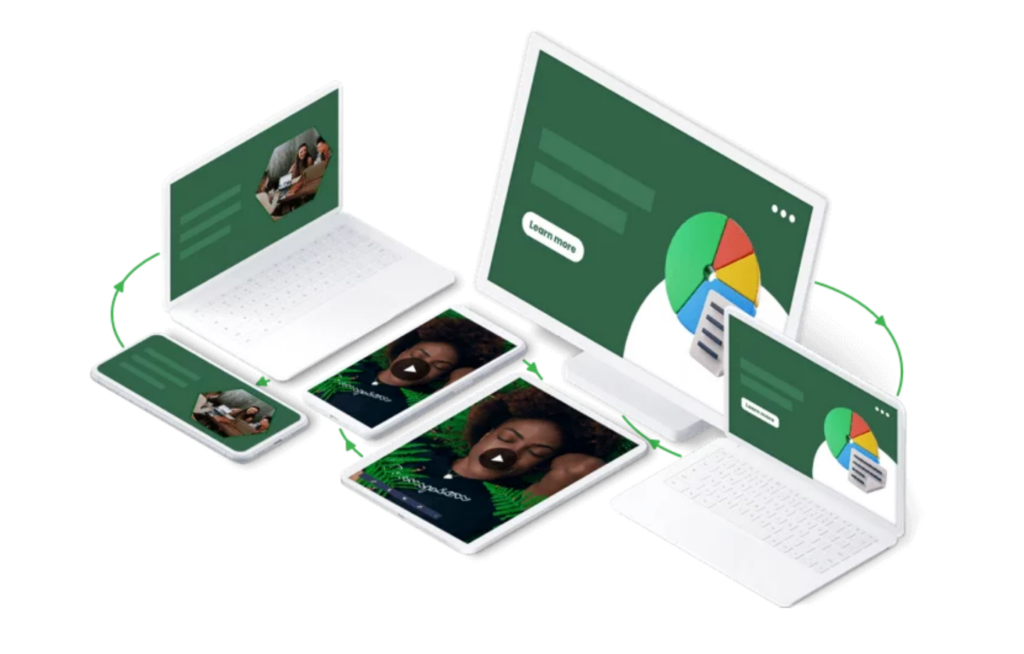
AirDroid Cast oferece uma espelhagem de ecrã abrangente com a capacidade adicional de controlo remoto, permitindo aos professores controlar dispositivos iOS e Android diretamente a partir do seu PC utilizando um rato ou teclado.
Aplicações educativas:
Os professores podem apresentar documentos e notas de aulas, partilhar facilmente o trabalho dos alunos e transformar dispositivos Android ou iOS em práticos quadros brancos. A aplicação suporta a transmissão com áudio completo, o que a torna adequada para demonstrações de vídeo, aulas de música e apresentações multimédia.
Melhor para:
Professores que necessitem de capacidades de controlo remoto de dispositivos e instrutores técnicos que demonstrem o desenvolvimento de aplicações móveis.
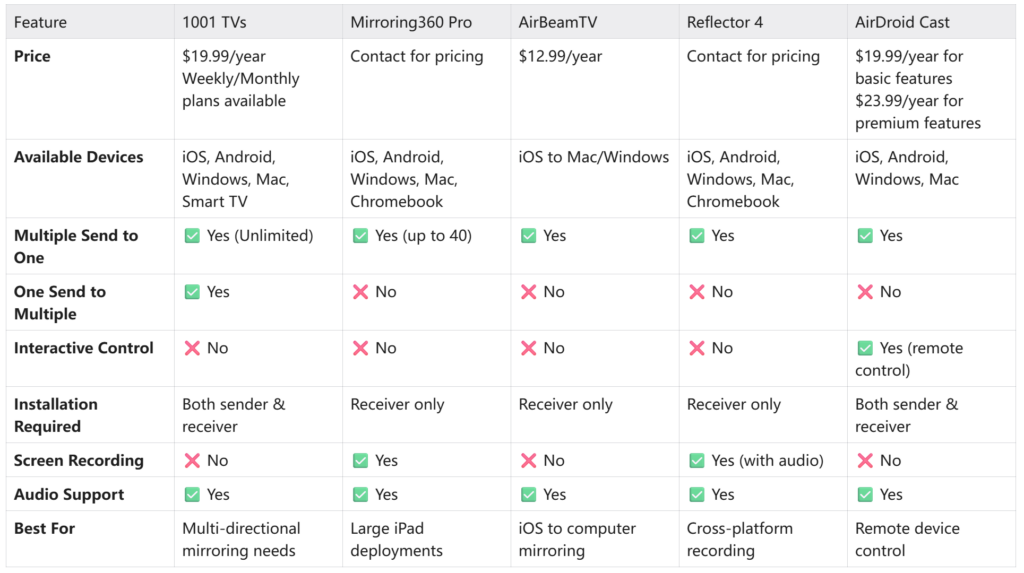
Comparação de aplicações de espelhamento de ecrã
Como implementar o espelhamento de ecrã na sua sala de aula
Passo 1: Avaliar a tecnologia da sala de aula
Identifique os dispositivos de visualização que possui (quadro inteligente, projetor, TV ou monitor) e os sistemas operativos que os seus alunos utilizam (iOS, Android, Windows, Mac, ChromeOS). Verifique se a sua sala de aula tem uma cobertura Wi-Fi fiável com largura de banda suficiente para suportar várias ligações simultâneas. Verifique junto do seu departamento de TI se existem restrições aos protocolos de rede ou à instalação de aplicações.
Passo 2: Escolher a solução correta
Selecione uma aplicação de espelhamento de ecrã que corresponda às suas necessidades:
- 1001 TVs: Ideal para espelhamento multidirecional (um para muitos e muitos para um). Nota: Requer instalação nos dispositivos de envio e de receção.
- Mirroring360 Pro: Ideal para grandes implementações de iPad (até 40 dispositivos)
- AirBeamTV: Melhor para ecossistemas de dispositivos iOS com o Apple Business Manager para gestão de dispositivos
- Refletor 4: O melhor para compatibilidade entre plataformas com capacidades de gravação de ecrã
- AirDroid Cast: Ideal para necessidades de controlo remoto de dispositivos
Passo 3: Instalar e configurar o dispositivo recetor
Instale a aplicação de espelhamento de ecrã no computador da sala de aula ou no smart display. Certifique-se de que os seus dispositivos estão ligados à mesma rede Wi-Fi da sala de aula.
Etapa 4: Estabelecer protocolos de gestão da sala de aula
Desenvolver procedimentos claros para a utilização do espelhamento de ecrã. Estabeleça regras sobre quando é que os alunos podem ligar-se, como solicitar tempo de partilha de ecrã e diretrizes de conteúdo adequadas. Configure as definições de segurança para pré-visualizar o conteúdo dos alunos antes de ser apresentado no ecrã principal. Crie um plano de reserva - mantenha uma ligação tradicional por cabo disponível para os dias em que a tecnologia não estiver a funcionar.
7 Cenários práticos de ensino
1. Passeios pela galeria de trabalhos dos alunos
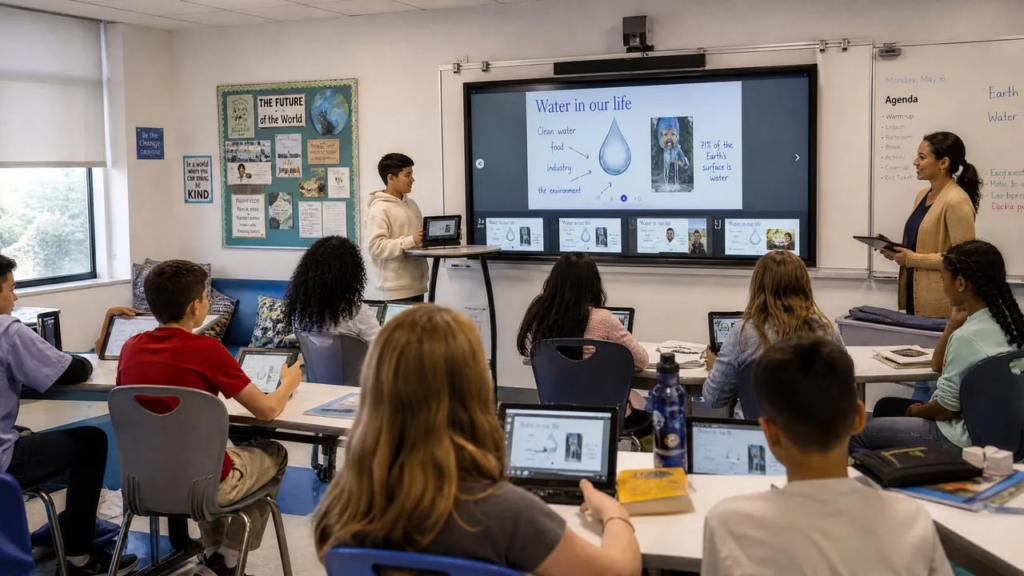
Passe rapidamente pelos dispositivos dos alunos no ecrã principal, com o projeto de cada aluno visível para toda a turma durante 30-60 segundos. Isto poupa tempo e permite um feedback imediato. Com aplicações como o 1001 TVs, pode mostrar os trabalhos de 2-4 alunos lado a lado para comparação.
2. Avaliação formativa em tempo real
Durante as actividades de resolução de problemas, espelhe rapidamente o trabalho de alunos selecionados para identificar equívocos comuns. Mostre as abordagens corretas e incorrectas para facilitar os debates em toda a turma sobre estratégias eficazes.
3. Apresentações de grupos colaborativos
Os alunos podem apresentar as suas secções a partir dos seus próprios dispositivos com transições perfeitas entre oradores. Isto mantém o fluxo da apresentação e permite que cada aluno se sinta dono da sua contribuição.
4. Instrução diferenciada
Enviar conteúdos diferentes para diferentes dispositivos de alunos em simultâneo. Trabalhar com um pequeno grupo de intervenção enquanto o resto da turma visualiza instruções de trabalho independentes no ecrã principal.
5. Sondagem interactiva e visualização de respostas
Utilize o espelhamento de ecrã com ferramentas de sondagem digital para apresentar instantaneamente as respostas dos alunos, criando visualizações de dados em tempo real que concretizam conceitos abstractos.
6. Demonstrações da sala de aula invertida
Faça uma pausa na aula e partilhe um excelente exemplo ou aborde uma questão comum, espelhando o seu tablet a partir de qualquer ponto da sala, mantendo a proximidade com os alunos que necessitam de apoio.
7. Conferências de pais e professores
Mostre aos pais exatamente como é o trabalho do seu filho no seu dispositivo, incluindo portefólios digitais e tarefas específicas. Isto cria conversas mais concretas e baseadas em provas.
Conclusão: Transforme a sua sala de aula com o Screen Mirroring
A tecnologia de espelhamento de ecrã revolucionou a forma como os professores envolvem os alunos, permitindo aulas dinâmicas e interactivas que eram impossíveis com as configurações tradicionais com fios. Quer seja necessário espelhar um portátil em vários ecrãs, comparar o trabalho dos alunos lado a lado ou transmitir experiências ao vivo para toda a turma, a solução de espelhamento de ecrã correta faz toda a diferença.
Pronto para experimentar a solução de espelhamento de ecrã mais versátil para a educação?
👉 Descarregar o 1001 TVs hoje mesmo e descubra porque é que milhares de professores confiam nele para as suas salas de aula.
Disponível em iOS, Android, Windows, Mac, Smart TVs e projectores. Comece a espelhar em minutos e transforme a sua forma de ensinar.

Ler mais
 Como ver a NBA na televisão nos EUA
Ver jogos da NBA na televisão nos EUA é mais fácil quando se tomam duas decisões por ordem: primeiro, confirmar qual é o serviço autorizado que transmite...
Como ver a NBA na televisão nos EUA
Ver jogos da NBA na televisão nos EUA é mais fácil quando se tomam duas decisões por ordem: primeiro, confirmar qual é o serviço autorizado que transmite...
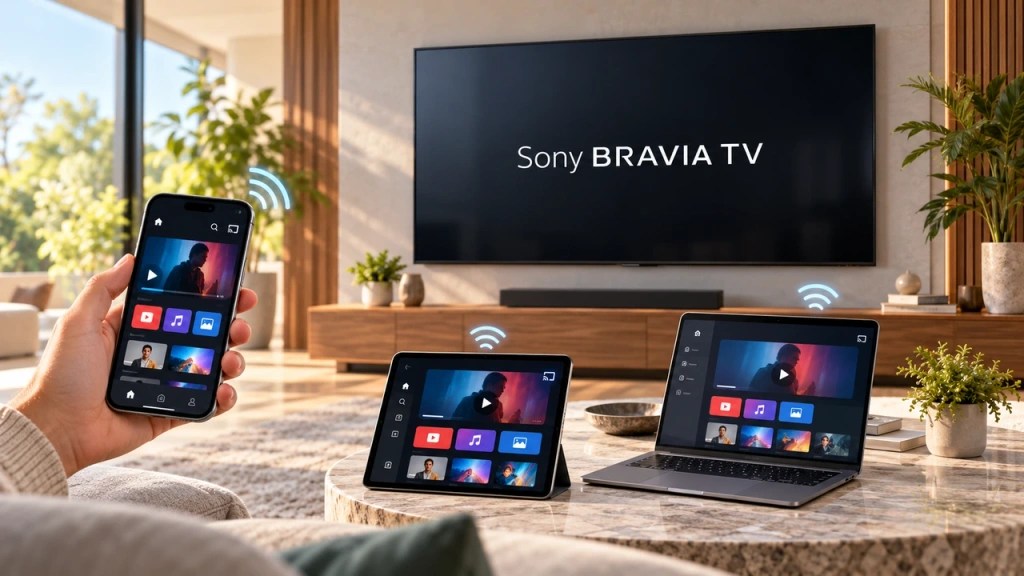 Como fazer o espelhamento do ecrã numa televisão Sony Bravia (Google TV)
Uma Sony Bravia Google TV não utiliza um método universal de “Screen Mirroring” para todos os telemóveis e computadores. A escolha certa depende tanto...
Como fazer o espelhamento do ecrã numa televisão Sony Bravia (Google TV)
Uma Sony Bravia Google TV não utiliza um método universal de “Screen Mirroring” para todos os telemóveis e computadores. A escolha certa depende tanto...

