




Keep Meeting Content Private
Mirror presentations and transfer meeting files over local Wi-Fi without uploading shared content to the cloud.
Keep everyone focused on the same discussion — from a client presentation to a hybrid team meeting. Use wireless screen sharing to bring content to compatible displays.




Mirror presentations and transfer meeting files over local Wi-Fi without uploading shared content to the cloud.
Connect to the meeting-room display in a few steps, so meetings start on time instead of waiting on cables and adapters.
1001 TVs is available on iOS, Android, Windows, and macOS, so colleagues can present from whatever they bring to the meeting.
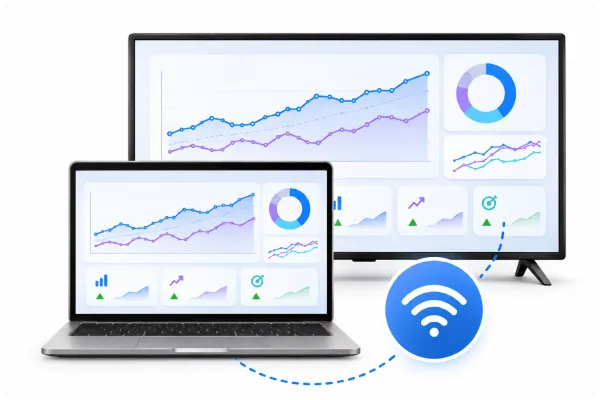
Mirror slides, reports, or live demos from a Windows PC or Mac to a compatible meeting-room display. On supported setups, share your full screen, an extended display, or a selected window.
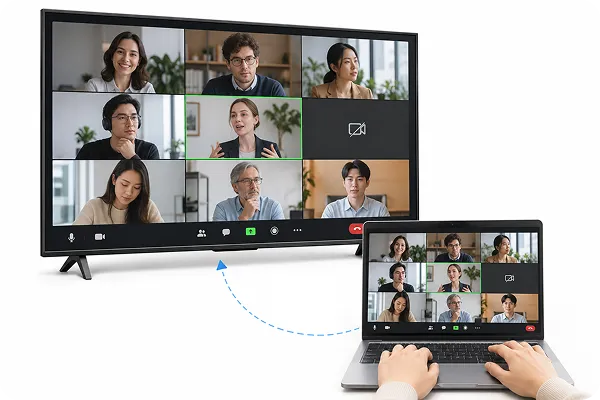
Display video meetings from Zoom, Microsoft Teams, or Google Meet on a compatible TV using a supported mirroring setup. Help everyone see remote participants and shared content more clearly.
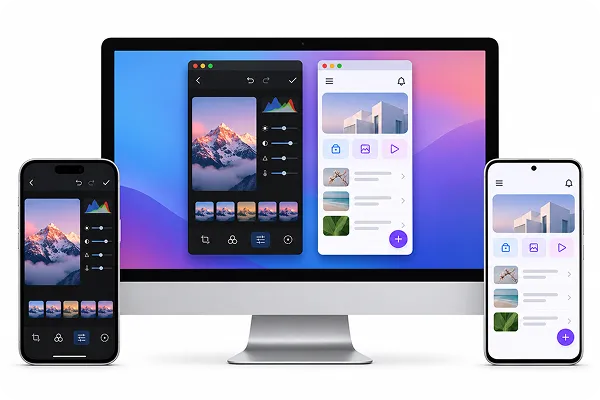
Mirror multiple phones or tablets to one Windows PC or Mac to compare app demos, designs, or work in progress. Use Auto Arrange on supported setups to organize mirrored screens side by side.
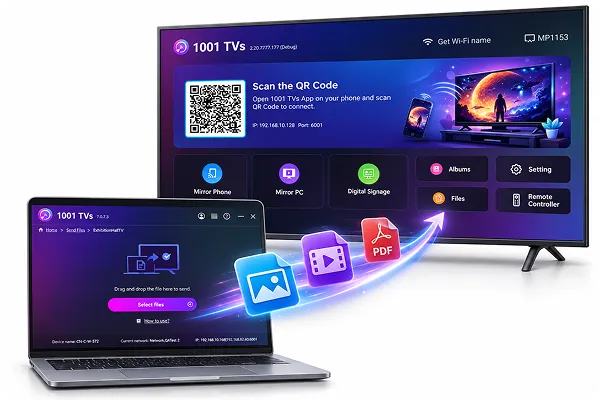
Transfer slides, reports, and meeting materials between compatible devices over local Wi-Fi. On supported Windows PCs, send files to multiple devices at once for easier team collaboration.
Share presentations, video meetings, and team ideas on a bigger display with 1001 TVs.
 Olivia Bennett
Before meetings, I used to send presentation files to everyone one by one. Now I can share the same materials with multiple devices at once, which saves time and makes meeting preparation much easier.
 A product manager
I can share the presentation window without putting my whole desktop on the meeting-room screen. It keeps the presentation focused and makes it easier to move through the meeting.
 Sophie
When we’re reviewing different mobile app screens, seeing them side by side on one computer makes the discussion easier to follow.
 Maya Collins
We use 1001 TVs to bring Zoom meetings onto a larger screen. It helps everyone in the room follow along—once we’ve checked the room’s device and audio setup.
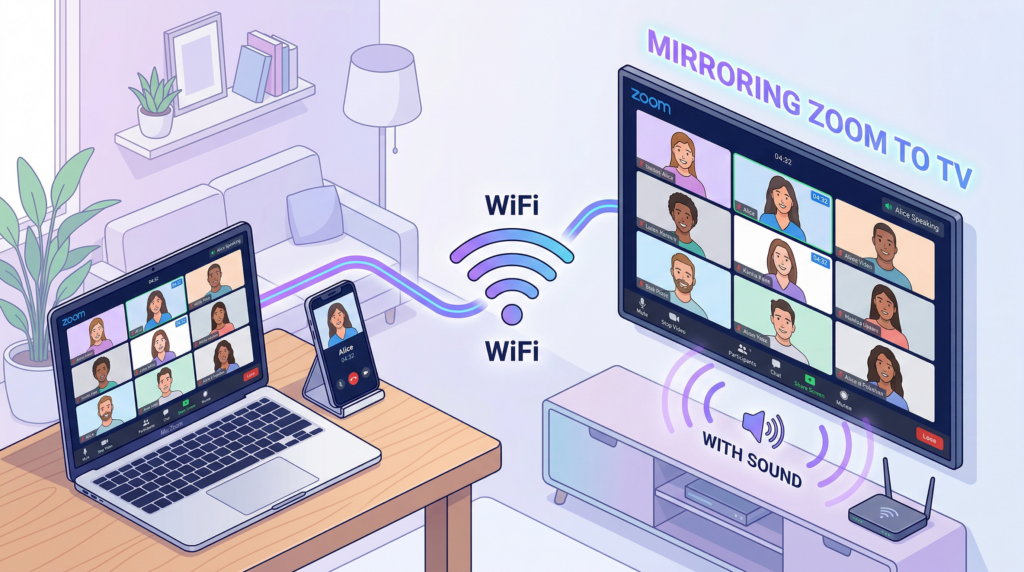
You can put a Zoom meeting on a TV with sound, but the right method depends on the device you are using and what your TV can receive. AirPlay is a practical route for compatible Apple devices and TVs. Android...
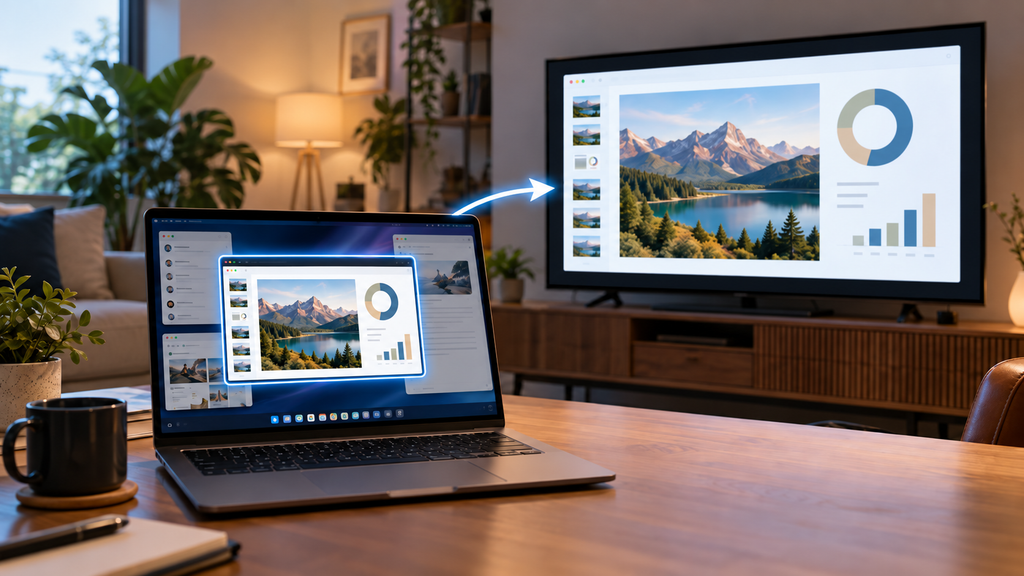
To share only one window to a TV, either use a tool that can mirror a single window, or set the TV up as an extended display and move just that window onto it. On a Mac with macOS 15.2...
 1001 TVs
Ready to Make Every Meeting Run More Smoothly?


