एलजी वेबओएस टीवी पर कैसे कास्ट करें
You can cast—or, in some cases, mirror—an iPhone, iPad, Android phone, Windows PC, or Mac to an LG webOS TV. The right method depends on the device you are sending from and the features your particular TV supports. Start with the route for your device below, then use the quick checks at the end if the TV does not appear.
In this guide, “cast” is used in the broad way many people use it: it can mean sending media to the TV or showing your whole screen. Those are not always the same thing. If you only want to play a video or show photos, look for an in-app sharing option first. If you need the whole device display on the TV, use a screen-mirroring method.
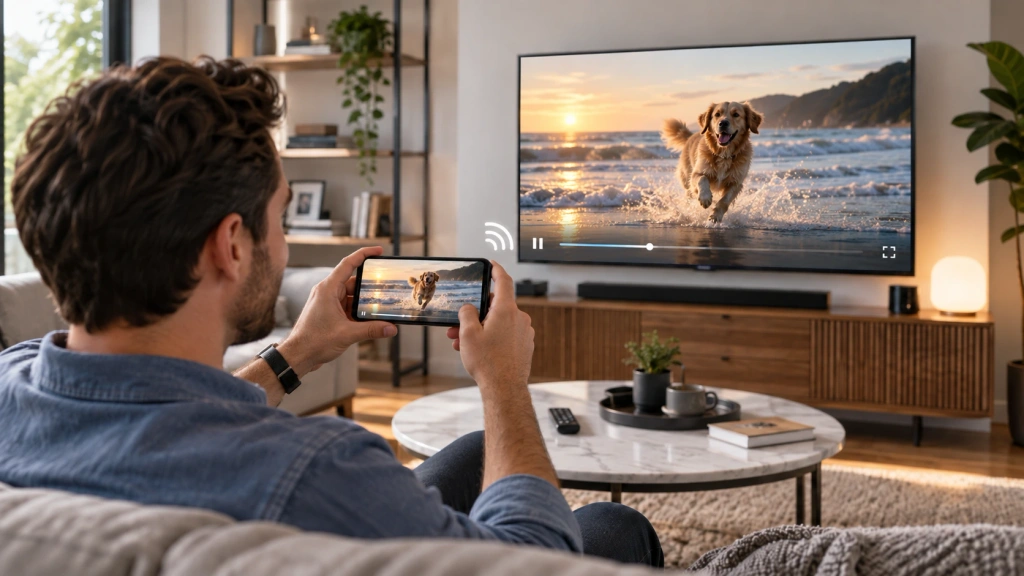
Before You Start: Check Your TV and Connection
First, make sure the TV is powered on and its wireless features are available. On the TV, note the model and webOS version if you can find them. LG’s available sharing features and menu labels can differ by model, software version, and region.
For AirPlay and Google Cast, connect the sending device and TV to the same Wi-Fi network. For Android Screen Share or Windows wireless display, make sure Wi-Fi is turned on and follow the device-specific steps below. Keep the TV awake and ready to accept a connection. If you are using an Apple device, confirm that AirPlay is enabled on the TV when your model supports it.
Choose the Right Casting Method for Your Device
| आपका डिवाइस | Start here | पहले जाँचें |
| iPhone या iPad | AirPlay / Screen Mirroring | Your LG TV supports AirPlay |
| एंड्रॉइड फोन या टैबलेट | Google Cast for supported media, or Screen Share / Smart View for mirroring | The TV and phone support the same method |
| मैक | AirPlay / Screen Mirroring | Your LG TV supports AirPlay |
| विंडोज पीसी | Windows + K / wireless display | The PC and TV support wireless display |
| Native route unavailable | Check whether 1001 TVs is a suitable alternative | Your exact sender-to-receiver combination is supported |
If your TV is missing from the list of available devices, use the quick checks below before trying another route.
Cast from an iPhone or iPad to an LG webOS TV
For an LG TV that supports AirPlay, an iPhone or iPad can either send compatible media from an app or mirror the entire screen. Keep both devices on the same Wi-Fi network and make sure AirPlay is enabled on the TV. In Apple’s AirPlay instructions for iPhone and iPad, the company also notes that some video apps may not support AirPlay, so a missing sharing option inside one app does not necessarily mean your TV connection has failed.
To mirror the whole iPhone or iPad display:
- खुला नियंत्रण केंद्र.
- नल स्क्रीन मिरर.
- Choose your LG TV from the list.
- यदि संकेत दिया जाए तो टीवी पर दिखाए गए कोड को दर्ज करें।.
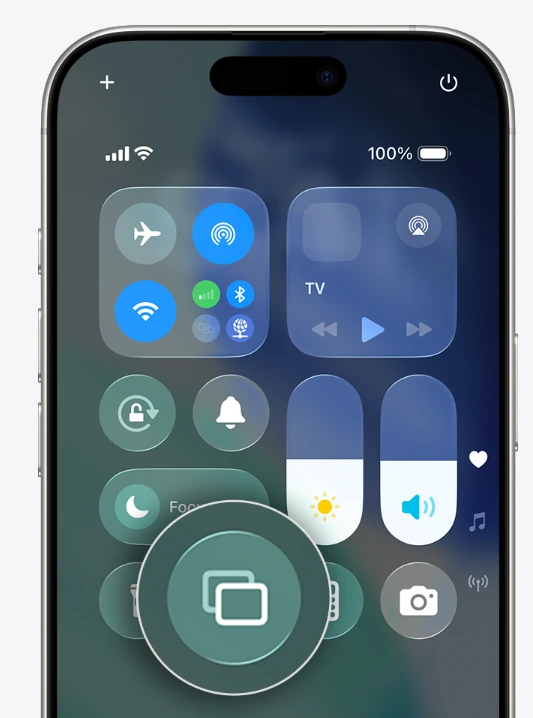
Your device screen should now appear on the TV. To stop, return to Control Center, tap स्क्रीन मिरर, and choose मिररिंग बंद करें.
If you only want to show a photo, video, or music from an app that offers AirPlay, use that app’s AirPlay or share button instead. This can be more convenient than mirroring the entire phone because the TV handles the selected media while you continue using the phone. LG’s iPhone screen-sharing guidance for webOS TVs follows the same route.
For a deeper iPhone-specific walkthrough, see how to mirror an iPhone to an LG TV with AirPlay 2 and app methods.
Cast from an Android Phone or Tablet to an LG webOS TV
Android can use two different routes, depending on what you want to send.
To cast supported media: If your LG TV has Google Cast built in and the app you are using supports Google Cast, tap the app’s कलाकार button and choose the TV. This sends the selected video, music, or other supported media to the TV; it does not mirror every part of your phone screen. Availability depends on the TV model and app.
To mirror your whole phone screen: Open Quick Settings and use the sharing feature shown on your phone, such as Screen Share, स्मार्ट व्यू, or a similar name. Turn on Wi-Fi, choose the feature, then select your LG TV if it appears and accept the request on the TV when prompted. LG’s Android screen-sharing guidance describes Screen Share as a way to mirror an Android smartphone’s screen and sound to the TV; the control’s name and location can vary by phone maker.
If the TV does not appear, check which route your phone and TV support. App-based Google Cast and full-screen mirroring are different methods, so one can be unavailable even when the other works.
Cast from a Windows PC or Mac to an LG webOS TV
विंडोज पीसी
If your LG TV and PC support wireless display, press विंडोज + के and select the TV from the available displays. Once connected, press विंडोज़ + पी to choose whether to duplicate or extend the display. Microsoft’s वायरलेस-डिस्प्ले निर्देश use this route for compatible devices.
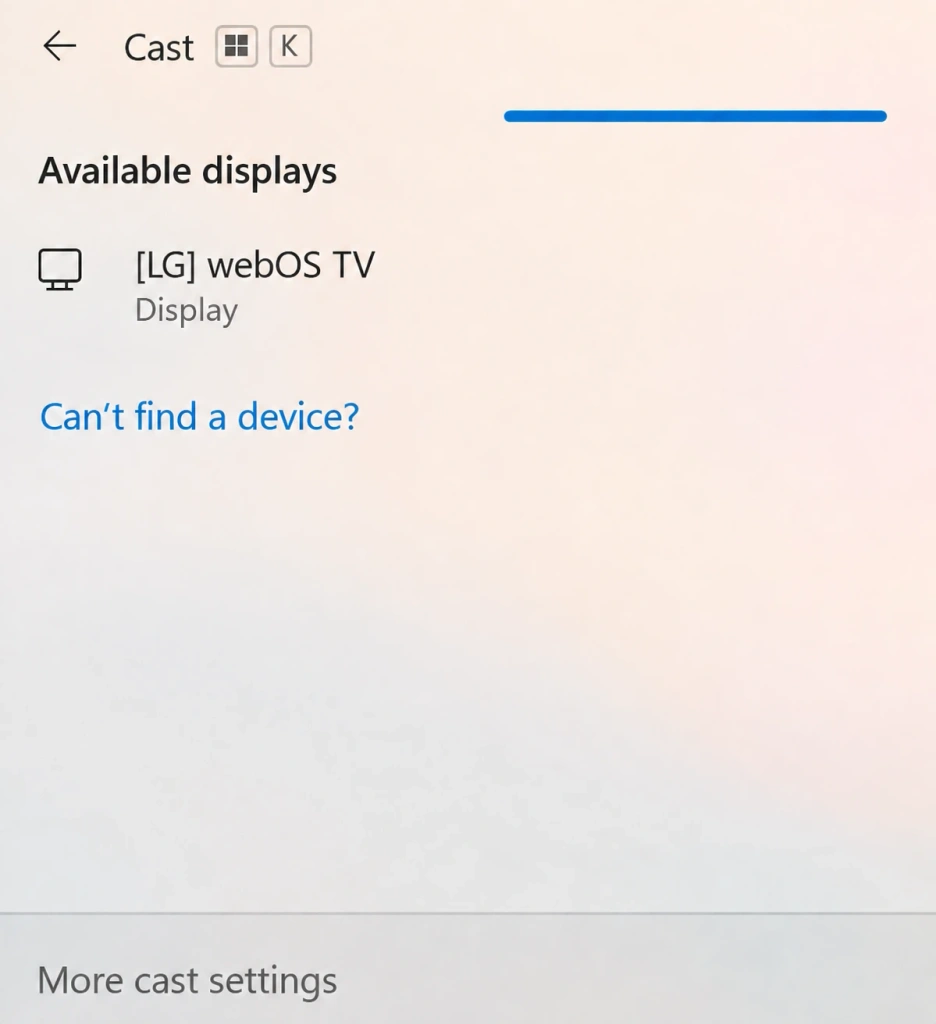
If the TV does not appear, confirm that both the PC and TV support the required wireless-display method. Otherwise, use a compatible receiver or another connection route.
मैक
A Mac can mirror to an LG TV through AirPlay when the TV supports AirPlay. Put the Mac and TV on the same Wi-Fi network, then open नियंत्रण केंद्र in the macOS menu bar and choose स्क्रीन मिरर. Select the LG TV and enter the on-screen code if one appears.
Use this path to show the Mac desktop, presentations, browser tabs, or other on-screen work. For a single video or photo, an app-level AirPlay option may be a cleaner choice. As Apple’s Mac AirPlay guide explains, the TV must be an AirPlay-compatible target.
If Native Casting Isn’t Available
If your LG TV does not support the native route you need, choose an alternative based on the actual receiver path. 1001 TVs supports some connection methods for LG webOS TVs, although there is no native 1001 TVs receiver app for webOS.
If AirPlay is unavailable, 1001 TVs offers another option for iPhone and iPad users. Its Browser Mirroring feature can display the device screen through the LG TV’s built-in web browser, so you do not need to install a 1001 TVs app on the TV. You can also stream media from an iPhone to an LG TV. Before using either route, check the current feature requirements and test it on your local network.
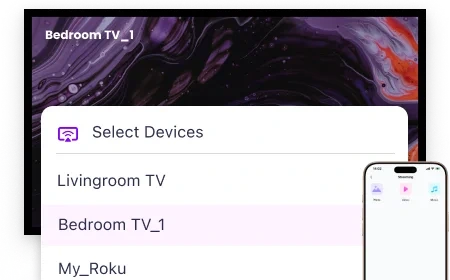
Quick Checks If Your TV Doesn’t Appear
Try these checks in order:
- Check the network. Make sure the TV and sending device are on the same Wi-Fi network when the selected method requires it.
- Check the TV state. Turn the TV on, keep it awake, and confirm that AirPlay or the relevant sharing feature is enabled if your model provides that setting.
- Restart the sharing control. Close and reopen Screen Mirroring, Cast, Smart View, or the equivalent feature on the sending device; then look for the TV again.
- Confirm the route. If the TV still does not appear, revisit the device table. Your model may need a different native method, a compatible receiver, or a browser-based alternative rather than the route you first tried.
For broader TV-side issues beyond connection discovery, use this LG TV troubleshooting guide.

और पढ़ें
 2027 में iPhone, Android या Mac से TV पर सुपर बाउल कैसे स्ट्रीम करें
iPhone, Android फोन या Mac से अपने टीवी पर सुपर बाउल देखने के लिए, प्रसारक द्वारा समर्थित AirPlay या Google Cast विकल्प का उपयोग करें,…
2027 में iPhone, Android या Mac से TV पर सुपर बाउल कैसे स्ट्रीम करें
iPhone, Android फोन या Mac से अपने टीवी पर सुपर बाउल देखने के लिए, प्रसारक द्वारा समर्थित AirPlay या Google Cast विकल्प का उपयोग करें,…
 FIFA विश्व कप 2026 को टीवी पर कैसे कैस्ट करें: एयरप्ले, क्रोमकास्ट और अन्य
वर्ल्ड कप की फुटेज को अपनी टीवी पर कास्ट करने के लिए, अपने स्ट्रीमिंग ऐप के समर्थित Cast या AirPlay विकल्प का उपयोग करें, या एक संगत HDMI कनेक्शन का उपयोग करें। स्क्रीन-मिररिंग ऐप्स…
FIFA विश्व कप 2026 को टीवी पर कैसे कैस्ट करें: एयरप्ले, क्रोमकास्ट और अन्य
वर्ल्ड कप की फुटेज को अपनी टीवी पर कास्ट करने के लिए, अपने स्ट्रीमिंग ऐप के समर्थित Cast या AirPlay विकल्प का उपयोग करें, या एक संगत HDMI कनेक्शन का उपयोग करें। स्क्रीन-मिररिंग ऐप्स…

