




Smooth, Stable Mirroring for Longer Sessions
Enjoy responsive mirroring for games, built to stay connected through longer play and streaming sessions.
From casual matches on the sofa to live streams on Twitch, give your games the screen they deserve. Mirror gameplay from your phone or computer to a bigger screen with 1001 TVs.
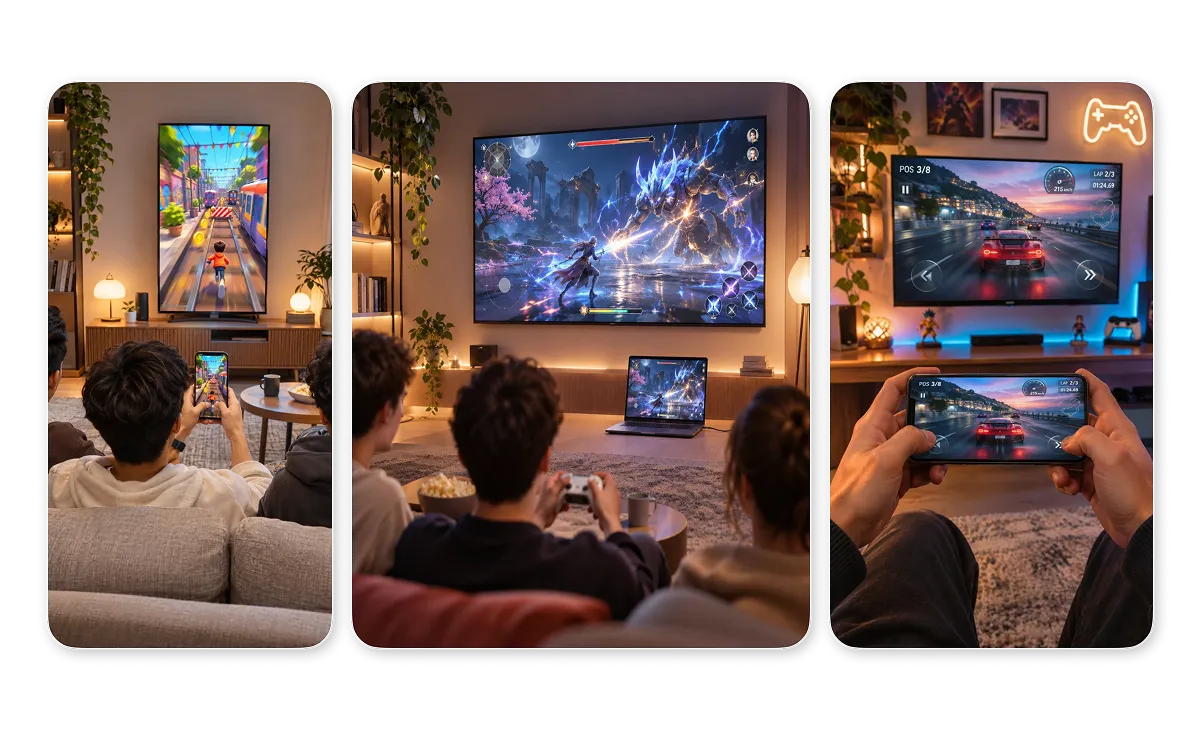



Enjoy responsive mirroring for games, built to stay connected through longer play and streaming sessions.
Mirror mobile gameplay to your computer over local Wi-Fi and capture it in OBS without extra capture hardware.
Connect your iPhone or iPad to a Mac via USB for stable, low-latency mirroring without relying on Wi-Fi.
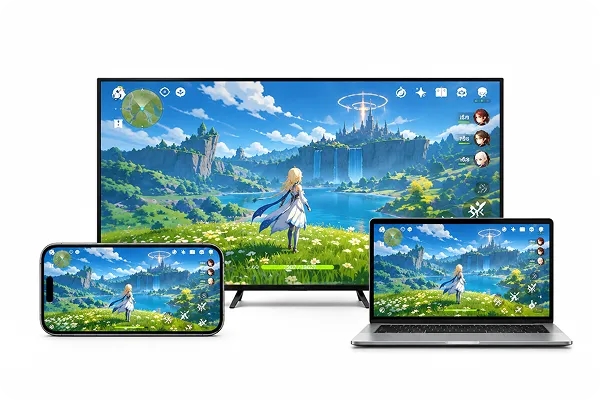
Mirror mobile games from your phone to a TV or computer, or mirror your PC or Mac to a compatible TV. Enjoy bigger game visuals while you keep playing on your original device.
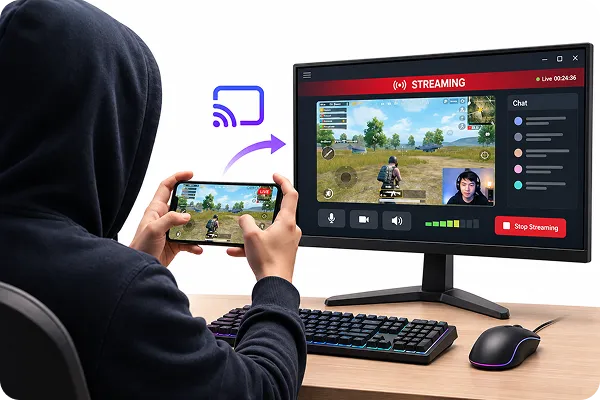
Mirror your phone to a Windows PC or Mac and capture the gameplay in OBS Studio. Record highlights or stream to supported platforms like Twitch and YouTube.
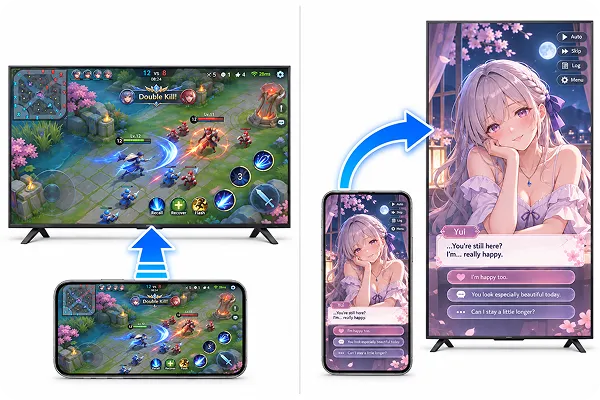
Mirror games in portrait or landscape orientation. On supported TVs, adjust the display orientation or fit settings to better view vertical games.
Play and stream your games across your TV, computer, and phone with 1001 TVs.
 Part-time Twitch streamer
I didn’t want to buy a capture card just to start streaming mobile games. I mirror my phone to my laptop, add the window in OBS, and I’m live in a few minutes.
 Jake Turner
Playing RPGs on my phone was fine, but on the living room TV it’s a different game. I can actually read the text and enjoy the scenery, and I still control everything from my phone.
 Chris
I sometimes mirror my laptop to the living room TV for casual games with friends. Everyone can see the action on the big screen, and I don’t have to run an HDMI cable across the room.
 Natalie Hughes
I play card and puzzle games on the TV for a couple of hours most evenings. The mirroring stays smooth and stable the whole time, so I can just relax and enjoy the game.
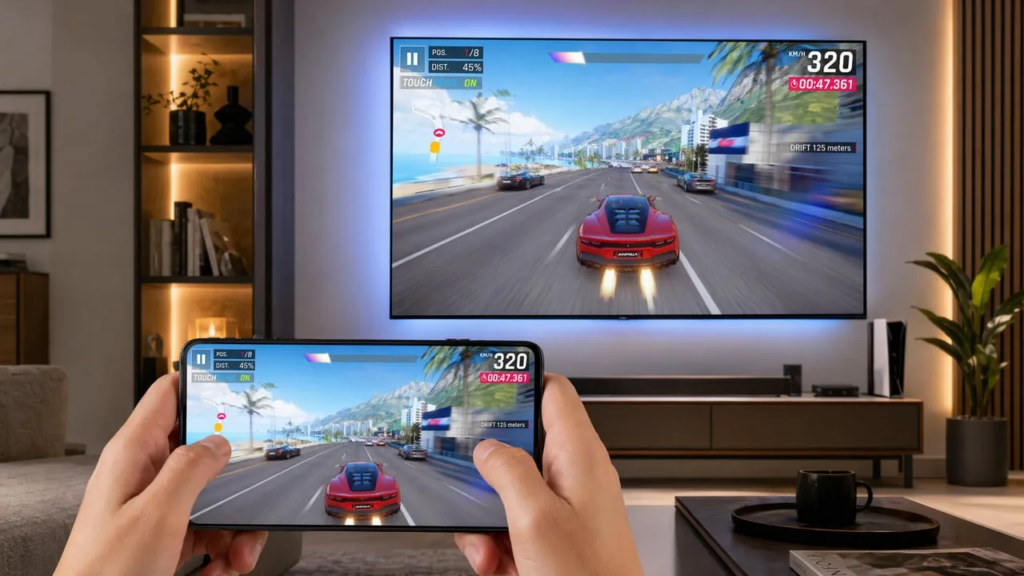
6 انچ اسکرین پر کال آف ڈیوٹی موبائل کھیلنا جلد ہی بورنگ ہو جاتا ہے۔ جب کہ ایک 55 انچ ٹی وی بالکل سامنے موجود ہو، تو Genshin Impact کے چھوٹے متن کو گھورتے رہنا؟ اس سے بھی بدتر۔ بڑی اسکرین موبائل گیمنگ کے ہر پہلو کو بدل دیتی ہے۔ زیادہ دلکش۔ زیادہ آرام دہ۔ مقامی ملٹی پلیئر کے لیے بہتر۔.
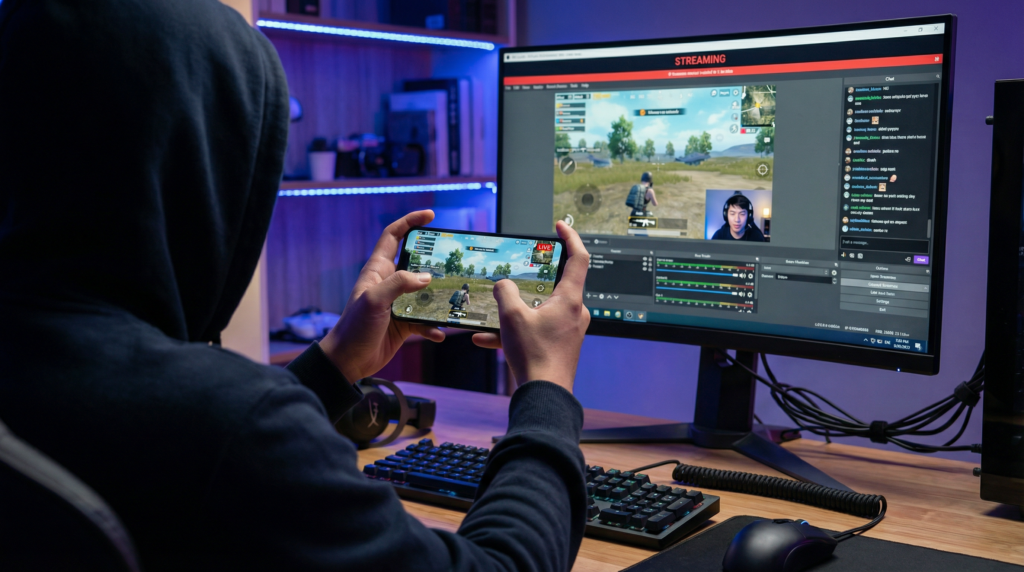
Are you a mobile gamer wanting to stream Genshin Impact, PUBG Mobile, or Free Fire on TikTok or Twitch? To look like a pro, you need to get your phone screen onto your laptop so you can use OBS Studio…
 1001 TVs
Ready to Level Up Your Game on a Bigger Screen?


