How to Turn On AirPlay on iPhone in iOS 26 (Screen Mirroring Guide)
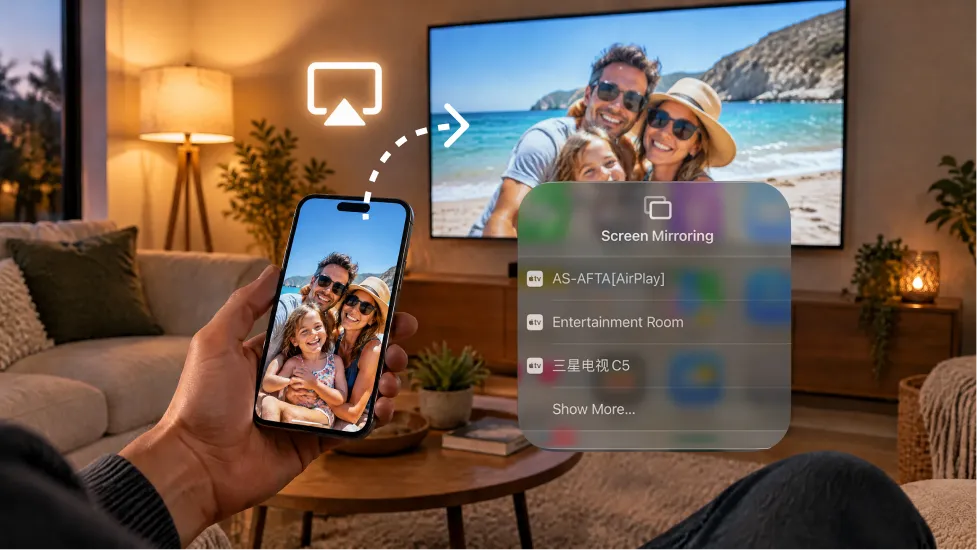
To turn on AirPlay screen mirroring in iOS 26, open Control Center, tap the Screen Mirroring button (two overlapping rectangles), and choose your TV or Mac from the list. No setting needs to be “switched on” first. AirPlay is built into the iPhone and works whenever your iPhone and an AirPlay receiver share the same Wi-Fi network.
Most people who search for an “AirPlay switch” are really looking for that Control Center button. This guide shows where it is, how to add it back if it’s missing, and how to keep mirroring once you’re connected. It also covers what to do when your TV doesn’t support AirPlay. It follows the walkthrough in the video How to Turn On AirPlay on iPhone in iOS 26 and Apple’s official AirPlay support guide.
Before you start: two quick checks
Same Wi-Fi network. Your iPhone and the receiver must be on the same Wi-Fi network. The receiver can be an Apple TV, an AirPlay-compatible smart TV, or a Mac. Guest networks and some office networks keep devices apart, so the TV may not appear on them.
AirPlay is on at the TV. On smart TVs, AirPlay is often its own menu, such as “Apple AirPlay” or “AirPlay and HomeKit” settings. Sometimes it’s turned off by default. Look for it in the TV’s settings, and keep the TV awake.
How to turn on AirPlay screen mirroring in iOS 26
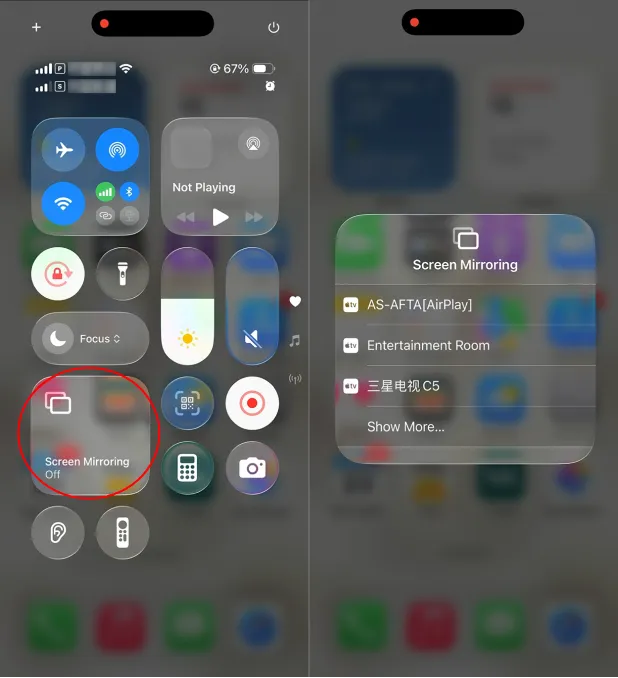
- Open Control Center. Swipe down from the top-right corner of the screen. On an iPhone with a Home button, swipe up from the bottom edge.
- Tap the Screen Mirroring button. It’s the icon with two overlapping rectangles.
- Pick your device. Your iPhone lists the TVs and Macs it can find on your network. Tap the one you want.
- Enter the passcode if asked. If an AirPlay code shows up on the TV or Mac, type it on your iPhone.
Your whole iPhone screen now shows up on the big screen, sound included. Turn the phone sideways for landscape apps and videos to fill more of the TV.
To stop mirroring, open Control Center again, tap Screen Mirroring, then tap Parar a replicação. On Apple TV, you can also press the Menu button on the Apple TV Remote.
Can’t find the Screen Mirroring button?
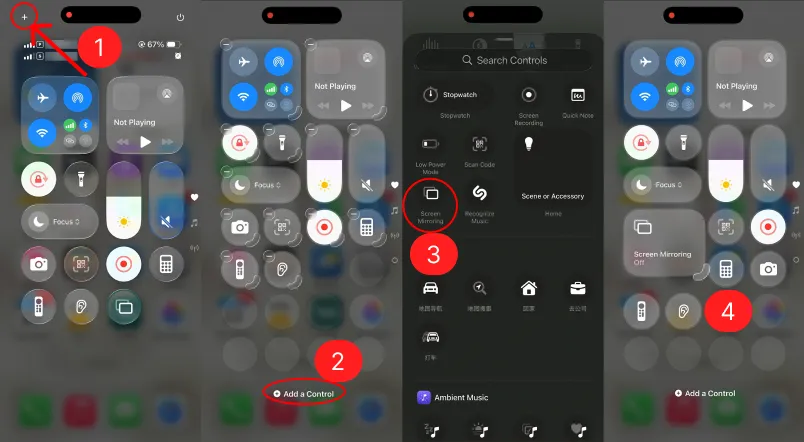
Since iOS 18, you can rearrange Control Center freely, and that’s still true in iOS 26. So the button may have been removed, moved to another page, or buried under other controls. To add it back:
- Open Control Center.
- Toque no botão + in the top-left corner, or touch and hold an empty area.
- Torneira Add a Control, then search for “Screen Mirroring.”
- Tap it to add it, then drag it wherever you like.
Also swipe through the other Control Center pages before adding it again. It may already be on another page.
Screen mirroring vs. AirPlay streaming
iOS gives you two ways to send content to a TV, and choosing the right one makes a real difference.
Espelhamento de ecrã copies everything on your iPhone screen, including notifications, menus, and every app you open. Use it for anything without its own AirPlay option, like a slideshow, a web page, or a game.
AirPlay streaming sends only the video or photo. Tap the AirPlay button inside a supported app. In Photos, you’ll find it after tapping the Share button. The video plays on the TV while your iPhone stays free for messages or browsing, and it doesn’t put your notifications on the TV.
If you just want to watch a video, streaming is usually smoother and more private. Use mirroring when you need to show the whole screen.
Optional: let your iPhone AirPlay automatically
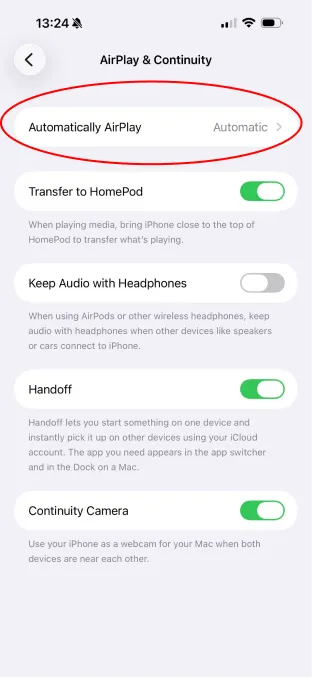
If you AirPlay to the same TV often, open Settings > General > AirPlay & Continuity > Automatically AirPlay and choose a setting. Depending on that choice, your iPhone can suggest your usual devices or connect to them on its own. Automatic and suggested connections still need both devices on the same Wi-Fi network. For Apple TV or HomePod, both must also be signed in to the same iCloud account as your iPhone.
When your TV doesn’t support AirPlay
AirPlay only works with receivers that support it. Many Android TV and Google TV models don’t have it, and neither do Windows PCs. If your TV never appears in the Screen Mirroring list, check its settings and manual. A missing AirPlay menu usually means that model doesn’t support it.
That’s when a cross-platform app like 1001 TVs helps. Install it on your iPhone and on the receiving device, put both on the same Wi-Fi network, then select the receiver or scan its QR code. The app can mirror an iPhone or iPad to compatible Android TVs, Apple TVs, Windows PCs, Macs, and even Android phones. Your screen data stays on your local network and isn’t uploaded to the internet.

1001 TVs also does more than basic mirroring. On supported receivers, you can stream media, send files to the TV or PC, and share albums. It also has a browser mirroring option for some setups, plus a vertical mode for portrait content on compatible TVs. Which features you get depends on the receiving device. Check the installation guide to confirm your device is supported.
Quick troubleshooting
If your TV or Mac doesn’t appear, or the connection keeps dropping:
- Confirm both devices are on the same Wi-Fi network and not a guest network.
- Make sure AirPlay is turned on in the TV’s settings.
- Turn off any VPN on your iPhone while you test, since it can block local-network discovery.
- Restart the iPhone and the TV, and update both to the latest software.
- Move closer to the router or reduce other heavy network use if the picture stutters.
Perguntas frequentes
Is AirPlay the same as Screen Mirroring?
Screen Mirroring is one AirPlay feature. AirPlay also covers streaming individual videos, photos, and audio.
Do I need to turn on AirPlay in Settings?
No. To mirror, use the Screen Mirroring button in Control Center. The AirPlay & Continuity settings only control automatic and suggested connections.
Can I mirror my iPhone to a TV without AirPlay?
Yes. Use a cross-platform mirroring app such as 1001 TVs on a supported receiver, or connect with a compatible wired adapter and HDMI.

Ler mais
 Como ver a World Series de 2026 na televisão
Todos os jogos da World Series de 2026 serão transmitidos pela FOX, e o primeiro lançamento de cada jogo está marcado para as 20h00 ET (17h00 PT). O...
Como ver a World Series de 2026 na televisão
Todos os jogos da World Series de 2026 serão transmitidos pela FOX, e o primeiro lançamento de cada jogo está marcado para as 20h00 ET (17h00 PT). O...
 O Fire TV Casting não está a funcionar? Soluções rápidas e o que fazer a seguir
Se a sua Fire TV não aparecer quando tentar transmitir, ou se a ligação falhar, o problema deve-se normalmente a uma de duas coisas:...
O Fire TV Casting não está a funcionar? Soluções rápidas e o que fazer a seguir
Se a sua Fire TV não aparecer quando tentar transmitir, ou se a ligação falhar, o problema deve-se normalmente a uma de duas coisas:...

