检测到浏览器语言为中文,点此切换到中文页面->
Mirror Your Screen in Just 3 Simple Steps
1
Install the App
Download and open the 1001 TVs app on both your casting and receiving devices.
2
Connect Devices
Ensure all devices are connected to the same Wi-Fi network. The system will automatically list available devices for mirroring.
3
Start Mirroring
Select your target device, accept the connection request, and enjoy smooth HD streaming.
Easy, Reliable, and Powerful Screen Mirroring — Then, Enjoy!
cross-platform-compatibility
Cross-Platform Compatibility
checkedWide Device Support: Compatible with Windows, macOS, iOS, and Android
checkedSmart TV Ready: Works seamlessly with Apple TV, mainstream Android TVs, Amazon Fire TV, Roku, and smart TVs from brands like Xiaomi, Huawei, TCL, Sony, and more.
checkedProjector Compatible: Also supports wireless streaming to projectors, ensuring versatile screen sharing across devices.
hd-quality
HD Quality
checkedStable Connection: Low latency and uninterrupted mirroring for a smoother, more reliable experience.
checkedFlexible Display Mode: Toggle smooth mode on or off to adjust for different network conditions and resolution needs.
audio-casting-support
Audio Casting Support
checkedAudio & Video Sync: Mirror both screen and audio seamlessly for a complete, immersive casting experience.
checked Crystal-Clear Sound: Enjoy high-quality audio output, with visuals and sound equally stunning for a fully immersive experience.
Use Cases
शिक्षा
Work
मनोरंजन
Live Streaming
जुआ
Interactive Learning with Screen Mirroring
Teachers can wirelessly project content to smart boards, TVs, and other large screens, making it easy to display presentations, problem-solving steps, and experiments. This boosts student engagement, enhances interaction, and keeps them focused.

1001 TVs also supports multi-screen projection, perfect for classroom lessons, campus events, knowledge competitions, and more, making learning both fun and interactive.
education
Work Smarter, Collaborate Better
1001 TVs supports wireless file sharing, presentation casting, and multi-screen collaboration, enhancing efficiency in remote meetings, brainstorming sessions, and on-site presentations.

Whether it's client visits, impromptu meetings, or dealing with issues like short cables or incompatible ports, 1001 TVs adapts easily to any situation, eliminating awkward moments and ensuring seamless communication at all times.
work
Your Good Entertainment Companion
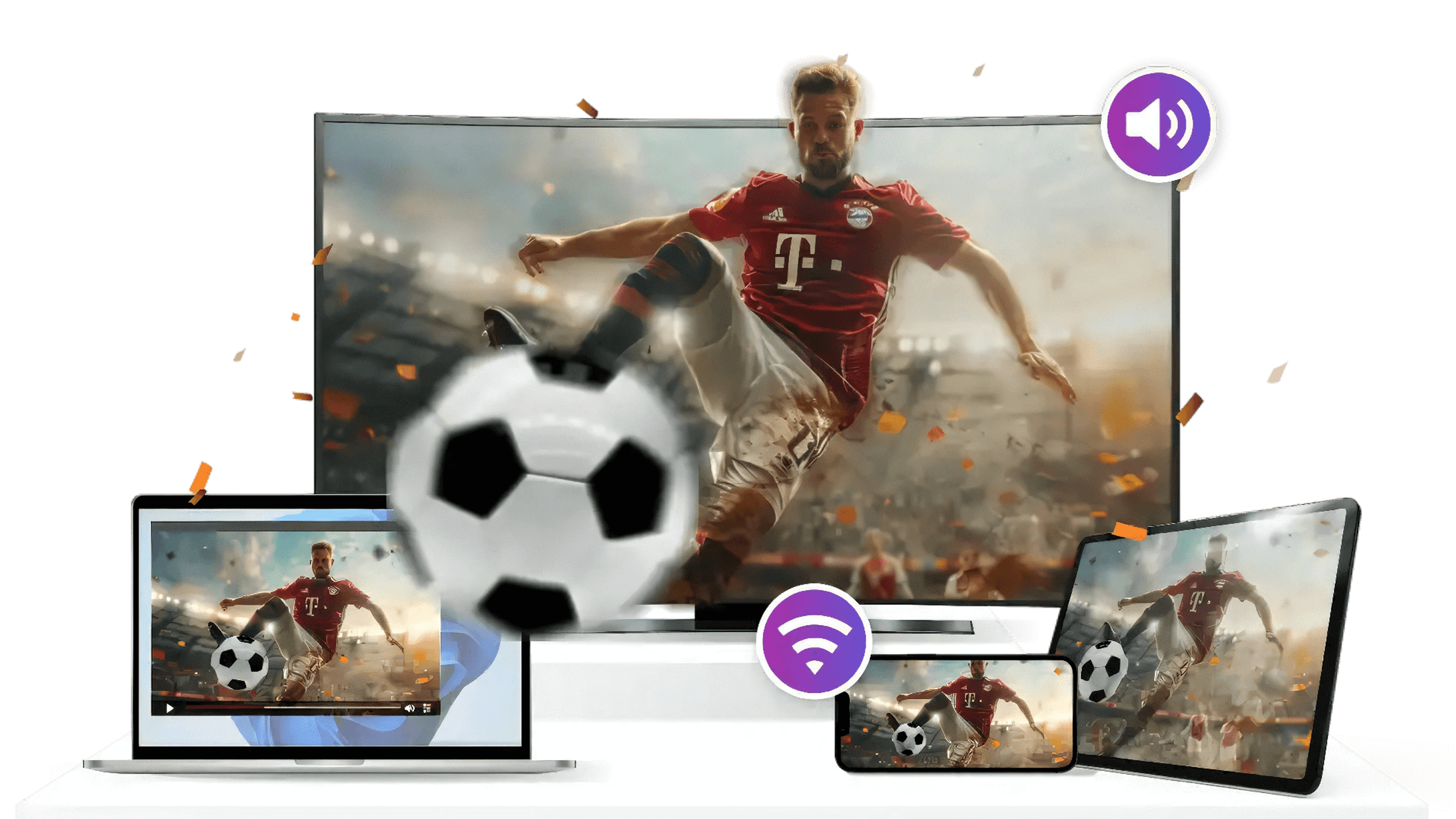
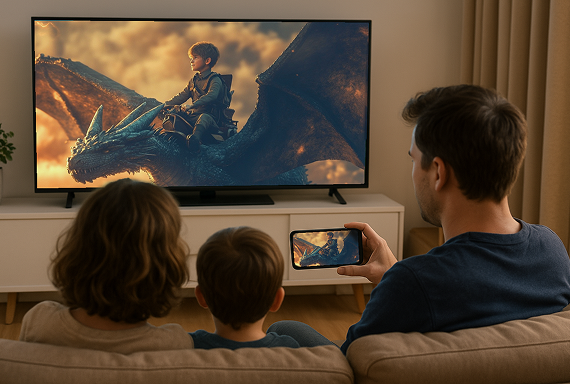
Whether you're watching local videos, streaming movies, fitness classes, photo albums, or live esports, 1001 TVs lets you wirelessly cast content to your TV, projector, or any large-screen device for an immersive experience.

From cozy movie nights, workout sessions, to watching sports like the NFL, FIFA World Cup, UEFA, Olympics, Super Bowl, and NBA with friends and family, 1001 TVs makes entertainment more fun, flexible, and social.
entertainment
Stream with Ease, Interact in Real Time
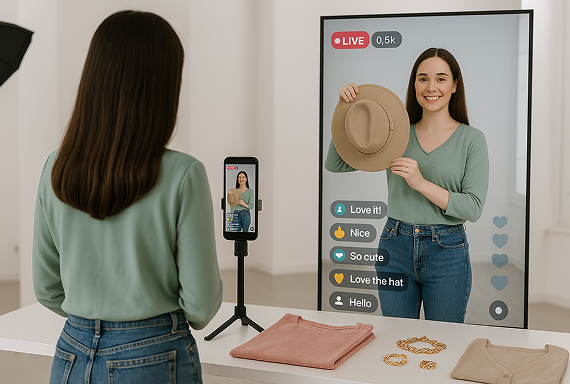
Effortlessly cast your live stream to multiple screens with 1001 TVs. Engage with your audience in real-time—respond to comments, react to live chats, and keep the conversation flowing—all while your live feed runs seamlessly across devices.

With vertical screen mirroring, enjoy clearer content, more vibrant displays, and an enhanced viewing experience, whether you're hosting a fitness session, promoting products, or streaming events.
live-streaming
Unlock More Fun with Multi-Screen Gaming
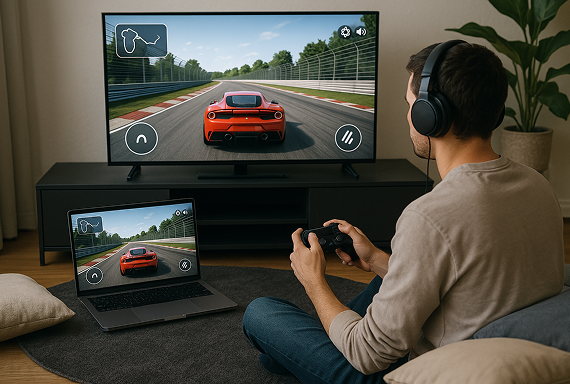
Take your gaming to new heights with multi-screen mirroring. Effortlessly cast your mobile games to larger screens for an immersive experience.

Whether you're playing solo or with friends, enjoy enhanced control, more perspectives, and a truly dynamic gameplay experience.
gaming
डाउनलोड करना
अक्सर पूछे जाने वाले प्रश्न
क्या 1001 TVs निःशुल्क है?
1001 TVs offers a 3-day free trial with full access to premium features like HD mirroring, ad-free viewing, and browser casting. After the trial, you can subscribe to continue using them.
क्या स्क्रीन मिररिंग सुरक्षित है?
1001 TVs केवल आपके स्थानीय नेटवर्क के भीतर ही डेटा ट्रांसफर करता है और कभी भी इंटरनेट के माध्यम से नहीं जाता! इसके अलावा, हमारे पास कोई अकाउंट सिस्टम भी नहीं है, इसलिए आपकी कोई भी व्यक्तिगत जानकारी संग्रहीत नहीं होती है!
मैं डिवाइस सूची में अपना टीवी या पीसी क्यों नहीं ढूंढ पा रहा हूं?
  • सुनिश्चित करें कि आपका फ़ोन और कंप्यूटर/टीवी दोनों एक ही वाई-फ़ाई नेटवर्क से जुड़े हों। ज़रूरत पड़ने पर, राउटर को रीस्टार्ट करके देखें।.
  • iPhones के लिए, सुनिश्चित करें कि आपने "लोकल नेटवर्क" और "वायरलेस डेटा" तक पहुँच प्रदान की है। सेटिंग्स → ऐप्स → 1001 TVs तक नीचे स्क्रॉल करें → लोकल नेटवर्क सक्षम करें → वायरलेस डेटा → WLAN और सेलुलर पर जाएँ।.
  • सुनिश्चित करें कि 1001 TVs आपके फोन और प्राप्तकर्ता डिवाइस (कंप्यूटर या टीवी) दोनों पर स्थापित और खुला है।.
  • यदि आपको कोई समस्या आती है, तो 1001 TVs को पुनः आरंभ करें और पुनः प्रयास करें।.
  • होटल या हवाईअड्डे जैसे स्थानों पर सार्वजनिक वाई-फाई नेटवर्क में एपी आइसोलेशन हो सकता है, जो कनेक्शन को अवरुद्ध कर सकता है।.
  • वैकल्पिक रूप से, अपने फोन का हॉटस्पॉट चालू करें और अपने कंप्यूटर या टीवी को उससे कनेक्ट करें, फिर स्क्रीन मिररिंग का प्रयास करें।.
  • यदि यह अभी भी काम नहीं कर रहा है, तो अपने फोन को पुनः आरंभ करें और एक बार फिर प्रयास करें।.
मेरी मिरर्ड स्क्रीन धुंधली क्यों दिखती है?
  • मूल फ़ोन गुणवत्ता बनाए रखने के लिए, प्रेषक डिवाइस पर स्वचालित छवि गुणवत्ता बंद करें। प्रोफ़ाइल → सेटिंग्स → "अनुकूली छवि गुणवत्ता (प्रेषक)" बंद करें पर जाएँ।.
  • अगर आप Xiaomi फ़ोन इस्तेमाल कर रहे हैं, तो समस्या MIUI एंटी-स्कैम प्रोटेक्शन की वजह से हो सकती है। इसे ठीक करने के लिए, सेटिंग्स → सुरक्षा → एंटी-फ्रॉड → स्क्रीन शेयरिंग प्रोटेक्शन → बंद करें पर जाएँ और फिर से कास्टिंग करने की कोशिश करें।.
  • विंडोज़ पर, ऐप सेटिंग में "स्थिर मोड" पर स्विच करें।.
  • If the issue persists and the image is still blurry, it may be due to a poor network connection. Try turning on mobile hotspot, connect your computer/TV to the hotspot, and attempt screen mirroring again.
सदस्यता कैसे रद्द करें?
अपने iOS पर सदस्यता रद्द करें
· सेटिंग्स ऐप खोलें → आपका नाम → सदस्यताएँ → सदस्यता → सदस्यता रद्द करें
Google Play पर सदस्यता रद्द करें
· Google Play स्टोर ऐप खोलें → ऊपर दाईं ओर प्रोफ़ाइल चित्र → भुगतान और सदस्यताएँ → सदस्यताएँ → सदस्यता → सदस्यता रद्द करें → रद्दीकरण की पुष्टि करें
धन वापसी का अनुरोध कैसे करें?
अपने iOS पर धनवापसी का अनुरोध करें
· सदस्यता रद्द करें पहला।.
· सेटिंग्स ऐप खोलें → आपका नाम → मीडिया और खरीदारी → खाता देखें → खरीदारी इतिहास → सदस्यता → समस्या की रिपोर्ट करें → धनवापसी का अनुरोध और कारण चुनें
Google Play पर धनवापसी का अनुरोध करें
· play.google.com पर जाएं। → ऊपर दाईं ओर प्रोफ़ाइल चित्र → भुगतान और सदस्यताएँ → बजट और ऑर्डर इतिहास → समस्या की रिपोर्ट करें → अपनी स्थिति का वर्णन करने वाला विकल्प चुनें → सबमिट करें