
[एंड्रॉइड] एंड्रॉइड फोन से पीसी/मैक पर फाइलें कैसे भेजें
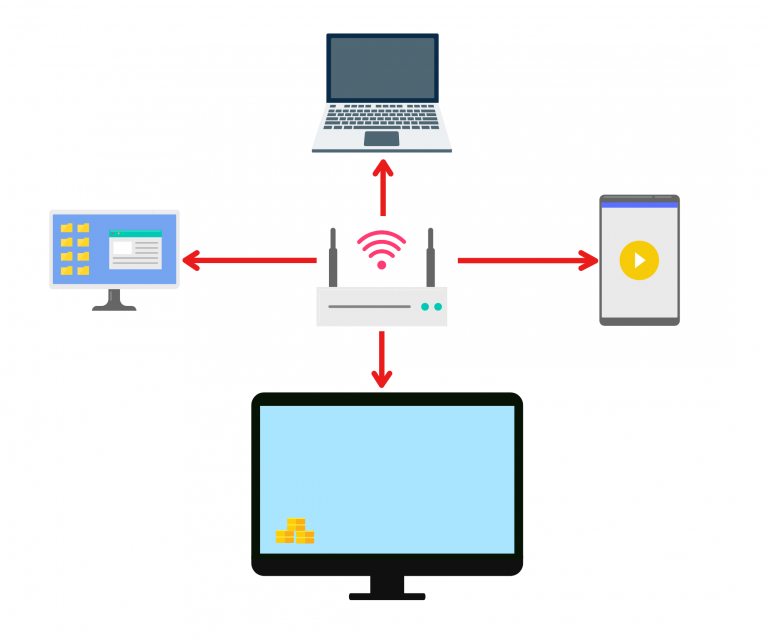
1.एक ही वाई-फाई से कनेक्ट करें:
सुनिश्चित करें कि आपका फ़ोन और iPad दोनों एक ही वाई-फ़ाई नेटवर्क से कनेक्ट हों। (सर्वोत्तम प्रदर्शन के लिए 5G बैंड वाई-फ़ाई कनेक्शन की अनुशंसा की जाती है।)
2. फ़ोन और मैक/पीसी पर 1001 TVs इंस्टॉल करें
आप ऐप को ऐप स्टोर या गूगल प्ले से डाउनलोड कर सकते हैं।
📥 मैक संस्करण: ऐप स्टोर से डाउनलोड करें
📥 पीसी संस्करण: विंडोज़ के लिए डाउनलोड करें
📱 एंड्रॉइड संस्करण: Google Play से डाउनलोड करें
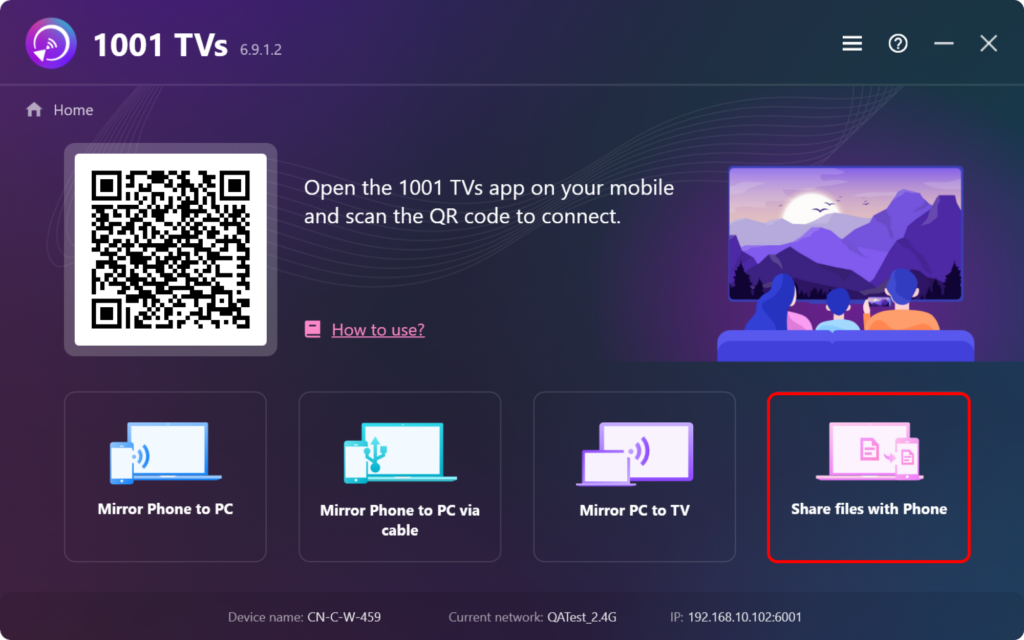
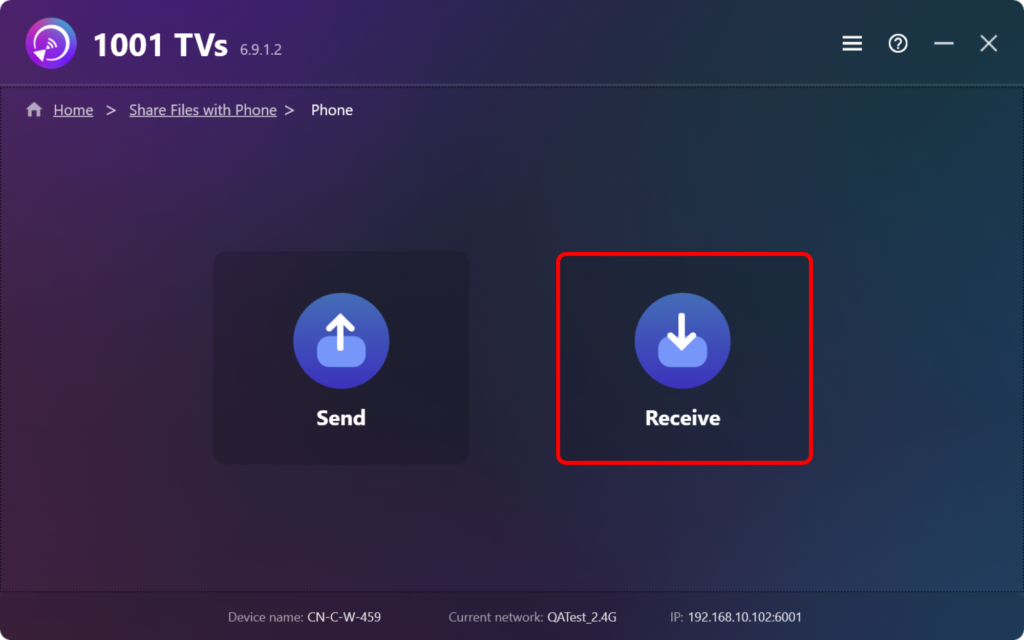
3. लॉन्च 1टीपी1टी पर मैक/पीसी और क्लिक करें “फ़ोन से फ़ाइलें साझा करें”.
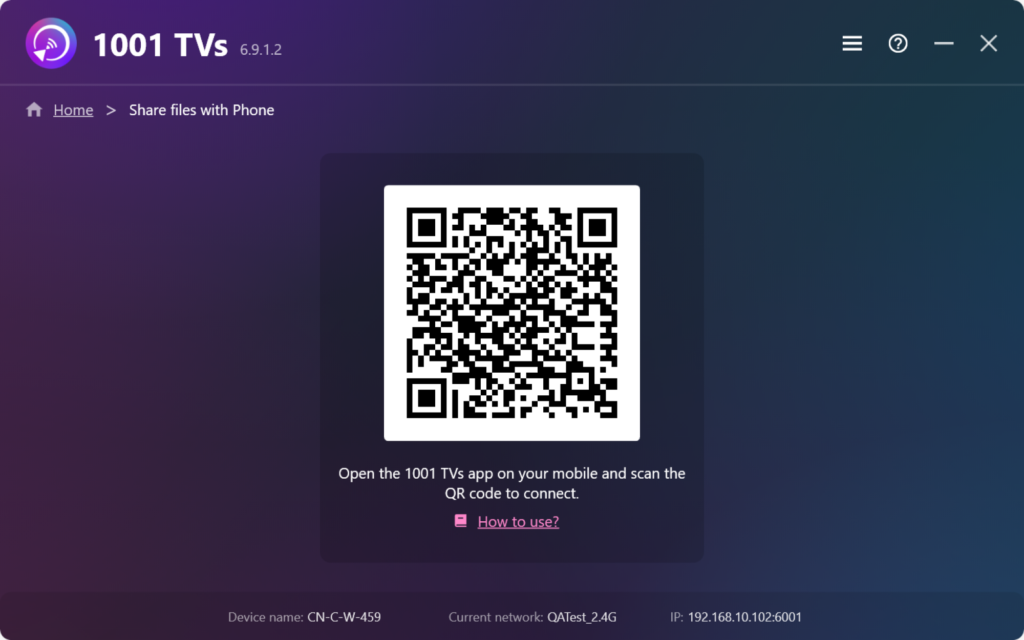
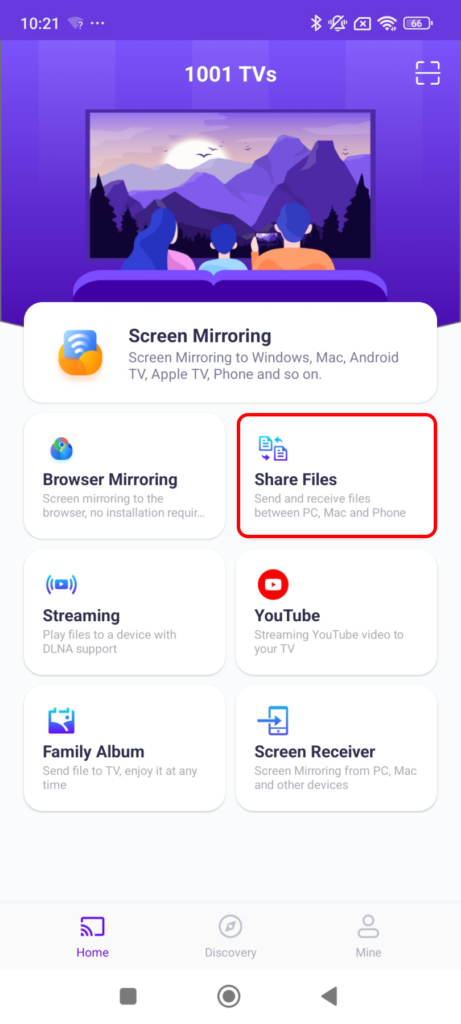
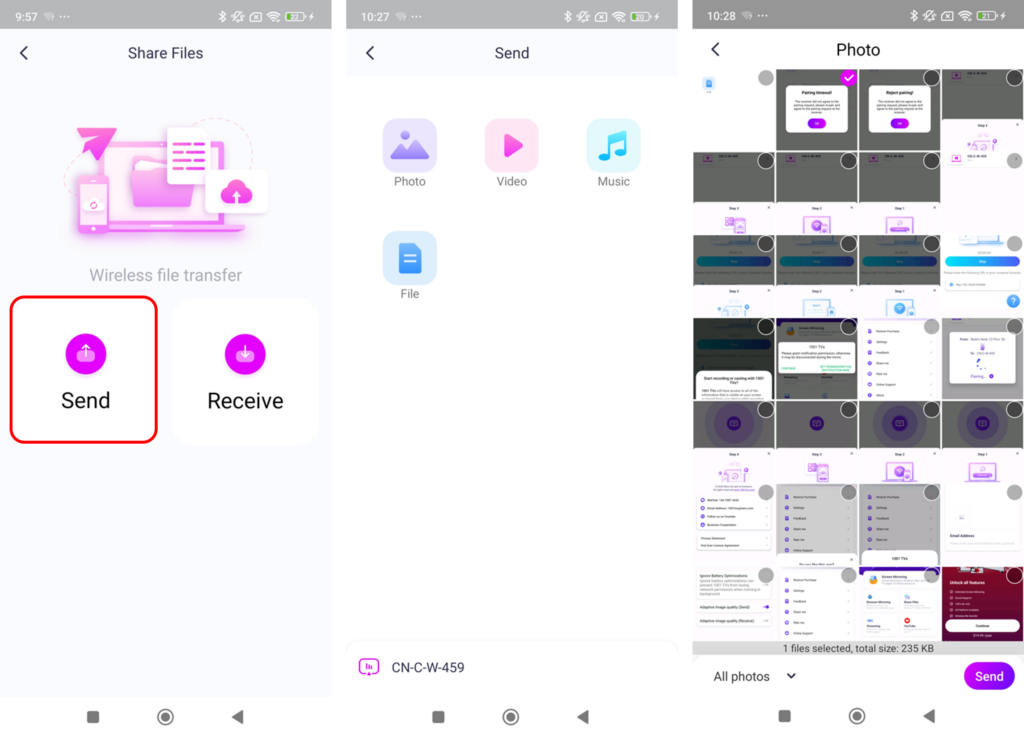
4. शुरू करना 1टीपी1टी पर अपने फोन को और टैप करें “फ़ाइलें साझा करें”.
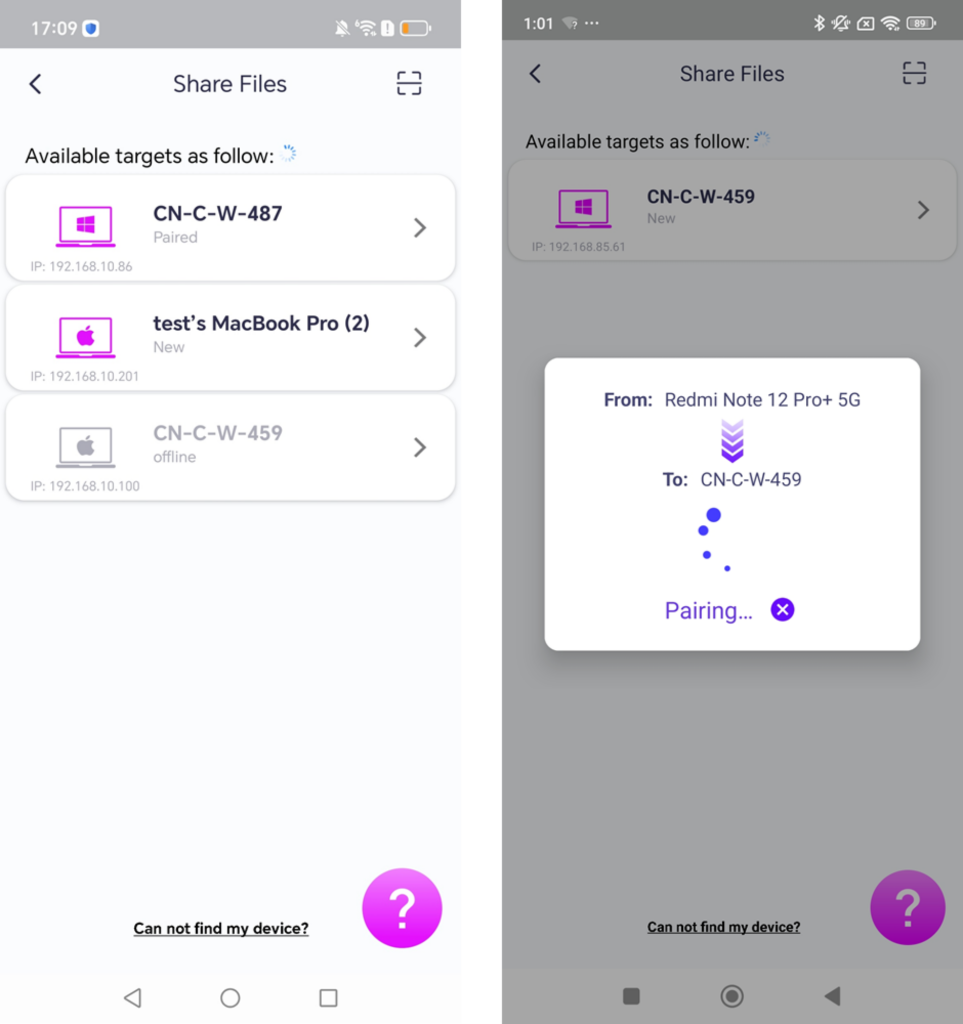
5. आस-पास के उपकरणों में खोजें
· यदि अंतिम कनेक्टेड डिवाइस उपलब्ध है, फाइल ट्रांसफर तुरंत शुरू हो सकता है।.
· के लिए युग्मित उपकरण, आप सीधे फाइलें ट्रांसफर कर सकते हैं।.
· के लिए नए उपकरण, पेयर करने के लिए डिवाइस के नाम पर टैप करें।.
· यदि लक्ष्य उपकरण है ऑफलाइन, अपना नेटवर्क चेक करें। आप अभी भी प्राप्त फाइलों को देख सकते हैं।.
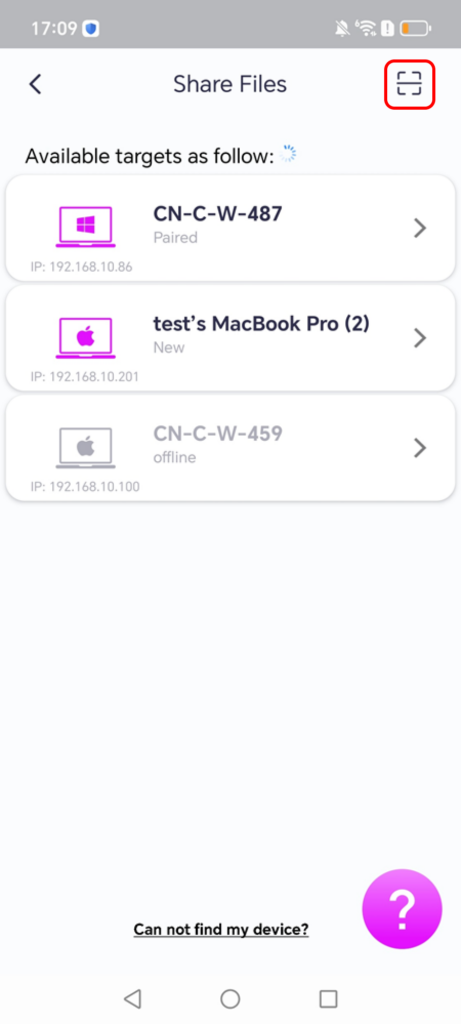
6. क्या आपको लक्षित डिवाइस नहीं मिल रहा है? कोड स्कैन करके पेयर करने का प्रयास करें।
यदि आपका डिवाइस सूची में दिखाई नहीं देता है, तो आप क्यूआर कोड को स्कैन करें त्वरित पेयरिंग के लिए इसे आपके मैक/पीसी स्क्रीन पर प्रदर्शित किया जाएगा।.
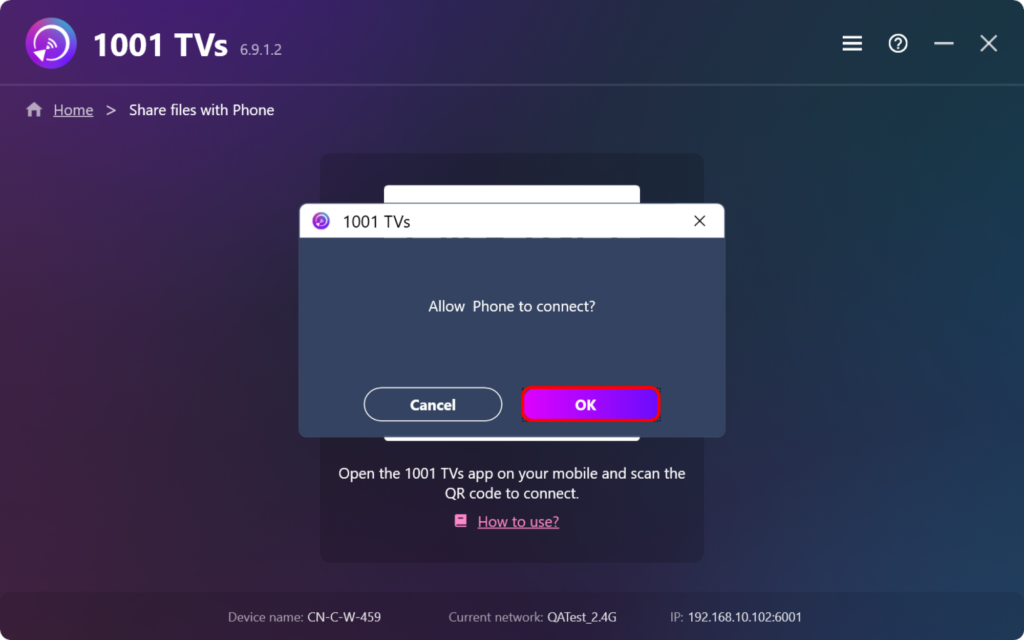
7. अपने फ़ोन को Mac/PC से कनेक्ट करें
8. भेजने के लिए फ़ाइलें चुनें
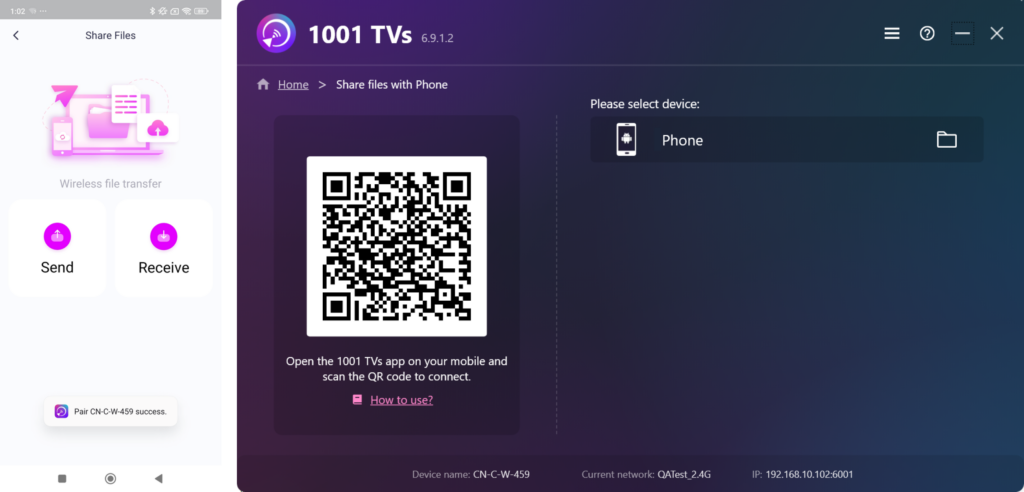
अपने पर फ़ोन, नल "“भेजना”"" आइकन दबाएं और उन फाइलों को चुनें जिन्हें आप भेजना चाहते हैं।.
अपने पर मैक/पीसी, का चयन करें युग्मित उपकरण और क्लिक करें “"प्राप्त करें"” आने वाली फाइलों को स्वीकार करने के लिए।.
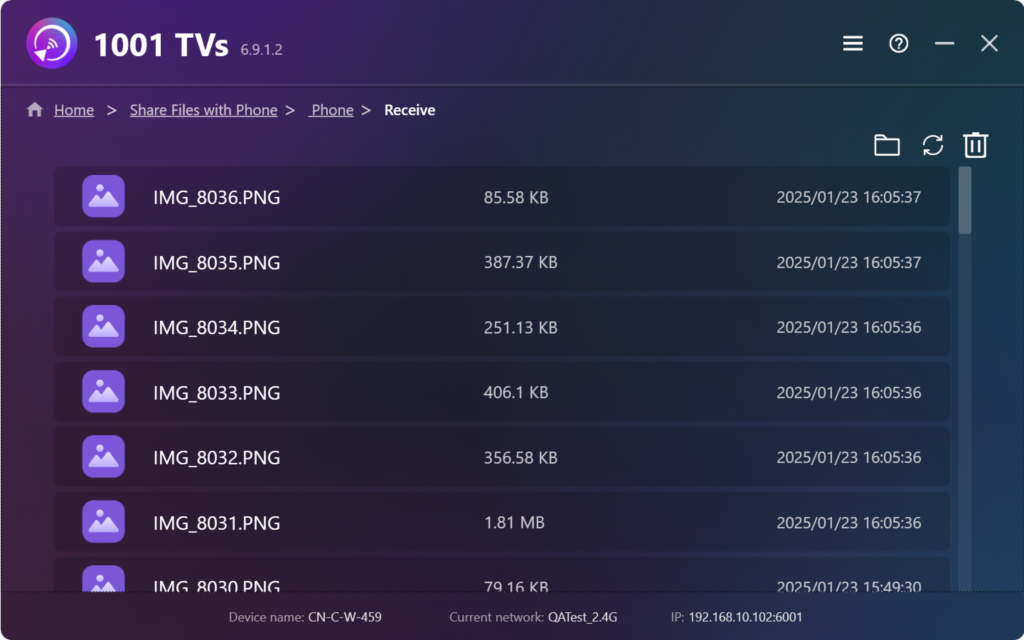
9. मैक/पीसी पर स्थानांतरित फ़ाइलें देखें
· प्राप्त फाइलों को सीधे खोलें।.
· उन्हें इसमें खोजें फाइंडर (मैक) या फाइल एक्सप्लोरर (विंडोज).
· क्लिक “रिफ्रेश” फ़ाइल सूची को अपडेट करने के लिए।.
साथ 1टीपी1टी, आप आनंद ले सकते हैं वायरलेस, हाई-स्पीड फ़ाइल स्थानांतरण अपने उपकरणों के बीच कभी भी, कहीं भी! 🚀
1001 TVs अभी डाउनलोड करें
📥 मैक संस्करण: ऐप स्टोर से डाउनलोड करें
📥 पीसी संस्करण: विंडोज़ के लिए डाउनलोड करें
📱 एंड्रॉइड संस्करण: Google Play से डाउनलोड करें