
1001 TVs ایپ کا استعمال کرتے ہوئے iPhone/Android/Mac/Windows PC سے Apple TV کا عکس کیسے لگائیں
ایپل ٹی وی اپنے ہموار انٹرفیس، ایپل ڈیوائسز کے ساتھ ہموار انضمام اور دیکھنے کے شاندار تجربے کے لیے جانا جاتا ہے۔ جہاں AirPlay ایپل کے صارفین کے لیے مواد کی عکس بندی کرنا آسان بناتا ہے، وہیں جو Android، Windows اور دیگر پلیٹ فارم استعمال کرتے ہیں وہ اکثر قابل اعتماد حل تلاش کرنے کے لیے جدوجہد کرتے ہیں۔.
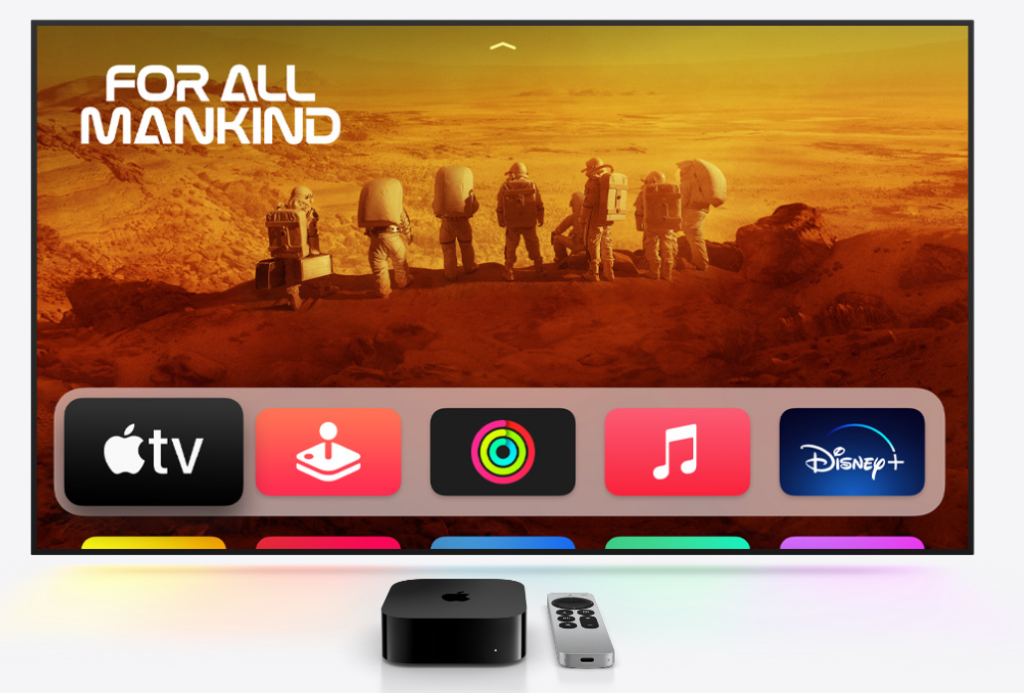
کہ جہاں ہے 1001 TVs ایپ آتا ہے - ایک طاقتور اسکرین مررنگ ایپ آپ کو کاسٹ کرنے دیتی ہے۔ کوئی بھی ڈیوائس ایپل ٹی وی پر، عمل کو آسان اور پریشانی سے پاک بناتا ہے۔.
سکرین مررنگ کے لیے 1001 TVs کا انتخاب کیوں کریں؟
✔ کسی بھی ڈیوائس پر کام کرتا ہے۔ - سے آئینہ آئی فون، آئی پیڈ، اینڈرائیڈ، میک یا پی سی
✔ آسان سیٹ اپ - صرف چند نلکوں میں وائرلیس طور پر جڑیں۔
✔ ہموار اور صاف - کم تاخیر، اعلیٰ معیار کی عکس بندی، کے لیے مثالی۔ گیمنگ، سٹریمنگ، یا پریزنٹیشنز
✔ صارف دوست انٹرفیس - ہر ایک کے لئے آسان اور بدیہی
1001 TVs کا استعمال کرتے ہوئے ایپل ٹی وی پر اسکرین کا عکس کیسے لگائیں۔
1. آئی فون یا آئی پیڈ سے آئینہ
1) یقینی بنائیں کہ دونوں آلات سے منسلک ہیں ایک ہی Wi-Fi نیٹ ورک.
2) انسٹال کریں اور کھولیں 1001 TVs آپ دونوں پر آئی فون/آئی پیڈ اور ایپل ٹی وی
(ایپ اسٹور میں "1001 TVs" تلاش کریں)۔.
📱 iOS ایپ: ایپ اسٹور سے ڈاؤن لوڈ کریں۔
3) اپنے سے منسلک کرنے کے لیے اسکین کریں۔ ایپل ٹی وی.
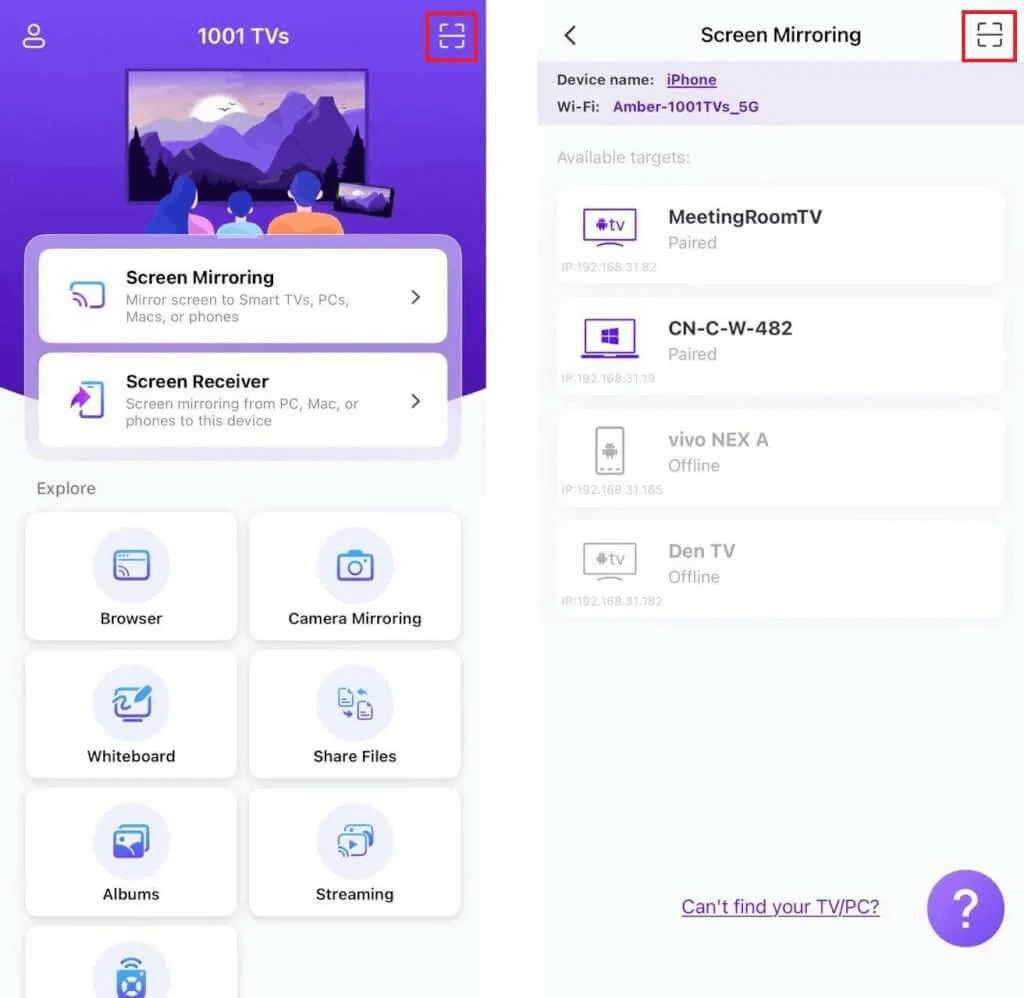
4) ٹیپ کریں “شروع کریں۔”" ➜ "“نشریات شروع کریں۔”.
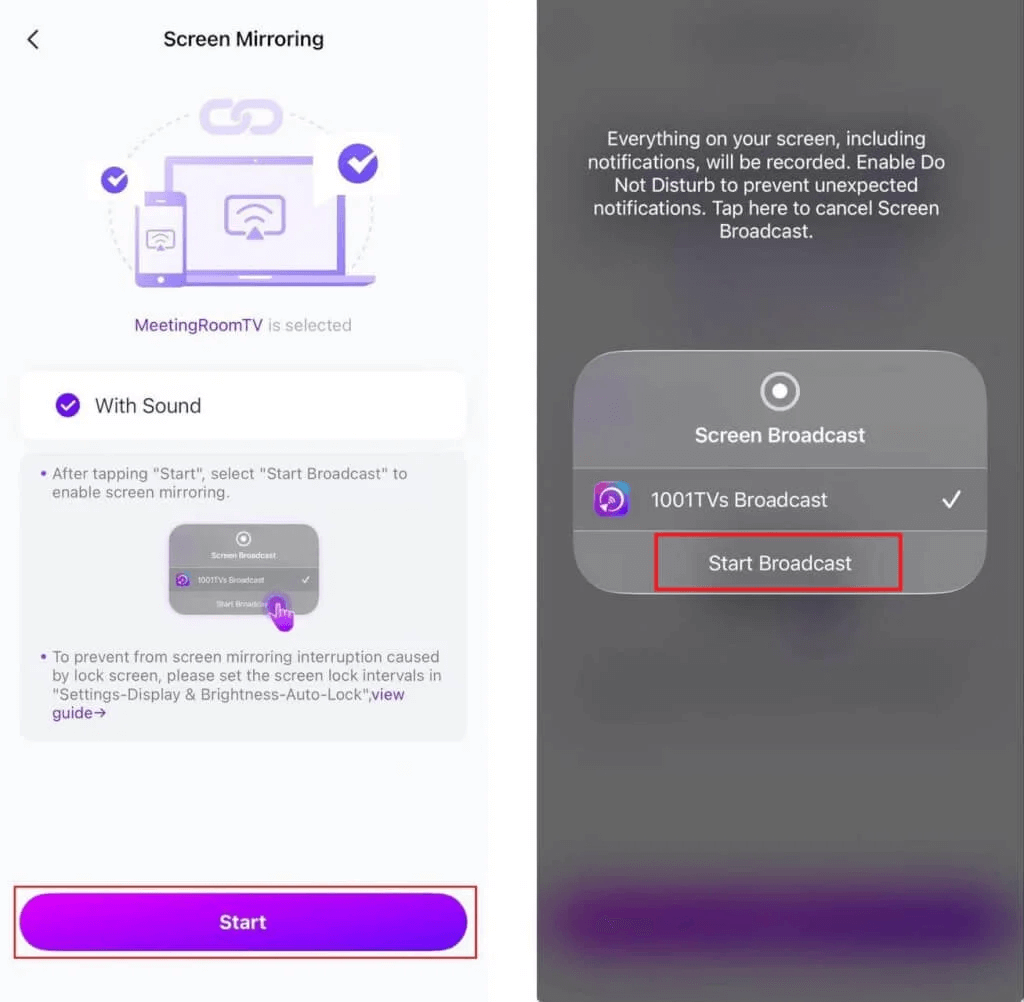
نوٹ: یہ طریقہ انتہائی کم تاخیر کو یقینی بناتا ہے—ویڈیوز، لائیو ایونٹس، یا سلائیڈ شو پیش کرنے کے لیے بہترین۔.
2. اینڈرائیڈ سے آئینہ
1) یقینی بنائیں کہ دونوں آلات سے منسلک ہیں ایک ہی Wi-Fi نیٹ ورک.
2) انسٹال کریں اور کھولیں 1001 TVs آپ دونوں پر اینڈرائیڈ اور ایپل ٹی وی
(Google Play Store میں "1001 TVs" تلاش کریں)۔.
📱 اینڈرائیڈ ایپ: گوگل پلے سے ڈاؤن لوڈ کریں۔
3) ٹیپ کریں“اسکرین مررنگ” آپ کے Android پر۔.
4) اپنا منتخب کریں ایپل ٹی وی دستیاب ڈیوائس کی فہرست سے۔.
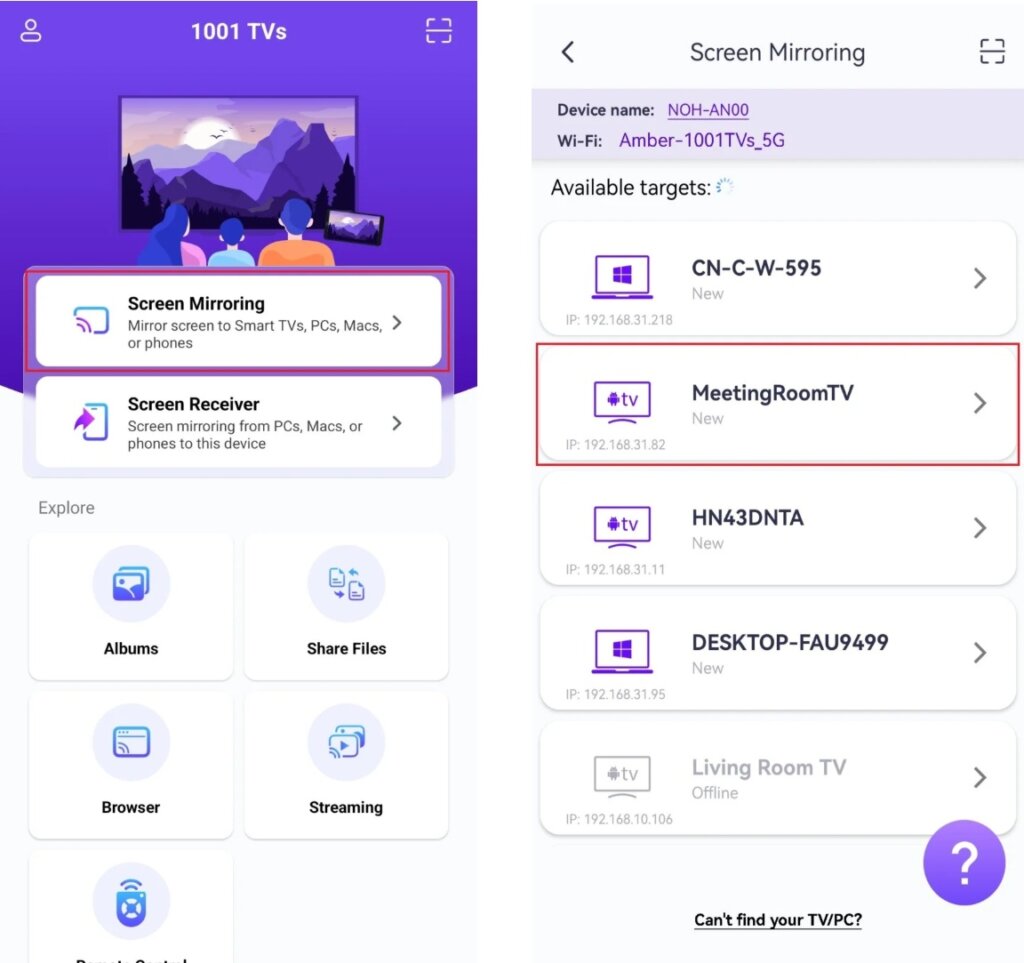
5) آئینہ کاری سے پہلے نوٹیفیکیشن کی اجازت دینا یقینی بنائیں تاکہ آپ نوٹیفیکیشن بار میں اس کی حیثیت دیکھ سکیں۔.
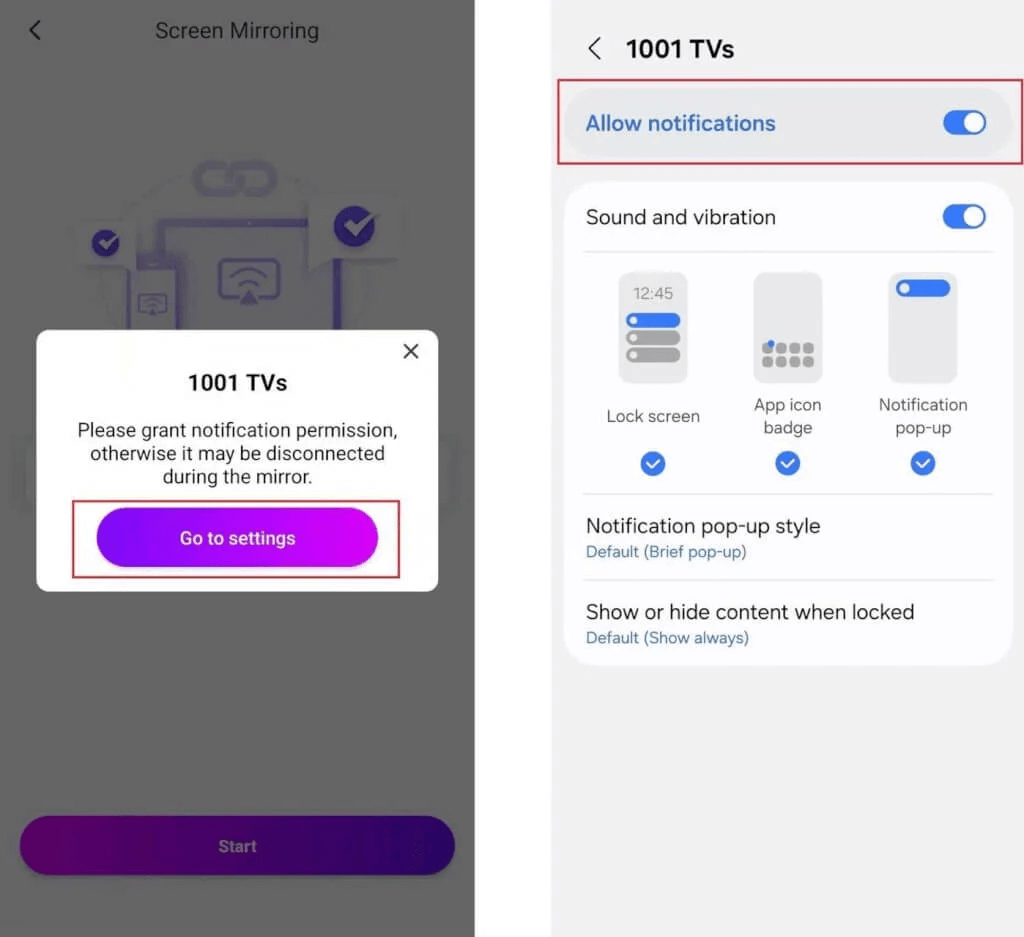
نوٹ: 1001 TVs اینڈرائیڈ ڈیوائسز کے لیے آڈیو اور ویڈیو کاسٹنگ کو سپورٹ کرتا ہے، عمودی اسکرین اور افقی سمت دونوں کے لیے ہموار تجربہ پیش کرتا ہے۔.
3. ونڈوز پی سی سے آئینہ
1) یقینی بنائیں کہ دونوں آلات سے منسلک ہیں ایک ہی Wi-Fi نیٹ ورک.
2) انسٹال کریں اور کھولیں 1001 TVs آپ دونوں پر ونڈوز پی سی اور ایپل ٹی وی.
📥 پی سی ایپ: سے ڈاؤن لوڈ کریں۔ مائیکروسافٹ اسٹور
تفصیلی اقدامات کے لیے، کا حوالہ دیں۔ پی سی انسٹالیشن گائیڈ
3) کلک کریں”پی سی سے ٹی وی“آپ کے ونڈوز پی سی اور اپنا انتخاب کریں۔ ایپل ٹی وی.
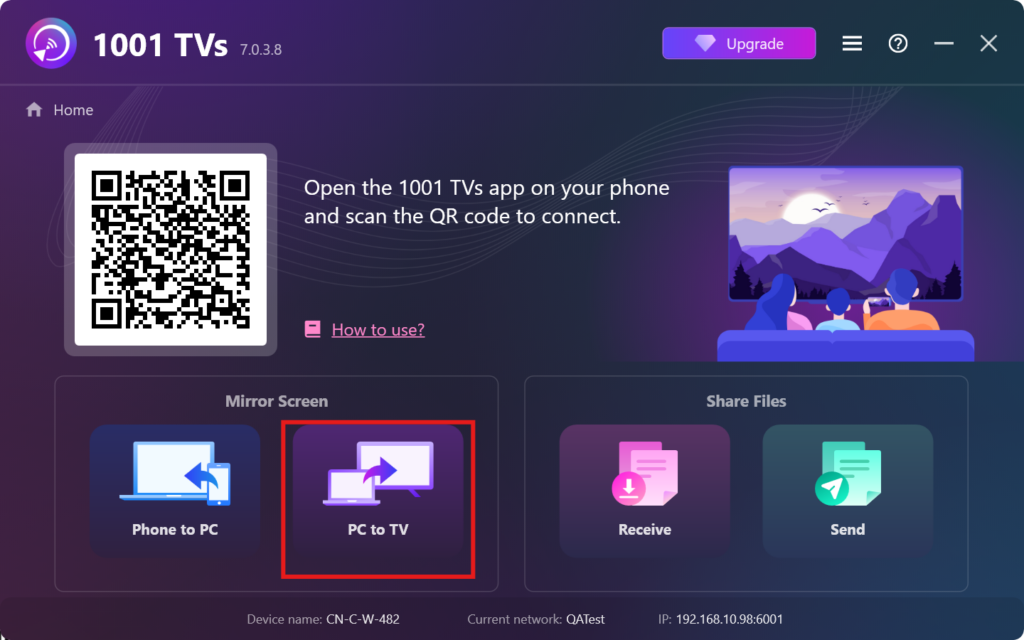
یہ منفرد کیوں ہے: زیادہ تر ایپس کے برعکس،, 1001 TVs ونڈوز کے صارفین کو ایپل ٹی وی کا عکس دیکھنے کی اجازت دیتا ہے۔, یہاں تک کہ ایک بڑی اسکرین پر بہتر ویب تجربے کے لیے براؤزر کی عکس بندی کو بھی فعال کرنا۔.
4. میک سے آئینہ
1) یقینی بنائیں کہ دونوں آلات سے منسلک ہیں ایک ہی Wi-Fi نیٹ ورک.
2) انسٹال کریں اور کھولیں 1001 TVs آپ دونوں پر میک اور ایپل ٹی وی.
📥 میک ایپ: ایپ اسٹور سے ڈاؤن لوڈ کریں۔
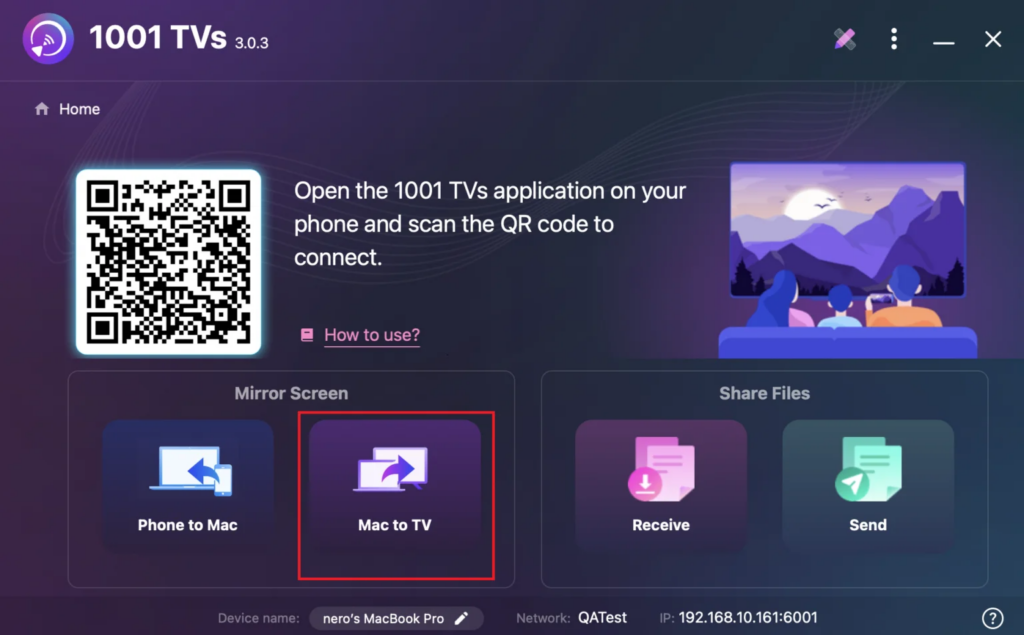
۳) کلک کریں “میک سے ٹی وی”آپ کے میک اور اپنا انتخاب کریں۔ ایپل ٹی وی جوڑنے کے لیے.
1001 TVs کی اضافی خصوصیات
- سٹریمنگ سپورٹ: تصاویر، موسیقی، اور ویڈیوز کو Apple TV پر آسانی سے سٹریم کریں۔.
- ہر جگہ کام کرتا ہے۔: بہت سے TVs اور سٹریمنگ آلات کے ساتھ ہم آہنگ۔.
- اشتہار سے پاک: بغیر کسی رکاوٹ کے ہموار کاسٹنگ کا لطف اٹھائیں۔.
- ملٹی ڈیوائس سپورٹ: ایک ہی وقت میں متعدد آلات کو جوڑیں اور ان کا نظم کریں۔.
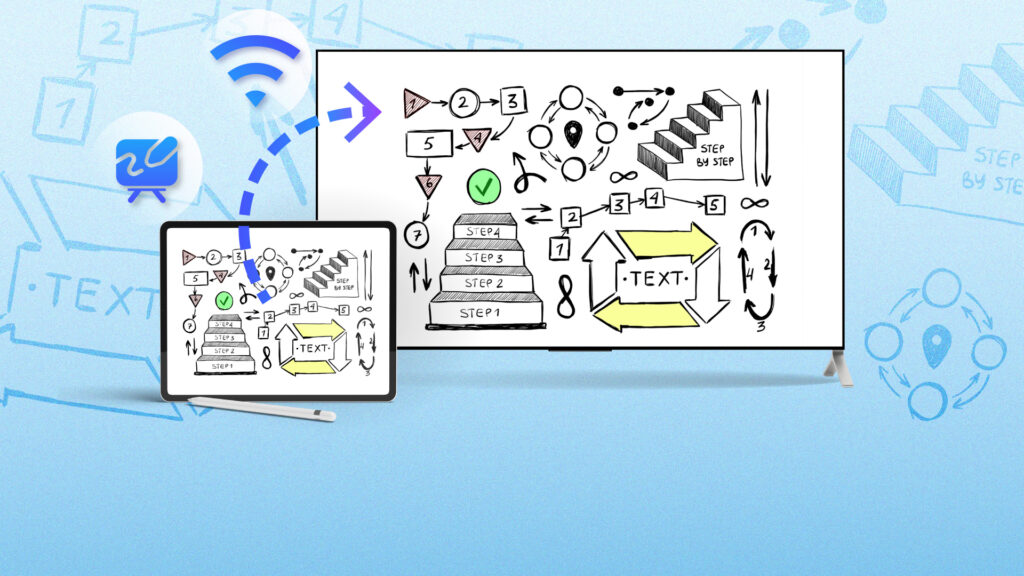
- وائٹ بورڈ موڈ: پریزنٹیشنز، میٹنگز، اور ذہن سازی کے سیشنز کے لیے بہترین—بڑی اسکرین پر آسانی سے اپنے نوٹس کا اشتراک کریں۔.
حتمی خیالات
1001 TVs ایپل ٹی وی پر اسکرین کی عکس بندی کو آسان بناتا ہے، چاہے آپ کوئی بھی ڈیوائس استعمال کر رہے ہوں۔ اپنے اپ ڈیٹ شدہ انٹرفیس، قابل اعتماد کارکردگی، اور ملٹی ڈیوائس سپورٹ کے ساتھ، یہ ہموار کاسٹنگ اور عکس بندی کے لیے بہترین ٹول ہے۔.
آج ہی اپنا 1001 TVs سفر شروع کریں اور Apple TV کے ہموار تجربے سے لطف اندوز ہوں۔ ابھی ایپ ڈاؤن لوڈ کریں اور دریافت کریں کہ iOS، Android، یا اپنے کمپیوٹر سے عکس بندی کرنا کتنا آسان ہے!
آج ہی 1001 TVs کے ساتھ شروع کریں اور اپنے Apple TV کے تجربے کو ہموار بنائیں!
ابھی 1001 TVs حاصل کریں۔!
📥 میک ایپ: ایپ اسٹور سے ڈاؤن لوڈ کریں۔
📥 پی سی ایپ: سے ڈاؤن لوڈ کریں مائیکروسافٹ اسٹور
تفصیلی اقدامات کے لیے، کا حوالہ دیں۔ پی سی انسٹالیشن گائیڈ
📱 iOS ایپ: ایپ اسٹور سے ڈاؤن لوڈ کریں۔
📱 اینڈرائیڈ ایپ: گوگل پلے سے ڈاؤن لوڈ کریں۔