How to Cast Photos from Your Phone to a TV

You can cast phone photos to a compatible TV using AirPlay on iPhone, Google Photos with Chromecast, or 1001 TVs Streaming and Albums.
The right method depends on your phone, photo app, and TV’s receiving capabilities.
The next choice is how you want to share: swipe through pictures yourself, or start a slideshow that advances automatically. Those are different controls, and not every casting method offers both.
Choose the Best Way to Cast Photos to Your TV
Check the TV’s receiving capability before opening a casting menu. “Smart TV” alone does not tell you whether it supports AirPlay, Google Cast, or the receiver needed by another app.
| طریقہ | Phone or photo app | TV or receiver requirement | Photo controls |
| ایئر پلے | iPhone with Apple Photos | Apple TV or an AirPlay-compatible TV | Individual photos and a Photos slideshow |
| Google Photos Cast | Google Photos on Android or iPhone | Chromecast or a confirmed compatible Google Cast receiver | Swipe between photos; no timed slideshow promised here |
| 1001 TVs Streaming | Local photos accessible to 1001 TVs on your phone | Compatible media receiver, such as a supported TV DLNA service | Manual swiping and documented slideshow playback; speed control varies by setup |
| 1001 TVs البمز | Supported phone running 1001 TVs | TV or receiver running 1001 TVs | Send a photo collection and play it on the TV |
If you want to talk through each picture, use a path that lets you control the display from your phone. For automatic playback, AirPlay has a documented Photos slideshow workflow, while Albums has a TV-side photo-folder playback workflow.
Choose the pictures you intend to show and make sure they open on your phone first. Share selected photos rather than your entire screen if you want to keep notifications and other phone content out of view.
How to Cast iPhone Photos with AirPlay
Use this method if your receiving device supports AirPlay. Connect your iPhone and TV or Apple TV to the same Wi-Fi network before starting.
Show a single photo:
- کھولیں۔ Photos on your iPhone and open the picture you want to display.
- تھپتھپائیں۔ Share, then find and select ایئر پلے. You may need to swipe up through the sharing options.
- Choose your TV or Apple TV.
- اگر ٹی وی پر پاس کوڈ ظاہر ہو تو اسے اپنے آئی فون پر درج کریں۔.
Check that the intended picture appears on the TV before continuing through your selection. Apple’s photo-streaming instructions use AirPlay directly from Photos, so you can share pictures without first turning on Screen Mirroring in Control Center.
Play a photo slideshow:
- In Photos, open Library اور تھپتھپائیں منتخب کریں۔.
- Select the pictures you want to include.
- کھولیں۔ مزید اور منتخب کریں Start Slideshow.
- In the slideshow’s playback controls, open مزید, ، منتخب کریں۔ ایئر پلے, ، اور اپنی ٹی وی منتخب کریں۔.
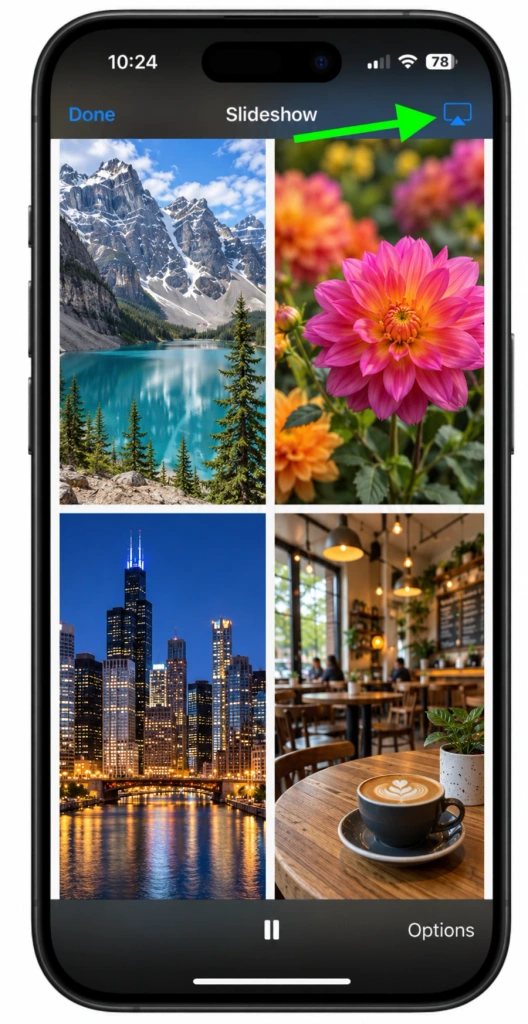
In Apple’s slideshow workflow, Customize lets you adjust transitions and time per slide, while Loop repeats playback. Use these controls when you want the photos to advance automatically. Menu placement can vary with your iOS version.
When you finish, stop the slideshow if one is playing, then turn off AirPlay. Apple’s photo-streaming instructions use Turn off AirPlay to end the connection. Pausing a slideshow is not the same as disconnecting the TV; check the TV screen before moving on to private content on your phone.
How to Cast Google Photos from Android or iPhone
Google Photos casting is not limited to Android. Google also documents a Chromecast workflow for iPhone and iPad. Your phone and Chromecast must be on the same Wi-Fi network.
Show your photos:
- کھولیں۔ گوگل فوٹوز. On iPhone, sign in to your Google Account as directed by Google’s instructions.
- Select the photo or album you want to cast.
- تھپتھپائیں۔ مزید, then کاسٹ.
- Select your Chromecast or confirmed compatible receiver.
- Open a photo on your phone to display it on the TV.
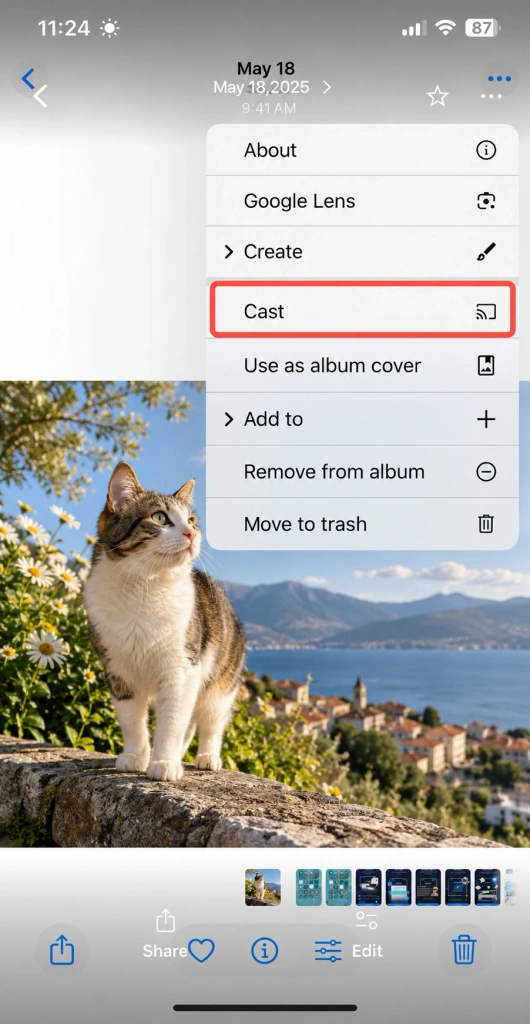
The photo you open should appear on the TV. Google’s instructions for Android photo casting اور iPhone photo casting both describe swiping between photos to change what is displayed.
Swipe through your selection when you want to control the pace yourself. For automatic playback, use a supported slideshow path: selecting an album and tapping Cast is not the same as starting a timed slideshow with speed or loop controls.
Stop sharing: tap کاسٹ, then choose Stop casting on Android or قطع رابطہ on iPhone. These menu labels differ between the two official workflows.
How to Show Photos on TV with 1001 TVs
1001 TVs has two relevant features, and they use different receiving setups. سلسلہ بندی sends local photos to a compatible media receiver. البمز sends a selected photo collection to a receiver running 1001 TVs, where you can start playback on the TV.
Choose between them based on what your TV can receive and whether you want to browse pictures from your phone or play a sent collection. Install 1001 TVs on your phone and, for Albums, on your supported receiving device as well.
Streaming: Show Local Photos on a Compatible TV
Streaming is worth checking when your TV has a compatible media-receiving service. The 1001 TVs tutorial describes discovering a TV’s built-in DLNA service, so installing the 1001 TVs TV app is not mandatory for every Streaming setup. Compatibility still depends on the receiver and the media it supports.
Connect your phone and receiver to the same Wi-Fi network, then:
- انسٹال کریں اور کھولیں۔ 1001 TVs on your phone.
- کھولیں۔ سلسلہ بندی and refresh the device list.
- Select your TV or compatible receiver.
- Choose the local photos you want to display, granting access to those pictures if requested.
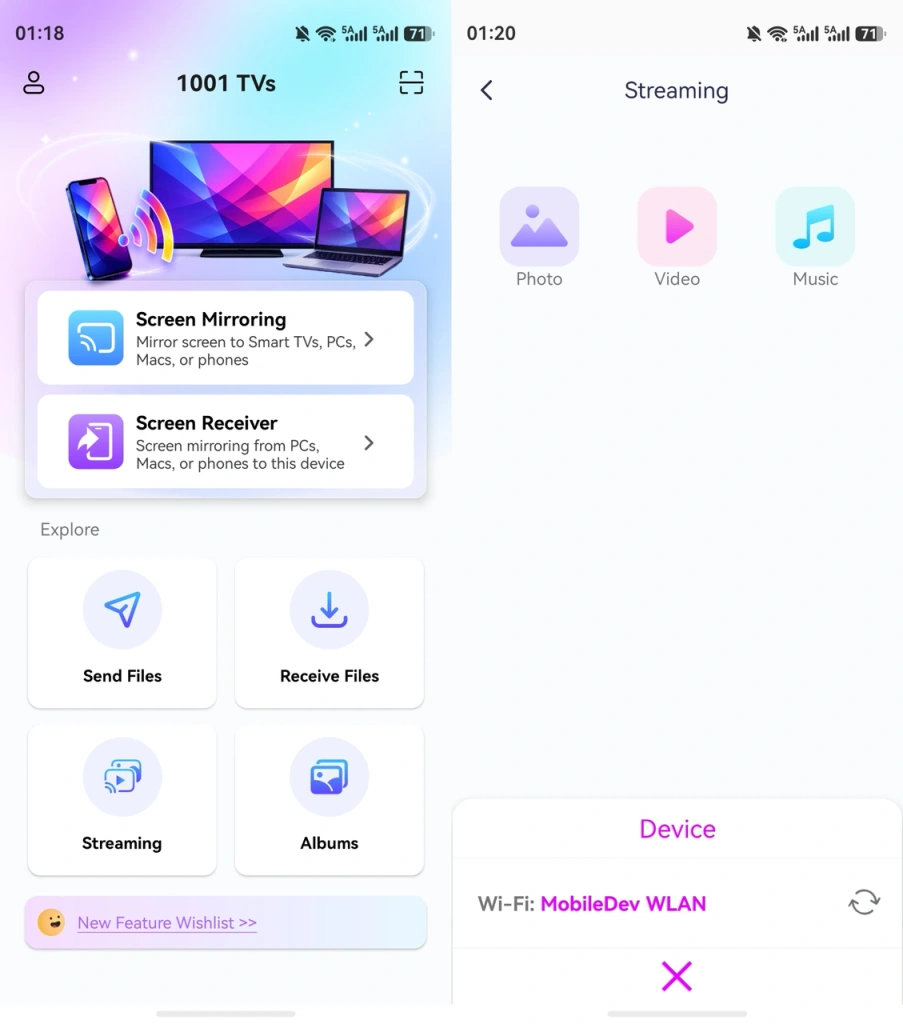
Once streaming starts, swipe through your photos one by one to control the pace. Streaming supports this phone-controlled sharing without Albums’ Upload and TV-side Accept steps.
To play your selected photos automatically, tap کھیلیں to start a slideshow. Open ترتیبات to adjust the slideshow speed if your current app version and receiver support that control. These steps follow the Streaming tutorial, which also explains how to find a compatible receiver.
When you finish, end playback and disconnect the receiver using the controls shown in the app, then check that the TV is no longer displaying your photos. Streaming and Albums use different workflows; Albums’ received-file management instructions do not apply automatically to Streaming.
Albums: Send a Photo Collection and Play It on TV
Choose Albums when you want to send a selected photo collection and play it on a TV that supports the 1001 TVs app. Unlike the built-in-receiver Streaming route, Albums requires 1001 TVs on both your supported phone and receiving device, connected to the same local network.
Send and display your photos:
- Open 1001 TVs on both devices.
- On your phone, open البمز اور ٹی وی منتخب کریں۔.
- On the TV, choose قبول کریں۔ کنکشن کی تصدیق کرنے کے لیے۔.
- اپنے فون پر، تھپتھپائیں۔ اپ لوڈ کریں۔ and select the photos you want to share.
- On the TV, select the Photos folder and choose کھیلیں.
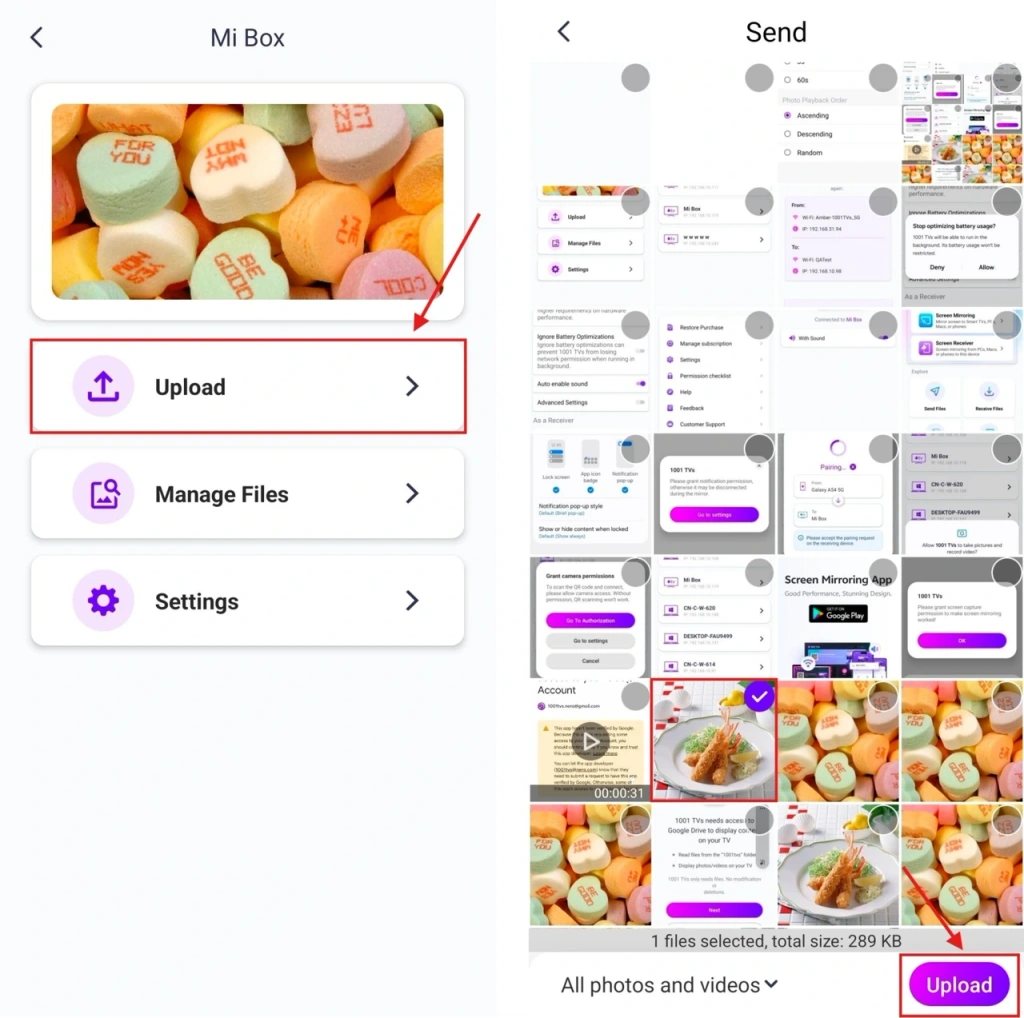
The collection can now play on the TV without you opening each picture on your phone. The Albums setup tutorial also covers photo-duration and display-order settings for controlling how the collection plays.
When you finish, stop playback and check the photos retained on the receiver. Use the media-management controls to remove pictures you do not want left on someone else’s TV. Stopping the slideshow does not delete received files.
سلسلہ بندی is free to use without a paid subscription, while the Albums feature has a limited free trial followed by paid options. Check the app for the latest terms and local pricing before choosing a plan.
What to Do If Your TV or Photos Don’t Show Up
Your TV is missing from the device list
Check that it supports your chosen method: AirPlay, Google Cast, a compatible Streaming receiver, or the 1001 TVs app for Albums. Connect both devices to the required Wi-Fi network and enable the receiving feature.
On iPhone, Apple’s local-network permission instructions show where to check app access: Settings > Privacy & Security > Local Network, then enable the casting app if listed. If the TV still does not appear, reopen the app and try connecting again. For an AirPlay connection that still fails, Apple’s AirPlay troubleshooting steps cover software updates, restarting devices, and receiving restrictions.
The TV connects, but a photo will not display
Open the same picture on your phone first. For cloud-stored photos, wait until the image loads. Then check that the casting app has permission to access that photo. If only a few files fail, check their formats against the receiver’s support; HEIC images and Live Photos may behave differently across receiving methods.
A portrait photo has borders or looks different on the TV
A tall photo will not naturally fill a widescreen TV. Borders can preserve the whole picture, while filling the screen may crop or stretch it. Compare the TV image with the original on your phone: if the proportions are correct but the image looks blurry, check whether the original is low-resolution or has finished loading.
After sharing, end the casting connection and check whether your chosen method left photos on the receiver. In Albums, review the received files before leaving a shared TV.
Bring Your Photos to the Big Screen
Whether you’re sharing holiday pictures with family or showing friends your latest trip, choose a method that fits your TV and how you want to browse. For a compatible media receiver, try 1001 TVs Streaming; for a photo collection played on a TV running the app, choose Albums.
1001 TVs ڈاؤن لوڈ کریں۔ to get the version for your devices and start sharing your selected photos on the big screen.

مزید پڑھیں
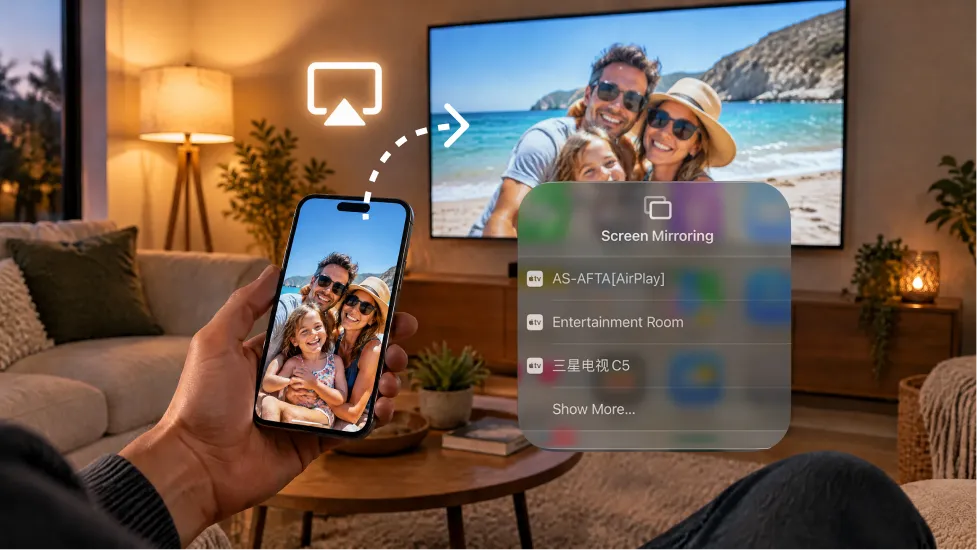 How to Turn On AirPlay on iPhone in iOS 26 (Screen Mirroring Guide)
To turn on AirPlay screen mirroring in iOS 26, open Control Center, tap the Screen Mirroring button (two overlapping rectangles), and choose your TV…
How to Turn On AirPlay on iPhone in iOS 26 (Screen Mirroring Guide)
To turn on AirPlay screen mirroring in iOS 26, open Control Center, tap the Screen Mirroring button (two overlapping rectangles), and choose your TV…
 ٹی وی پر 2026 ورلڈ سیریز کیسے دیکھیں
2026 ورلڈ سیریز کا ہر میچ FOX پر نشر ہوتا ہے، اور ہر شیڈول شدہ پہلی پِچ شام 8 بجے ET (شام 5 بجے PT) پر ہوتی ہے۔
ٹی وی پر 2026 ورلڈ سیریز کیسے دیکھیں
2026 ورلڈ سیریز کا ہر میچ FOX پر نشر ہوتا ہے، اور ہر شیڈول شدہ پہلی پِچ شام 8 بجے ET (شام 5 بجے PT) پر ہوتی ہے۔

