[Android] Como enviar ficheiros do telemóvel Android para o PC, Mac e TV
1001 TVs facilita a transferência sem fios de ficheiros a partir do seu Telemóvel Android para um PC, Mac ou TV - sem cabos, sem complicações. Quer esteja a partilhar fotografias, vídeos, música ou documentos, o processo é rápido, simples e seguro. Eis como começar.
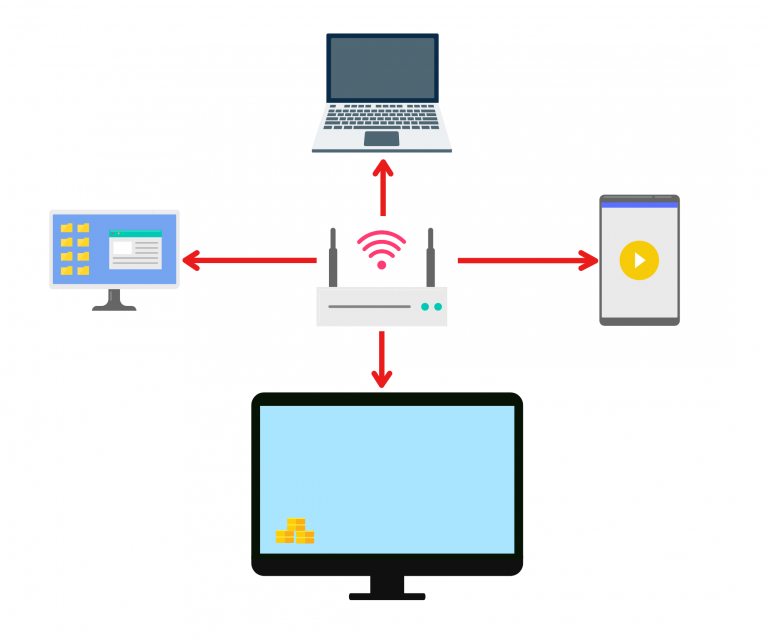
1. Ligar à mesma rede Wi-Fi:
Certifique-se de que ambos os seus dispositivos estão ligados à mesma rede Wi-Fi.
(Recomenda-se uma ligação Wi-Fi de banda 5G para obter o melhor desempenho).
2. Instalar e abrir o 1001 TVs em ambos os dispositivos
📥 Aplicação para PC: Descarregar de Microsoft Store
Para obter passos pormenorizados, consultar o Guia de instalação do PC.
📥 Mac App: Descarregar da App Store
📥 Aplicação de TV: Como instalar o 1001 TVs na sua TV
📱 Aplicação para Android: Descarregar a partir do Google Play
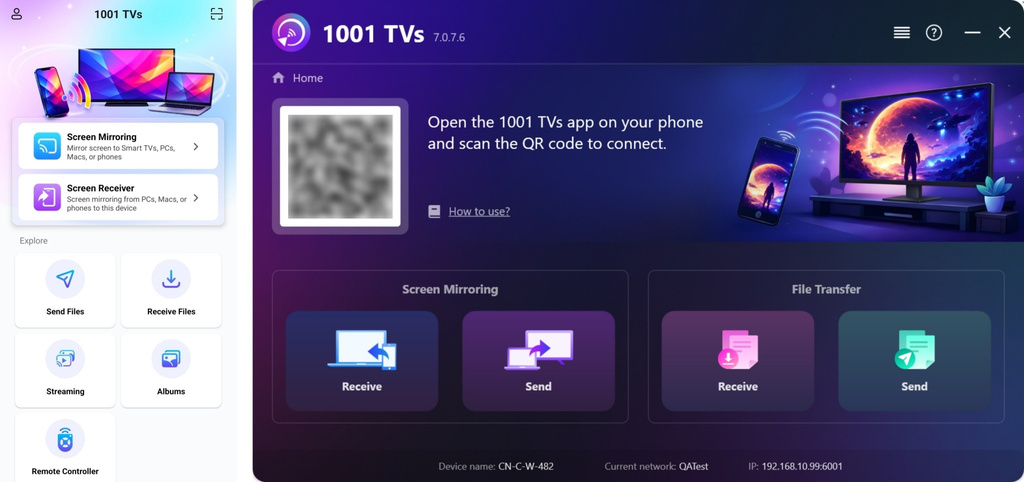
3. Iniciar o emparelhamento
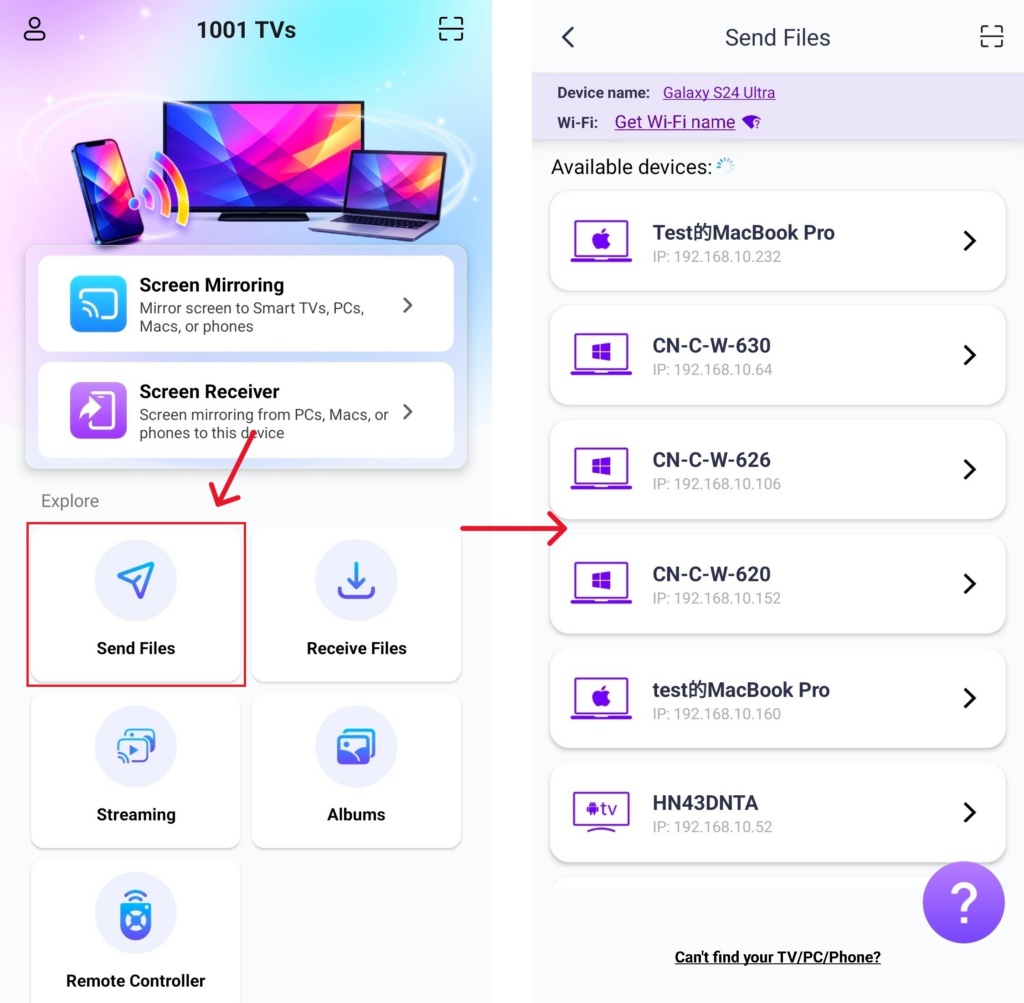
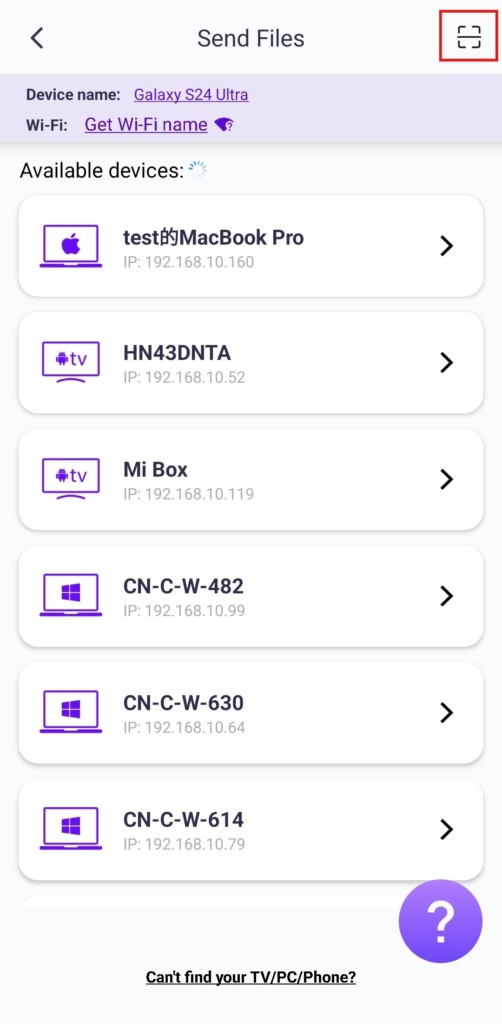
Lançamento 1001 TVs no seu telemóvel e toque em Enviar ficheiros.
Selecione o dispositivo de destino na lista (por exemplo, o seu PC/Mac/TV).
Nota: O dispositivo de destino tem de estar online para receber ficheiros. Se aparecer offline, verifique a sua ligação de rede. Pode continuar a ver os ficheiros já recebidos no seu PC/Mac/TV em qualquer altura.
No dispositivo recetor, confirme o emparelhamento.
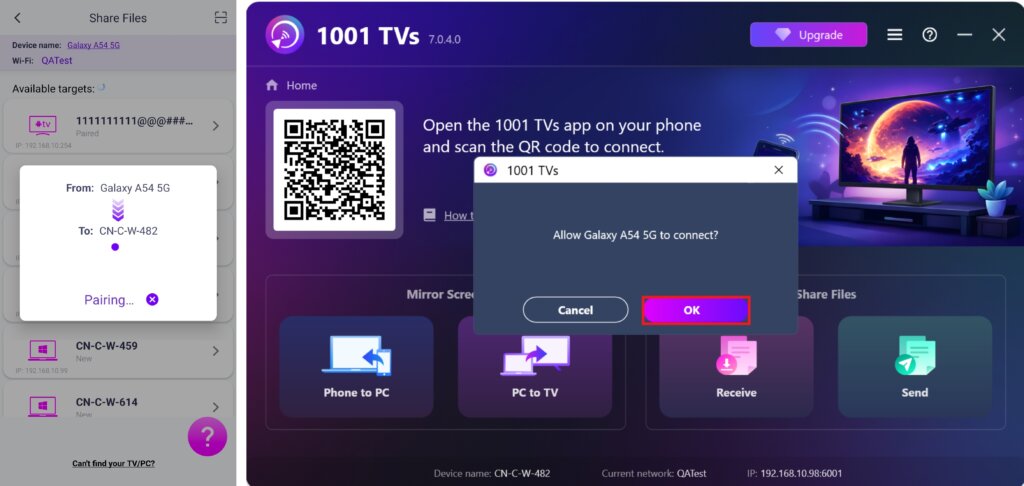
7. Não consegue encontrar o dispositivo de destino? Tente emparelhar digitalizando o código
Se o seu dispositivo não aparecer na lista, pode digitalizar o código QR apresentado no ecrã do Mac/PC/TV para um emparelhamento rápido.
4. Selecionar os ficheiros a enviar
No teu telemóvel, seleciona os ficheiros que pretendes enviar.
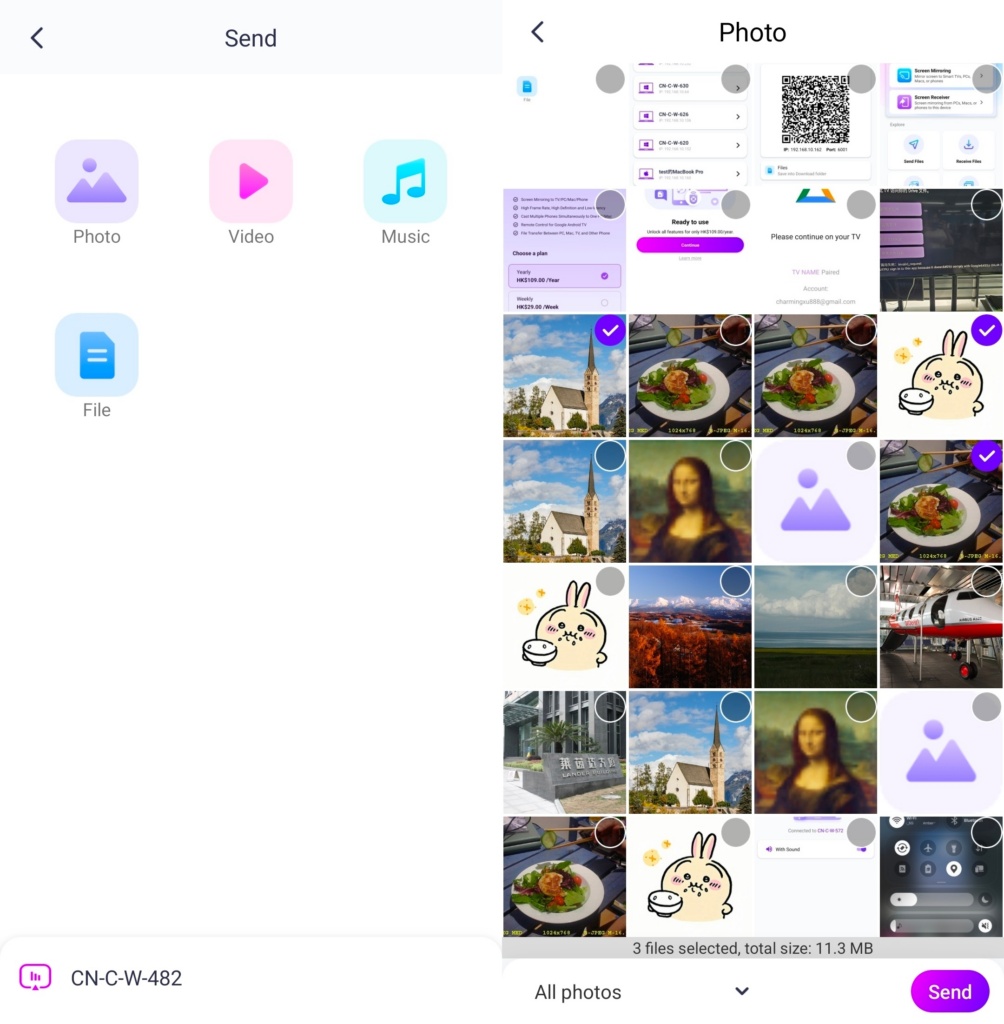
5. Ficheiros recebidos - Onde encontrar
1) Para PC/Mac
Clicar Receber no seu PC/Mac para ver todos os ficheiros recebidos.
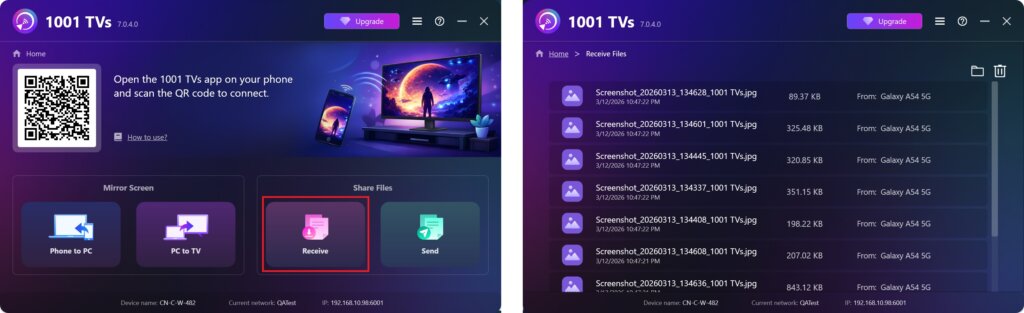
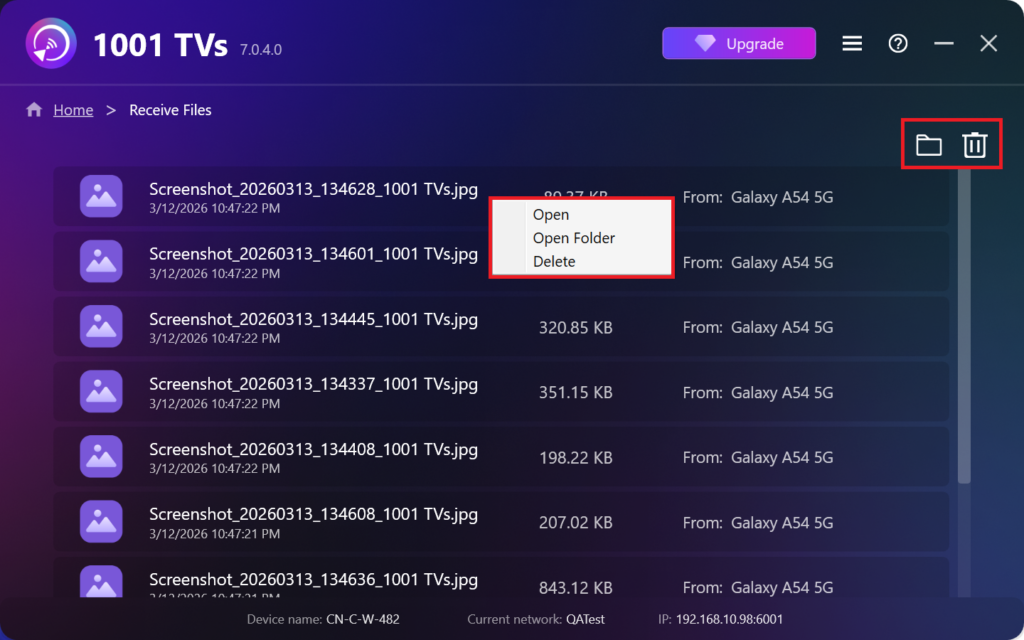
- Abrir Ver os ficheiros recebidos – Clicar ou clicar com o botão direito do rato e selecionar "Abrir a pasta” para ver todos os ficheiros desse dispositivo específico (por exemplo, iPhone 12123).
- Localize-os no Finder (Mac) ou no Explorador de ficheiros (Windows) - Clique no botão ícone da pasta no canto superior direito para aceder a todas as pastas do dispositivo.
- Eliminar opções – Clique com o botão direito do rato um ficheiro e selecionar “Eliminar” para o remover individualmente, ou clique no botão ícone do lixo no canto superior direito para apagar todos os ficheiros recebidos de uma só vez.
2) Para a televisão
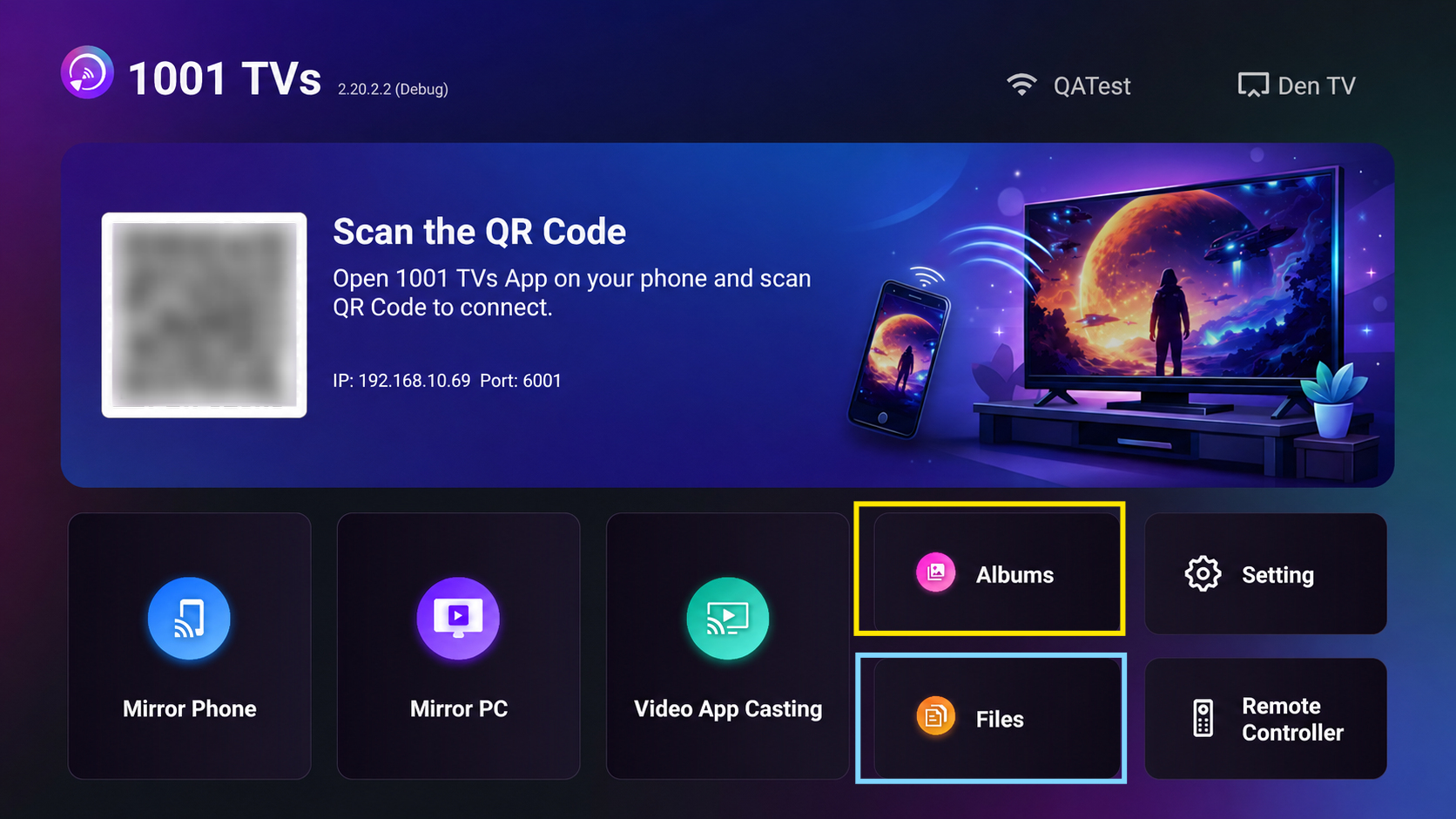
- Navegar para Ficheiros, pode ver os ficheiros recebidos. Para eliminar um único ficheiro, mantenha premido o botão OK no comando da televisão para selecionar o ficheiro pretendido e, em seguida, prima “Confirmar” para o eliminar.
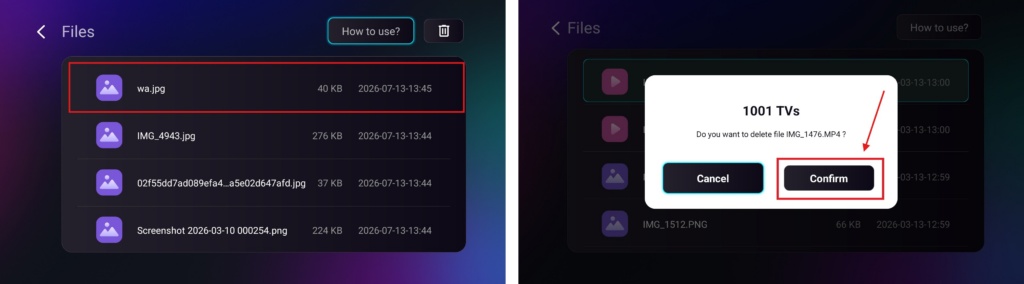
Para eliminar todos os ficheiros de uma só vez, clique no botão do caixote do lixo e, em seguida, prima “Sim” para confirmar.
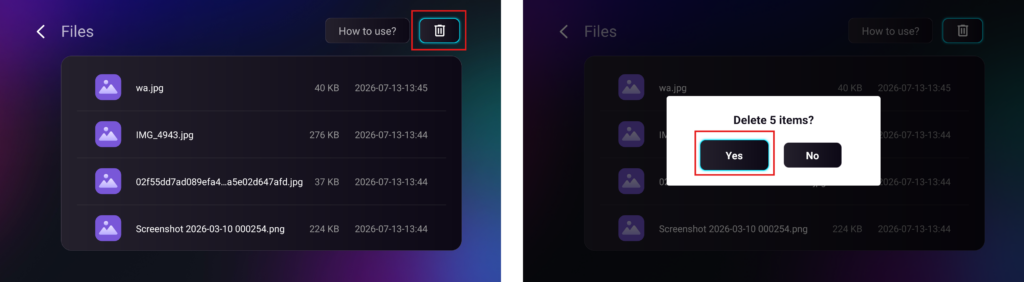
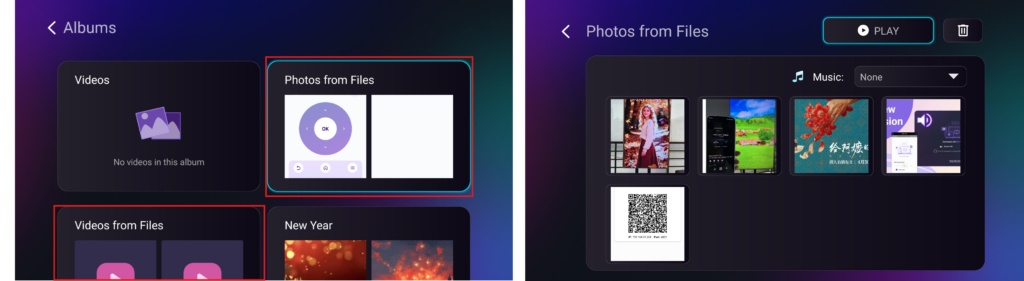
- Navegar para Álbuns > Fotografias/Vídeos de ficheiros página para ver as fotografias e vídeos que recebeu. Pode eliminá-los utilizando o mesmo método que se aplica aos ficheiros, ou pode reproduzi-los como um apresentação de diapositivos.
Com 1001 TVs, pode desfrutar transferências de ficheiros sem fios e de alta velocidade entre os seus dispositivos em qualquer altura e em qualquer lugar! 🚀
Obter 1001 TVs agora
📥 Aplicação para PC: Descarregar de Microsoft Store
Para obter passos pormenorizados, consultar o Guia de instalação do PC.
📥 Mac App: Descarregar da App Store
📥 Aplicação de TV: Como instalar o 1001 TVs na sua TV
📱 Aplicação para Android: Descarregar a partir do Google Play

Ler mais
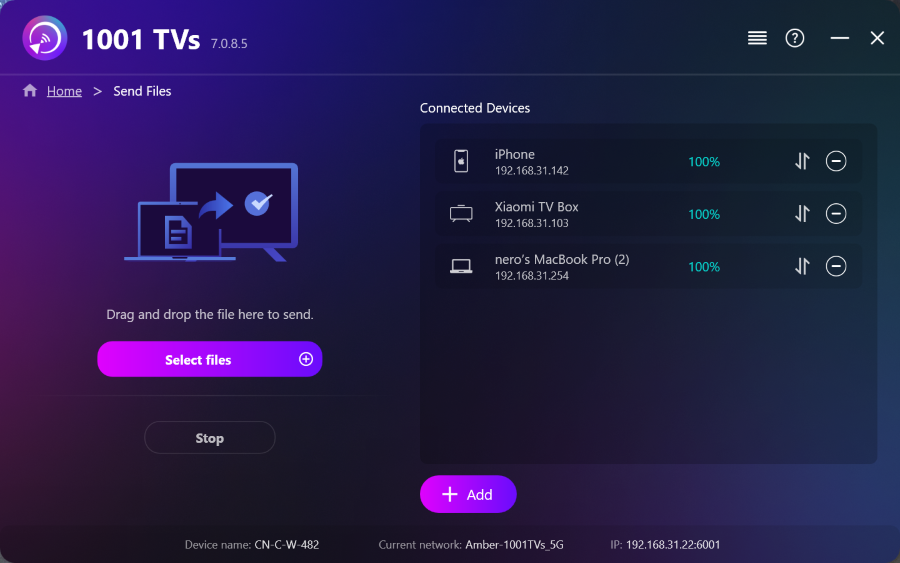 Como enviar ficheiros do PC para vários dispositivos ao mesmo tempo (PC, telemóvel, televisão, tablet)
Com a versão mais recente do 1001 TVs para Windows (v7.0.8.5), o seu PC já pode enviar ficheiros para vários dispositivos — televisões, tablets, telemóveis ou outros...
Como enviar ficheiros do PC para vários dispositivos ao mesmo tempo (PC, telemóvel, televisão, tablet)
Com a versão mais recente do 1001 TVs para Windows (v7.0.8.5), o seu PC já pode enviar ficheiros para vários dispositivos — televisões, tablets, telemóveis ou outros...
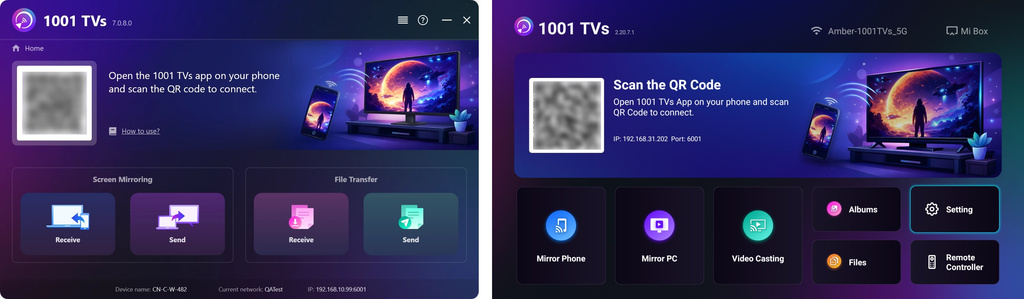 Como enviar ficheiros do seu PC/Mac para a TV/PC/Mac
Com o 1001 TVs, pode enviar ficheiros do seu PC/Mac para a sua televisão/PC/Mac através da mesma rede local. E sim — PCs e Macs...
Como enviar ficheiros do seu PC/Mac para a TV/PC/Mac
Com o 1001 TVs, pode enviar ficheiros do seu PC/Mac para a sua televisão/PC/Mac através da mesma rede local. E sim — PCs e Macs...

