Comment diffuser l'écran de son iPhone sur la télévision pour suivre les matchs de la phase de poules de la Coupe du monde 2026
La Coupe du monde de la FIFA 2026 débutera le 11 juin et s'annonce comme le plus grand tournoi de l'histoire. Avec 48 équipes réparties en 16 groupes, les supporters assisteront à 104 matchs de phase de poules d’ici au 3 juillet. Aux heures de pointe, jusqu’à quatre matchs se dérouleront simultanément : cela fait beaucoup de football à suivre.
Si vous prévoyez de regarder les matchs chez vous, vous aurez besoin de flexibilité. Votre iPhone vous permet de regarder les matchs en streaming depuis plusieurs applications et de passer d’un match à l’autre en un clin d’œil. Mais il y a un problème : regarder les matchs sur un écran de 6 pouces alors que vous disposez d’un téléviseur de 55 pouces n’a pas de sens.
La solution ? Applications de duplication d'écran pour iPhone qui diffusent les matchs en direct directement sur votre téléviseur. Ce guide vous explique comment diffuser l'écran de votre iPhone sur n'importe quel téléviseur — en particulier si vous disposez d'un téléviseur Android ou d'une smart TV — afin que vous puissiez profiter de la Coupe du monde 2026 sur grand écran.
Vous ne savez pas quels services de streaming détiennent les droits dans votre région ? Consultez notre guide sur Où regarder la Coupe du monde 2026 en ligne ? .
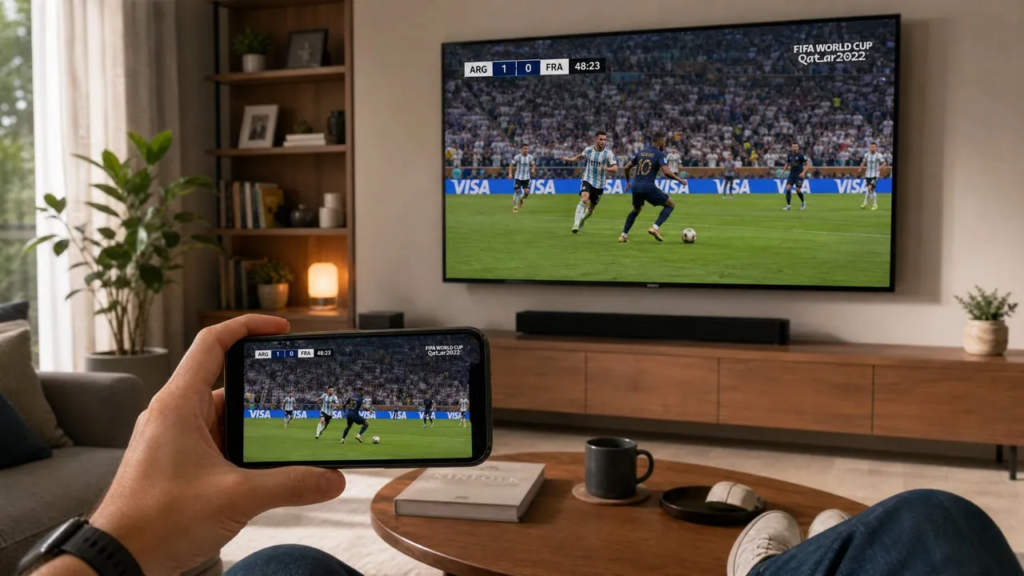
Pourquoi la duplication d'écran est-elle importante pour la Coupe du monde 2026 ?
Votre iPhone vous offre une grande flexibilité en matière de streaming. Vous pouvez accéder à plusieurs chaînes, passer d'un match à l'autre et profiter de contenus exclusifs. Mais regarder la télévision sur un petit écran alors que votre téléviseur reste inutilisé est frustrant.
La fonction « Screen Mirroring » résout ce problème. Vous contrôlez tout depuis votre iPhone tandis que le match est diffusé sur votre grand écran.
Le défi de l'écosystème Apple : AirPlay fonctionne parfaitement avec l'Apple TV, mais la plupart des gens possèdent des téléviseurs Android ou des téléviseurs connectés de marques telles que Samsung, LG et Sony. C'est là que les applications de duplication d'écran multiplateformes deviennent indispensables : elles comblent le fossé entre votre iPhone et les téléviseurs non Apple.
Les critères à prendre en compte pour choisir une application de duplication d'écran pour iPhone
Lorsque vous regardez les matchs de la Coupe du monde en direct, votre application de diffusion en miroir doit offrir quatre fonctionnalités essentielles :
Faible latence vous permet de suivre l'action en temps réel. Un décalage de trois secondes signifie que vous entendrez votre voisin célébrer le but avant de le voir vous-même. Les meilleures applications limitent ce décalage à moins d'une seconde.
Connexions stables éviter les ralentissements lors des tirs au but. Les applications de qualité continuent de fonctionner correctement même lorsque plusieurs appareils se connectent à votre réseau domestique.
Compatibilité multiplateforme Cela a de l'importance si vous possédez un iPhone mais que votre téléviseur fonctionne sous Android TV — une situation à laquelle sont confrontés des millions de foyers. Une application adaptée fonctionne sur tous les écosystèmes sans nécessiter de nouveau matériel.
Synchronisation audio est essentiel. Un commentaire qui arrive deux secondes après que le ballon a touché le filet gâche l'expérience. Les applications professionnelles de synchronisation maintiennent une synchronisation parfaite entre l'audio et la vidéo.
Les meilleures applications de duplication d'écran pour iPhone en 2026
AirPlay ou applications tierces ?
Commençons par examiner la solution native d'Apple : AirPlay. Si vous possédez une Apple TV, AirPlay est imbattable : aucune configuration nécessaire, une connexion instantanée, pratiquement aucune latence. C'est l'expérience fluide à laquelle s'attendent les utilisateurs Apple.
La contrainte ? AirPlay ne fonctionne qu'avec les appareils Apple TV ($129+). Si vous possédez déjà une Android TV, un Roku ou n'importe quelle smart TV autre qu'Apple, AirPlay ne vous sera d'aucune utilité.
Les applications tierces de duplication d'écran comblent cette lacune. Elles sacrifient un peu du raffinement d'AirPlay au profit d'une compatibilité avec le téléviseur que vous possédez déjà. Pour la plupart des utilisateurs — en particulier ceux dont le foyer regroupe plusieurs écosystèmes —, c'est un compromis qui en vaut la peine.
1001 TVs : l'idéal pour la duplication multiplateforme
1001 TVs se distingue comme le choix numéro un pour les utilisateurs d’iPhone à la recherche de performances multiplateformes fiables. Sa particularité ? Une mise en miroir fluide entre l’iPhone et une télévision Android — une combinaison qui nécessitait auparavant des solutions de contournement ou des adaptateurs coûteux.
L'application établit une connexion sans fil directe entre votre iPhone et n'importe quel téléviseur connecté se trouvant sur le même réseau. La configuration prend moins de deux minutes. Aucun matériel supplémentaire n'est nécessaire. Aucun réglage compliqué n'est requis.

Résultats en Coupe du monde : 1001 TVs offre un visionnage en temps quasi réel avec une fréquence d'images élevée et un temps de latence minimal. Vous pouvez également régler manuellement la qualité d'image adaptative pour bénéficier d'une expérience plus fluide sur les connexions plus lentes. Que vous regardiez du contenu en streaming depuis FIFA+, ESPN, FOX Sports ou l'application de n'importe quel diffuseur, 1001 TVs reproduit l'intégralité de l'écran de votre iPhone sans aucune restriction.
Remarque : certaines plateformes de streaming peuvent imposer des restrictions concernant la duplication d'écran. Vérifiez les conditions d'utilisation de votre service de streaming avant le début du tournoi.
Le principal avantage : La plupart des applications de mise en miroir ne fonctionnent qu’au sein de l’écosystème Apple ou nécessitent que les deux appareils utilisent le même système d’exploitation. 1001 TVs dépasse cette limite. Elle est idéale pour les foyers où des iPhone cohabitent avec des téléviseurs Android et des clés Chromecast.
Autres applications de duplication d'écran à envisager
AirBeamTV propose des applications de mise en miroir spécialement conçues pour les téléviseurs : une pour les téléviseurs Samsung, une autre pour LG, et ainsi de suite. Elles sont fiables et ne nécessitent aucun matériel supplémentaire. Ces applications sont optimisées pour chaque marque de téléviseur, ce qui garantit une meilleure compatibilité avec certains modèles.
Vous aurez besoin d'une application différente pour chaque marque de téléviseur, ce qui peut s'avérer peu pratique si vous souhaitez vous connecter à plusieurs téléviseurs de fabricants différents. Les performances varient en fonction de la qualité de la connexion.
Replica prend en charge plusieurs marques de téléviseurs via une seule application dotée d'une interface épurée. Elle permet à la fois la duplication d'écran et la diffusion de contenus multimédias. Elle propose une version gratuite, qui comprend des publicités et limite la résolution de la duplication d'écran. Pour les matchs de la Coupe du monde, la version premium supprime les publicités et offre une meilleure qualité de streaming.
ApowerMirror fonctionne sur toutes les plateformes et propose des fonctionnalités supplémentaires telles que l'enregistrement d'écran et des outils d'annotation. Il offre davantage de fonctionnalités que les applications de mise en miroir classiques, ce qui rend sa configuration un peu plus complexe.
La version gratuite limite la durée des sessions à 10 minutes ; vous devrez donc opter pour la version payante ($39,95/an) pour suivre les matchs de la Coupe du monde. La latence est généralement bonne, même si certaines fonctionnalités supplémentaires peuvent parfois affecter les performances sur les anciens modèles d'iPhone.
Comment configurer la duplication d'écran pour les matchs de la Coupe du monde
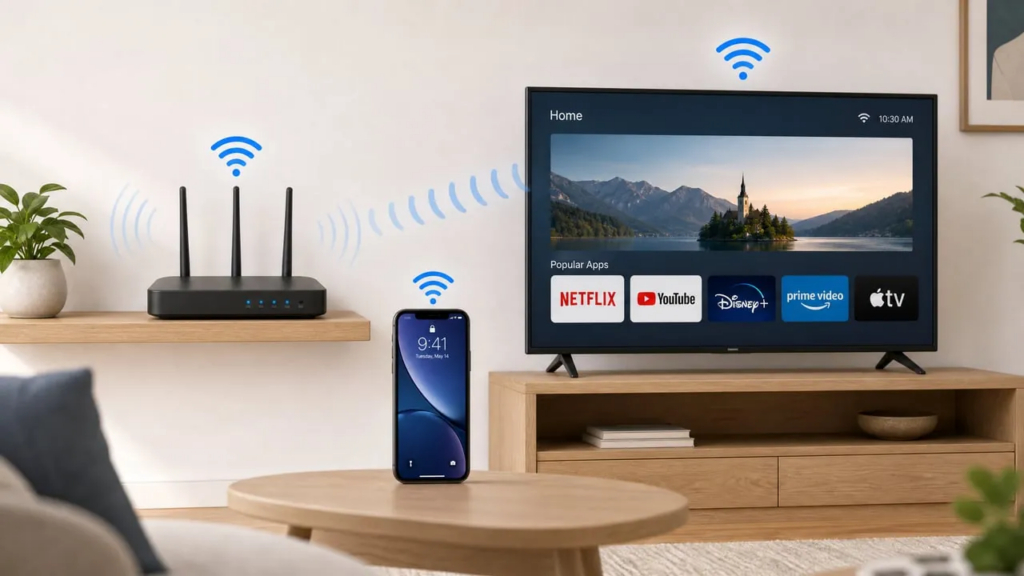
La configuration de votre iPhone pour suivre en direct les matchs de la Coupe du monde ne prend que quelques minutes :
Étape 1 : Connectez les deux appareils au même réseau Wi-Fi
C'est essentiel. Les applications de duplication d'écran communiquent via votre réseau local ; votre iPhone et votre téléviseur doivent donc être connectés au même réseau. Si vous disposez de réseaux distincts à 2,4 GHz et 5 GHz, utilisez la bande 5 GHz pour les deux appareils : elle offre de meilleures performances.
Étape 2 : Installez l'application de mise en miroir de votre choix
Téléchargez l'application 1001 TVs depuis l'App Store sur votre iPhone et sur votre téléviseur. Ouvrez-la sur les deux appareils et accordez les autorisations nécessaires lorsque vous y êtes invité.
Étape 3 : Sélectionnez votre téléviseur
Sur votre iPhone, appuyez sur “ Screen Mirroring ”. Les appareils détectés s'afficheront en quelques secondes. Appuyez sur le nom de votre téléviseur pour établir la connexion. Un message de confirmation s'affichera sur l'écran de votre téléviseur.
Si vous ne trouvez pas votre téléviseur, essayez d'actualiser la liste des appareils ou scannez le code QR affiché sur votre téléviseur pour vous connecter.
Étape 4 : Lancer la synchronisation
Ouvrez votre application de streaming (FIFA+, ESPN, FOX Sports ou la chaîne de votre région) et lancez la lecture. Tout ce qui s'affiche sur l'écran de votre iPhone apparaît désormais sur votre téléviseur.
Étape 5 : Optimisation pour les événements sportifs en direct
Si votre connexion réseau est lente ou instable, vous pouvez vous rendre dans « Votre profil » → « Paramètres du miroir » et activer Mode lisse. Sur votre téléviseur, accédez aux paramètres et activez Qualité d'image adaptative (réception) Ainsi, la qualité de l'image que vous recevrez s'adaptera automatiquement en fonction de votre connexion Internet.
Dépannage des problèmes courants liés à la mise en miroir
Même les meilleures applications de duplication d'écran pour iPhone rencontrent parfois des problèmes. Voici comment les résoudre :
Ralentissements ou saccades
Rapprochez votre routeur de votre téléviseur, ou rapprochez les deux appareils du routeur. Fermez les applications en arrière-plan sur votre iPhone qui consomment de la bande passante. Si possible, connectez votre téléviseur au routeur à l'aide d'un câble Ethernet : cela permet d'éliminer les aléas liés au Wi-Fi.
Perte de connexion
Redémarrez votre iPhone, votre téléviseur et votre routeur. Cela permet de résoudre les problèmes réseau temporaires. Assurez-vous que votre application de mise en miroir est à jour : les développeurs publient régulièrement des correctifs visant à améliorer la stabilité.
Pas de son
Vérifiez que le son de votre téléviseur n'est pas coupé et que le volume de votre iPhone est bien activé. Certaines applications disposent de paramètres audio distincts : assurez-vous que l'option “ Doublage audio ” est activée. Si vous utilisez des écouteurs Bluetooth avec votre iPhone, déconnectez-les. Le son sera alors acheminé vers les écouteurs au lieu d'être diffusé sur le téléviseur.
Certains appareils ou certaines plateformes peuvent limiter la sortie audio lors de la duplication d'écran. Dans ce cas, essayez de changer d'appareil ou de plateforme, ou contactez le développeur de l'application de duplication d'écran pour obtenir de l'aide.
Mauvaise qualité vidéo
Votre réseau est peut-être saturé. Interrompez le streaming ou les téléchargements sur vos autres appareils pendant le match. Dans votre application de mise en miroir, sélectionnez manuellement une résolution inférieure si le réglage automatique de la qualité ne fonctionne pas.
Méthodes alternatives : quand les utiliser ?
Les applications de duplication d'écran ne sont pas le seul moyen de diffuser le contenu de votre iPhone sur votre téléviseur, mais elles offrent la plus grande flexibilité pour suivre la Coupe du monde.
Adaptateurs HDMI (Les câbles Lightning vers HDMI) offrent des connexions filaires sans latence. Ils sont d’une fiabilité à toute épreuve, mais vous obligent à rester près du téléviseur. Utilisez-les comme solution de secours si votre Wi-Fi venait à tomber en panne pendant un match décisif.
Diffusion via AirPlay sur l'Apple TV fonctionne de manière fluide si vous possédez un appareil Apple TV. C'est la référence absolue en matière de latence et de qualité au sein de l'écosystème Apple, mais cela nécessite l'achat d'un appareil $129+.
Applications TV natives Cela fonctionne si votre service de streaming dispose d'une application pour votre téléviseur connecté. Cela permet d'éviter complètement la fonction de mise en miroir : vous contrôlez la lecture depuis votre iPhone tandis que le téléviseur exécute sa propre application. Cependant, tous les diffuseurs ne proposent pas d'applications TV, et certains restreignent l'accès à certains contenus en fonction de la région, ce qui fait de la mise en miroir votre seule option.
Préparez-vous pour la Coupe du monde 2026
La phase de poules de la Coupe du monde 2026 se déroulera tout au long du mois de juin, avec des matchs programmés dans plusieurs fuseaux horaires. Les applications de duplication d'écran pour iPhone vous offrent la possibilité de regarder les matchs comme vous le souhaitez : commencez à suivre un match sur votre téléphone pendant vos trajets, puis passez sans interruption sur votre téléviseur une fois rentré chez vous.
Testez votre configuration dès maintenant. N’attendez pas le match d’ouverture. Diffusez en miroir un match d’entraînement ou n’importe quel contenu sportif en direct afin d’identifier et de résoudre les problèmes tant que les enjeux sont faibles. Vérifiez quels services de streaming détiennent les droits de diffusion dans votre région et assurez-vous qu’ils sont compatibles avec l’application de diffusion en miroir que vous avez choisie.
En résumé : 1001 TVs et d'autres solutions de mise en miroir multiplateformes ont mis fin aux anciennes difficultés entre les utilisateurs d'iPhone et les téléviseurs Android. Vous n'avez plus besoin de choisir entre votre téléphone préféré et votre téléviseur actuel : une application adaptée fait le lien entre les deux.
Configurez dès aujourd’hui la fonction de duplication d’écran, et vous serez prêt dès le coup d’envoi, le 11 juin.

En savoir plus
 Comment regarder la NBA à la télévision aux États-Unis
Pour regarder les matchs de la NBA sur votre téléviseur aux États-Unis, le plus simple est de prendre deux décisions dans l'ordre : tout d'abord, vérifiez quel service agréé diffuse...
Comment regarder la NBA à la télévision aux États-Unis
Pour regarder les matchs de la NBA sur votre téléviseur aux États-Unis, le plus simple est de prendre deux décisions dans l'ordre : tout d'abord, vérifiez quel service agréé diffuse...
 Comment diffuser l'écran sur un téléviseur Sony Bravia (Google TV)
Un téléviseur Sony Bravia Google TV n'utilise pas une seule méthode universelle de “ Screen Mirroring ” pour tous les téléphones et ordinateurs. Le choix approprié dépend à la fois...
Comment diffuser l'écran sur un téléviseur Sony Bravia (Google TV)
Un téléviseur Sony Bravia Google TV n'utilise pas une seule méthode universelle de “ Screen Mirroring ” pour tous les téléphones et ordinateurs. Le choix approprié dépend à la fois...

