Comment diffuser l'écran d'un Mac ou d'un PC Windows sur un téléviseur Samsung : 3 méthodes simples
Vous souhaitez afficher l'écran de votre ordinateur portable sur un téléviseur plus grand ? Que ce soit pour présenter un diaporama, partager des photos, regarder une vidéo ou travailler avec un deuxième écran, il existe plusieurs méthodes simples pour dupliquer l'écran d'un Mac ou d'un PC Windows sur un téléviseur Samsung.
La meilleure méthode dépend de votre ordinateur et de votre téléviseur :
- Les utilisateurs de Mac peuvent généralement utiliser AirPlay.
- Les utilisateurs de Windows peuvent se connecter via Miracast en utilisant Windows + K.
- Les utilisateurs de Mac et de Windows peuvent utiliser 1001 TVs avec un appareil Android TV ou Google TV connecté au téléviseur Samsung.
Ce guide explique ces trois méthodes étape par étape.
Pour connaître la compatibilité avec les téléphones Android, les iPhone, les appareils Samsung et les modèles de téléviseurs, consultez notre Guide complet sur la duplication d'écran sur les téléviseurs Samsung.
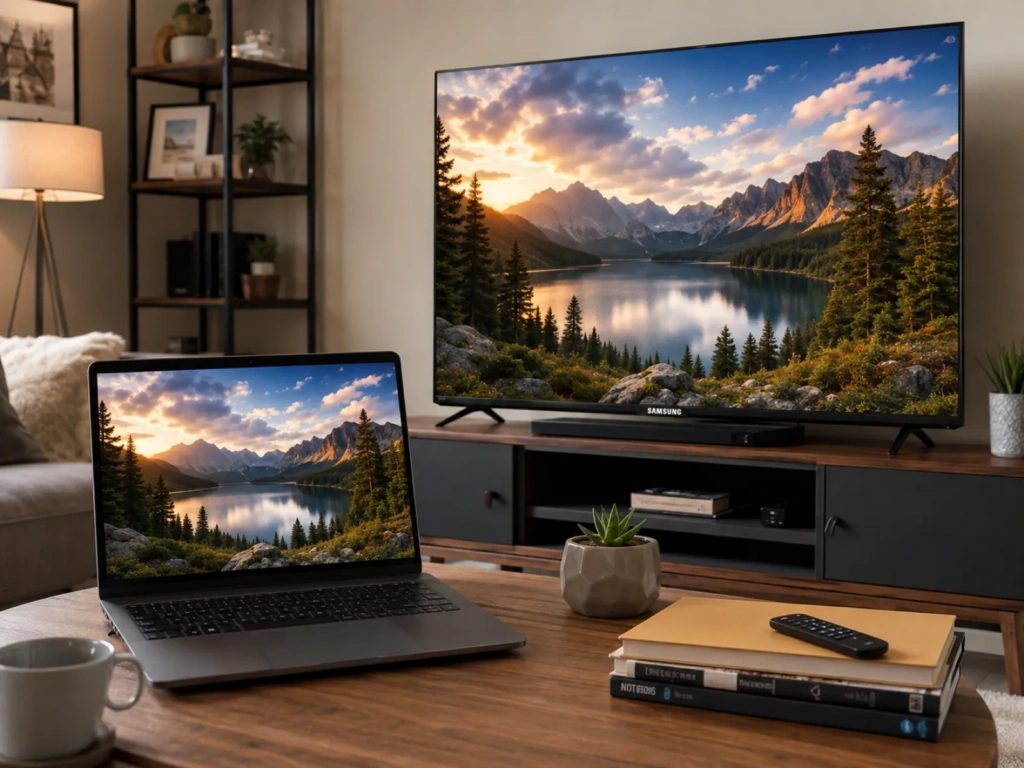
Réponse rapide : quelle est la méthode la plus simple ?
Utilisation AirPlay lorsque vous disposez d'un Mac et d'un téléviseur Samsung compatible AirPlay.
Utilisation Windows + K si vous disposez d'un PC sous Windows 10 ou Windows 11 et d'un téléviseur Samsung prenant en charge Miracast.
Utilisation 1001 TVs lorsque vous souhaitez disposer d'une méthode multiplateforme valable à la fois pour Mac et Windows, ou lorsque vous disposez d'un appareil Android TV ou Google TV connecté à votre téléviseur Samsung.
| Ordinateur | Méthode recommandée | Matériel supplémentaire |
|---|---|---|
| Mac | AirPlay | En général, aucun |
| Windows 10 ou 11 | Miracast avec Windows + K | En général, aucun |
| Mac ou Windows | 1001 TVs | Récepteur Android TV ou Google TV |
| N'importe quel ordinateur | HDMI | Câble ou adaptateur |
Les noms des menus Samsung et les fonctionnalités prises en charge peuvent varier selon le modèle, la région et la version du logiciel.
Méthode 1 : Diffuser l'écran d'un Mac sur un téléviseur Samsung via AirPlay
AirPlay est la solution intégrée la plus simple pour de nombreux utilisateurs de Mac. Elle permet à un MacBook, un iMac ou un Mac mini de diffuser son écran sans fil sur un téléviseur Samsung Smart TV compatible.
Samsung a intégré AirPlay 2 à tous ses téléviseurs Smart TV de 2019 ainsi qu'à certains modèles de 2018 via des mises à jour du micrologiciel. De nombreux téléviseurs Samsung plus récents prennent également en charge AirPlay, mais il convient de vérifier la compatibilité de chaque modèle.
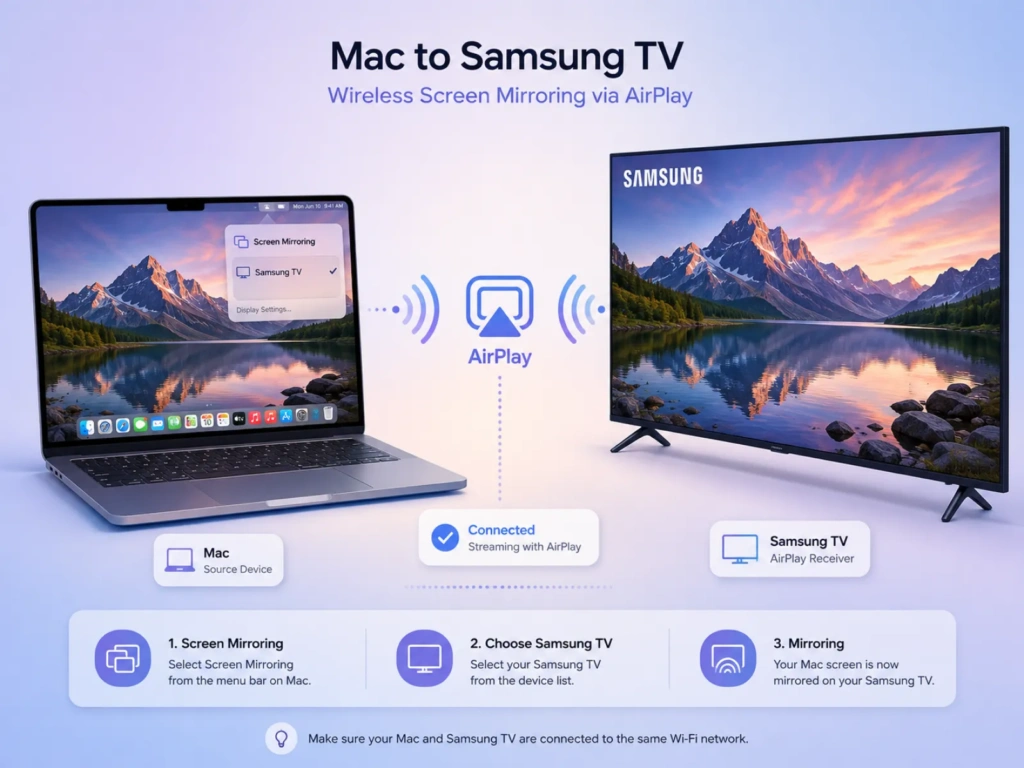
Étape 1 : Connectez les deux appareils au même réseau Wi-Fi
Connectez votre Mac et votre téléviseur Samsung au même réseau Wi-Fi.
AirPlay risque de ne pas fonctionner correctement lorsqu'un appareil est connecté à un réseau invité, à un point d'accès mobile, à un VPN ou à un réseau qui bloque la communication entre les appareils connectés.
Étape 2 : Activer AirPlay sur le téléviseur Samsung
Sur de nombreux téléviseurs Samsung, ouvrez :
Réglages > Tous les réglages > Général > Réglages Apple AirPlay
Sur certains modèles plus récents, le chemin d'accès est le suivant :
Paramètres > Tous les paramètres > Connexion > Paramètres Apple AirPlay
Tour AirPlay . Le chemin d'accès exact au menu dépend de l'année de fabrication du téléviseur.
Étape 3 : Lancer la fonction « Screen Mirroring » sur le Mac
- Ouvrir Centre de contrôle dans la barre de menus du Mac.
- Sélectionner Dupliquer l’écran.
- Choisissez votre téléviseur Samsung.
- Saisissez le code affiché à l'écran si vous y êtes invité.
- Choisissez la manière dont vous souhaitez partager votre écran.
Selon la version de macOS que vous utilisez, vous pourrez peut-être :
- Dupliquer l'intégralité de l'écran du Mac.
- Utilisez le téléviseur comme écran supplémentaire.
- Partager une seule fenêtre ou application.
La documentation Mac actuelle d'Apple prend en charge la duplication d'écran, l'extension du bureau et le partage d'une fenêtre ou d'une application spécifique lors de l'utilisation d'un téléviseur compatible ou d'un appareil AirPlay.
Pour arrêter la mise en miroir, ouvrez Centre de contrôle > Doublage d'écran et débranchez le téléviseur Samsung.
Méthode 2 : Afficher l'écran d'un PC Windows sur un téléviseur Samsung
Windows 10 et Windows 11 intègrent une fonctionnalité d'affichage sans fil basée sur Miracast. Si l'ordinateur et le téléviseur Samsung prennent tous deux en charge Miracast, vous pouvez vous connecter sans avoir à installer d'autre application.
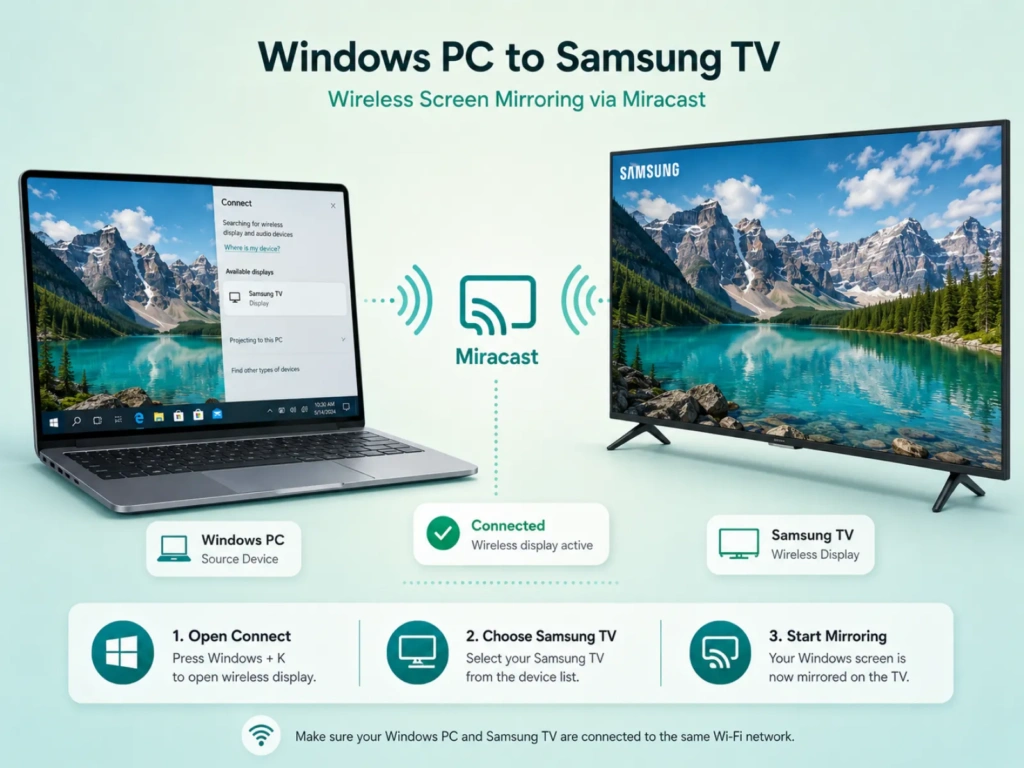
Étape 1 : Préparer le téléviseur Samsung
Allumez la télévision et vérifiez que la fonction de partage d'écran sans fil est disponible.
Samsung pourrait appeler cette fonctionnalité de mise en miroir :
- Partage d'écran
- Dupliquer l’écran
- Affichage sans fil
Sur certains modèles Samsung, la fonction « Partage d'écran » apparaît dans un menu plus général, tel que PC sur la télévision ou Espace de travail.
Étape 2 : Se connecter à l'aide de la combinaison Windows + K
- Activez le Wi-Fi sur l'ordinateur Windows.
- Presse Windows + K.
- Attendez que la liste des écrans sans fil disponibles s'affiche.
- Sélectionnez votre téléviseur Samsung.
- Acceptez la demande de connexion sur le téléviseur si elle s'affiche.
Microsoft recommande Windows + K pour connecter un PC Windows à un téléviseur, un projecteur ou un écran sans fil compatible Miracast.
Étape 3 : Choisissez un mode d'affichage
Une fois la connexion établie, appuyez sur Windows + P et choisissez l'une des options suivantes :
- En double : Affiche le même contenu sur le PC et la télévision.
- Développer : Permet d'utiliser le téléviseur comme écran supplémentaire.
- Uniquement sur un deuxième écran : Affiche uniquement le bureau sur le téléviseur.
- Écran d'ordinateur uniquement : Déconnecte l'écran externe.
Choisir Duplicata pour la duplication d'écran classique.
Choisir Prolonger lorsque vous souhaitez transférer des applications entre votre ordinateur portable et votre téléviseur tout en conservant des contenus différents sur chaque écran.
Comment vérifier si votre PC prend en charge Miracast
Presse Windows + K.
Si Windows affiche un panneau de diffusion sans fil et recherche les écrans disponibles, cela signifie que l'ordinateur devrait prendre en charge la projection sans fil. Si Windows indique que l'appareil ne prend pas en charge Miracast, vous devrez peut-être recourir à une autre méthode.
Microsoft recommande également de mettre à jour Windows ainsi que les pilotes graphiques et Wi-Fi de l'ordinateur lorsqu'un écran sans fil compatible n'apparaît pas.
Que faire si le téléviseur Samsung n'apparaît pas ?
Essayez ce qui suit :
- Redémarrez le PC et le téléviseur Samsung.
- Assurez-vous que le Wi-Fi est activé.
- Rapprochez l'ordinateur de la télévision et du routeur.
- Se déconnecter d'un VPN.
- Mettez à jour Windows, le pilote réseau sans fil et le pilote graphique.
- Consultez le menu « Partage d'écran » ou « Connexion » du téléviseur.
- Supprimez le téléviseur des paramètres Bluetooth et des périphériques de Windows, puis reconnectez-le.
Si votre PC ou votre téléviseur ne prend pas en charge Miracast, utilisez un câble HDMI ou la méthode 1001 TVs décrite ci-dessous.
Méthode 3 : Diffuser l'écran d'un Mac ou d'un PC Windows avec 1001 TVs
1001 TVs propose un processus de duplication d'écran similaire pour macOS et Windows. Il permet de dupliquer l'intégralité de l'écran de l'ordinateur ou une fenêtre sélectionnée sur un appareil récepteur compatible.

Il y a un détail important à prendre en compte en matière de compatibilité :
La plupart des téléviseurs intelligents Samsung fonctionnent sous le système d'exploitation Tizen de Samsung, et non sous Android TV. La liste des plateformes 1001 TVs publiée ne mentionne pas Tizen de Samsung parmi les plateformes de réception TV prises en charge.
Pour utiliser la version Android TV de 1001 TVs avec un téléviseur Samsung, connectez un appareil ou un boîtier de streaming compatible Android TV ou Google TV au téléviseur via HDMI. Installez 1001 TVs sur cet appareil, puis utilisez le téléviseur Samsung comme écran.
1001 TVs est compatible avec Android TV 6.0 ou une version ultérieure et permet de recevoir du contenu en mode miroir depuis des ordinateurs Windows et Mac.
Ce dont vous avez besoin
- Un Mac ou un PC sous Windows
- Un téléviseur Samsung doté d'un port HDMI disponible
- Un récepteur Android TV
- 1001 TVs installé sur l'ordinateur
- 1001 TVs installé sur le récepteur TV
- Les deux appareils sont connectés au même réseau Wi-Fi local
Il est recommandé d'utiliser une connexion Wi-Fi à 5 GHz lorsque les appareils se trouvent à une distance raisonnable du routeur.
Étape 1 : Configuration du récepteur TV
- Connectez l'appareil Android TV au téléviseur Samsung via HDMI.
- Réglez l'entrée du téléviseur Samsung sur le port HDMI correspondant.
- Ouvrez Google Play sur votre téléviseur.
- Rechercher et installer 1001 TVs.
- Ouvrez l'application et laissez-la en cours d'exécution.
Étape 2 : Installer 1001 TVs sur l'ordinateur
Installez et lancez 1001 TVs sur votre PC Windows ou votre Mac.
Vérifiez que l'ordinateur et le récepteur Android TV sont connectés au même réseau Wi-Fi. L'application détecte normalement les appareils récepteurs compatibles exécutant 1001 TVs sur le réseau local.
Étape 3 : Démarrer la mise en miroir
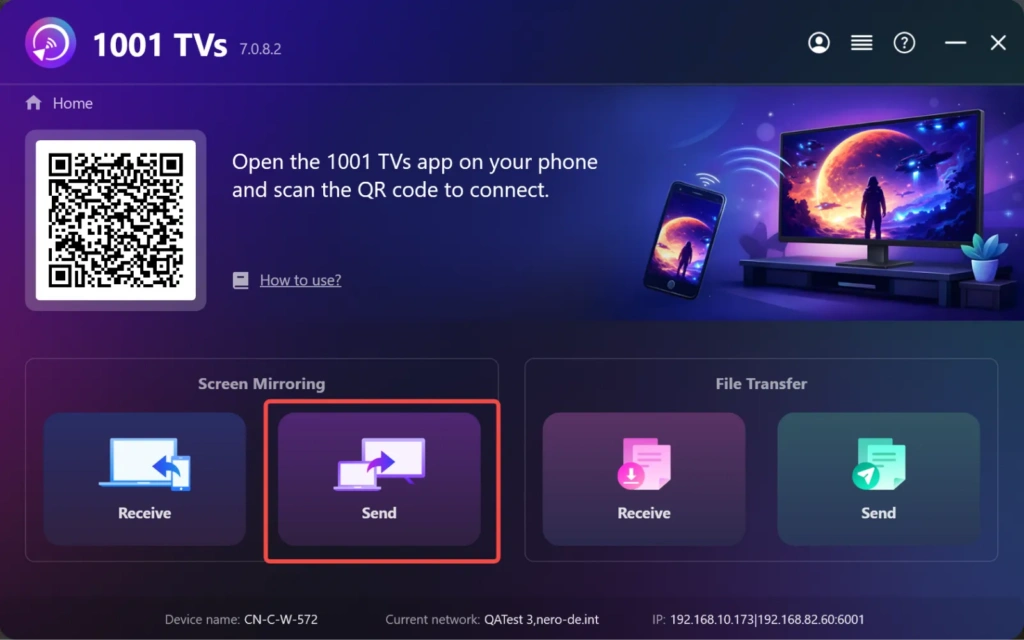
- Ouvrir 1001 TVs.
- Sélectionner Partage d'écran > Envoyer.
- Sélectionnez le récepteur Android TV dans la liste des appareils.
- Acceptez la demande à la télévision.
- Sélectionnez l'écran ou la fenêtre que vous souhaitez partager.
Pour activer l'audio sur Mac, autorisez l'accès au microphone lorsque vous y êtes invité. Selon les instructions actuelles de 1001 TVs, la transmission audio sur Mac est prise en charge sous macOS 13 ou une version ultérieure.
Quand faut-il utiliser la méthode 1001 TVs ?
La méthode 1001 TVs est utile dans les cas suivants :
- Vous utilisez à la fois des ordinateurs Mac et Windows
- Vous souhaitez diffuser l'écran de votre appareil sur plusieurs téléviseurs.
- Vous souhaitez que le processus de connexion via l'application soit identique sur les deux plateformes.
- Le téléviseur Samsung est connecté à un récepteur Android TV ou Google TV.
- La connexion AirPlay ou Miracast intégrée n'est pas fiable.
- Vous souhaitez ne partager que la fenêtre d'une application sélectionnée.
- Vous souhaitez utiliser votre téléviseur comme un espace de travail supplémentaire.
Certaines fonctionnalités d'extension, notamment sur Mac, peuvent nécessiter une configuration supplémentaire ou une version spécifique de l'application. Suivez les instructions affichées dans l'application avant d'activer le mode d'affichage étendu. Découvrez comment afficher l'écran d'un MacBook sur un iMac grâce à notre guide étape par étape.
Comment réduire le décalage lors de la duplication d'écran
La duplication d'écran sans fil dépend fortement de la qualité du réseau. Pour améliorer les performances :
- Utilisez un réseau Wi-Fi à 5 GHz dans la mesure du possible.
- Placez l'ordinateur et le récepteur à proximité du routeur.
- Évitez les réseaux « invités ».
- Mettez en pause les téléchargements volumineux et les sauvegardes dans le cloud.
- Déconnectez les connexions VPN inutiles.
- Mettez à jour l'ordinateur, le micrologiciel du téléviseur, le récepteur et l'application de mise en miroir.
- Réduisez la résolution de la duplication d'écran si la connexion est saccadée.
- Utilisez la connexion HDMI lorsque le délai minimal est essentiel.
La duplication d'écran sans fil convient généralement aux présentations, aux photos, aux documents et au visionnage occasionnel de vidéos. La connexion HDMI est généralement plus fiable pour les jeux vidéo de compétition, les vidéos à fréquence d'images élevée ou les présentations importantes où toute interruption est inacceptable.
Questions fréquemment posées
Puis-je diffuser l'écran d'un MacBook sur un téléviseur Samsung sans Apple TV ?
Oui. Si le téléviseur Samsung prend en charge AirPlay 2, le Mac peut s'y connecter directement, sans passer par un boîtier Apple TV. Activez AirPlay sur le téléviseur, puis sélectionnez ce dernier dans Centre de contrôle > Doublage d'écran.
Puis-je diffuser l'écran de Windows 11 sur un téléviseur Samsung ?
Oui, à condition que le PC Windows et le téléviseur Samsung prennent en charge Miracast. Appuyez sur Windows + K, sélectionnez le téléviseur Samsung, puis acceptez la connexion.
L'application 1001 TVs s'installe-t-elle directement sur un téléviseur Samsung Smart TV ?
À l'heure actuelle, 1001 TVs ne prend pas en charge la plateforme Tizen de Samsung parmi ses systèmes de réception TV compatibles. Pour un téléviseur Samsung Tizen classique, connectez un appareil Android TV ou Google TV compatible via HDMI et installez 1001 TVs sur ce récepteur.
Pourquoi n'y a-t-il pas de son lors de la duplication d'écran ?
Commencez par vérifier le volume et la sortie audio de l'ordinateur.
Sous Windows, cliquez sur l'icône du haut-parleur dans la barre des tâches, puis sélectionnez le téléviseur ou l'écran sans fil.
Sur un Mac utilisant AirPlay, ouvrez Paramètres système > Son > Sortie puis sélectionnez le téléviseur Samsung.
Lorsque vous utilisez 1001 TVs sur un Mac, activez les autorisations audio et vérifiez que le Mac fonctionne sous macOS 13 ou une version ultérieure pour bénéficier de la prise en charge audio. Certaines applications protégées peuvent bloquer l'audio ou la capture d'écran.
Quelle méthode offre la meilleure qualité ?
Pour la duplication d'écran sans fil, AirPlay est généralement la solution la plus simple pour un Mac, tandis que Miracast est la solution la plus directe pour un PC Windows compatible.
1001 TVs constitue une solution multiplateforme pratique lorsque le téléviseur Samsung est connecté à un récepteur Android TV ou Google TV compatible.
Pour un temps de latence minimal et une connexion la plus stable possible, le HDMI reste l'option la plus fiable.
Recommandation finale
Commencez par utiliser la méthode intégrée à votre ordinateur.
Sur un Mac, utilisez AirPlay. Sur un PC sous Windows, appuyez sur Windows + K et vous connecter via Miracast.
Choisir 1001 TVs lorsque vous souhaitez disposer d'un processus homogène aussi bien sur Mac que sur Windows, ou lorsque votre installation TV Samsung comprend un récepteur Android TV ou Google TV.
Quelle que soit la méthode que vous choisissiez, une connexion Wi-Fi stable et des logiciels à jour vous permettront de bénéficier d'un partage d'écran plus fluide et plus fiable.
Vous souhaitez profiter d'un partage d'écran illimité depuis votre ordinateur ?

En savoir plus
 Comment diffuser le Super Bowl à partir d'un iPhone, d'un Android ou d'un Mac sur une télévision en 2027
Pour regarder le Super Bowl sur votre téléviseur depuis un iPhone, un téléphone Android ou un Mac, utilisez la fonction AirPlay ou Google Cast prise en charge par le diffuseur,...
Comment diffuser le Super Bowl à partir d'un iPhone, d'un Android ou d'un Mac sur une télévision en 2027
Pour regarder le Super Bowl sur votre téléviseur depuis un iPhone, un téléphone Android ou un Mac, utilisez la fonction AirPlay ou Google Cast prise en charge par le diffuseur,...
 Comment diffuser la Coupe du Monde de la FIFA 2026 sur votre téléviseur : AirPlay, Chromecast et plus
Pour diffuser des vidéos de la Coupe du monde sur votre téléviseur, utilisez l'option « Cast » ou « AirPlay » prise en charge par votre application de streaming, ou une connexion HDMI compatible. Les applications de duplication d'écran...
Comment diffuser la Coupe du Monde de la FIFA 2026 sur votre téléviseur : AirPlay, Chromecast et plus
Pour diffuser des vidéos de la Coupe du monde sur votre téléviseur, utilisez l'option « Cast » ou « AirPlay » prise en charge par votre application de streaming, ou une connexion HDMI compatible. Les applications de duplication d'écran...

