
كيف ترسل الملفات من هاتفك إلى Android / Apple TV؟
مع 1001 TVs, ، يمكنك إرسال الملفات من هاتفك إلى التلفزيون عبر الشبكة المحلية.
لا توجد تحميلات سحابية. لا تسجيلات. سريع وآمن.
قبل أن تبدأ
- تأكد من أن الهاتف والتلفاز متصلان بشبكة Wi-Fi نفسها
- التثبيت 1001 TVs على كل من هاتفك وتلفزيونك
الخطوة 1: افتح 1001 TVs على تلفزيونك
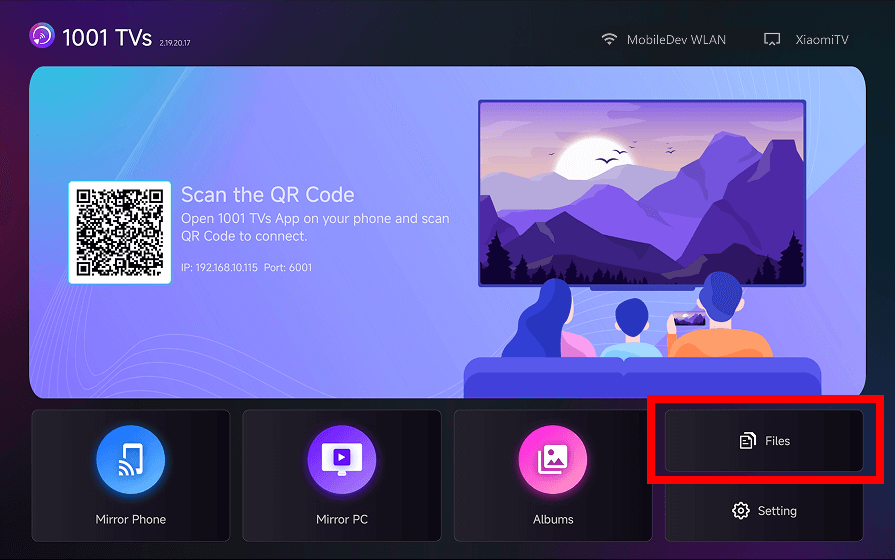
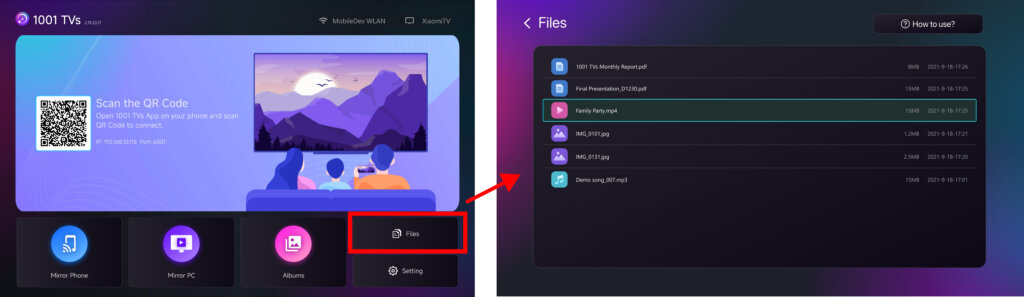
الإطلاق 1001 TVs على التلفزيون الذكي الخاص بك وفتح الملفات الصفحة.
استمر في تشغيل تطبيق التلفزيون.
الخطوة 2: افتح 1001 TVs على هاتفك
افتح 1001 TVs على هاتفك وانقر على “مشاركة الملفات”.
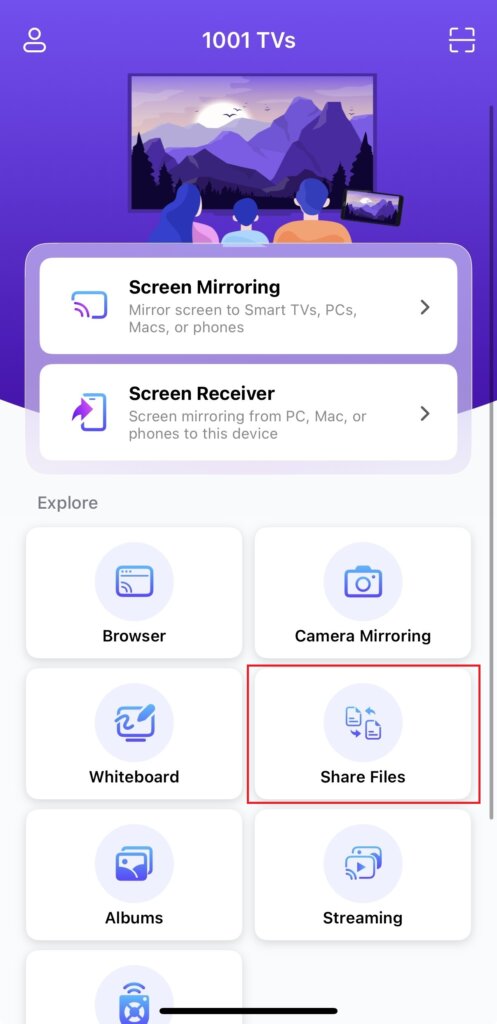
سيبحث التطبيق تلقائياً عن أجهزة التلفزيون المتاحة على الشبكة نفسها.
الخطوة 3: اختر التلفزيون وأرسل الملفات
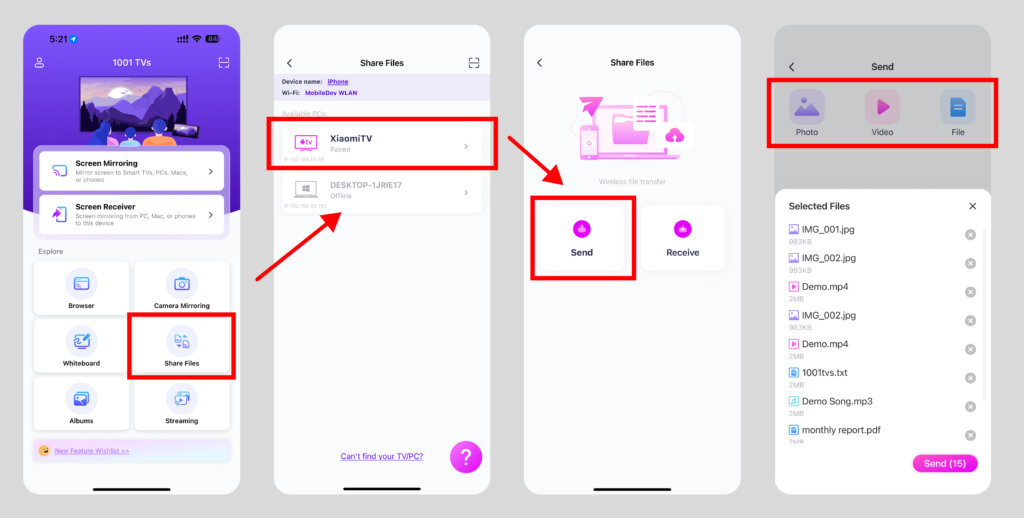
- اختر التلفزيون الخاص بك من قائمة الأجهزة.
- حدد ملفات على هاتفك (صور، أو مقاطع فيديو، أو موسيقى، أو مستندات)
- انقر للإرسال - يتم نقل الملفات مباشرةً إلى التلفزيون الخاص بك
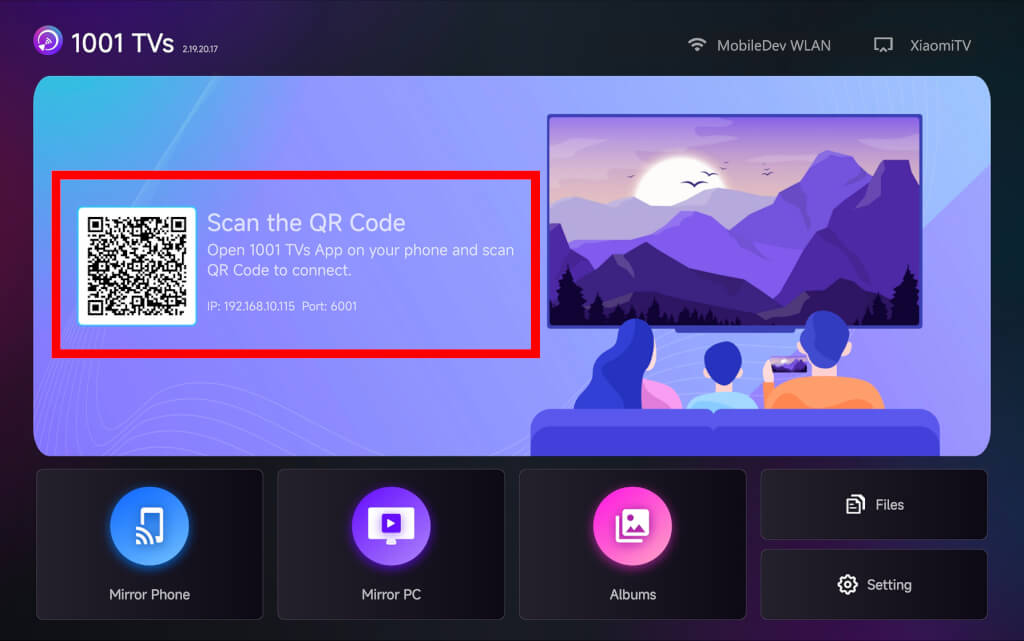
لا تستطيع العثور على تلفازك؟
إذا لم يظهر التلفاز الخاص بك، استخدم إقران رمز الاستجابة السريعة للاتصال بسرعة.
عرض الملفات على التلفزيون
بمجرد النقل، ستظهر ملفاتك على الفور على شاشة التلفزيون ويمكن فتحها أو تشغيلها على الفور.
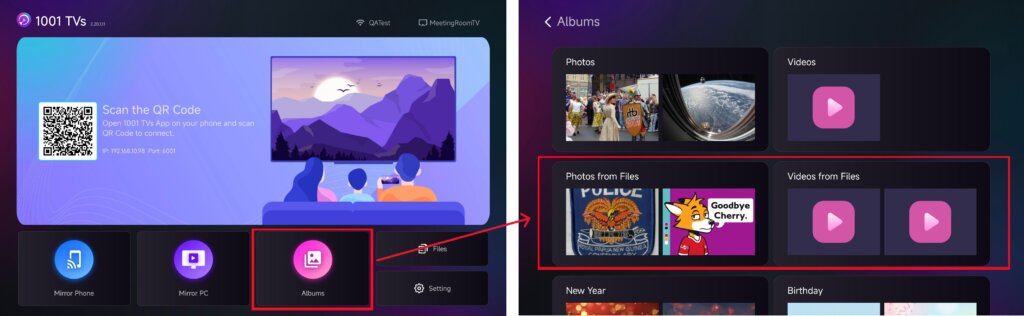
يمكنك عرضها في “الملفات” أو استمتع بصورك ومقاطع الفيديو الخاصة بك كـ عرض الشرائح في “عرض الألبوم“.
كيف تحذف الملفات من تلفازك؟
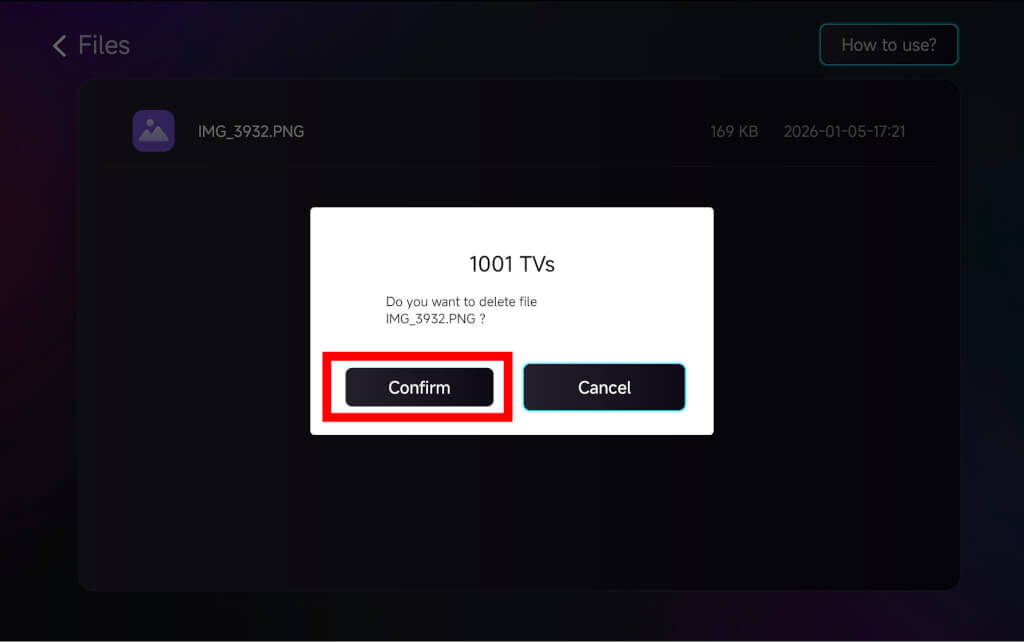
في صفحة الملفات في 1001 TVs، استخدم جهاز التحكم عن بُعد الخاص بالتلفزيون ل الضغط لفترة طويلة فإن حسناً لتحديد الملف الذي تريد حذفه، ثم انقر فوق الزر “تأكيد” لحذفها.
لماذا نستخدم 1001 TVs؟
سريع، وخاص، وسهل الاستخدام
نقل محلي، لا حاجة إلى سحابة سحابية
لا يلزم تسجيل الدخول أو الحساب
هل تحتاج إلى مساعدة؟
إذا واجهتك أي مشاكل، فلا تتردد في التواصل مع فريق الدعم لدينا:
- المزيد من الأدلة الإرشادية الإرشادات
- البريد الإلكتروني: 1001tvs@nero.com
- الموقع الإلكتروني: www.1001tvs.com