فون کو پی سی پر آئینہ کرتے وقت مدھم رنگوں کا مسئلہ کیسے حل کریں

Recently, some users have reported that after mirroring their phone screen to a PC, the image appears noticeably grey and washed out.
Our investigation shows that this is most likely caused by a mismatch in the graphics card’s color range settings. iOS and macOS devices typically output color using the Full Range (0–255), while traditional Windows PCs and certain video content are often set to use the Limited Range (16–235). As a result, a pure white color (#FFFFFF) from the phone is interpreted incorrectly on the PC, displaying as a dull, off-white shade.
How to fix it:
For AMD Graphics Cards:
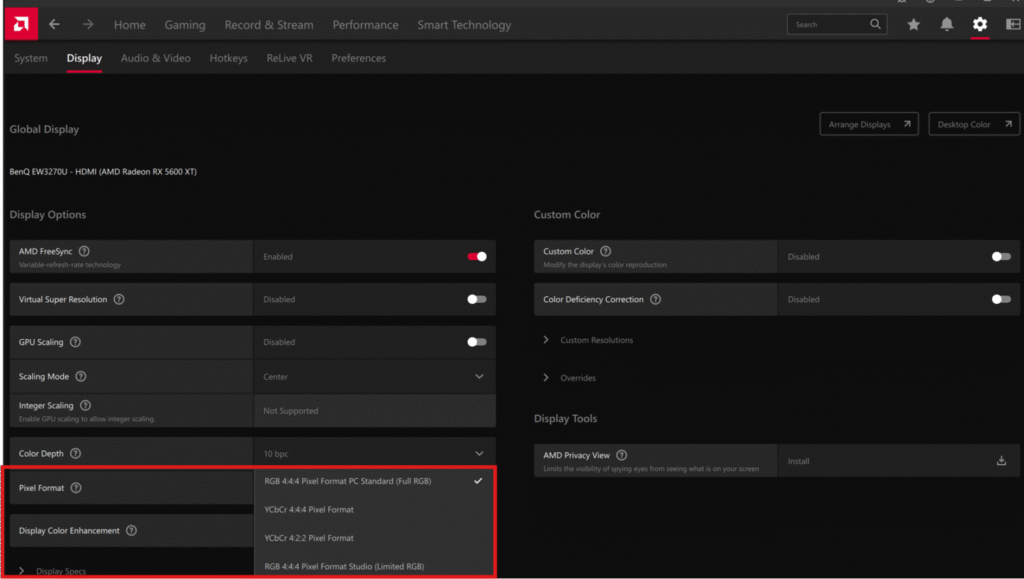
- Open the AMD Radeon Software control panel.
- پر جائیں۔ ڈسپلے tab.
- Look for the Pixel Format option and change it to “RGB 4:4:4 Pixel Format PC Standard (Full RGB)”.
- Apply the changes, and the issue should be resolved.
For NVIDIA Graphics Cards:
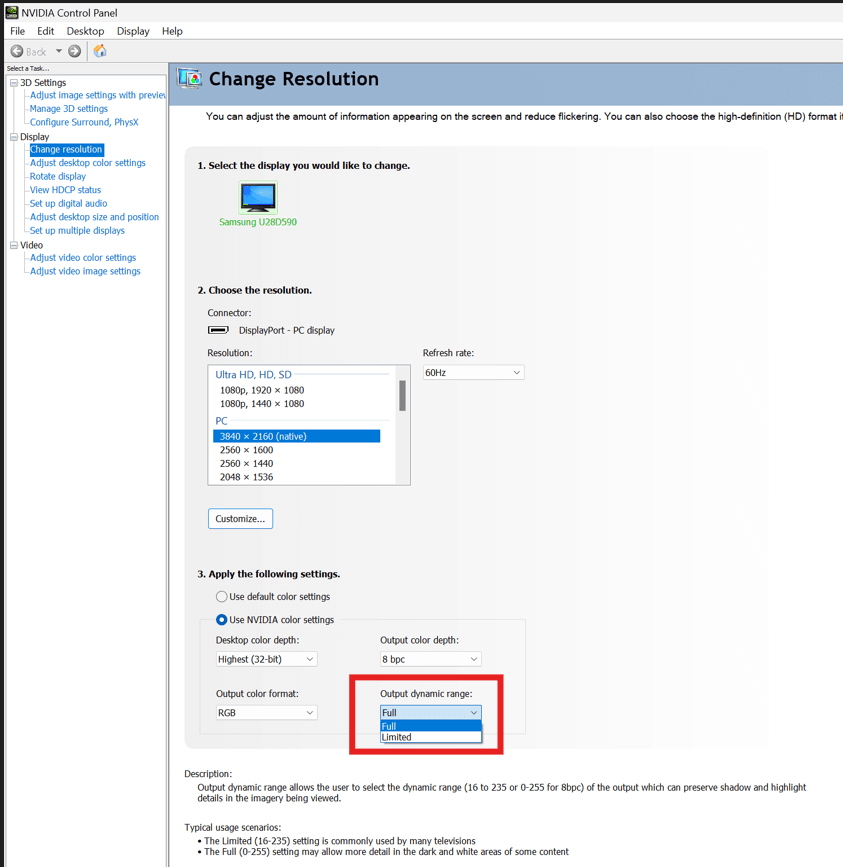
- Open the NVIDIA Control Panel.
- پر جائیں۔ ڈسپلے > Change Resolution.
- Find the Output Dynamic Range option and change it to مکمل.
For Intel Graphics Cards:
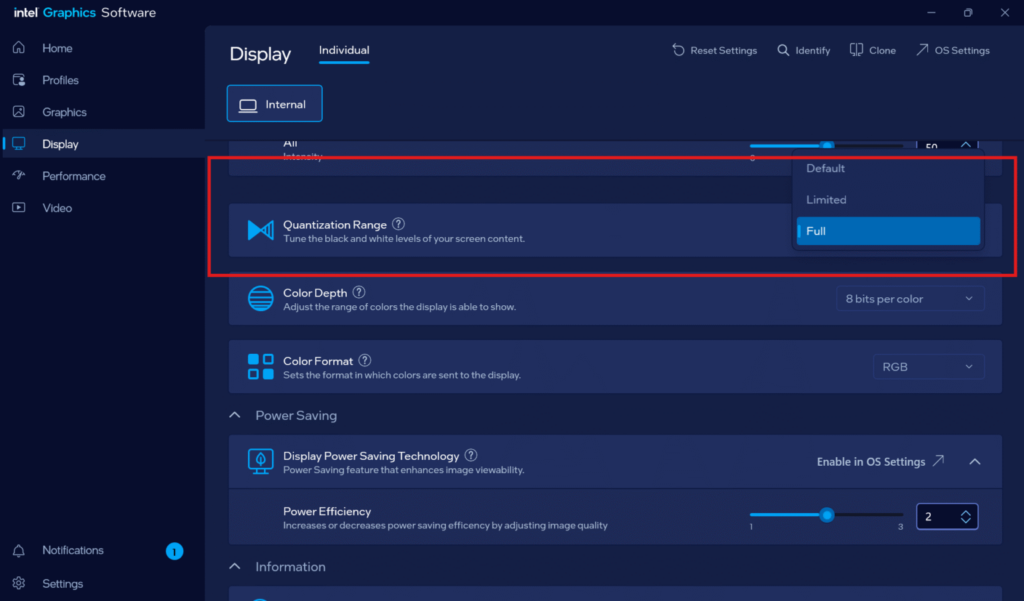
- Open the Intel Graphics Software.
- پر جائیں۔ ڈسپلے سیکشن.
- Find the Quantization Range option and change it to مکمل.