[Comment mettre l'écran du PC en miroir avec celui de la télévision ?
1. Se connecter au même réseau Wi-Fi
Tout d'abord, assurez-vous que votre TV intelligente Android, boîtier TV Android et PC sont connectés au même réseau Wi-Fi.
Pour une meilleure performance, utilisez un Réseau Wi-Fi 5 GHz afin de réduire les délais et d'améliorer la stabilité.
2. Installer 1001 TVs sur les deux appareils
Assurez-vous que le 1001 TVs app est installé à la fois sur votre PC et TV.
📥 PC App : Télécharger à partir de Microsoft Store
Pour les étapes détaillées, voir le Guide d'installation du PC
📥 TV App : Comment installer 1001 TVs sur votre téléviseur
3. Lancer l'application
Une fois installée, ouvrez l'application 1001 TVs sur votre PC et sur votre téléviseur.
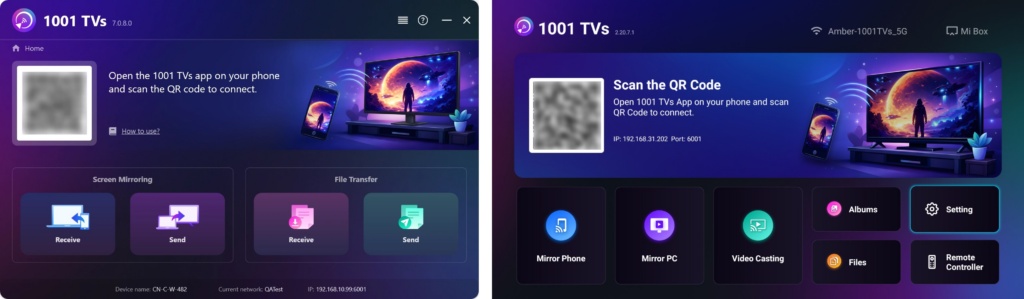
4. Démarrer le Screen Mirroring
1) Recherche de dispositifs
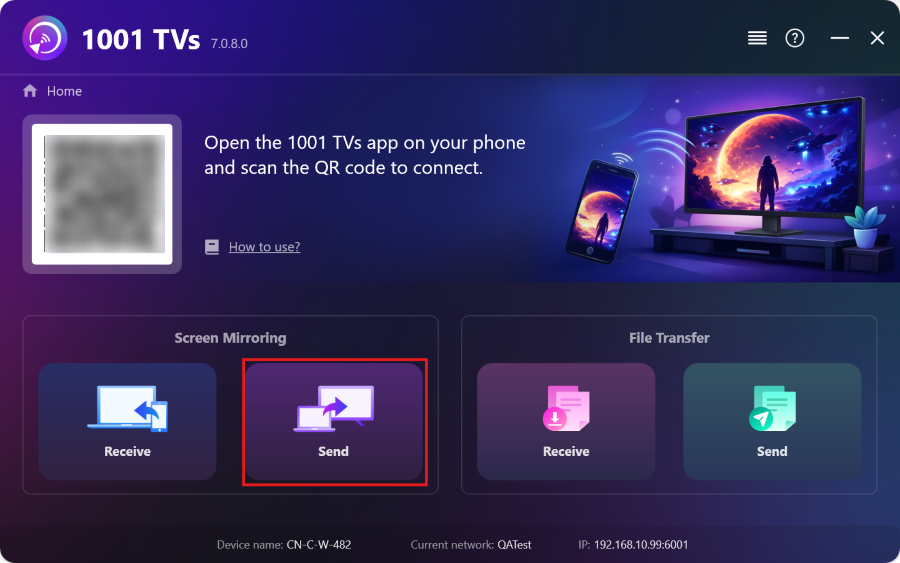
Sur votre PC, cliquez sur le bouton “ Envoyer ” dans l'application 1001 TVs.
L'application détectera automatiquement les appareils disponibles sur le même réseau Wi-Fi.
2) Sélectionner et connecter
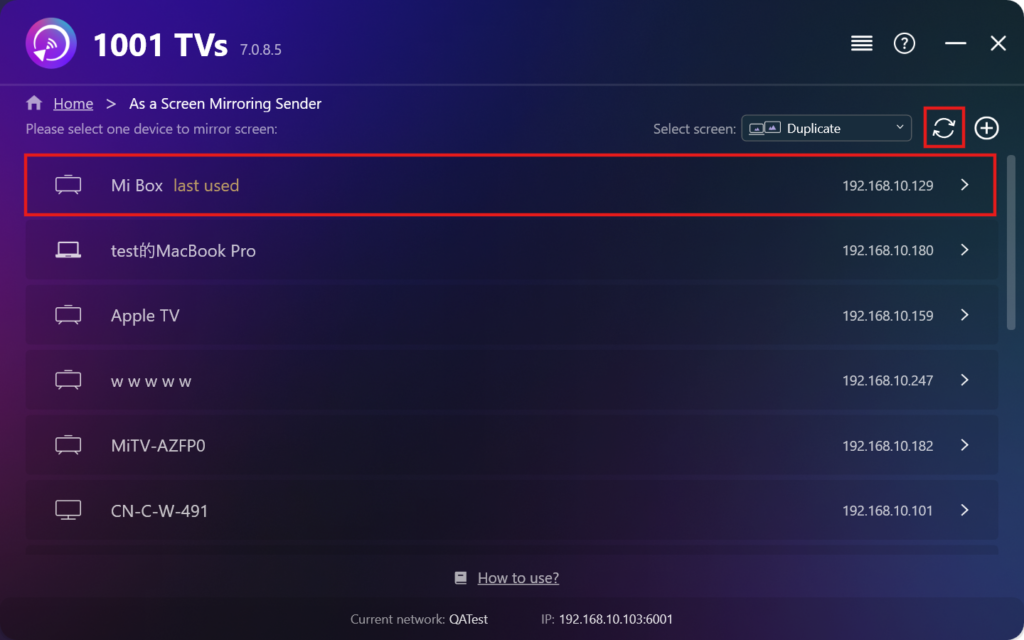
Dans la liste des appareils découverts, sélectionnez votre téléviseur cible.
Conseil: Si votre appareil n'est pas listé, assurez-vous que l'application 1001 TVs est ouverte sur celui-ci, puis cliquez sur Rafraîchir sur votre PC pour effectuer une nouvelle analyse.
3) Confirmer la connexion
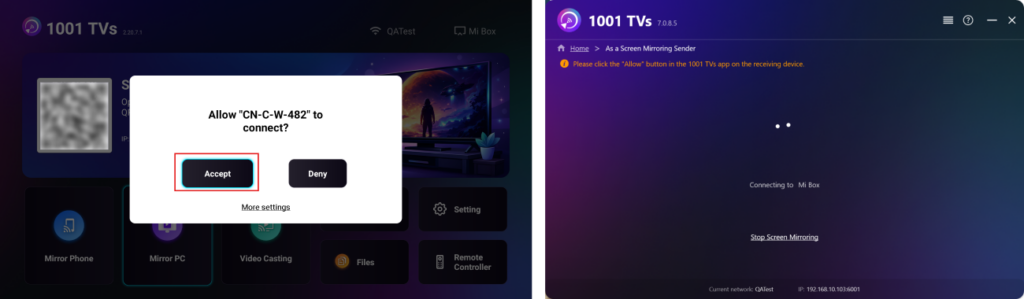
Une demande d'appariement s'affiche sur l'écran de votre téléviseur. À l'aide de la télécommande de votre téléviseur, sélectionnez "Accepter" pour établir la connexion.
5. Réglage de l'écrans
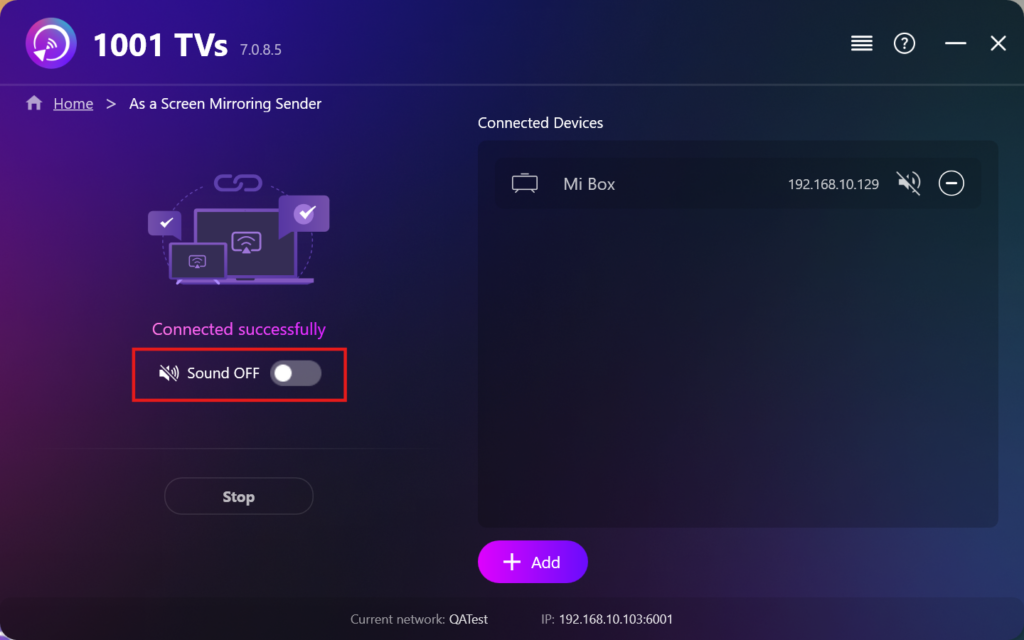
Sortie audio : Choisissez d'activer ou de désactiver le son de votre ordinateur pendant la mise en miroir de l'écran.
6. Notes:
- S'il y a pas de son lors de la mise en miroir, assurez-vous que votre ordinateur dispose de haut-parleurs intégrés ou externes.
- Pour des performances plus fluides et moins de retard, essayez de vous connecter à un site web Réseau Wi-Fi 5 GHz.
Obtenir 1001 TVs maintenant!
📥 PC App : Télécharger à partir de Microsoft Store
Pour les étapes détaillées, voir le Guide d'installation du PC
En savoir plus
 Nouveau paramètre : plus de fenêtres contextuelles à la fin de la duplication d'écran
Lorsque vous diffusez l'écran de votre PC sur un téléviseur et que vous mettez fin à la session à l'aide de la télécommande du téléviseur, la fenêtre 1001 TVs réapparaît….
Nouveau paramètre : plus de fenêtres contextuelles à la fin de la duplication d'écran
Lorsque vous diffusez l'écran de votre PC sur un téléviseur et que vous mettez fin à la session à l'aide de la télécommande du téléviseur, la fenêtre 1001 TVs réapparaît….
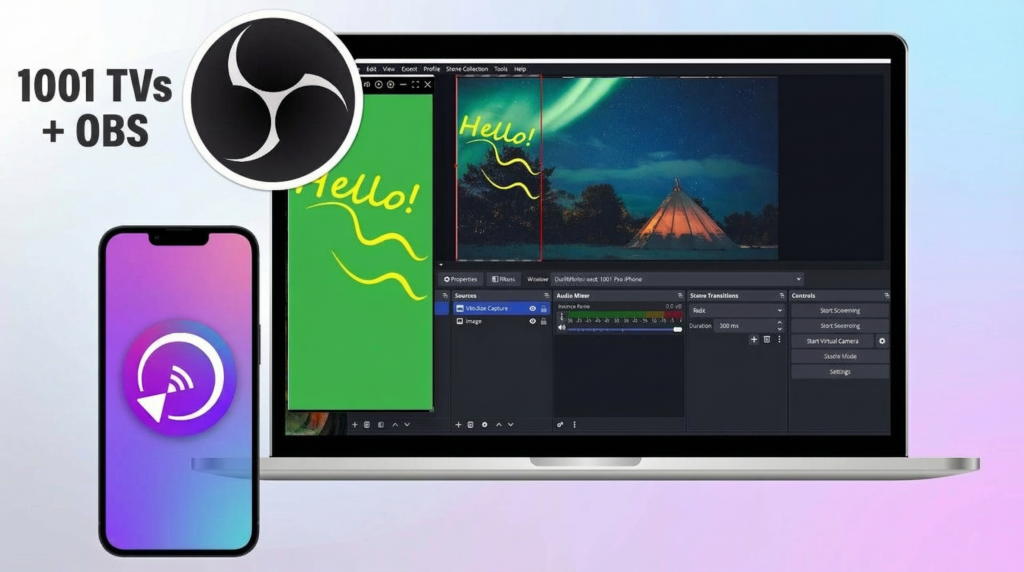 Comment capturer le Screen Mirroring dans OBS (Android & iPhone)
Vous souhaitez enregistrer la duplication d'écran dans OBS pour des parties sur mobile, des tutoriels ou du contenu en direct ? Grâce à 1001 TVs, vous pouvez facilement dupliquer l'écran de votre téléphone...
Comment capturer le Screen Mirroring dans OBS (Android & iPhone)
Vous souhaitez enregistrer la duplication d'écran dans OBS pour des parties sur mobile, des tutoriels ou du contenu en direct ? Grâce à 1001 TVs, vous pouvez facilement dupliquer l'écran de votre téléphone...

