
Πώς να στείλετε αρχεία από το τηλέφωνό σας στο Android/Apple TV;
Με 1001 TVs, μπορείτε να στέλνετε αρχεία από το τηλέφωνό σας στην τηλεόρασή σας μέσω του τοπικού δικτύου.
Δεν υπάρχουν μεταφορτώσεις στο σύννεφο. Δεν υπάρχουν εγγραφές. Γρήγορο και ασφαλές.
Πριν ξεκινήσετε
- Βεβαιωθείτε ότι το το τηλέφωνο και η τηλεόραση είναι συνδεδεμένα στο ίδιο δίκτυο Wi-Fi
- Εγκαταστήστε το 1001 TVs στο και το τηλέφωνό σας και την τηλεόρασή σας
Βήμα 1: Ανοίξτε το 1001 TVs στην τηλεόρασή σας
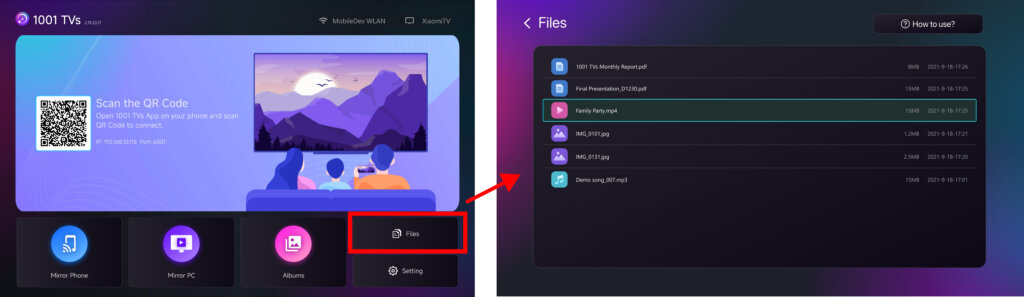
Εκκίνηση 1001 TVs στην έξυπνη τηλεόρασή σας και ανοίξτε το Αρχεία σελίδα.
Διατηρήστε την εφαρμογή TV σε λειτουργία.
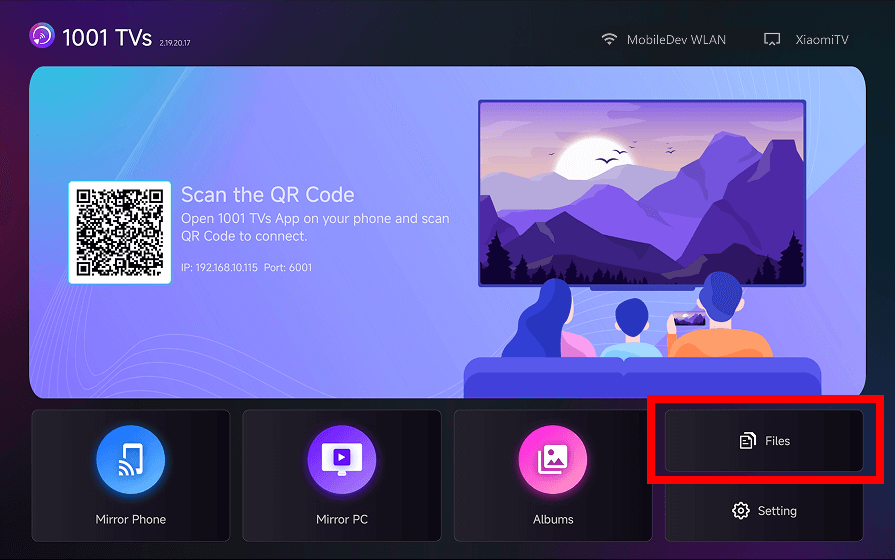
Βήμα 2: Ανοίξτε το 1001 TVs στο τηλέφωνό σας
Ανοίξτε το 1001 TVs στο τηλέφωνό σας και πατήστε “Μοιραστείτε αρχεία”.
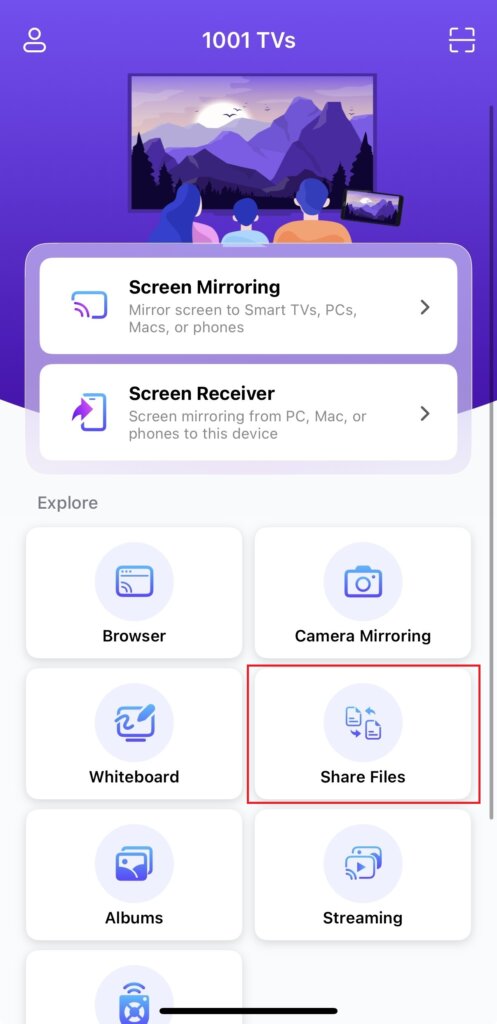
Η εφαρμογή θα αναζητήσει αυτόματα διαθέσιμες τηλεοράσεις στο ίδιο δίκτυο.
Βήμα 3: Επιλέξτε την τηλεόρασή σας και στείλτε αρχεία
- Επιλέξτε την τηλεόρασή σας από τη λίστα συσκευών.
- Επιλέξτε αρχεία στο τηλέφωνό σας (φωτογραφίες, βίντεο, μουσική ή έγγραφα)
- Πατήστε για αποστολή - τα αρχεία μεταφέρονται απευθείας στην τηλεόρασή σας.
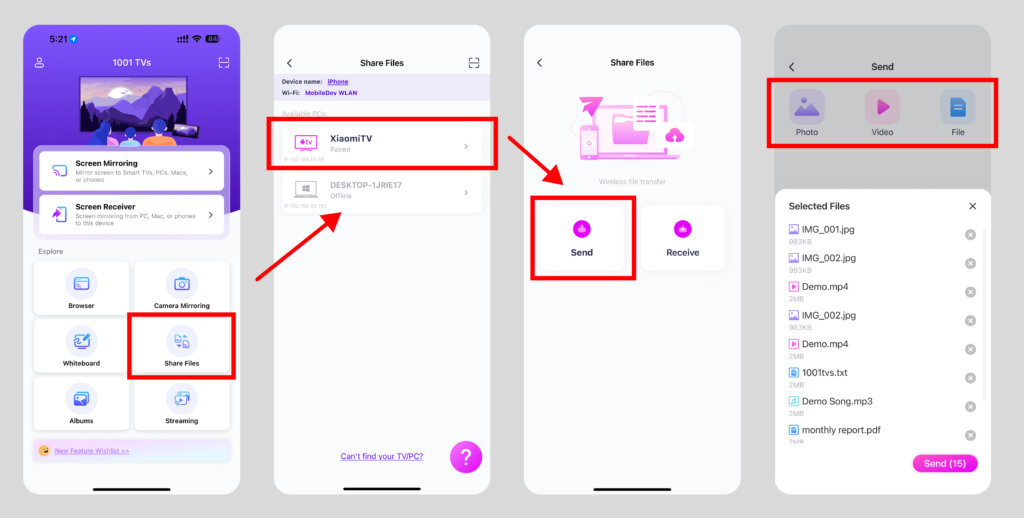
Δεν μπορείτε να βρείτε την τηλεόρασή σας;
Εάν η τηλεόρασή σας δεν εμφανίζεται, χρησιμοποιήστε Αντιστοίχιση κωδικού QR για να συνδεθείτε γρήγορα.
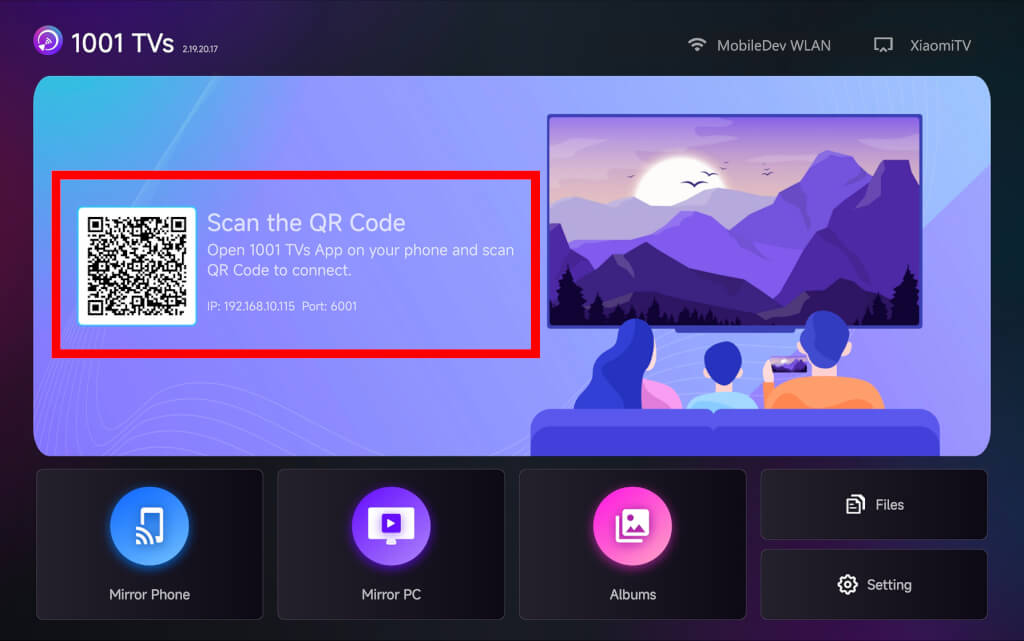
Προβολή αρχείων στην τηλεόραση
Μόλις μεταφερθούν, τα αρχεία σας θα εμφανιστούν αμέσως στην οθόνη της τηλεόρασης και μπορούν να ανοίξουν ή να αναπαραχθούν αμέσως.
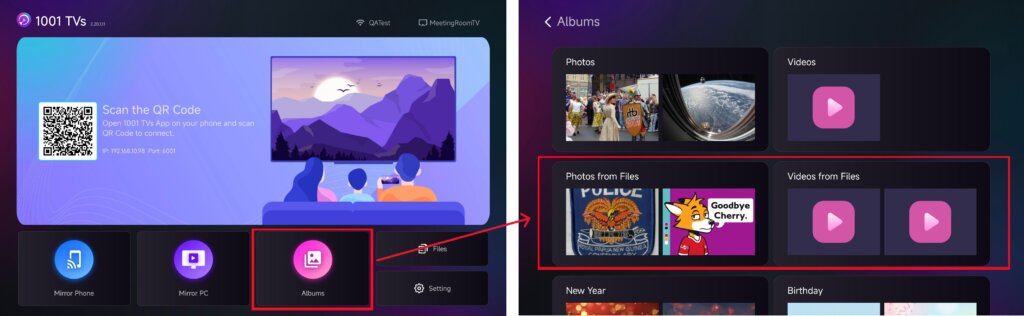
Μπορείτε να τα δείτε στο “Αρχεία” ή απολαύστε τις φωτογραφίες και τα βίντεό σας ως προβολή διαφανειών στο “Άλμπουμ προβολής“.
Πώς να διαγράψετε αρχεία στην τηλεόρασή σας;
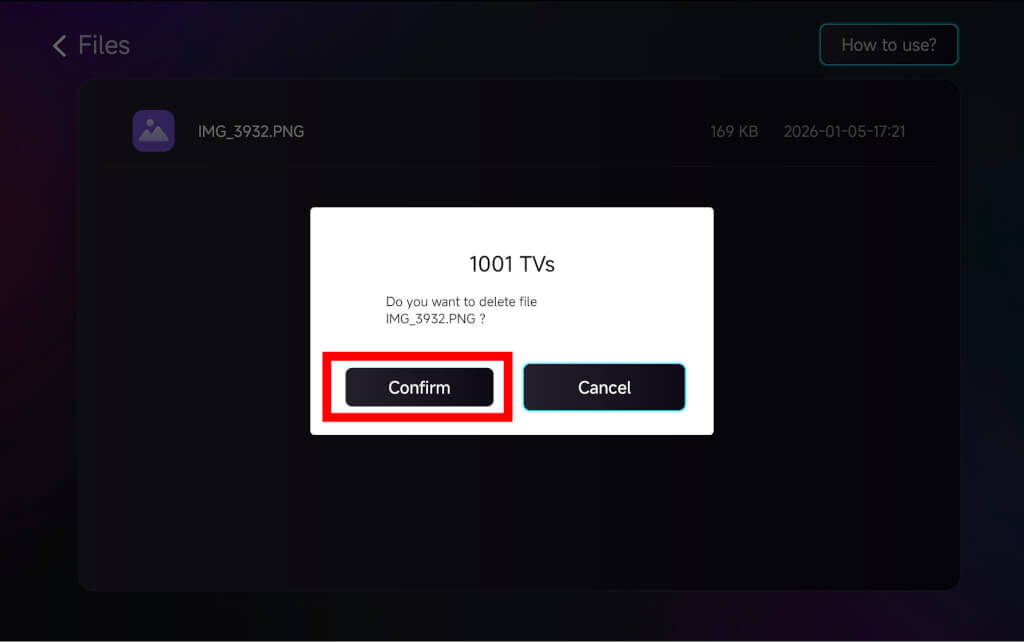
Στη σελίδα Αρχεία στο 1001 TVs, χρησιμοποιήστε το τηλεχειριστήριο της τηλεόρασής σας για να παρατεταμένο πάτημα το OK για να επιλέξετε το αρχείο που θέλετε να διαγράψετε, και στη συνέχεια κάντε κλικ στο κουμπί “επιβεβαιώστε” για να το διαγράψετε.
Γιατί να χρησιμοποιήσετε το 1001 TVs;
Γρήγορο, ιδιωτικό και εύκολο στη χρήση
Τοπική μεταφορά, δεν απαιτείται cloud
Δεν απαιτείται σύνδεση ή λογαριασμός
Χρειάζεστε βοήθεια;
Αν αντιμετωπίσετε οποιοδήποτε πρόβλημα, μπορείτε να επικοινωνήσετε με την ομάδα υποστήριξής μας:
- Περισσότεροι οδηγοί: Καθοδήγηση
- Ηλεκτρονικό ταχυδρομείο: 1001tvs@nero.com
- Ιστοσελίδα: www.1001tvs.com