
[ويندوز] قم بعكس أو تمديد شاشة الكمبيوتر الشخصي إلى هاتفك أو جهازك اللوحي أو التلفزيون أو أي جهاز كمبيوتر آخر

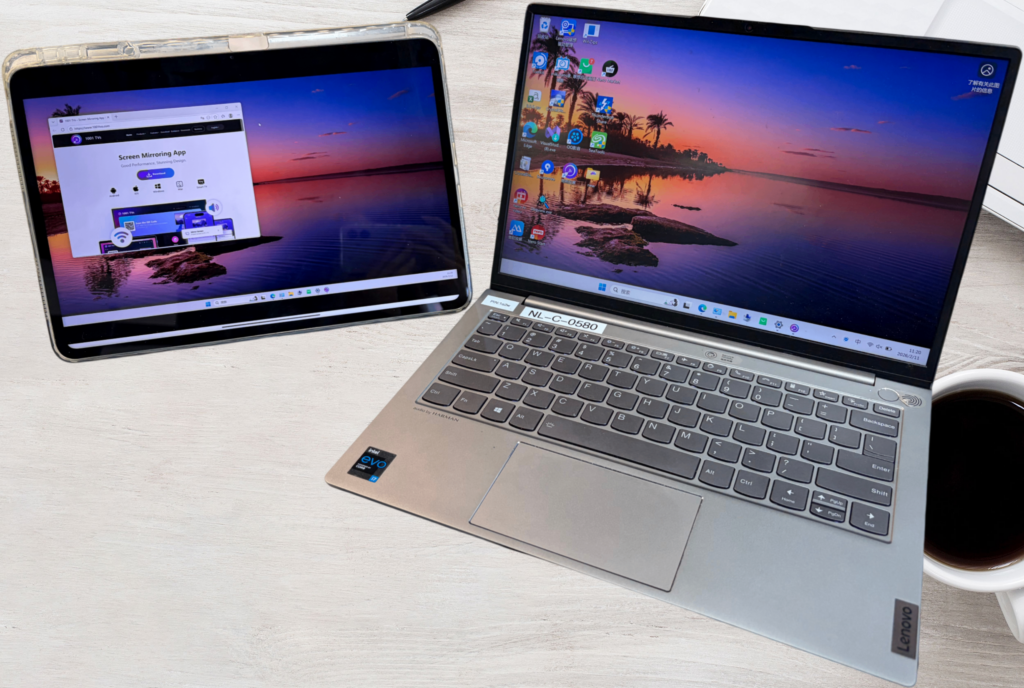
في سير العمل متعدد الأجهزة اليوم، لا تكفي شاشة واحدة في كثير من الأحيان.
مع 1001 TVs، يمكنك بسهولة تمديد شاشة حاسوبك الشخصي الذي يعمل بنظام Windows إلى هاتفك أو جهازك اللوحي أو التلفزيون أو جهاز كمبيوتر آخر - مما يوفر مساحة شاشة إضافية للعمل، وتعدد المهام، والترفيه.
بالإضافة إلى تمديد شاشتك، يتيح لك 1001 TVs أيضًا عكس شاشة الكمبيوتر الشخصي بالكامل أو مشاركة نافذة واحدة, حسب احتياجاتك.
لماذا نستخدم ملحق الشاشة?
- عزز إنتاجيتك: تتيح لك مساحة الشاشة الإضافية الاحتفاظ بالمواد المرجعية أو الدردشات أو الأدوات مرئية أثناء العمل على شاشتك الرئيسية - مما يقلل من التبديل المستمر بين النوافذ.
- أنشئ إعدادك المثالي: قم بترتيب النوافذ عبر الشاشات لتتناسب مع سير عملك، سواء كنت تقوم بالترميز أو التصميم أو العرض أو تعدد المهام.
كيفية إعداد ملحق الشاشة
مثال: توسيع شاشة الكمبيوتر الشخصي الذي يعمل بنظام ويندوز إلى جهاز iPad
(تتبع الأجهزة الأخرى خطوات مماثلة)
1. توصيل كلا الجهازين بشبكة Wi-Fi نفسها
تأكد من اتصال الكمبيوتر الشخصي وجهاز الاستقبال (على سبيل المثال، جهاز iPad) بشبكة Wi-Fi نفسها.
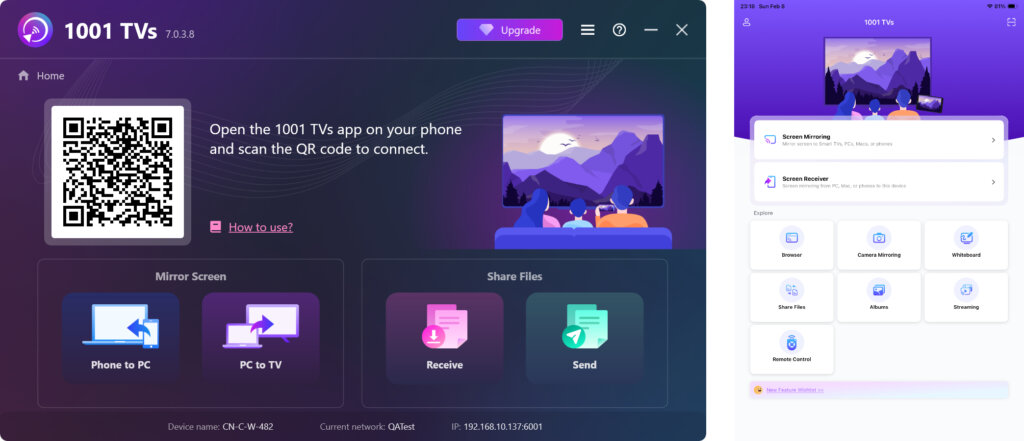
2. تنزيل وتشغيل 1001 TVs
التثبيت 1001 TVs على كل من الكمبيوتر الشخصي والجهاز الذي تريد استخدامه كشاشة ثانية.
افتح التطبيق على كلا الجهازين.
📥 تطبيق Mac: تنزيل من متجر التطبيقات
📥 تطبيق الكمبيوتر الشخصي: تنزيل من Microsoft Store
للاطلاع على الخطوات التفصيلية، ارجع إلى دليل تثبيت الكمبيوتر الشخصي
📥 تطبيق تلفزيوني: كيفية تثبيت 1001 TVs على التلفزيون الخاص بك
📱 تطبيق iOS: تنزيل من متجر التطبيقات
📱 تطبيق أندرويد: تنزيل من جوجل بلاي
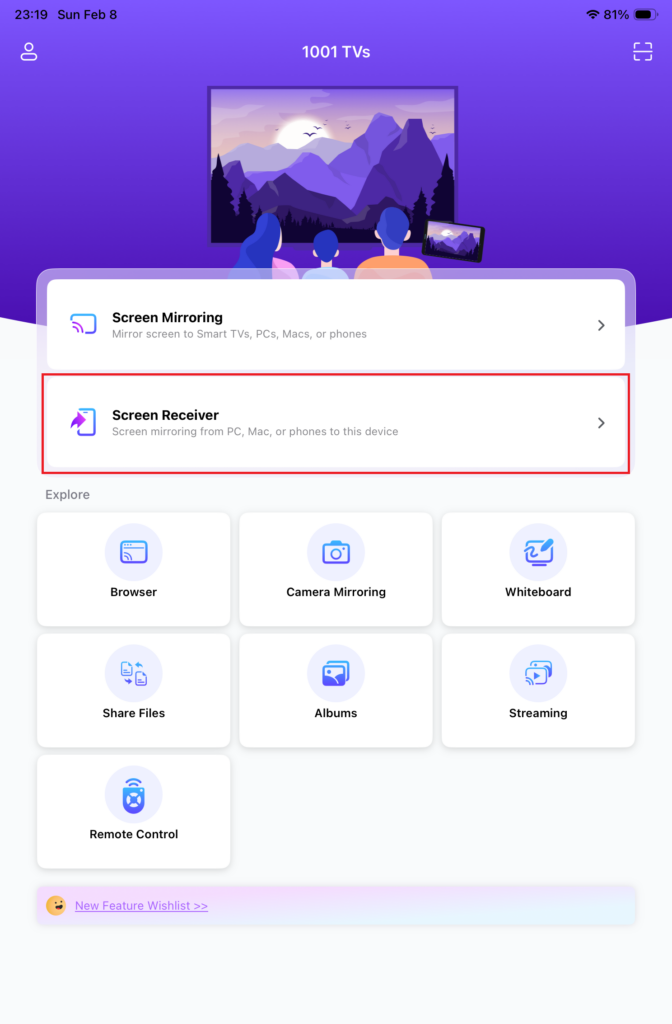
3. تمكين “مستقبل الشاشة” على جهاز الاستقبال
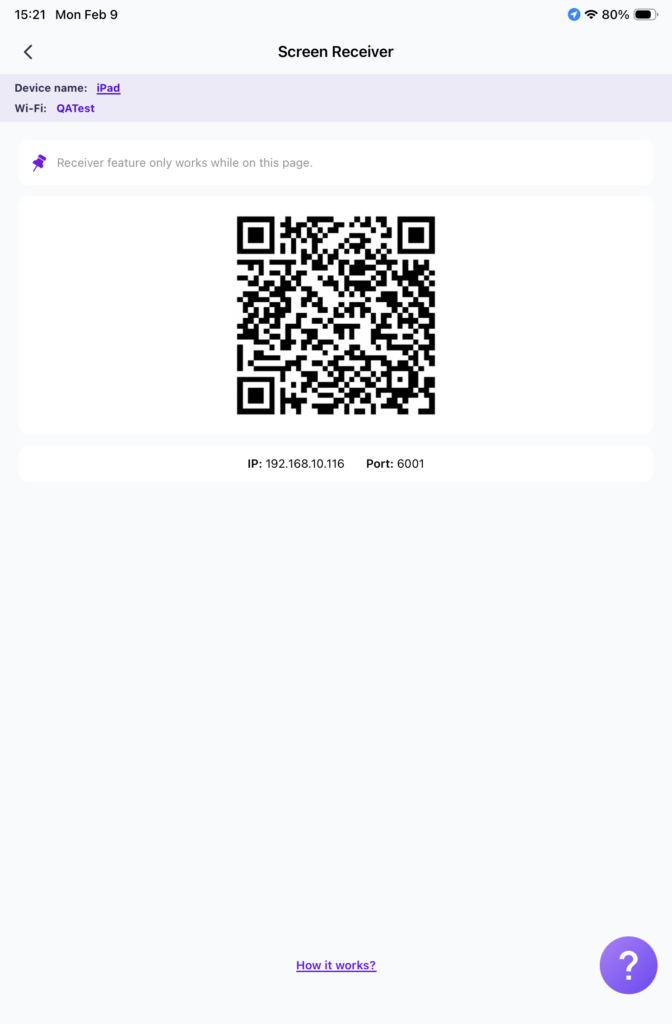
في الجهاز الذي تريد استخدامه كشاشة ثانية، انقر على “مستقبل الشاشة” ويبقى على الشاشة للإشارة إلى أنه جاهز للاستقبال.
4. ملحق شاشة البدء على جهاز الكمبيوتر الخاص بك
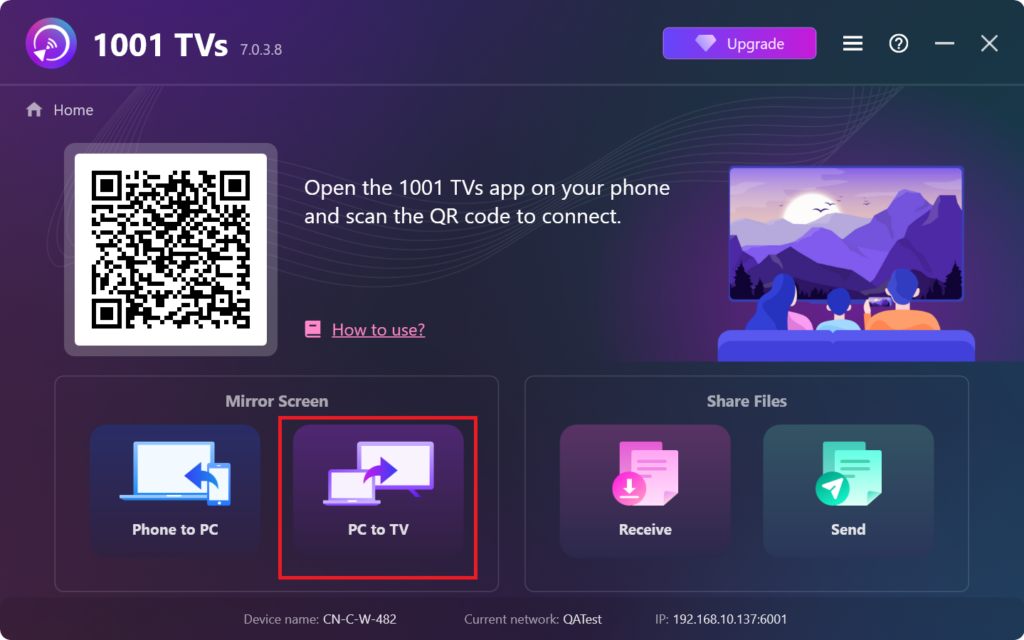
على جهاز الكمبيوتر الخاص بك، انقر فوق “كمبيوتر شخصي إلى تلفزيون“.
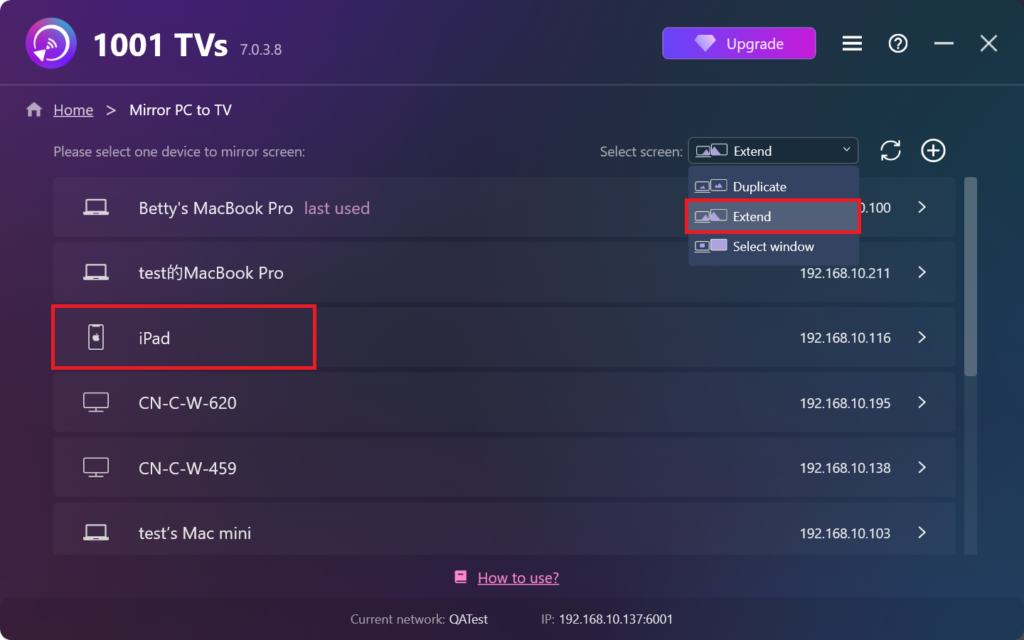
حدد “تمديد” الوضع، ثم اختر جهازك المستهدف (على سبيل المثال، جهاز iPad) من القائمة.
5. الاتصال بجهاز الاستقبال
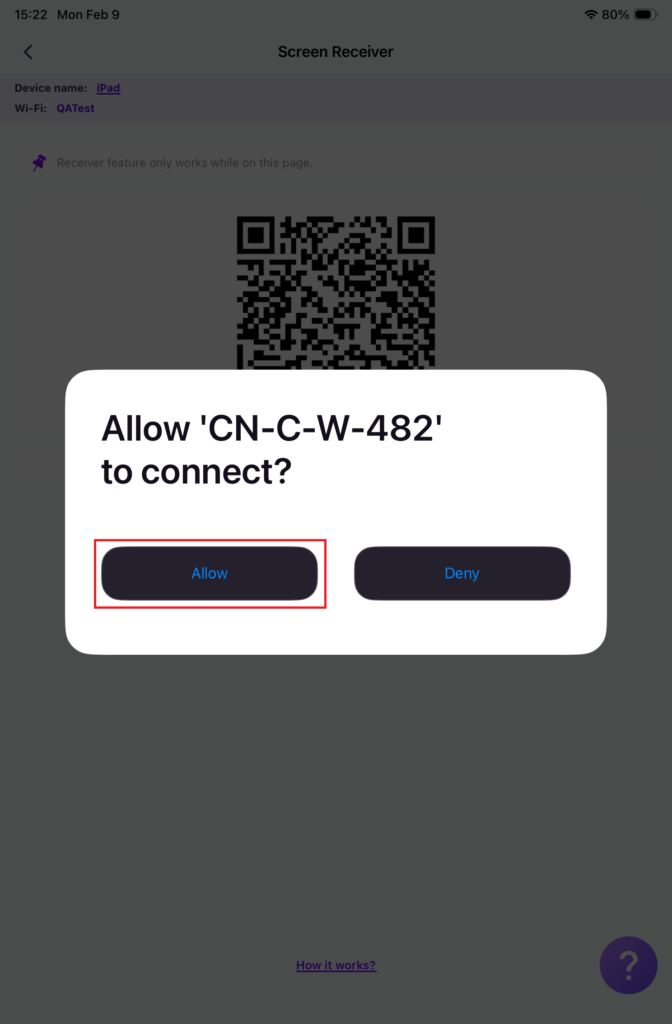
الحنفية "السماح" على جهاز الاستقبال لتأكيد الاتصال.
6. تم!
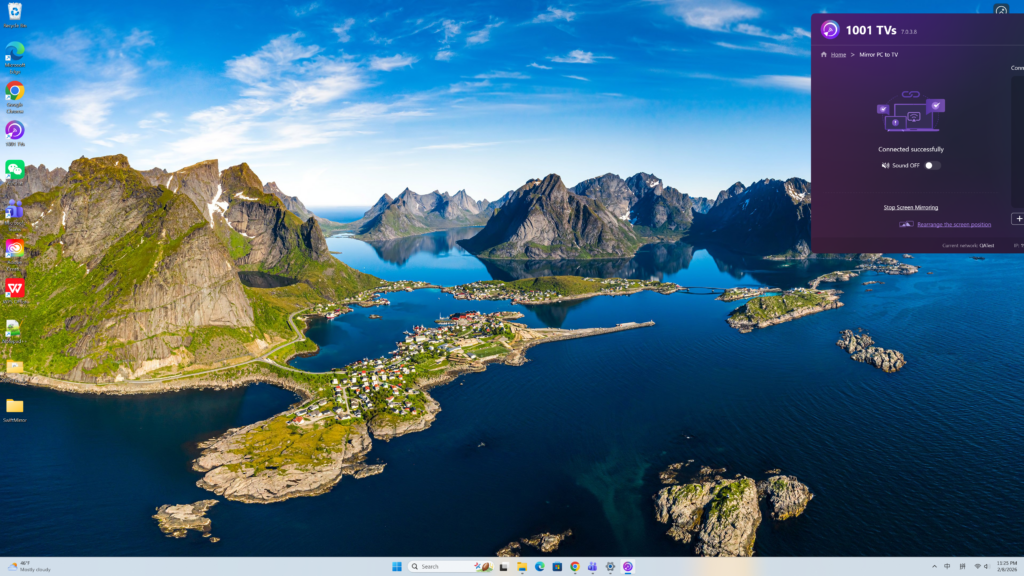
تم الآن إعداد جهاز الاستقبال الخاص بك بنجاح كشاشة ثانية لجهاز الكمبيوتر الخاص بك.
يمكنك سحب النوافذ إلى الشاشة الجديدة للاستفادة الكاملة من مساحة العرض الإضافية، واستخدام الماوس للتفاعل مع المحتوى على كلتا الشاشتين بشكل مستقل، تمامًا مثل العمل على شاشتين منفصلتين.
أنماط صب الشاشة الأخرى في 1001 TVs
مرآة الشاشة الكاملة (مكررة)
قم بعكس شاشة الكمبيوتر الشخصي بالكامل على جهاز آخر. يعد هذا الوضع مثاليًا للعروض التقديمية أو العروض التوضيحية أو مشاهدة مقاطع الفيديو على شاشة أكبر، حيث تعرض كلتا الشاشتين المحتوى نفسه.
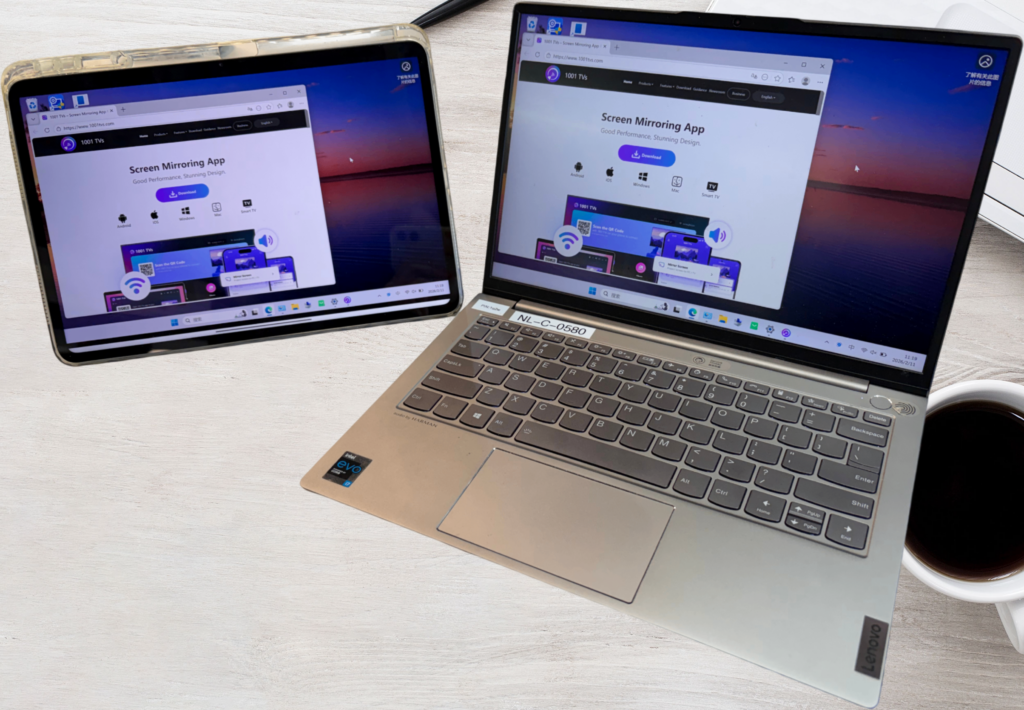
مشاركة نافذة واحدة (تحديد نافذة)
عكس نافذة محددة فقط من جهاز الكمبيوتر الخاص بك بدلاً من الشاشة الكاملة. وهذا مفيد عندما تريد التركيز على مهمة واحدة مع الحفاظ على خصوصية بقية سطح المكتب.
عند استخدام وضع تحديد النافذة، اختر نافذة التطبيق التي تريد مشاركتها.
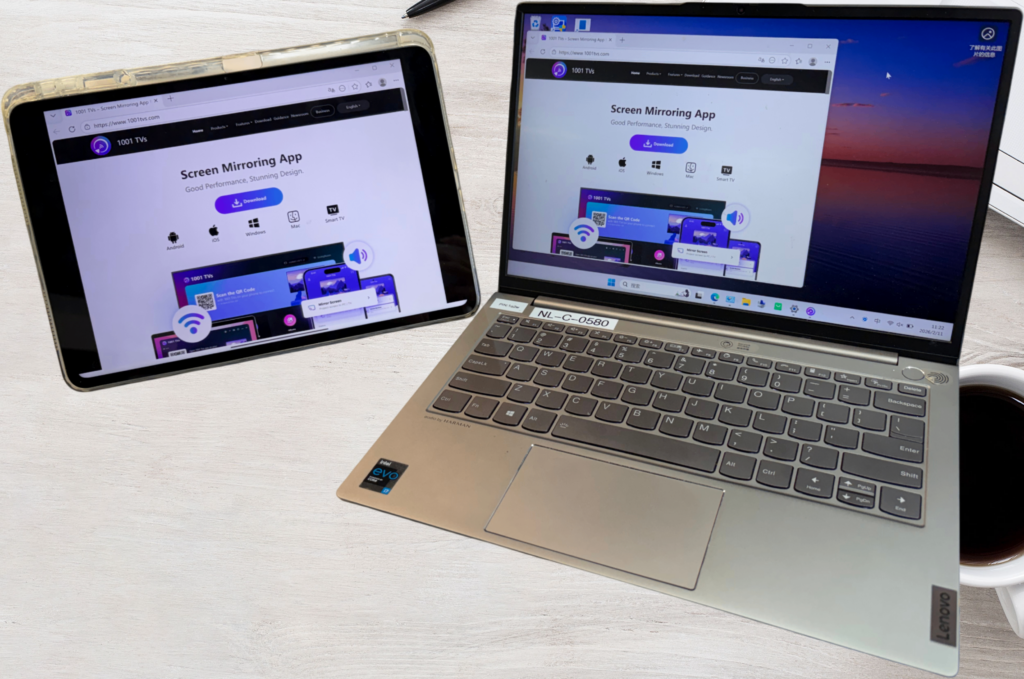
يمكنك التبديل بين مكررة, تمديد و حدد النافذة من قائمة اختيار الشاشة في 1001 TVs.
ملحق شاشة ماك
للاطلاع على دليل كامل لتوسيع شاشة ماك، راجع هذا البرنامج التعليمي:
كيفية توسيع شاشة جهاز Mac الخاص بك إلى جهاز آخر
احصل على 1001 TVs الآن!
📥 تطبيق Mac: تنزيل من متجر التطبيقات
📥 تطبيق الكمبيوتر الشخصي: تنزيل من Microsoft Store
للاطلاع على الخطوات التفصيلية، ارجع إلى دليل تثبيت الكمبيوتر الشخصي
📥 تطبيق تلفزيوني: كيفية تثبيت 1001 TVs على التلفزيون الخاص بك
📱 تطبيق iOS: تنزيل من متجر التطبيقات
📱 تطبيق أندرويد: تنزيل من جوجل بلاي