检测到浏览器语言为中文,点此切换到中文页面->
Quick Start Guide: Mirror Your Whiteboard Instantly
1
Install the App
Download and open the 1001 TVs app on both your mobile device (iPhone or iPad) and your display device (TV, PC, Mac, or another phone/tablet).
2
Open Whiteboard
Ensure both devices are on the same Wi-Fi. Tap “Start” — your whiteboard will instantly appear on the big screen.
3
Connect Devices
Make sure both devices are on the same Wi-Fi. Tap “Start” and your whiteboard will appear on the big screen!
Your Interactive Whiteboard — Anytime, Anywhere, On Your Device
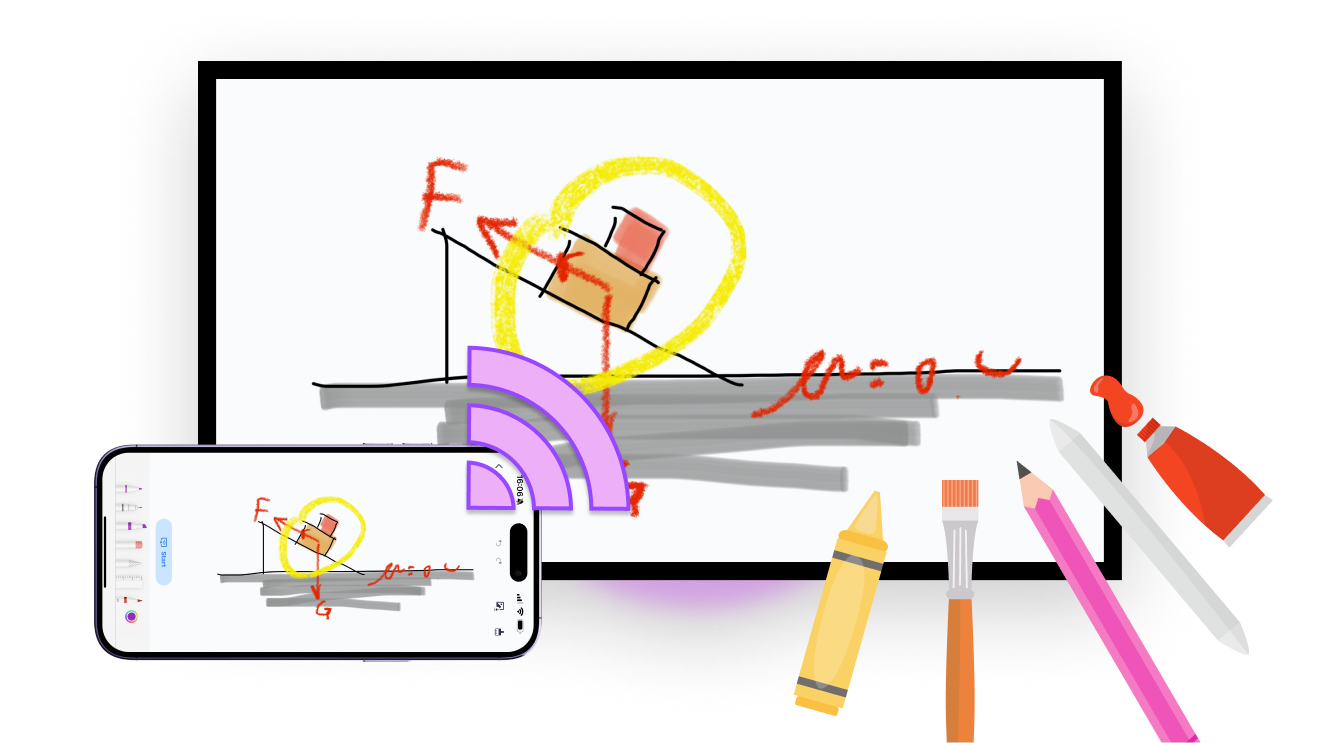
SMOOTH WRITING
Write and draw comfortably using your iPhone’s built-in drawing tools — perfect for teaching, sketching, and real-time explanations.
smooth-writing
CREATIVE DRAWING
Bring ideas to life with a variety of brushes and colors — ideal for sketches, diagrams, and creative thinking.
creative-drawing
INSTANT SCREEN MIRRORING
Instantly mirror your whiteboard to any screen — perfect for live teaching, spontaneous explanations, and interactive learning.
SAVE & SHARE
Save your content anytime and share it instantly — perfect for reviewing, collaborating, or sharing with students and teammates.
save-and-share
Use Cases
Smarter Teaching
Simpler Meetings
Interactive Fun
Teach Live. Draw Freely. Stay Connected.
Engage your class with real-time interaction.

Quickly sketch a formula, highlight key points, or ask a question on the spot — everything shows up instantly on the big screen.

All made possible by 1001 TVs — your seamless whiteboard mirroring tool for teaching.
teaching
Got an idea? Sketch, share, and align in seconds.
Whether you're brainstorming with teammates or presenting to clients, just grab your phone and sketch your thoughts directly to the big screen.

Mark key points, connect concepts, and help everyone stay focused.

With 1001 TVs, meetings become more visual, more aligned, and more productive.
Meetings
Turn Screen Time into Together Time
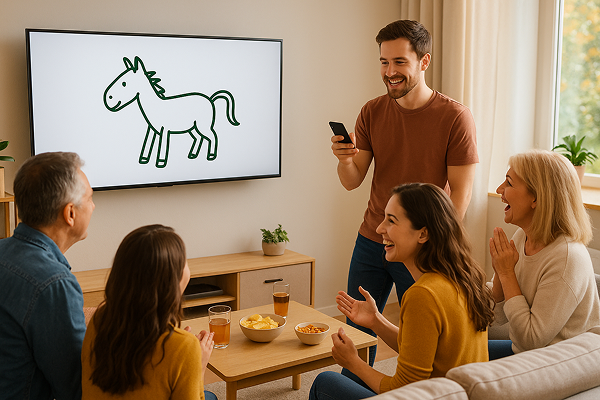
Turn a simple sketch into shared laughter.

Grab your phone, doodle a silly idea, and watch it appear on the big screen — everyone joins in, everyone’s smiling.

No setup needed — just a phone, a TV, and a little bit of fun, all brought together with 1001 TVs.
interactive-fun
डाउनलोड करना
अक्सर पूछे जाने वाले प्रश्न
क्या 1001 TVs निःशुल्क है?
1001 TVs offers a 3-day free trial with full access to premium features like HD mirroring, ad-free viewing, and browser casting. After the trial, you can subscribe to continue using them.
क्या स्क्रीन मिररिंग सुरक्षित है?
1001 TVs केवल आपके स्थानीय नेटवर्क के भीतर ही डेटा ट्रांसफर करता है और कभी भी इंटरनेट के माध्यम से नहीं जाता! इसके अलावा, हमारे पास कोई अकाउंट सिस्टम भी नहीं है, इसलिए आपकी कोई भी व्यक्तिगत जानकारी संग्रहीत नहीं होती है!
मैं डिवाइस सूची में अपना टीवी या पीसी क्यों नहीं ढूंढ पा रहा हूं?
  • सुनिश्चित करें कि आपका फ़ोन और कंप्यूटर/टीवी दोनों एक ही वाई-फ़ाई नेटवर्क से जुड़े हों। ज़रूरत पड़ने पर, राउटर को रीस्टार्ट करके देखें।.
  • iPhones के लिए, सुनिश्चित करें कि आपने "लोकल नेटवर्क" और "वायरलेस डेटा" तक पहुँच प्रदान की है। सेटिंग्स → ऐप्स → 1001 TVs तक नीचे स्क्रॉल करें → लोकल नेटवर्क सक्षम करें → वायरलेस डेटा → WLAN और सेलुलर पर जाएँ।.
  • सुनिश्चित करें कि 1001 TVs आपके फोन और प्राप्तकर्ता डिवाइस (कंप्यूटर या टीवी) दोनों पर स्थापित और खुला है।.
  • यदि आपको कोई समस्या आती है, तो 1001 TVs को पुनः आरंभ करें और पुनः प्रयास करें।.
  • होटल या हवाईअड्डे जैसे स्थानों पर सार्वजनिक वाई-फाई नेटवर्क में एपी आइसोलेशन हो सकता है, जो कनेक्शन को अवरुद्ध कर सकता है।.
  • वैकल्पिक रूप से, अपने फोन का हॉटस्पॉट चालू करें और अपने कंप्यूटर या टीवी को उससे कनेक्ट करें, फिर स्क्रीन मिररिंग का प्रयास करें।.
  • यदि यह अभी भी काम नहीं कर रहा है, तो अपने फोन को पुनः आरंभ करें और एक बार फिर प्रयास करें।.
मेरी मिरर्ड स्क्रीन धुंधली क्यों दिखती है?
  • मूल फ़ोन गुणवत्ता बनाए रखने के लिए, प्रेषक डिवाइस पर स्वचालित छवि गुणवत्ता बंद करें। प्रोफ़ाइल → सेटिंग्स → "अनुकूली छवि गुणवत्ता (प्रेषक)" बंद करें पर जाएँ।.
  • अगर आप Xiaomi फ़ोन इस्तेमाल कर रहे हैं, तो समस्या MIUI एंटी-स्कैम प्रोटेक्शन की वजह से हो सकती है। इसे ठीक करने के लिए, सेटिंग्स → सुरक्षा → एंटी-फ्रॉड → स्क्रीन शेयरिंग प्रोटेक्शन → बंद करें पर जाएँ और फिर से कास्टिंग करने की कोशिश करें।.
  • विंडोज़ पर, ऐप सेटिंग में "स्थिर मोड" पर स्विच करें।.
  • If the issue persists and the image is still blurry, it may be due to a poor network connection. Try turning on mobile hotspot, connect your computer/TV to the hotspot, and attempt screen mirroring again.
सदस्यता कैसे रद्द करें?
अपने iOS पर सदस्यता रद्द करें
· सेटिंग्स ऐप खोलें → आपका नाम → सदस्यताएँ → सदस्यता → सदस्यता रद्द करें
Google Play पर सदस्यता रद्द करें
· Google Play स्टोर ऐप खोलें → ऊपर दाईं ओर प्रोफ़ाइल चित्र → भुगतान और सदस्यताएँ → सदस्यताएँ → सदस्यता → सदस्यता रद्द करें → रद्दीकरण की पुष्टि करें
धन वापसी का अनुरोध कैसे करें?
अपने iOS पर धनवापसी का अनुरोध करें
· सदस्यता रद्द करें पहला।.
· सेटिंग्स ऐप खोलें → आपका नाम → मीडिया और खरीदारी → खाता देखें → खरीदारी इतिहास → सदस्यता → समस्या की रिपोर्ट करें → धनवापसी का अनुरोध और कारण चुनें
Google Play पर धनवापसी का अनुरोध करें
· play.google.com पर जाएं। → ऊपर दाईं ओर प्रोफ़ाइल चित्र → भुगतान और सदस्यताएँ → बजट और ऑर्डर इतिहास → समस्या की रिपोर्ट करें → अपनी स्थिति का वर्णन करने वाला विकल्प चुनें → सबमिट करें